Deep Data Recovery Stuck Or You Receive Error Messages? Fixes Here!
Deep Data Recovery stands out as one of the best hard drive recovery software, outperforming its competitors in recovering deleted data, formatted files, Recycle Bin contents, and partition data. Although it has successfully helped millions of users retrieve their files, there are still chances that it might fail to perform its duty.
Common Problems of Using Deep Data Recovery
Users have reported several common issues with Deep Data Recovery, including software stuck issues, which may also occur with other products like Qiling Backup, Qiling Partition Master, and Qiling MobiMover.
- Deep Data Recovery taking forever/stuck
- "Deep scan completed the problem is intelligently building trees."
- "The disk information is being refreshed."
- The software is attempting to bypass damaged areas on a storage device by skipping over them during the scanning process.
- "Deep Data Recovery has encountered a memory problem and needs to close" - likely due to a low memory issue, possibly caused by a software glitch or a system overload. This error message indicates that the program is unable to continue running due to insufficient memory resources.
Specify the problem that occurs and apply the corresponding solutions to fix it.
Issue 1. Qiling Data Recovery Taking Forever/Stuck
If Deep Data Recovery is stuck in a scanning process or taking a long time to finish a deep scan, it may indicate that the disk is too large or there are issues with the hard drive. This is not unique to Qiling software, and troubleshooting the problem step by step can help resolve the issue. The same approach can be applied to other Qiling products, such as Qiling Partition Master, Qiling Backup, and Qiling MobiMover, when they become stuck during operation.
Method 1. Try to Recover Files and Check the Software Process
If software is stuck scanning, try recovering a file to see if data recovery is successful, then check the scanning process in Task Manager.
Step 1. Right-click any space on the taskbar and choose "Task Manager".
Step 2. Find Deep Data Recovery and check whether the numbers of "CPU", "Memory", and "Disk (Input & Output)" changes.
If you can recover files and the numbers change, there is nothing wrong with the software, and all you need to do is wait patiently.
If you can't recover any file or the numbers remain unchanged, continue to try Method 2, which is likely a more in-depth and detailed process that involves using specific software or tools to scan and recover the files. This method may require more time and effort, but it can be more effective in recovering the files.
Method 2. Force Quit Software and Reconnect the Hard Drive
If the software is stuck and you were scanning an external storage device, try force quitting the software and reconnecting the device. This should resolve the issue.
Step 1. Right-click any space on the taskbar and choose "Task Manager".
Step 2. Click "Deep Data Recovery" > "End task".
Step 3. Reconnect the device you're trying to scan and ensure Windows recognizes it. If the hard drive isn't recognized, resolve that issue first.
Step 4. Launch Deep Data Recovery and start scanning.
Step 5. Try to recover files during the scanning.
If the software works correctly, the issue is resolved. If Deep Data Recovery is frozen during scanning, contact support@idiskhome.com for remote help.
Issue 2. "Deep scan completed the program is intelligently building trees"
The time it takes for the software to build trees depends on the read and write speed of the target hard drive and the system memory (RAM) size. To check, go to Task Manager and see if the CPU and Memory usage by Deep Data Recovery are changing. If they are, wait patiently for the process to finish. If not, follow the steps below.
Step 1. Force quit the software in Task Manager.
Step 2. Reconnect the storage device. (Again, ensure there are no recognition issues.)
Step 3. Start Qiling Data Recovery Software and go to Task Manager.
Step 4. Expand "Deep Data Recovery". Select "EUImg.exe" and click "End task".
Step 5. Initiate scanning in the software.
If the scanning process can recover files, that means the issue has been resolved. If not, you should reach out to the support team at support@idiskhome.com for further help.
Issue 3. "The disk information is being refreshed"
If the software takes a long time to load the disk, it could be due to a read/write error on the hard drive, which may be caused by improper disk connection or physical issues with the disk. To fix this, you can try reseating the disk connection or checking the disk for any physical damage.
Method 1. Check for Connection Issues
To resolve the issue, you can either swap the USB cable or try a different port on your computer. After making the change, run a disk scan using Deep Data Recovery to see if it resolves the problem.
Method 2. Check for Disk Errors
If you still receive the message "The disk information is being refreshed", use a tool like HD Tune to scan the disk for errors, and if errors are found, send the drive for manual repair before using Qiling software to recover files.
Issue 4. "Scanning bad sectors, the software is trying to jump over them"
The error is likely due to bad sectors on the storage device. Try changing the cable or port used and see if the issue persists. If the software prompts again, wait and see if it finishes scanning. If it takes an unusually long time, use HD Tune to scan the disk for errors and send it for repair if errors are found.
Issue 5. "Deep Data Recovery has encountered a memory problem and needs to close"
To address the issue of insufficient system memory while running the software, first determine whether your Windows operating system is 64-bit or 32-bit. This distinction is crucial because 64-bit systems can handle larger amounts of memory than their 32-bit counterparts. If you're running a 32-bit system, you may need to upgrade to a 64-bit version to take advantage of more memory.
Step 1. Type system in the Windows search box.
Step 2. Click "Settings" from the search result.
Step 3. In settings, choose "System" > "About".
Step 4. Check the system type of the computer under "Device specifications".
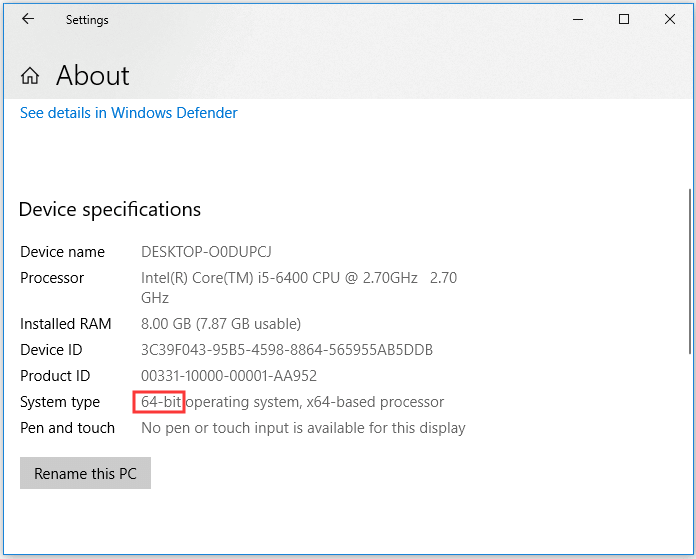
If the computer is running 32-bit Windows, due to memory size limitations, you may need to reduce the files being scanned or upgrade to a 64-bit system by reinstalling Windows. To alleviate this issue, you can either prevent Deep Data Recovery from scanning RAW files or file systems, thus lessening the number of files being scanned.
Method 1. Avoid Scanning RAW Files
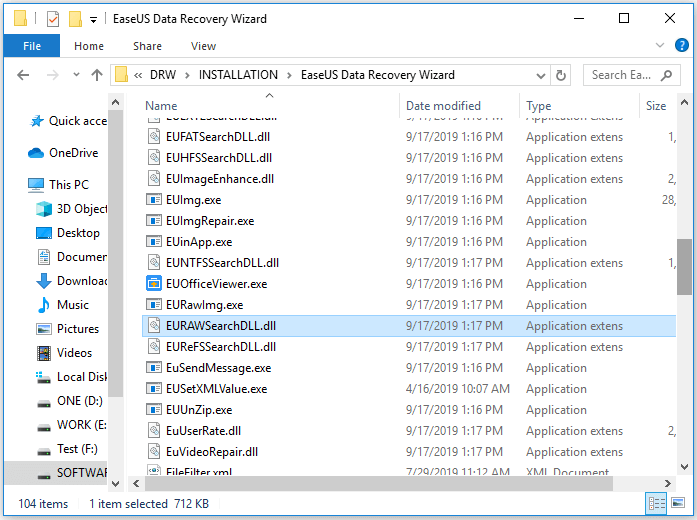
Step 1. Enter the installation path of Deep Data Recovery on the computer.
Step 2. Find and rename the file called EURAWSearchDLL.dll to something else.
Step 3. Launch the software and start scanning.
Method 2. Avoid Scanning the File System
Step 1. To check the file system of a partition you're trying to scan, right-click on the partition and select "Properties". In the "General" tab, the file system will be displayed.
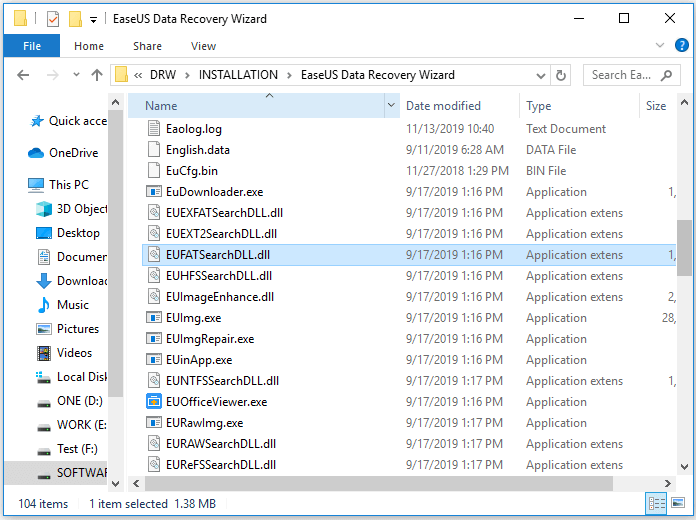
Step 2. Enter the installation path of Deep Data Recovery on the computer.
Step 3. Rename the file called EU[partition file system]SearchDLL.dll, for example, if the partition file system is NTFS, rename the file called EUNTFSSearchDLL.dll.
Step 4. Launch Deep Data Recovery to start scanning the partition and recover lost files.
If your computer is running 64-bit Windows, you can't switch to another system that has a larger memory size, all you can do is recover data during the scanning or decrease the files to be scanned.
Are You Using the Crack Version of Deep Data Recovery
We couldn't help with that. Downloading cracked software can lead to issues like stuck, not responding, freezing, or crashing, and there are no methods that can resolve these problems. You should have expected this risk when deciding to download the cracked Qiling data recovery software.
If you're using the full version of Deep Data Recovery activated by an official license code, your rights are well guaranteed by 24x7 technical support from Qiling Software. This is the fastest and most effective way to get help if you're experiencing problems using the software to scan hard disks, find data, or recover target files.
The Bottom Line
Other software from Qiling may have the same or similar issues, so try applying these methods if you're troubled by annoying matters. If none of them work or you're using the activated software, contact our support team at support@idiskhome.com for technical support.
Related Articles
- HD Video Repair Utility Free Download for Windows and Mac: MP4 MOV Full Repair
- Fix I/O Device Error on External Hard Drive/USB Drive in Windows
- How to Cancel a Format in Progress If Windows Won't Cancel Format
- [Fixed] Google Chrome Not Downloading Files
- Chrome Cache Viewer to View/Recover Google Chrome Cache Files
Here are full solutions to view or recover images, videos, scripts, as well as temporary Internet files that you viewed previously on a web page in Google Chrome. Qiling data recovery software is also recommended to help you recover deleted or lost Google Chrome cache files. - How to Recover Canon Videos| Free Canon Video Recovery
Qiling data recovery software makes Canon video recovery easy and fast. It only takes three steps to recover Canon videos. Follow this guide to recover deleted videos from Canon camcorders if you have deleted or formatted your SD card.
Products
Articles & Tutorials
- Data Recovery
- Data Backup
- File Recovery
- File Backup
- System Backup and Restore
- Disk and Partition Clone
- Technical articles
- Mobile articles
- Disk Master Help
- Windows Data Recovery Tutorials
- Windows Secure Delete Tutorials
- Windows Partition Management Tutorials
- Windows File Backup and Restore Tutorials
- Windows System Backup and Restore Tutorials
- Windows Disk Backup and Restore Tutorials
- Windows Clone Tutorials