How to Recover Canon Videos| Free Canon Video Recovery
Unfortunately, deleted videos on an SD card can be tricky to recover, but it is not impossible. Since you have a Canon SX260HS, you might be able to use the built-in recovery feature or a third-party software like Deep Data Recovery to scan the SD card and potentially retrieve the deleted videos. However, the success of recovery depends on various factors, such as how long ago the videos were deleted, the quality of the SD card, and the software used. It is worth trying, but be aware that there are no guarantees. If you are not comfortable trying to recover the videos yourself, you might consider consulting a professional data recovery service.
Scenarios that Result in Data Loss on Canon Camera
Losing valuable videos and pictures from a Canon digital camera can be frustrating. If you've experienced this, you can recover deleted videos and photos from your Canon camera. Before attempting to recover them, it's essential to understand the reasons behind the deletion.
- SD card or memory card corruption
- Accidental deletion of Canon videos and photos
- Performing a quick format of your Camera memory card
- The interruption of the transferring process...
Canon camera data loss can occur due to various reasons, including accidental deletion, formatting, virus attacks, and physical damage. Other causes include camera malfunction, corrupted memory cards, and software glitches. In the next section, we will explore how to recover videos from a Canon camera.
How to Recover Deleted Videos from Canon Camcorder
You can recover/repair digital videos on your own by using practical solutions such as data recovery software, card readers, and video repair tools, which can help salvage precious memories from damaged camcorders, SD cards, and hard drives.
- 1. Recover Canon Videos with Software
- 2. Restore Video from Canon for Free Using Backup
- 3. Perform Command Prompt to Show Hidden Videos
Method 1. Recover Canon Videos from Camera/SD Card with Software
A Qiling free data recovery software is a simple yet effective method to recover deleted or lost videos and images from Canon EOS R5/R6/M50 Mark II. It can recover lost files with a high success rate and easy steps.
Deep Data Recovery
- Recover lost or deleted files, documents, photos, audio, music, and emails with ease and efficiency.
- You can recover files from various devices, including hard drives, memory cards, flash drives, digital cameras, and camcorders, even after they've been emptied or deleted.
- Data recovery support is available for various scenarios, including sudden deletion, formatting, hard drive corruption, virus attacks, and system crashes, allowing users to recover lost files and data in case of unexpected events.
Step 1. Run Deep Data Recovery and select the file types, then click "Fast Scan" to start the process.

Note: You can choose different search modes based on where and why the data was lost.
Step 2. Run Deep Data Recovery, select the location or device where the videos were lost/deleted, and click "Scan" to find the missing videos.

Step 3. After scanning, select "Videos" in the left panel, go to "Lost" or "All" to find the desired videos, and then click "Preview" to select the found videos.

Step 4. Select the video files you want to restore, then click "Recover" to save them to a secure location on your PC or external storage device.
Method 2. Restore Video Data from Canon for Free Using Backup
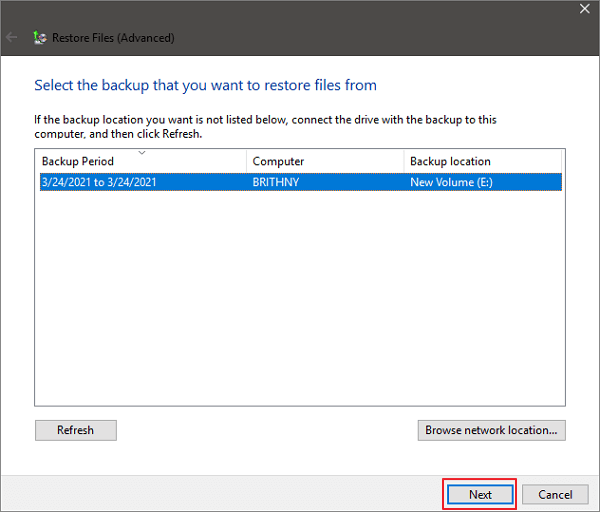
If you have made a backup, you can easily restore lost or deleted Canon camera photos or videos from backup files. For example, if you have backed up your videos to Windows, you can restore them by going to Control Panel > File History > Restore personal files, selecting the backup date and time, and then choosing the video files you want to restore. This will recover your lost or deleted videos from the backup.
Step 1. Click the Start button, type Control Panel and select it.

Step 2. Select "Backup and Restore (Windows 7)".

Step 3. Select another backup to restore files from, choose your backup, click next and follow the instructions to complete the recovery process.
Method 3. Perform Command Prompt to Show Hidden Videos
If your videos and photos are missing from your Canon SD card, you can try recovering them using a data recovery software. This method can also work if the files are hidden instead of deleted, and can be used for other storage devices like USB flash drives and hard drives. However, if the files were deleted, this method may not work and you would need to use a different approach.
Step 1. Press the Windows key + R keys together to open the Run dialog box, type "cmd" in the text box, and press the "Enter" key to open the Command Prompt window with administrator privileges.
Step 2. To check the Canon drive for errors, open Command Prompt as Administrator and type `chkdsk E: /f` followed by hitting Enter. Replace E with the actual drive letter of your Canon drive. This command will scan the drive for any errors and attempt to fix them.
Step 3. Type: Y and hit Enter to continue.
Step 4. Type: E: and hit Enter again. (Replace E with the Canon drive letter)
Step 5. The command you're looking for is: `attrib -h -r -s G:\*.* /s /d`. This command will remove the hidden, read-only, and system attributes from all files and directories on the G: drive, recursively. The `/s` option tells the command to operate on all subdirectories, and the `/d` option tells it to delete the attributes, rather than just displaying them.
Manual execution of the command line is not recommended for non-professionals as it can cause more harm than good, so it's best to use a tool like Qiling CleanGenius that can perform tasks like checking and fixing file system errors, enabling/disabling write protection, and updating the system with a single click.
To show hidden files using this 1-click-fix software, simply follow these simple steps.
Step 1. DOWNLOAD Qiling CleanGenius for Free.
Step 2. Start Qiling CleanGenius, choose "Optimization" on the left panel. Next, click "File Showing" on the right panel.
Step 3. Select the hard drive and click "Execute".
Step 4. After the operation completes, click the here link to check the hidden files.
Conclusion
For guaranteed and effective Canon video recovery, you can trust Deep Data Recovery, a simple-to-use data recovery software with a high success rate that can recover data from almost all cameras, including Canon, Sony, Nikon, GoPro, Leica, and more.
Related Articles
- Free Download Transcend JetFlash Online Recovery Tool
- 3 Ways | How to Recover Deleted Photos from Laptop Windows 11/10
- Data Recovery Software with Original File Names [Full Guide]
- How to Recover Permanently Deleted Videos [Top 5 Methods]
When you think the videos are permanently deleted on your PC, they may still remain. In this guide, we'll introduce five simple methods to help you learn how to recover permanently deleted videos on Windows. - Recover Data from Dead External Hard Drive
You can recover data and files from a dead external hard drive, USB drive, or SD card, and even repair a dead external hard drive, by downloading and using the best hard drive recovery software for free. - Recover Deleted Files from Downloads Folder
If you've accidentally deleted your Download Folder, You can recover your files using Windows 10/8/7's Previous Version feature or third-party data recovery software.
Products
Articles & Tutorials
- Data Recovery
- Data Backup
- File Recovery
- File Backup
- System Backup and Restore
- Disk and Partition Clone
- Technical articles
- Mobile articles
- Disk Master Help
- Windows Data Recovery Tutorials
- Windows Secure Delete Tutorials
- Windows Partition Management Tutorials
- Windows File Backup and Restore Tutorials
- Windows System Backup and Restore Tutorials
- Windows Disk Backup and Restore Tutorials
- Windows Clone Tutorials