How to Fix Emails Disappeared from iPhone Error with 4 Solutions
Summary
If your emails have disappeared from your iPhone, this article provides 4 major solutions to help you recover them. You can try to fix emails from services like Gmail, Hotmail, or Outlook that have disappeared from your iPhone. If you've lost important emails or deleted valuable email files, follow the methods in this article to get your lost emails back on your iPhone 13, 12, or 11.
If you're experiencing the issue of valuable emails disappearing from your iPhone for no reason, don't panic. There are methods available to help you recover and fix the issue on iPhone 13, 12, 11, 8, 8 Plus, X, 6s, 6, or 5. These methods can help you retrieve your emails with ease.
| Workable Solutions | Step-by-step Troubleshooting |
|---|---|
| 1. Reboot iPhone | When emails suddenly disappeared from iPhone, you may directly try to reboot...Full steps |
| 2. Delete and re-add email account | Remove or delete the email account from iPhone > Reboot iPhone > Re-add email account and log in...Full steps |
| 3. Set mail as No Limit | Go to Settings > Go to Mail, Contacts, Calendars > Tab on your account...Full steps |
| 4. Update the iOS on Your iPhone | Turn on your iPhone, and go to Settings > General > Software Update...Full steps |
| 5. Restore disappeared/lost emails | Connect iPhone with PC > Launch Qiling MobiSaver on your PC > Scan iOS...Full steps |
Why Have My Emails Disappeared from My Inbox on My iPhone
"Hi, do you know how to get lost emails back on my iPhone? I saw nothing in my index box and all received emails all disappeared from my phone. I don't know what happened and please help me if you know how to solve my problem. Many thanks!"
Missing emails on iPhone can be frustrating, and there are several possible reasons for this issue. Emails disappearing from iPhone unexpectedly can cause a lot of inconveniences, and it's essential to identify the root cause to resolve the problem. Some possible reasons for missing emails on iPhone include software glitches, incorrect email account settings, or issues with the email provider's servers, among others.
- Outdated iOS version
- A system error with the iPhone
- Email account problem
- Misconfigured email syncing settings
Now you can selectively follow any one of the offered methods to get disappeared emails back on your iPhone now.
Fix 1. Reboot iPhone and Recover Lost Emails
When emails suddenly disappeared from your iPhone, try rebooting your device and see if the emails reappear.
Fix 2. Delete and Re-Add Email Account
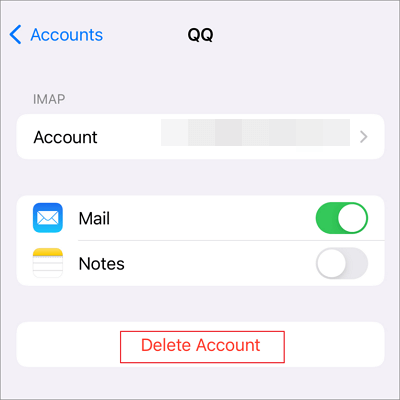
If your emails have suddenly disappeared from your iPhone, try fixing the issue by deleting and re-adding your email account. To do this, go to Settings, then tap on "Passwords & Accounts" and select the email account that's causing the issue. Tap on the account name, then tap on "Delete Account" to remove it.
Step 1. Go to "Settings >Mail > Accounts".
Step 2.Choose your email account. Tap "Delete Account".
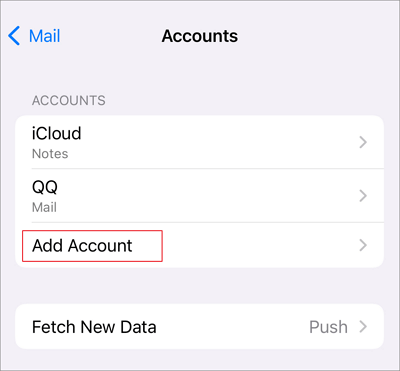
Step 3. Go to the "Accounts" section, select "Add Account", choose the email service, and re-add the email account using a password.
Step 4. Check and see if the disappeared emails come back.
Fix 3. Set Mail as No Limit to Fix Email Disappeared fromiPhone
To recover lost emails on an iPhone, one approach is to try changing the email settings. This can sometimes resolve the issue and retrieve the missing emails.
Step 1.Go to "Settings" > tap "Mail" > "Accounts".
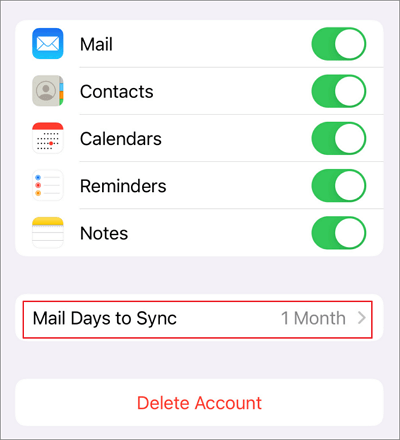
Step 2.To check how many days of mail are synced to your account, go to your account, scroll down, and look for "Mail Days to Sync".
Step 3.Set it as "No Limit".
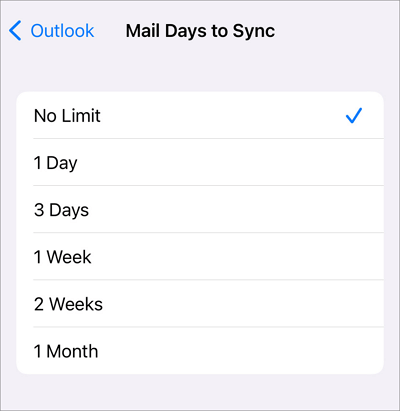
After setting up your email account, the mail will sync all your previous emails and you'll be able to view all received emails at the inbox.
Fix 4. Upgrade iOS to the Latest Version
If your emails are disappearing from your iPhone, it may be due to a system issue or application conflict. To resolve this issue, try updating the iOS version on your iPhone, which may resolve any underlying problems causing your emails to vanish.
Step 1. To update your iPhone, turn it on and navigate to the "Settings" app, then tap on "General" and select "Software Update".
Step 2. Check ifthere's a pending update.
Step 3. Download and install the new update on your iPhone.
Fix 5. Restore disappeared or lost emails in 3 steps with iOS data recovery software
If the above fixes cannot work properly to solve your problem, you may directly try this fix as an alternative way to restore disappeared or lost emails in 3 steps with iOS data recovery software.
Qiling MobiSaver is an advanced iPhone and iPad data recovery program that allows you to recover permanently deleted or lost photos, videos, contacts, chat histories, messages, and more on iOS devices.
To restore disappeared emails on your iPhone, download this free data recovery program and follow the next 3 steps. The program will help you recover your lost emails.
Step 1. Choose the Recovery Mode
Connect your iPhone to your PC, launch Qiling MobiSaver, and select the recovery mode as "Recover from iOS Device" to begin the process.
Step 2. Scan iPhone and Find Lost Data
Qiling MobiSaver will automatically scan your iPhone and find both present and lost data for you.
Step 3. Preview and Restore iPhone Data
You can recover lost data such as photos, videos, contacts, SMS, notes, voice mails, or other files from your iPhone by selecting the data you want to recover, clicking "Recover", and saving it to another location.
After getting lost or disappeared emails back, you still have some extra jobs to do:
- To remove an email app and clean up account information from your iPhone, go to the Settings app, then tap on "General" and select "iPhone Storage." Scroll down and find the email app you want to uninstall, tap on it, and select "Delete App.
- Re-download and re-install the email app on your iPhone again;
- Re-add your email account and log in;
- Import restored emails to the email app.
Now that you have set up your email account on your iPhone, you can send and receive emails as many as you want. Just go to the "Mail" app, tap on your email account, and you're ready to go!
Final Verdicts
This tutorial provides reasons for missing emails on the iPhone and offers solutions to fix the issue. You can try restarting your iPhone, deleting and re-adding your email account, setting mail syncing time, and updating iOS to resolve the problem. If these methods don't work, you can use a third-party solution like Qiling MobiSave to recover your lost emails and other deleted files on your iPhone or iPad efficiently.
Related Articles
- Top 9 Best iPhone Photo Recovery Software
- 3 Ways to Change/Find Kik Usernames
- 2 Ways to Deleted iPhone Documents and Data
- 7 Ways to Troubleshoot WhatsApp Checking for New Messages [Solved]
- How to Fix Deep Data Recovery Crashes, Stuck, Hangs and Freezes Up Error
If Deep Data Recovery gets stuck on scanning or freezes up, try restarting the software or your computer, then scan the data again. If it still doesn't work, try using Qiling data recovery software to recover your lost data. It's a reliable and efficient solution to get back your lost files. - Deep Data Recovery vs Disk Drill: Which Is Better for You
Qiling vs Disk Drill, which is better? If you lost files but do not know choose which data recovery software to get data back, find answers here. This post introduces Deep Data Recovery and Disk Drill at every point. You can learn and compare their features, advantages, and disadvantages.
Products
Articles & Tutorials
- Data Recovery
- Data Backup
- File Recovery
- File Backup
- System Backup and Restore
- Disk and Partition Clone
- Technical articles
- Mobile articles
- Disk Master Help
- Windows Data Recovery Tutorials
- Windows Secure Delete Tutorials
- Windows Partition Management Tutorials
- Windows File Backup and Restore Tutorials
- Windows System Backup and Restore Tutorials
- Windows Disk Backup and Restore Tutorials
- Windows Clone Tutorials