How to Control Alt Delete on Your Mac
The combination of Ctrl, Alt and Delete keys can be used to force close applications, restart the computer, log in, or access the Task Manager in Windows.
On Mac, the key combination that users should use to force quit a program is Command (⌘) + Option (⌥) + Esc. This combination will open the Force Quit Applications window, allowing users to select the program they want to quit and click "Force Quit" to close it. This is different from the Windows and Linux key combination, which is Ctrl + Alt + Del. The Force Quit Applications window can be accessed by holding the Command, Option, and Esc keys simultaneously, and it provides a quick and easy way to close unresponsive or problematic programs on a Mac.
Control Alt delete? What's the meaning?
Ctrl-Alt-Delete is a keyboard shortcut used to quit running programs forcefully. It was first introduced in Windows 95 and allows users to check the status of all currently running programs and terminate any of them.
On a Windows computer, pressing three keys simultaneously can end a program or reset the operating system, making it a common troubleshooting method. This shortcut is useful when a running software causes the computer to freeze and cannot be closed manually, allowing users to force quit the program.
Control Alt Delete Alternative on Mac
In macOS, the keyboard shortcuts are slightly different from Windows. Specifically, Ctrl is known as Command and Alt is known as Option. Therefore, the alternative to the traditional Ctrl+Alt+Delete combination is Command+Option+Escape on a Mac.
Step 1. Press the "Command," "Option," and "Escape" keys simultaneously.
Step 2. The force quit window will be shown on the screen.
Step 3. Now select the program which you want to force quit.
Now let us see some native methods of force-quitting any application.
Force Quit using the Menu Bar:
Step 1. Click on the Apple logo at the top left corner of the screen.
Step 2. Click on the "Force Quit..." option in the dropdown menu.
Step 3. To force quit a program on a Mac, select the program in the Dock or from the Applications folder, then press Command (⌘) + Option (⌥) + Esc. This will open the Force Quit Applications window.
Force Quit through the dock
Step 1. Right-click on the program in your dock and select "Quit" to close it.
Step 2. To force quit a program, click the menu icon, select the program you want to quit, and click the "Force quit" option. This will shut down the program.
There are several other shortcut combination keys on Mac.
Here are some other common Mac shortcuts:
- Command+ A: Selects all the items
- To copy something to the clipboard, select it and press Command+C. This works in various applications, including the Finder, where you can copy files or folders by selecting them and pressing Command+C.
- The command is "Paste from clipboard" which can be used in the Finder as well, in addition to pasting text.
- Command+ S: Saves the current document
- Command+ P: Prints the current document
- Command+ F: Opens a Find Window
- Shift+ Command+ G: Goes back to the previous occurrence.
- Command+ Delete: Moves the selected item to the trash.
- Shift+ Command+ Delete: Empty the trash.
- To empty the trash without confirming the dialog, press Option+Shift+Command+Delete.
How to Recover a File Deleted by Shortcuts on Mac
If you've deleted files using shortcuts and later realized you need them back, there's a possibility of recovering them.
1. Files deleted by Command (⌘) + Delete
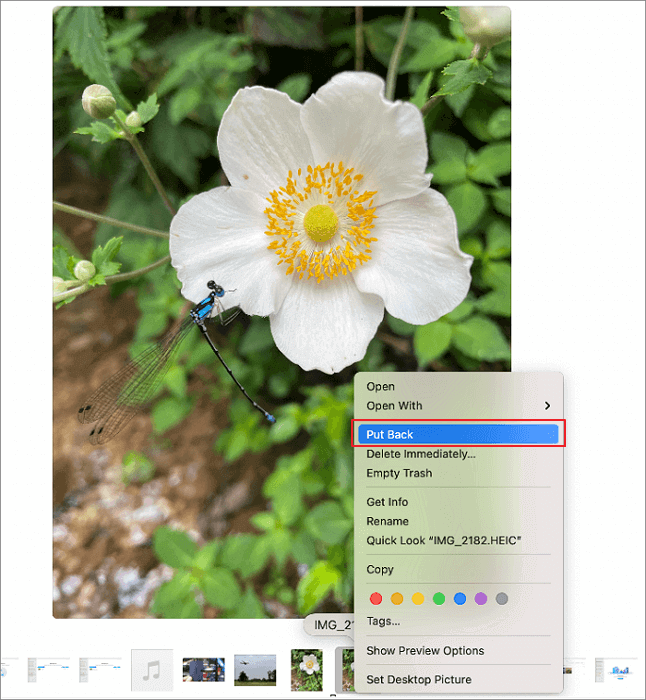
Using the Command (⌘)+Delete shortcut will move the files to the Trash. To recover the deleted files, open the Trash, select the files you want to restore, right-click on them, and choose "Put Back". Alternatively, you can also drag the selected files from the Trash back to their original location.
Step 1. Click on the Trash icon and open it.
Step 2. To recover a deleted file or folder, first, navigate to the Recycle Bin or Trash on your computer. Look for the item you want to recover and select it.
Step 3. Right-click on the file you want to recover from the Recycle Bin, and a dropdown menu will appear.
Step 4. Click on 'Put Back', this will restore the item.
2. Files deleted by Option + Command (⌘) +Delete
If you use the Option+Command (⌘)+Delete shortcut, the files you delete will be permanently deleted and not stored in the Trash, meaning they can't be recovered using the PutBack method. In this case, it's recommended to act quickly and use data recovery software, such as Deep Data Recovery for Mac, to try and recover the deleted files.
Deep Data Recovery for Mac is a software that can quickly scan and restore deleted or lost data in just 3 steps and 2 minutes, including recovering data from the Trash, damaged or corrupted hard drives, partitions, or SD cards.
If you didn't lose much data, the free version is enough for you, as Deep Data Recovery for Mac allows for free recovery of up to 2GB of data. If you need to recover more, the pro version is available at a reasonable price.
Step 1. Launch Deep Data Recovery on your computer, select the desired file types, and click "Fast Scan" to initiate the recovery process.

Note: You can choose different search modes based on where and why the data was lost.
Step 2. Select the disk location where you lost data and files, then click the "Scan" button.

Step 3. Deep Data Recovery for Mac will immediately scan your selected disk volume and display the scanning results on the left pane.

Step 4. After scanning, select the desired file(s) from the scan results and click the "Recover" button to retrieve them.
Conclusion
The shortcut "Ctrl Alt Delete" is commonly associated with Windows computers, but it can also be achieved on a Mac using the Command + Option + Escape keys. This combination is particularly helpful when a Mac is frozen or an application has stopped responding, as it forces the application to stop, providing a way to regain control of the computer.
The shortcut of force stopping an application can be convenient, but it carries the risk of losing unsaved changes and potentially causing corruption, and should be used judiciously only when necessary.
Related Articles
- How to Recover Deleted Safari History on Mac
- How to Copy and Paste on Mac
- How to Recover Permanently Deleted Files on Mac with Free and Paid Solutions
- Apps Unresponsive? Force Quit on Mac when Frozen
- SD Card Recovery Online for 2021 – Recover Deleted/Lost Files from Memory Card
Looking for SD card recovery online for 2021? Check out the details in the article to learn how to recover formatted sd card online or memory card recovery online. - WD My Cloud Data Recovery - Recover Deleted Files from WD My Cloud
Best WD My Cloud recovery software free download. It can recover data from WD My Cloud hard drive or WD My Cloud home. No matter whether the files were lost by deleted, formatted, and more. Try this program to WD My Cloud recover deleted files.
Products
Articles & Tutorials
- Data Recovery
- Data Backup
- File Recovery
- File Backup
- System Backup and Restore
- Disk and Partition Clone
- Technical articles
- Mobile articles
- Disk Master Help
- Windows Data Recovery Tutorials
- Windows Secure Delete Tutorials
- Windows Partition Management Tutorials
- Windows File Backup and Restore Tutorials
- Windows System Backup and Restore Tutorials
- Windows Disk Backup and Restore Tutorials
- Windows Clone Tutorials