How to Copy and Paste on Mac
Quick Navigation:
| Workable Solutions | Step-by-step Troubleshooting |
|---|---|
| Using the Keyboard | To copy a piece of text or a picture, click on it. Press and hold the Shift key simultaneously to highlight...Full steps |
| Using the Mouse |
Select the text or pictureyou wish to copy and press Ctrl+ C; right-click on your cursor and select copy from...Full steps |
| Using the Toolbar | Utilizing your mouse or trackpad, select the text you wish to copy and highlight it; select Edit in the toolbar...Full steps |
| Remap Copy and Paste Shortcut on Mac | Start by finding Keyboard in System Preferences, it turns out that the Keyboard has multiple options; clicking...Full steps |
Copy-The ability to copy and paste has become an essential computer operation, making work easier and quicker by allowing us to duplicate or change lines of code, copy and paste photos, and more.
A straightforward procedure may be performed in a number of ways; if one method doesn't work for you, there are many other options. To get started, all you need is a Mac computer or notebook and a basic understanding of the user interface, like how to highlight text, clicking with a mouse or trackpad, using the toolbar to do that. Here, we will also tell you how to remap copy and paste keys for your convenience. Let's get started in this 'How to Copy and Paste on Mac' guide without further ado!

How to Copy and Paste on Mac
You can quickly copy and paste data, pictures, or documents on a Mac using the contextual menu or keyboard shortcuts. Simply press your mouse or trackpad to bring up a pop-up window, and from there, you can easily copy and paste the desired content.
Using the Keyboard
To use the keyboard keys, you can press the "Shift" key along with the "F1" key to open the Task Manager. Alternatively, you can also use the "Ctrl" key along with the "Alt" key and the "Delete" key to open the Task Manager. You can also use the "Windows" key along with the "X" key to open the Task Manager.
Step 1: To copy a piece of text or a picture, click on it, then press and hold the Shift key while moving the arrow keys up or down to highlight the content. Alternatively, you can use the mouse to highlight content by clicking and dragging the cursor over it.
Step 2: To copy, press Command+C on your keyboard, holding down the Command button and pressing C at the same time. This will copy text and pictures to the clipboard.
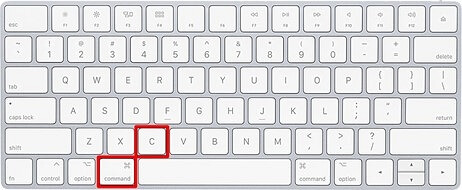
(Note: It's not possible to copy more than one piece of text or photos at a time, unfortunately. This means that you'll overwrite the previous copy).
Step 3: Text app is a great location to paste and store text and pictures on a Mac since it comes pre-installed.
Step 4: The copied text and pictures will be pasted into the current document. Paste by pressing Command + V.
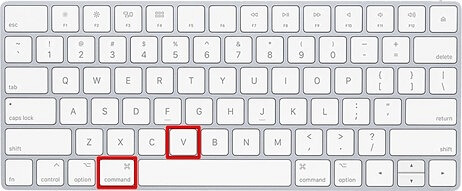
Note: Only one set of text or pictures may be copied at a time. This means that every time you copy anything new, it will overwrite the previous copy.
Using the Mouse
To copy and paste using the trackpad, select the text or image you want to copy by tapping on it. Then, tap the trackpad with three fingers to copy the selected item. To paste it, tap the trackpad with three fingers again, and the copied item will be pasted at the cursor's location.
Step 1: To copy text or a picture, select it and press Ctrl + C.
Step 2: To copy something, right-click on your cursor and select "Copy" from the contextual menu that displays.
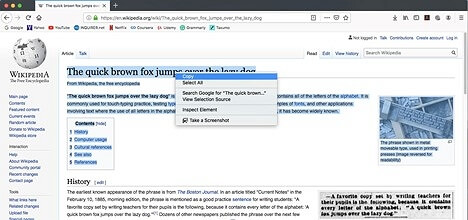
Step 3: To paste the copied information, you can launch an application such as a word processor or text editor, and then move your mouse to the location where you want the copied material to appear. Once you've selected the location, you can right-click and select "Paste" from the context menu, or use the keyboard shortcut "Ctrl+V" (Windows) or "Cmd+V" (Mac) to paste the copied content. This will insert the copied material into the application at the specified location.
Step 4: To paste the copied text, make a right-click on your mouse and select Paste from the context menu that appears.
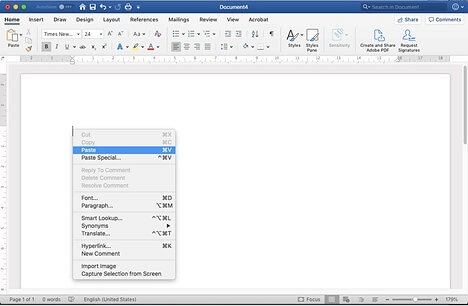
The Paste function allows users to copy and paste text, images, or other data from one location to another, often using the keyboard shortcut Ctrl+V or Command+V on a Mac. This feature is commonly used in word processing, graphics, and other software applications to transfer information from one place to another, such as copying text from a document to a presentation or image from a folder to a photo editing software.
Using the Toolbar
To copy and paste text, files, pictures, etc. using the Toolbar, simply click on the item you want to copy, then click on the "Copy" button in the Toolbar. Next, navigate to where you want to paste the item, and click on the "Paste" button in the Toolbar.
Step 1: Select the text you want to copy using your mouse or trackpad, and highlight it.
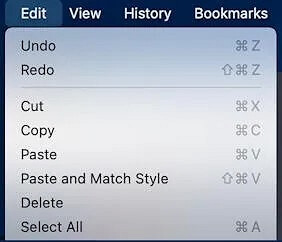
Step 2: Select Edit in the toolbar at the very top of the window, and then pick Copy from the drop-down menu that appears.

Step 3: To paste the copied text, click once on the cursor where you want the text to be pasted. This will insert the copied text into the document, webpage, or other application at the selected location.
Step 4: The "Edit" option can be accessed from the toolbar at the top of the screen by selecting it from the drop-down menu that appears.
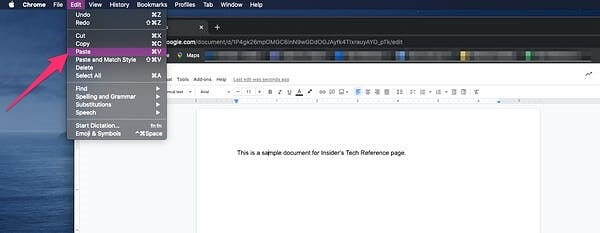
Remap Copy and Paste Shortcut on Mac
When switching from a Mac to a Windows computer or vice versa, one of the most difficult adjustments is learning how to cut, copy, and paste. On a Mac, this can be done by pressing the "Command" key and the "+" key together. This shortcut is not the same on a Windows computer, where the equivalent action is achieved by pressing the "Ctrl" key and the "C", "X", or "V" keys together.
If you're looking for a sneaky way to remap your keyboard shortcut keys on Mac, there's a method that allows you to copy and paste critical locations according to your convenience. This involves remapping your copy and paste keys, which can be done using a straightforward process. By doing so, you can customize your keyboard shortcuts to suit your needs and work more efficiently.
Step 1: Start by finding Keyboard in System Preferences.

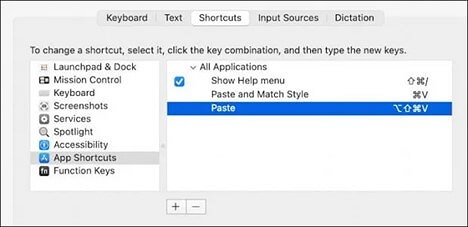
Step 2: To access the Keyboard's options, click the "Shortcuts" tab at the top of the window's tab bar. This will allow you to explore the various options available in the future.
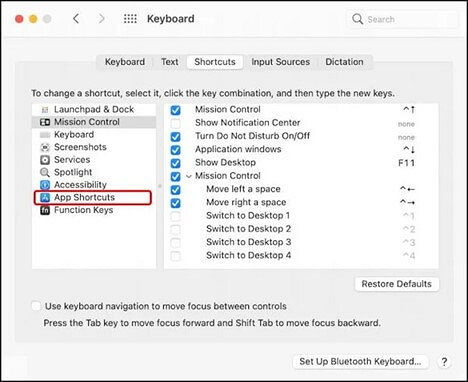
Step 3: It's easier to navigate the window when clicking on "App Shortcuts" on the left side.
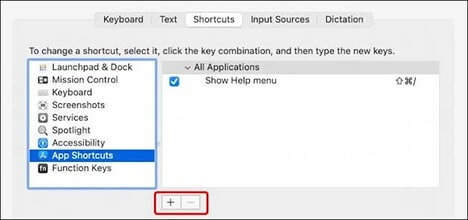
Step 4: The new shortcuts will be added here. "Paste and Match Style" and "Paste" are two different keyboard shortcuts, so we're going to adjust the functionality of the shortcuts, which really paste and include styles. A "+" button on the bottom right can be clicked to add more items.
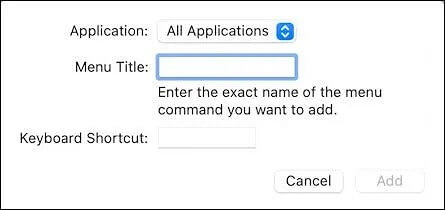
Step 5: In a little box that appears, input the following information to create a new shortcut.
To use a keyboard shortcut on your Mac that only affects a specific program or application, you can use the "Application" or "System" modifier. This means you add a modifier key such as Command (⌘), Control, Option (⌥), or Shift to your shortcut.
Step 6: To edit the menu, click on the three horizontal lines in the top left corner of the screen, then select "Settings" from the dropdown menu. In the settings menu, scroll down and click on "Edit menu".
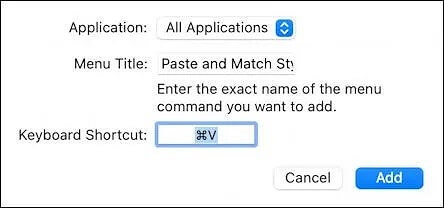
Step 7: To create a new shortcut, capitalize the "Menu Title" and match the command's phrasing precisely, such as "Paste" and "Match Style", then hit the key sequence (e.g., Command-V).
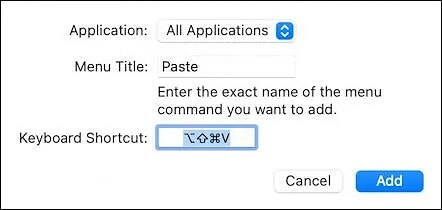
Step 8: To make the default paste command more complete, we should change it to Command-Shift-option-V.
Step 9: After adding the camera, you're done. No rebooting or logging out is required. You can continue using your device as usual.
Screenshots Management - How to Crop a Screenshot on Mac
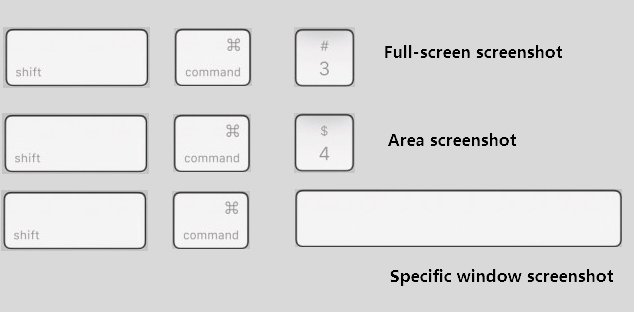
To take a screenshot on a Mac, press Command (⌘) + Shift + 4, which will turn the cursor into a camera icon, and then click on the screen to capture a screenshot. You can also press Command (⌘) + Shift + 3 to capture the entire screen.
Conclusion
To copy and paste on a Mac, you can use various methods to get the most out of this feature. We've covered all possible ways to copy and paste files, folders, pictures, videos, and more, and our guide on 'How to Copy and Paste on Mac' is available to help you.
Related Articles
- Mac USB Recovery: Recover Deleted Files from USB Flash Drive
- How to Recover Deleted Files on Mac After Emptied Trash Bin
- [Free] Deep Data Recovery for Mac 11.8 Torrent/Serial Key
- How to Recover a Replaced File on Mac
- 5 Ways for How to Recover Deleted Games on Windows 10 PC [2021 Guide]
Here in this article, 5 ways are provided for you to recover deleted games on PC. And you can try Deep Data Recovery to recover the deleted game data. - GoPro Recovery | How to Recover Deleted GoPro Videos/Photos
If you want to recover deleted GoPro videos, photos, and other files from SD card after accidental deletion, you need GoPro recovery software for help. You can easily recover deleted GoPro files on Mac or Windows.
Products
Articles & Tutorials
- Data Recovery
- Data Backup
- File Recovery
- File Backup
- System Backup and Restore
- Disk and Partition Clone
- Technical articles
- Mobile articles
- Disk Master Help
- Windows Data Recovery Tutorials
- Windows Secure Delete Tutorials
- Windows Partition Management Tutorials
- Windows File Backup and Restore Tutorials
- Windows System Backup and Restore Tutorials
- Windows Disk Backup and Restore Tutorials
- Windows Clone Tutorials