9 Tips for How to Fix Mac Stuck on Apple Logo and Recover Data
Quick navigation - how to fix Mac stuck on Apple logo:
1. Wait longer
2. Force restart Mac
3. Boot in Safe Mode
4. Reset PRAM/NVRAM
5. Reset SMC
6. Repair startup disk with First Aid
7. Run Apple Diagnostics
8. Clean install macOS from USB
9. Install macOS update in the idel time at night
When Is Your Mac Booting into the Apple Logo Screen?

When you turn on a MacBook Pro, MacBook Air, or iMac, the Apple logo screen appears, accompanied by a progress bar that indicates the device's loading status. The boot-up process is quick, taking only a few seconds to complete. As the device loads, the progress bar provides a visual update on the status of the system, giving you a sense of how much longer it will take to reach the login screen.
When starting your Mac, you typically see the Apple logo screen while it's updating, which can take anywhere from a few minutes to several hours, depending on your internet connection and the size of the updates.
The Apple logo screen is a familiar sight on your Mac, appearing on two main occasions: when you first turn it on and when you shut it down. Let's explore why your Mac gets stuck on the Apple logo in the next section.
* Download Deep Data Recovery for Mac to recover data from unbootable MacBook Pro, MacBook Air or iMac.
Why Some Macs Stuck on Apple Logo
Your Mac is stuck on the Apple logo due to various reasons, including a corrupted system, a faulty boot process, or an issue with the startup disk. This can occur when the operating system fails to load properly, or when there's a problem with the boot process itself. Other possible causes include a failing hard drive, a software conflict, or a hardware malfunction.
I/O devices:If your Mac is stuck on the Apple logo due to issues with I/O devices like a mouse, keyboard, or printer, it may fail to load properly.
Issues with macOS updates:When macOS updates, it can cause issues with applications, potentially preventing your Mac from booting up properly.
Storage Issues:If your Mac is stuck on the Apple logo, it's possible that your storage is full, which can prevent the operating system from loading. This can happen if you've run out of space on your startup disk, or if you've used up all your available storage on your Mac.
Although there are many issues, these are the most commonly occurring ones.
How to Fix Mac Won't Boot Past Apple Logo
The earlier part of the article helped you understand when your mac boots into the Apple logo screen and why your Mac can get stuck on the Apple logo. Now, you will see how you can fix your MacBook Pro, Mac Air, or iMac when they are stuck on the Apple logo.
Note: The solutions are listed in chronological order from easiest to hardest. Start with the most accessible solution and work your way up to the hardest one. Follow them in the order they are listed below to ensure you're progressing from simple to complex.
1. Wait longer
When updating your Mac or installing new updates, it may take some time to boot up, so be patient and let it complete the process, especially if it gets stuck on the Apple logo screen.
When your Mac restarts after a macOS update, the wait time can vary depending on the reason for the restart. In some cases, the update process itself can take hours to complete. It's essential to wait for a sufficient amount of time before attempting other troubleshooting methods.
2. Force restart Mac
If you've waited long enough, you can force your Mac to restart, which may help resolve the issue and allow you to boot it again.
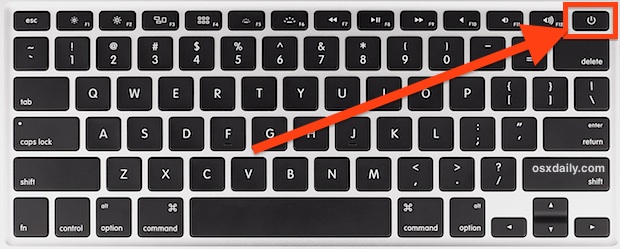
Press and hold the power button for more than 10 seconds to force restart your Mac. After 10 seconds, your Mac will turn off. Press the power button again to turn it back on.
3. Boot in Safe Mode
If your Mac is stuck at the Apple logo screen due to storage or file system issues, you can try booting it in Safe Mode, which can help resolve the problem.
If your Mac is experiencing full storage or file system problems, booting it in Safe Mode can help resolve the issue. To do this, follow these steps: (insert steps here).
Step 1: Forcibly turn off your Mac using the power button. (See solution two if you don't know how to)
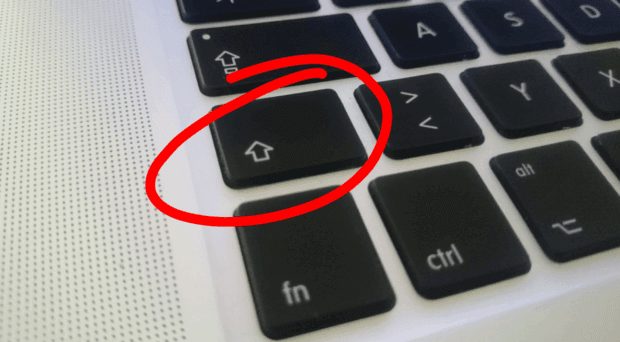
Step 2: Once your Mac is entirely off, press your Mac's power button again and press and hold your Shift key from the keyboard.
Step 3: After pressing the Shift key, your Mac will boot up in Safe Mode, and you will see the login screen. You can stop pressing the Shift key once the login screen appears.
4. Reset PRAM/NVRAM
PRAM (Parameter RAM) and NVRAM (Non-Volatile RAM) are types of memory in a Mac that store system settings, such as display resolution and time zone, and can cause issues like getting stuck at the Apple logo if they become corrupted.
Follow the below steps to reset PRAM/NVRAM:
Step 1: Turn off the Mac.
Step 2: Press and hold the Command + Option + P + R keys on your Mac as long as you don't hear the startup sound.
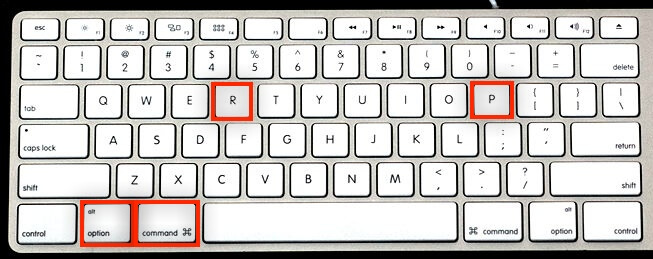
Step 3: Stop pressing the keys and reboot your Mac once you hear the sound.
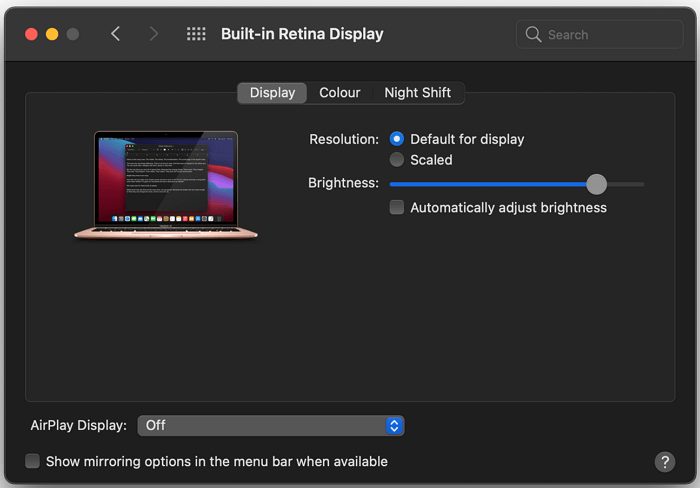
If you can log in to your Mac, go to sound and display preferences, and set them to default settings after resetting the PRAM/NVRAM. This will help restore your Mac's original settings.
5. Reset SMC
SMC (System Management Controller) is a component in Macs that manages power, fans, and battery. Resetting the SMC can sometimes resolve issues like the Apple logo getting stuck.
Follow the below steps to reset SMC:
Step 1: Force restarts your Mac using the power button key.
Step 2: Now, you have to press and hold the Command + Shift + Control key for 10 seconds.
Step 3: Press and hold the Control + Option + Shift + Power button key on your Mac for ten seconds. Then, release all keys and wait for the Mac to restart.
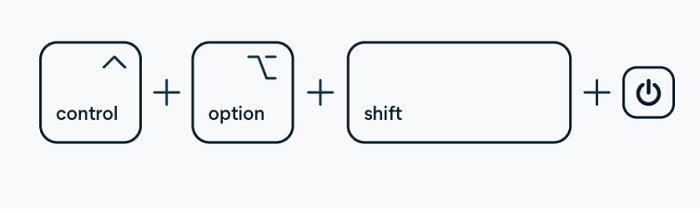
If your Mac is experiencing the Apple logo stuck on the screen, try restarting it in safe mode. To do this, press the power button and hold it until your Mac shuts down. Then, press the power button again to turn it back on.
6. Repair startup disk with First Aid
If your Mac gets stuck at the Apple logo due to disk and hardware issues, you can try repairing your startup disk to resolve the problem. To do this, follow these steps:
Step 1: Enter recovery mode in your Mac by pressing the Power button also press the Command + R button.
Step 2: You will see the Apple logo screen, and after that macOS, utility window will come on your screen.
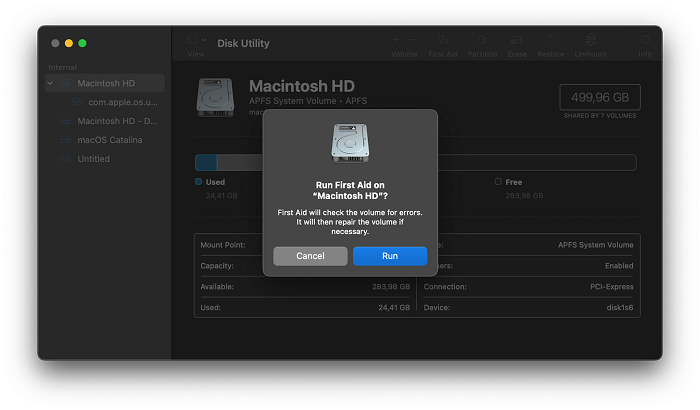
Step 3: Here, you have to click on Disk Utility. Once clicked, select your main startup disk.
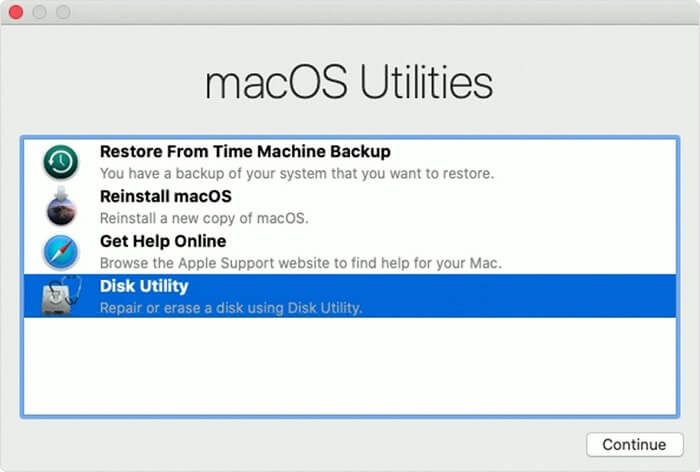
Step 4: Click on First Aid and confirm the action to repair your startup disk.
7. Run Apple Diagnostics
The Apple diagnostics tool can help you check for hardware problems that may be causing your Mac to get stuck at the Apple logo. To do this, you can follow the steps to run the diagnostic tool, which can help identify any hardware issues that may be preventing your Mac from booting up properly.
Step 1: Remove all the connected devices with your Mac except the charging cable or internet cable.
Step 2: Turn off your Mac using the Power button.
Step 3: Press the Power key again and hold the D key from the keyboard until a choose-your-language screen appears.
After selecting your language, you'll see a progress bar and a message saying "Checking your Mac." Wait for it to complete, and once finished, it will display a list of errors and the corresponding error code.
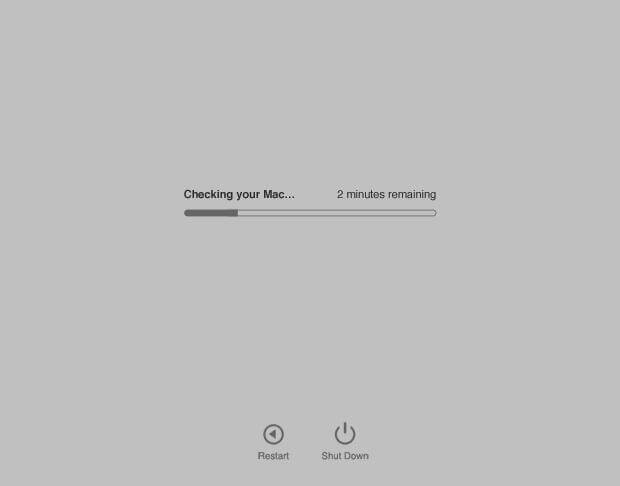
If you're experiencing an Apple logo stuck issue, you can try searching for the specific error codes that appear on your screen and resolving each one individually. By addressing each problem, you may be able to fix the issue and get your Apple device up and running again.
8. Reinstall macOS
If none of the above methods work, you can try reinstalling your macOS, which can also help resolve the Apple logo stuck issue. To do this, follow the steps to reinstall macOS, which may resolve the problem.
Step 1: Turn on your Mac, press the Command + R key, and hold it.
Step 2: Select the Reinstall macOS option when you see the disk utility window.
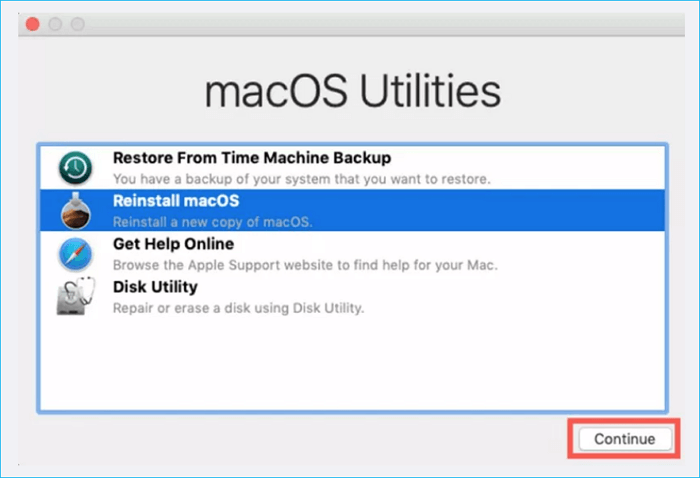
Step 3: Wait for the installation to complete.
Once the installation is complete, turn your Mac on to see if the Apple screen issue is resolved.
9. Install macOS update in the idle time at night
If you're experiencing a slow progress bar while updating your macOS, be patient as it may take longer than expected, especially on macOS Big Sur 20+. Some users have reported being stuck on the progress bar.
Install the macOS update when you don't have any urgent work, such as overnight or when your Mac is idle.
How Recover Data from Mac in the Black Screen of Death
If the Apple logo gets stuck on your Mac screen, the methods mentioned above can help resolve the issue. However, if none of these methods work, your Mac may be in a critical situation, and it's essential to back up all your data and have it professionally repaired.
At the first attempt, you can use the bootable version of Deep Data Recovery for Mac to rescue your data from Mac. It is an easy-to-use and reliable software that can help you to boot a dead Mac without accessing or booting up its macOS.
You can recover all your files and data from an unbootable Mac device using Deep Data Recovery software. To do this, follow these steps:
How to Create a USB Bootable Media
Step 1.To recover data from a Mac, install and run Deep Data Recovery for Mac on another Mac computer. Select "File" > "Create Bootable USB" and choose a USB drive to create the bootable disc.
- Warning
- The creator will prompt to erase the drive to reallocate the space, then write bootable files to it, so back up all USB files before processing "Eraser".
Step 2. The program creates a 2GB space on a USB drive, reserving it for boot files, while leaving the remaining space available for storage.
Step 3. Once the process completes, boot the corrupted Mac from the bootable disc and start the recovery process. It's recommended to restore the data to an external hard drive.

How to Recover Data from Mac Hard Disk
Step 1. Select the disk location where you lost data and click the "Scan" button.

Step 2. Deep Data Recovery for Mac will immediately scan your selected disk volume and display the scanning results on the left pane, showing the files and folders that can be recovered.

Step 3. Select the file(s) you want to recover from the scan results and click the "Recover Now" button to restore them.
Conclusion
Mac getting stuck on the Apple logo is a common issue for users, often occurring during macOS updates. Various reasons can cause this, including software glitches, outdated drivers, and corrupted system files. To resolve this, users can try restarting their Mac in safe mode, resetting the System Management Controller (SMC), or running a diagnostic test. If the issue persists, reinstalling macOS or seeking professional help may be necessary.
If your Apple logo is stuck on the screen, don't worry, it's an easily fixable issue. You can try simple methods like soft reset, force restart, or charging the device. These methods are usually effective and don't require any additional steps to resolve the problem.
If none of the methods work, you need to rescue data from your unbootable Mac. The best and most recommended way to achieve this is using Mac data recovery software from Qiling.
Related Articles
- Snow Leopard Recovery Mode | How to Recover Data from Mac OS X
- How to Control Alt Delete on Your Mac
- How to Recover Data from Unmountable Hard Drive on Mac
- Mac Data Recovery | How to Recover Pictures from Photo Booth on Mac
- How to Recover Shift Deleted Word Documents
You can recover Shift deleted Word files using either Deep Data Recovery or by restoring them from auto backup files in Windows 10/8/7/XP. - How to Recover Uninstalled Programs in Windows 7
To find uninstalled programs on Windows 7, you can use the System Restore feature to revert your computer to a previous state when the programs were still installed. Alternatively, you can use a third-party software recovery tool to scan your computer and recover the uninstalled programs.
Products
Articles & Tutorials
- Data Recovery
- Data Backup
- File Recovery
- File Backup
- System Backup and Restore
- Disk and Partition Clone
- Technical articles
- Mobile articles
- Disk Master Help
- Windows Data Recovery Tutorials
- Windows Secure Delete Tutorials
- Windows Partition Management Tutorials
- Windows File Backup and Restore Tutorials
- Windows System Backup and Restore Tutorials
- Windows Disk Backup and Restore Tutorials
- Windows Clone Tutorials