How to Recover Deleted Calendar Events on iPhone
Summary
To recover calendar events on your iPhone, we recommend using Qiling MobiSaver for iPhone, which can help restore lost calendar and calendar events on your device.
If you've lost calendar events on your iPhone, don't worry, they can be recovered. The calendar app on Apple iPhones is a crucial tool for many users, helping them manage their daily tasks, from studying and working to fun and entertainment activities.

If you've accidentally deleted a calendar event on your iPhone, there are a few ways to recover it. First, check if the event is still in your iCloud or Google Calendar account, as events are synced across devices. If it's not there, try checking your iPhone's "Recently Deleted" folder in the Calendar app, where deleted events are stored for 30 days. If the event is still not found, you can try using a third-party data recovery app like PhoneRescue or FoneDog to scan your iPhone's storage for deleted data. Additionally, if you have enabled iCloud Backup, you can restore your iPhone from a recent backup to recover the deleted event.
Why Calendar Events Disappeared from iPhone
Many iPhone users have experienced the frustrating issue of calendar events disappearing, leading to missed important dates such as birthdays and anniversaries. This problem can be attributed to several main reasons, including a glitch in the calendar app, accidental deletion, or a software issue that causes events to vanish. As a result, users often miss out on crucial reminders and appointments, highlighting the need for a reliable calendar management system.
- Account issues
- Syncing error
- Failing iPhone Storage
- Corrupted Calendar files
Account issues may arise due to syncing or signing in problems, calendar backup issues, or changes in account syncing from iCloud to Google or vice versa.
Failing iPhone storage or corrupted data can cause important events like Calendar events to be lost, even if one of the mentioned problems is behind.
How to Recover Calendar Events on iPhone
If you have a backup of your iPhone device, you can easily recover your lost calendar dates. This can be done through an iCloud account or by using the iTunes program on a Mac or PC, allowing you to restore your calendar information.
If you have a backup, there are three main methods to recover lost calendar events: you can restore from iCloud backup, recover from iTunes backup, or use third-party apps like FoneDog or Deep Data Recovery to help you recover deleted calendar events. However, if you don't have a backup, you can try to recover the deleted calendar events by using the "Recently Deleted" feature on your iPhone or by using third-party apps like FoneDog or Deep Data Recovery. If you're unable to recover the deleted calendar events, you may want to consider contacting your iPhone's manufacturer or a professional data recovery service for assistance.
Method 1. Recover Calendar from iCloud
To recover calendar events through iCloud, go to the iCloud website, sign in with your Apple ID, navigate to Settings, select iCloud, and then choose "Account Settings." From there, tap on "Restore Files" and select the backup that contains the calendar events you want to recover. Follow the prompts to download and restore the selected backup, which should include the calendar events. This method is straightforward and doesn't require any specific technical expertise.
Step 1. To access your iCloud account, sign in from your iPhone, iPad, or computer.
Step 2. Find and click your account name in the top-left corner.
Step 3. Click/tap "Account Settings".
Step 4. Navigate to the bottom-left of your screen and find "Advanced".
Step 5. Click"Restore Calendars & Reminders".
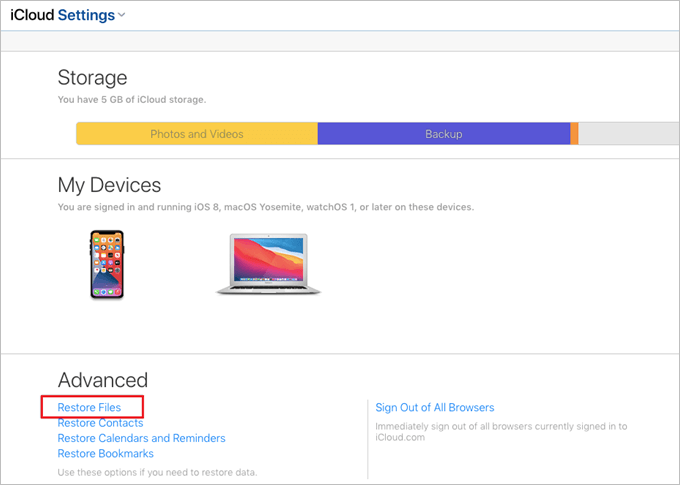
Step 6. Click the nearest restore point.
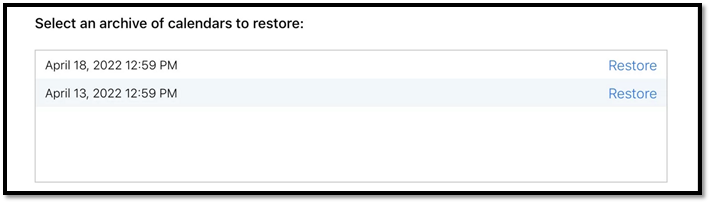
Step 7. Click Restore again to confirm recovery.
To restore your calendar events, you can try syncing your calendar with iCloud. This will attempt to recover any lost events and sync them back to your calendar.
Method 2. Recover iPhone Calendarfrom Finder Backup
To recover a lost Calendar on a Mac, start by opening Finder and selecting the device containing your backup from the sidebar. Navigate to the "Applications" folder, then find and open the "Calendar" app. From there, you can access and restore your lost Calendar events. If you don't have a backup, you can also try using the "Time Machine" feature to restore your Calendar from a previous backup.
Step 1. Connect your iPhone to your Mac via USB Cable.
Step 2. Run the Finder app on your Mac.
Step 3. To restore a backup, click on "Restore Backup" if a backup is found on your device.
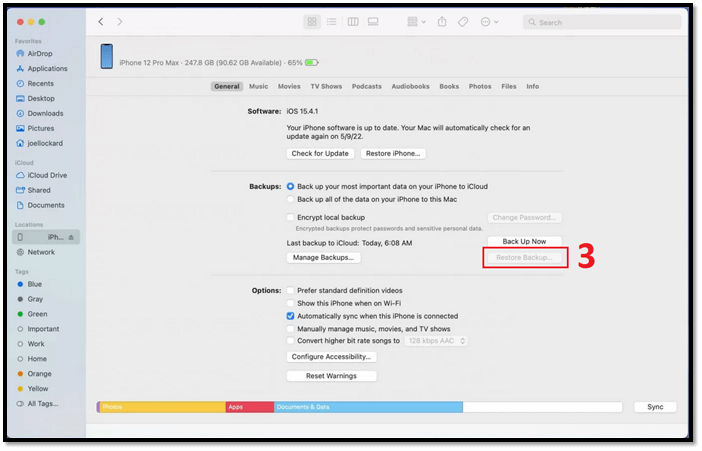
Step 4. Let it recover your Calendar.
To recover your calendar files, you must have a backup of your iPhone device that includes your calendar data. If you have a backup, go to Settings > General > Transfer or Reset iPhone > Restore from iCloud Backup or Restore from iTunes Backup. Select the backup that contains your calendar data and follow the instructions to restore your iPhone. This will recover your calendar files.
Method 3. Recover Calendar from iTunes Backup
To recover your iPhone using iTunes, you need to have a backup of your iPhone data stored on your device. Then, you'll need to have an iTunes program installed on your Mac or PC. If you already have iTunes installed, you can follow the steps to restore your iPhone from the backup. This method requires a backup to exist on your iPhone, so make sure to check that before proceeding.
Step 1. Launch the iTunes app on your Mac or PC.
Step 2. Connect your iPhone via USB Cable.
Step 3. Click iPhone from Sidebar.
Step 4. Go to Backups.
Step 5. Find and click "Restore Backup".
Step 6. Choose the latest restore point.
Step 7. Click "Restore".
To recover lost calendar events from iTunes, follow these steps: first, open iTunes and go to the "Help" menu, then select "Restore Backup". Next, choose the backup that contains the lost calendar events and click "Restore". This will restore all the data, including the calendar events, to your device. Note that this method only works if you have a backup/restore point.
How to Recover Lost Calendar Events Without Backup
When you don't have a backup in place, you may need to use a professional recovery tool to recover deleted or lost data from your iPhone, even if it's just a small piece of information.
Qiling MobiSaver for iPhone is a program that can help you recover lost calendar files. It's a critical tool to have if you've lost your calendar data without a backup, as it can scan your device's depths and restore files from there, including calendar files.
- Calendars and events
- Messages
- Call history and Contacts
- WhatsApp messages and attachments
- Kik messages and attachments
- Photos, videos, and other media
If a program can help you recover your Calendar files, it can also assist with recovering your Calendar. This can be done efficiently by following a few steps, which include using a program to help you achieve this.
Step 1. Connect iPhone toPC
To recover data from an iPhone, open Qiling MobiSaver, select the "Recover from iOS Device" option, and click "Start". The software will then analyze your iPhone.
Step 2. Scan iPhone and Find LostCalender/Reminder
Qiling MobiSaver will automatically scan your iPhone and find present and possibly lost data for you, which may take a few minutes to complete.
Step 3. Preview and Restore Calender/Reminder
After scanning, the lost data from your iPhone (13/12/11/X/XR/XS/8/7/6/5/4) will be displayed. You can select the "Reminders" or "Calender" option on the left to view the related data, and then choose to recover it to your PC or device.
Qiling is reliable in recovering files even without a backup, as evidenced by the program's successful recovery in this case. This demonstrates Qiling's ability to recover files where other programs may fail, even if there's no recovery point available.
Calendar Events Recovery FAQs
Here are the frequently asked questions about recovery methods and options:
1. How do I get my calendar entries back?
If you've lost your Calendar data, there are several ways to recover it from a backup. You can try using iTunes, iCloud, or Finder on your Mac to restore your Calendar. However, if you don't have a backup point, a third-party tool like Qiling MobiSaver for iPhone may be your best option.
2. How to find deleted calendar events on iPhone?
If you're experiencing issues with your iPhone, the best option is to restore from a backup using iCloud or iTunes, which will quickly return your device to a previous state. However, if you have no backup, a third-party professional tool like Qiling MobiSaver can be used to recover data.
3. How to reset an iPhone calendar?
To reset your iPhone calendar to an earlier restore point, sign in to your iCloud account, then navigate to the "Advanced" section where you can find "Restore Calendars and Reminders".
Conclusion
If you've deleted calendar events on your iPhone, there are methods to recover them. You can use iCloud, iTunes, or Finder to restore your iPhone to an earlier backup, which can recover your deleted calendar events. Alternatively, you can use Qiling MobiSaver for iPhone to recover your deleted events without needing a restore point. All three options can efficiently recover your deleted Calendar and events.
Related Articles
- How to Retrieve Photos from iPhone That Won't Turn on
- How to Fix iTunes Sync Error 54 on Windows and Mac
- Why Is the iOS 15 Not Showing Up? Fix It Now!
- How to Recover Deleted Messages from TextMe App
- How to Fix Xbox One Only Shows Green Screen
If you're experiencing issues with your Xbox One, getting stuck on a green screen can be frustrating. Fortunately, this article provides solutions to help resolve the problem, allowing you to get back to gaming without any further issues. - Best Forensic Data Recovery Software Tool to Download for 2023
Forensic data recovery software is a must to recover files from computers and phones. A free trial version of the software can be downloaded.
Products
Articles & Tutorials
- Data Recovery
- Data Backup
- File Recovery
- File Backup
- System Backup and Restore
- Disk and Partition Clone
- Technical articles
- Mobile articles
- Disk Master Help
- Windows Data Recovery Tutorials
- Windows Secure Delete Tutorials
- Windows Partition Management Tutorials
- Windows File Backup and Restore Tutorials
- Windows System Backup and Restore Tutorials
- Windows Disk Backup and Restore Tutorials
- Windows Clone Tutorials