Recover Deleted Reminders on iPhone [Without Backup]
Summary
iPhone reminders may have disappeared after an update, but there are ways to recover them. If you're experiencing this issue, you can try using Qiling MobiSaver for iPhone to recover deleted reminders even without a backup. This tool can help you recover your lost reminders, and there are other methods available as well.
"I deleted a reminder by mistake. The Reminder had tasks for my friend's birthdays. Is there a way I can restore them?" The question was asked by a user.
Reminders on iPhone are a great way to stay organized and avoid forgetting important tasks, allowing you to keep track of your tasks and to-dos for anything from grocery shopping to doctor's appointments.
The iPhone has two types of reminders: one-time and recurring. One-time reminders only remind you once, while recurring reminders remind you at set intervals, such as daily or weekly.
Don't worry if you've lost your iPhone reminders - there are possible ways to recover them. In this blog, we'll cover all the ways to recover deleted reminders on your iPhone.
Before we move on to the solutions, let's discuss what could be the main reasons that can cause you to lose the Reminders and other data.
Why iPhone Reminders Disappeared after Update
As an iPhone user, there's always a risk of losing your data, whether it's intentional or accidental deletion.
Losing important data can be a frustrating experience, but there are ways to prevent it. Important data such as reminders, photos, videos, and documents can be lost due to various reasons. However, with the right precautions and measures, we can ensure that our valuable data is safe and secure.
The Reminders on your iPhone may have disappeared due to various reasons, but don't worry, we have easy solutions to restore the lost data. Before diving into the real solutions to recover deleted iPhone reminders, let's briefly discuss why they might have vanished. It's possible that the reminders were accidentally deleted, or they might have been cleared due to a software glitch or a sudden reset of the device. Whatever the reason, we'll explore simple and effective ways to recover your deleted Reminders.
- Accidental deletion: One of the most common reasons your iPhone reminders might have disappeared after an update is that you mistakenly deleted them, possibly by tapping the trash can icon in the Reminders app.
- Software glitch: Your iPhone reminders might have disappeared after an update due to a software glitch, which is a common issue after a major iOS update is released.
- Usage of different iCloud account: If your iPhone reminders disappeared after an update, it might be because you're no longer using the same iCloud account that you used before, possibly due to switching to a new account or logging out of your existing one.
- Setting issues: Your iPhone reminders may have disappeared if you've turned off the Reminders app sync option in your Settings, so try turning it back on. Alternatively, iCloud may have replaced your new backup with the old one, resulting in lost access to old reminders.
- Factory reset: When changing devices, the factory reset option can erase all data, including photos, documents, and reminders, so it's essential to back up your data before doing so.
If your iPhone reminders have disappeared after an update, one of the five possible reasons is likely the cause. If you've also lost the Reminders from your device for any of these reasons, we can help you restore them. To do so, try the easy and simple methods listed below to get your reminders back.
Recover iPhone Reminders with Backup
Now that you know why you've lost your Reminders. You must be searching for simple ways to restore Reminders. In this part, we will explain the best three ways to recover your deleted iPhone reminders. Please note that these methods only work if you've a backup available.
In case you don't have a backup available, not to worry. You can still recover your Reminders using an advanced and professional tool like Qiling MobiSaver for iPhone, allowing you to recover iPhone Reminders Without Backup.
To recover deleted reminders on iPhone with backup, go to Settings > [your name] > iCloud > iCloud Backup, then turn on iCloud Backup and set up automatic backups. Next, erase all content and settings on your iPhone and set it up as new.
- Method 1. Recover from Email Account
- Method 2. Recover from iCloud.com
- Method 3. Find Reminders on Other Apple Devices
Method 1. Recover from Email Account
To restore the Reminder, we'll start with the email account (backup) method.
Both Android and iOS have the feature to back up reminders and other media to email accounts, allowing for quick recovery of reminders if a Yahoo or other email account is synced with the data.
If you've the backup available, follow the below steps:
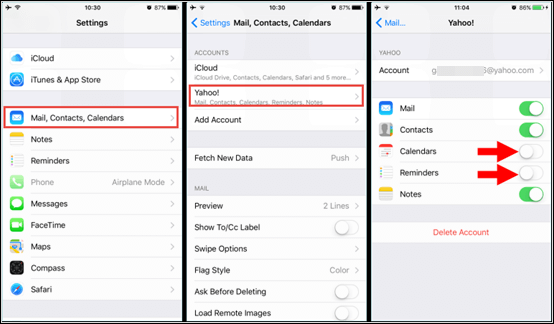
Step 1. Open the "Settings" option from the menu.
Step 2. Click on the "Mail, Contacts, Calendars" option.
Step 3. Select your email account, excluding iCloud.
Step 4. To activate Reminders, click on the Reminders slider and select the Merge option from any pop-up that appears.
Step 5. I've added the reminders to your Reminder app. You should see them now.
Method 2. Recover from iCloud.com
If you're unable to restore your Reminders using email accounts, you can simply use your iCloud account to restore them.
On iOS, users can sync their data and backup on their iCloud ID, allowing for a quick and straightforward method to restore reminders. However, this method only works if the user has previously synced their data, otherwise it won't be effective.
Follow the below steps to complete the process:
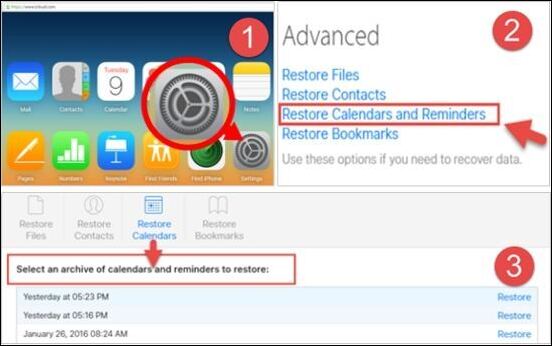
Step 1. To access your iCloud account from your mobile device, sign in with your Apple ID and password. Then, navigate to the "Settings" option.
Step 2. Select "Restore Calendars and Reminders" under the Advanced option.
Step 3. To restore a deleted message, go to the Archive section, select the message you want to restore, and click on the "Restore" button.
Method 3. Find Reminders on Other Apple Devices
If you're unable to restore your data from iCloud or email accounts, you can still restore it using other Apple devices by using the "Restore from iCloud Backup" or "Restore from iTunes Backup" feature on a different Apple device, such as an iPhone, iPad, or iPod touch. This method allows you to restore your data from a backup that was created on a different device, which can be helpful if you're unable to access your original device. To do this, you'll need to set up the new device and follow the on-screen instructions to select the backup you want to restore from. This can be a convenient option if you're unable to restore your data from iCloud or email accounts.
If you're an iPhone user who uses the same Apple ID across multiple devices, you can easily recover lost calendars and reminders by checking them on another device.
Still, unable to restore your Reminders? Let's explore the best and the most efficient solution below.
Recover iPhone Reminders Without Backup
If you've tried all the methods we've listed above and still can't restore your Reminders on an iPhone, you can download and use Qiling MobiSaver for iPhone to restore your Reminders, which can help in cases of virus attacks, factory resets, water damage, or accidental deletions.
Once you've installed the software on your Windows or MAC, it offers three modes of recovery:
- You can recover from the iOS device directly.
- You can Recover from iTunes backup.
- You'll have the option to restore your reminders from an iCloud backup account.
Features of Qiling MobiSaver for iPhone:
Here are the following unique features that make this software the top choice for many users, including its ability to provide personalized recommendations, intuitive interface, and seamless integration with other tools and platforms, among others.
- Support systems and devices: The software supports Windows and MAC, allowing for the recovery of Reminders from iPhone, iPad, and iPod touch devices.
- Assistance: The software offers professional technical support, which is available after purchase. If you're not tech-savvy, you can reach out to the support team for guidance on using the software. Additionally, an online guide is available to help you learn how to use the tool.
- 3-Steps recovery process: You can connect your device, scan, and restore the data, or use iCloud to log in to your account and view available backups. From there, you can scan and restore your Reminders.
- Data limit: You can recover unlimited iOS data, including Reminders, photos, videos, and other media.
- Other data types support: This software also supports recovering data from various platforms, including WhatsApp, Kik, Safari history, Memo, Audios, and Contacts.
Qiling MobiSaver Technician edition allows for the restoration of Reminders and other media from multiple devices, making it a useful tool for enterprises or large companies that need to recover data from multiple devices.
You can recover your Reminders within a few minutes using this tool. Simply follow the steps provided, and you'll be able to restore your Reminders.
Step 1. Connect iPhone to PC
Open Qiling MobiSaver, select the option to recover from an iOS device, and click "Start" to begin the analysis process.
Step 2. Scan iPhone and Find Lost Calender/Reminder
Qiling MobiSaver will automatically scan your iPhone and find present and lost data, which may take a few minutes, so please wait patiently.
Step 3. Preview and Restore Calender/Reminder
The lost data from an iPhone 13, 12, 11, X, XR, XS, 8, 7, 6, 5, or 4 can be scanned and displayed after scanning, with options to select "Reminders" or "Calender" to recover related data, and then recover it to a PC or the device itself.
Disappeared iPhone Reminders FAQs
Here are the possible ways to recover deleted Reminders on iPhone:
1. What to expect after the iPhone upgrade?
After upgrading to a new iPhone, you may notice changes in its behavior due to the latest iOS version. New features may be present.
Typically, updating your iPhone doesn't result in losing important data or reminders. However, in rare cases, a power outage during the upgrade process can cause data loss. This is usually not a result of the update itself, but rather an external factor.
If you're looking to recover deleted reminders on your iPhone, you can use Qiling MobiSaver for iPhone.
2. How to restore contacts on iPhone?
To restore contacts on your iPhone, you can use the same method as restoring Reminders, which involves syncing your contacts with your iCloud ID. This method will only work if your contacts are already synced with your iCloud ID. If you have done this, you can restore your contacts by following the steps for restoring Reminders.
Follow the below steps:
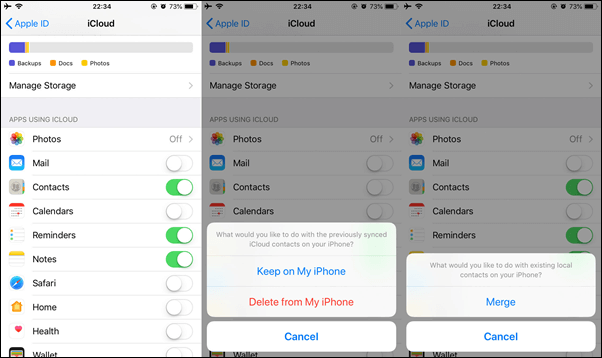
Step 1. Open the "Settings" option and select the "iCloud" option.
Step 2. Select the "Contact" option, then click on the pop-up that appears and choose "Keep on my iPhone".
Step 3. Click on the "Merge" option to complete the process.
3. Why are reminders not syncing?
If your iCloud Reminders are not syncing, it could be due to a variety of reasons, such as your iPhone or iPad not being connected to Wi-Fi, iCloud Reminders not being enabled on your device, incorrect date and time settings, or an issue with your iCloud account. Additionally, exceeding the storage limit for iCloud Reminders, using an outdated version of iOS, incorrect iCloud settings, or a conflict with another app could also be the cause.
- Internet issues: Because of the unstable internet connection, Reminders are not properly synced.
- Outdated iOS version: If you're running an outdated version of iOS on your iPhone or iPad, your device may not sync your data properly.
- iCloud account limit: There's a storage limit to iCloud. If it reaches, it will stop syncing the data.
4. How to refresh reminders on iPhone?
To refresh the Reminder app, simply swipe down the screen after opening it, similar to how you would refresh other apps like calendar, contacts, or gallery.
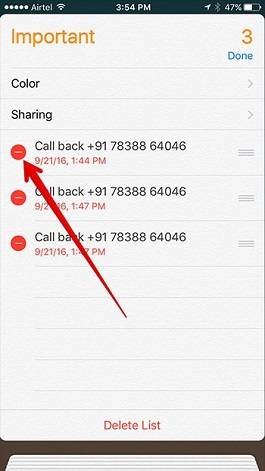
To delete a reminder on your iPhone, go to the Reminders app, select the reminder you want to delete, tap the "Edit" button, then tap the red minus button next to the reminder and select "Delete Reminder". You can also swipe left on the reminder and tap "Delete" to delete it.
Step 1. Open the Reminder app.
Step 2. Click on the Edit. It'll show you all the Reminders.
Step 3. To delete the Reminder, click the minus button.
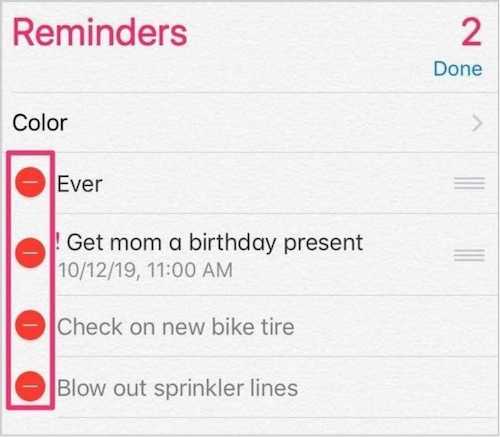
Step 4. Select the "Delete" option to complete the process.
Conclusion
If you've accidentally deleted reminders on your iPhone, you can try recovering them from a backup or use a tool like Qiling MobiSaver for iPhone to restore your reminders without a backup.
This powerful software can recover deleted reminders in 3 simple steps, allowing you to retrieve various types of files from your device.
So don't wait - download it now and get your lost reminders back!
Related Articles
- Where Do Deleted Text Messages Go on iPhone [Text Message Recovery Tips]
- How to Recover Telegram Chat on iPhone [Full Guide]
- Top 3 Ways to Recover Permanently Deleted Voicemail iPhone
- iPhone Photo Vault Recovery (99% Users Rated Useful)
- How to Recover Call Recordings in Mi Phone
If you've accidentally deleted call recordings from your Redmi note. You can recover them by following the guide for how to recover deleted call recordings in Mi Phone, which applies to models like Redmi note 3/4/5/6/7 Pro and more. - How to Recover Deleted Call Recordings from SD Card/Memory Card
To recover deleted call recordings from an SD card or memory card, follow these steps: first, stop using the card to prevent overwriting of data; next, download and install a reliable data recovery software such as Deep Data Recovery; then, connect the SD card to your computer.
Products
Articles & Tutorials
- Data Recovery
- Data Backup
- File Recovery
- File Backup
- System Backup and Restore
- Disk and Partition Clone
- Technical articles
- Mobile articles
- Disk Master Help
- Windows Data Recovery Tutorials
- Windows Secure Delete Tutorials
- Windows Partition Management Tutorials
- Windows File Backup and Restore Tutorials
- Windows System Backup and Restore Tutorials
- Windows Disk Backup and Restore Tutorials
- Windows Clone Tutorials