How to Recover Telegram Chat on iPhone [Full Guide]
Summary
If you're looking to recover a Telegram chat on your iPhone, there are three methods you can try, with Qiling MobiSaver for iPhone being a reliable option. This software can help you retrieve deleted Telegram chats, and you can choose the method that suits your needs best.
| Workable Solutions | Step-by-step Troubleshooting |
|---|---|
| Recover Telegram Chat from iCloud | Go to "Settings" > tap on "General" >hit "Reset" > select "Erase All Connect and Settings"...Full steps |
| Recover Telegram Chat from iTunes | Connect iPhone to PC/Mac > Open iTunes/Finder > click on the phone icon >select specific device...Full steps |
| Recover Telegram Chat With iPhone Data Recovery Software | Connect iPhone to PC > click "Recover from iOS device" > click "Start" > scan device data...Full steps |
You can recover lost Telegram messages by using the app's built-in feature, "Saved Messages." This allows you to view and save messages that have been deleted or lost due to errors. Additionally, if you have a backup of your Telegram data, you can restore it to recover the lost messages. It's also a good idea to regularly back up your Telegram data to prevent future losses. If you're unable to recover the messages through these methods, you can also try contacting Telegram's support team for assistance. They may be able to help you recover the lost messages.
Before we dive into the steps to recover your Telegram chat on iPhone, let's first understand why your chats disappeared. Once we have that clarity, we can proceed with the three methods to recover your Telegram chat on iPhone.
Why Did Telegram Chat Disappear
Your Telegram messages might be disappearing due to various reasons, including the recipient blocking or muting you, deleting the conversation, or leaving the group or chat. Additionally, technical issues with Telegram's servers or your internet connection, sending messages to the wrong chat or group, or accidentally sending a message to yourself could also cause messages to not appear. Furthermore, bugs or glitches in the Telegram app, exceeding the maximum number of messages you can send in a row, or sending messages that are against Telegram's terms of service or contain spam could also be the cause.
- If you were removed from the chat, you would not be able to see the chat anymore. However, if you were not removed, then there might be another reason why you cannot see the chat.
- Another reason can be that the chat was deleted by Telegram.
- Also, you or someone else might have accidentally deleted your chats, or some bug/error might have been the cause.
If you're unsure why your chats disappeared, you can get in touch with Telegram support for more information.
Plus, you can follow the guide below to recover your telegram data. Here are 3 ways you can use to recover your lost/deleted Telegram messages.
How to Recover Telegram Chat on iPhone
Recovering a Telegram chat on an iPhone is relatively straightforward, and you can get your data back in minutes if you have a backup. You can follow three methods to retrieve your Telegram text messages.
Pro Tip:If you've just deleted a chat and want to get it back, you can click on the "Undo" button, but this only works for conversations deleted recently and will disappear in a few seconds.
Method 1. Recover Telegram Chat from iCloud Backup
This is the easiest recovery method and is recommended for users with the iCloud backup option on their Telegram app.
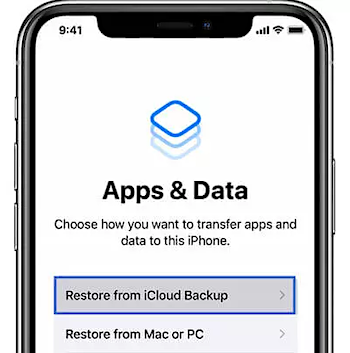
To recover a Telegram chat using iCloud backup, you can follow these steps: If you have enabled iCloud backup on your iPhone, iPad, or iPod touch, you can restore your device from the latest backup to recover your Telegram chats. To do this, go to Settings > [your name] > iCloud > iCloud Backup, and then select the backup you want to restore from.
Step 1.Go to the "Settings" app on your iPhone and tap the "General" button. Then, scroll down and tap on "Software Update".
Step 2.To reset your iPhone, start by going to the "Settings" app, then tap on "General", followed by "Reset". From there, select "Erase All Content and Settings".
Step 3.After your iPhone reboots, tap on the "Restore from iCloud Backup" option and select the backup you want to restore.
Step 4.After installing the Telegram Desktop app, you'll need to wait for the process to complete. Once it's done, you'll have your Telegram messages back.
Note:If you don't have an iCloud backup, you can use the methods below to create a backup before proceeding with the steps above.
Method 2. Recover Telegram Chat from iTunes Backup
You can recover Telegram chat from your iTunes backup, but this process takes time and will only restore messages present in the backup.
Follow the process below to get your data back:
Step 1. To start, connect your iPhone to your PC/Mac and open iTunes/Finder. Click on the phone icon in the upper left corner and select your device.
Step 2.Next, click on "Restore Backup".
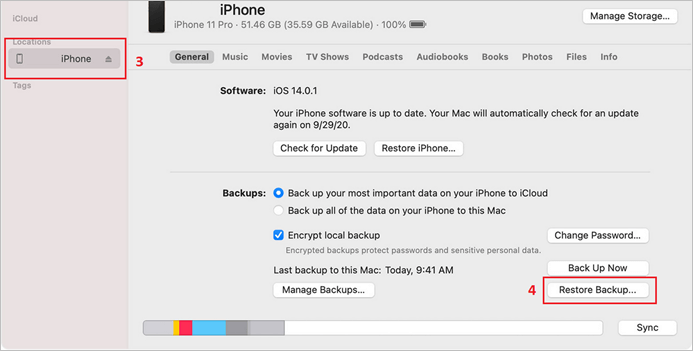
Step 3.To restore a backup of your Telegram chats, select the backup you want to restore, ideally the most recent one containing all your conversations.
Step 4.Wait for the restoration process to complete.
Step 5.You'll have your chats restored in no time.
Note:You need an iTunes/Finder backup to make this work. However, I recommend using the method below if you don't have any backups made.
Method 3. Recover Telegram Chat With Qiling MobiSaverfor iPhone
Qiling MobiSaver for iPhone is the best Telegram chat iPhone recovery tool, allowing quick and effective access to lost data. It supports various iPhone generations, including the iPhone 13 and iPhone 14 series, and is available for download on Windows and macOS.
Qiling MobiSaver offers various features to help keep your iPhone's data safe and secure, including data recovery, backup, and protection against viruses and other malware. It also provides tools for erasing personal data, locking the device, and remotely locating the iPhone if it's lost or stolen. Additionally, Qiling MobiSaver can help you recover deleted data, including photos, contacts, and messages, and it can also help you transfer data from one device to another.
- Directly recover data from iOS devices
- Selectively recover the data you want
- Recover deleted iTunes backup
- Extract and recover data from iCloud backups
- Recover Telegram, WhatsApp, LINE, Kik chats and attachments
- You can recover various types of data from your iPhone, including videos, messages, attachments, notes, voice memos, Safari bookmarks, and more.
The software supports 26 different file formats, including various video, audio, image, and document types.
- Photos, videos, and audio
- Messages, call history, contacts, and message attachments
- MeMo and attachments
- Telegram, Whatsapp, Kik, Line attachments, and chats
- Safari bookmarks and history
You can follow the steps below to recover your telegram chats:
Step 1. Connect iPhone to Your PC
Download and launch Qiling MobiSaver, then click "Recover from iOS device" and click "Start".
Step 2. Scan for Lost iPhone/iPad/iPod Data
Qiling MobiSaver will automatically scan your devices, and find all the lost data for you, requiring just a wait for the scan to complete.
Step 3. Recover Lost iPhone/iPad/iPod Data
You can select the lost data you want to recover, such as photos, videos, contacts, SMS, notes, voice mails, and other files, and save them to a new location.
If you've lost some chats, I suggest getting the monthly package to recover them. It's also a good idea to keep a backup of your chats to prevent future losses.
Telegram Chat Recovery on iPhone FAQs
Here we list out some hot questions when it comes to telegram chat recovery on iPhone. Maybe you can find your answer below.
1. Can I retrieve deleted messages from Telegram?
You can recover deleted messages from Telegram in about 10-15 minutes using either backups or Qiling MobiSaver, which doesn't require a backup.
2. Can you see deleted messages on Telegram iPhone?
On iPhone, you can't view deleted messages on Telegram. Any deleted messages or chats are gone for good and can't be recovered through the app. However, you can try recovering them through backups or undoing the deletion process if you act quickly when deleting them.
3. How can I access the Telegram cloud?
You can access the Telegram cloud by installing the app on a new device, where it stores your encrypted data, allowing you to access your messages on any device you log in to. To keep your messages in the cloud storage, you can send yourself "Saved Messages" and then log in on a different device to save them there.
4. What happens when you delete a message on Telegram?
Once you delete a message in a chat, the other participant won't see what you wrote unless they were checking their notifications at the exact time of sending. However, if the chat vanishes, it's likely that the other person has deleted the chat.
5. Does Telegram have a history?
Telegram saves history by default. You can also share chat history with new group members, and toggle between hidden and visible chat history by going to "Info > Edit > Chat History for New Members".
Conclusion
To recover deleted Telegram messages on your iPhone, you can follow the guide above, which involves having backups. If you don't have a backup, consider using Qiling MobiSaver, a tool that offers a simple user interface and multiple features to recover data.
I downloaded Qiling MobiSaver from their website and installed it in under a minute. The recovery process was also quick, taking around 10 minutes to recover all my deleted chats. To use it, simply connect your iPhone, scan for the deleted chats, and start the recovery process.
Related Articles
- [Real Fixes] Photos Disappeared from iPhone After Update
- How to Fix Can't Backup LINE Chat in 5 Ways
- How to Recover WhatsApp Messages Without Backup on iPhone/Android
- The Best WhatsApp Recovery Software for iPhone & Android
- Tears of the Kingdom Corrupted Data | PC and Switch Fixes
If you're experiencing Tears of the Kingdom corrupted data issue on PC or Nintendo Switch, you can use Deep Data Recovery to find lost game files. To troubleshoot the issue on Switch, check the game's save data, update the game to the latest version, and try deleting and reinstalling the game. - 5 Ways to Troubleshoot Video Not Working on Zoom
Having issues with Zoom Meetings' video? Here are 5 Ways to Troubleshoot Video Not Working on Zoom for crystal-clear videos and uninterrupted meetings. Besides, download Qiling video repair software to repair corrupted Zoom recordings as soon as possible.
Products
Articles & Tutorials
- Data Recovery
- Data Backup
- File Recovery
- File Backup
- System Backup and Restore
- Disk and Partition Clone
- Technical articles
- Mobile articles
- Disk Master Help
- Windows Data Recovery Tutorials
- Windows Secure Delete Tutorials
- Windows Partition Management Tutorials
- Windows File Backup and Restore Tutorials
- Windows System Backup and Restore Tutorials
- Windows Disk Backup and Restore Tutorials
- Windows Clone Tutorials