Clone a BitLocker Drive to a Smaller SSD
Quick Navigation:
- What Changes When the Drive Is Encrypted
- Measure Before You Choose the Target
- Suspend, Then Shut Down Cleanly
- Clone With Qiling Disk Master
- Frequently Asked Questions
A BitLocker volume is cloned as raw blocks, so the destination must hold the encrypted size, not just the visible files. That is the usual reason a smaller SSD is rejected. With protection suspended the copy runs as plain data, and with the partition layout adjusted the used space is usually well under the new capacity.
What Changes When the Drive Is Encrypted
Encryption is transparent: the file system, the used space, and the files look the same. What changes is the amount of data the clone tool has to move, because every sector that contains an encrypted block is real data.
A partially encrypted volume is the dangerous case. If a conversion was interrupted, the volume holds a mix of plain and encrypted blocks, and a clone can produce a disk that neither boots nor decrypts.
Suspend protection before cloning and let the suspension apply at the next restart. The volume key stays with the TPM, so protection resumes when you turn it back on.
Measure Before You Choose the Target
Compare the used space of the Windows volume with the capacity of the new SSD. A 1 TB drive with 300 GB used fits easily on a 500 GB SSD once the partitions are scaled.
Count the small partitions as well: the EFI system partition, the Microsoft reserved partition, and the recovery partition all have to fit. A recovery partition at the end of the disk is the one that usually forces a layout change.
Check that the destination is at least as large as the sum of the used space plus those partitions, with a little headroom.
Suspend, Then Shut Down Cleanly
Suspend BitLocker protection for the system drive, restart once so the suspension takes effect, then shut down rather than using sleep or hibernation.
Do not change the boot order, the firmware settings, or the TPM state between suspension and the clone. Any of those can return the machine to a recovery prompt.
Keep the recovery key accessible. Even with protection suspended, a firmware change can re-trigger the prompt when protection resumes.
Clone With Qiling Disk Master
Qiling Disk Master clones the running system to a smaller SSD and can scale partitions to fit, which is what makes an encrypted system move to a smaller disk practical.
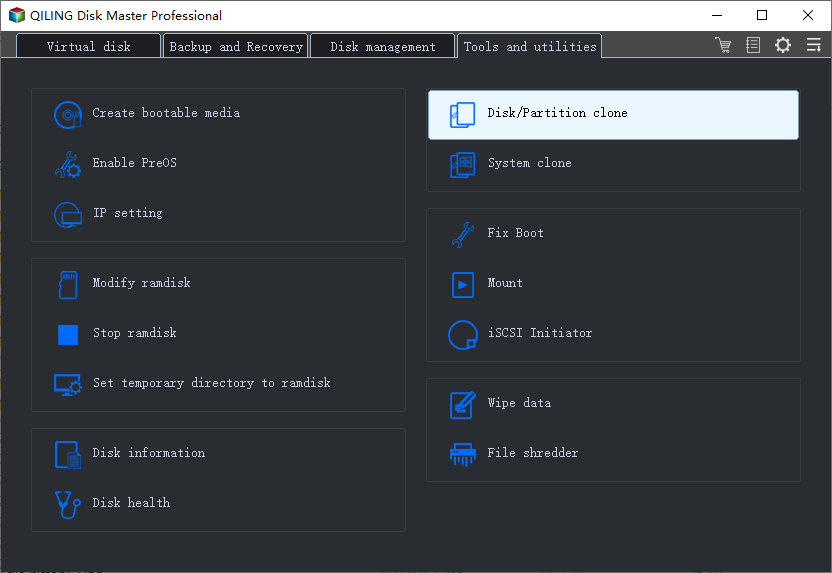
Step 1. Choose Disk Clone
Open Clone on the left and select Disk Clone. Confirm that BitLocker shows protection as suspended before you continue.
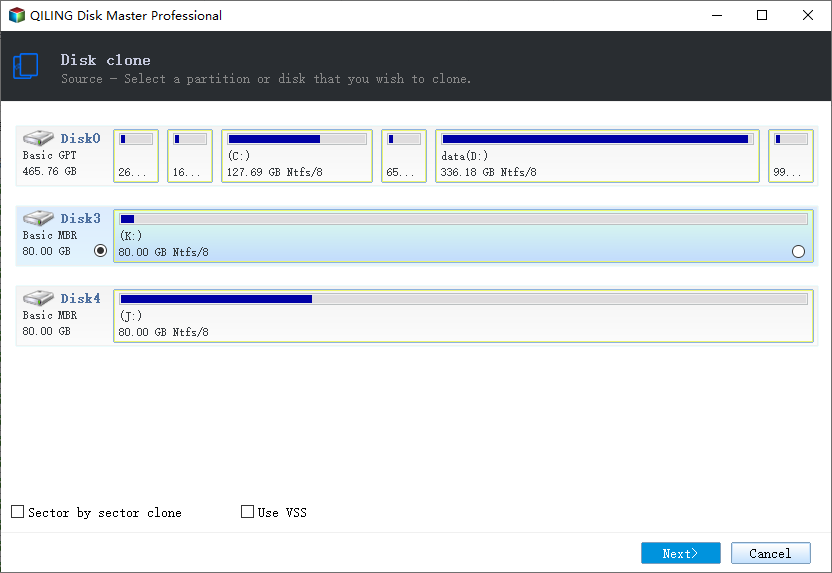
Step 2. Select the Encrypted System Disk
Pick the disk that holds the Windows volume and confirm its capacity and model. Every partition that belongs to the boot chain must be included.
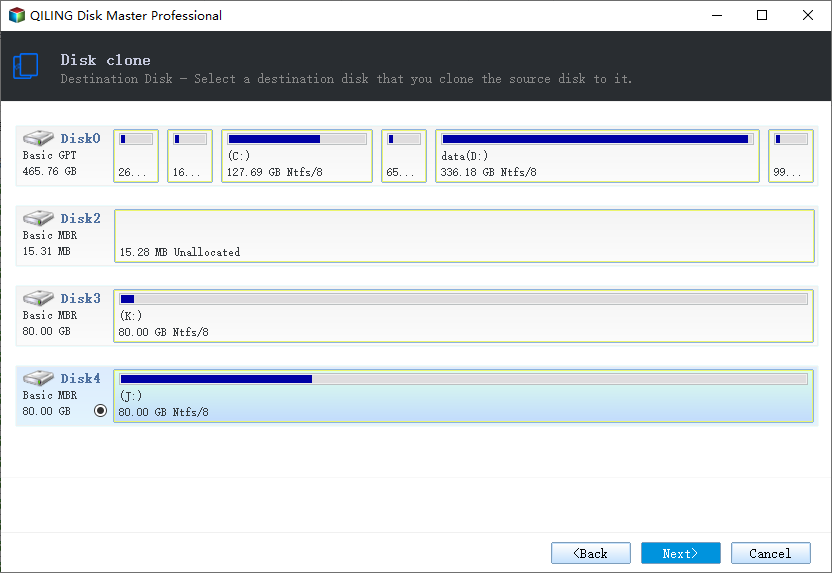
Step 3. Select the Smaller SSD
Choose the new drive. Enable the option that fits partitions to the smaller disk so the layout is scaled rather than copied at full size.
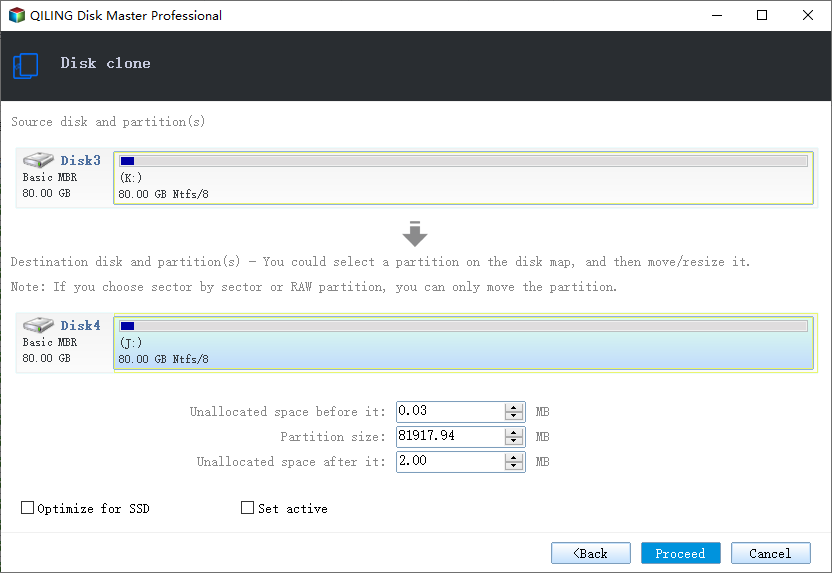
Step 4. Preview and Proceed
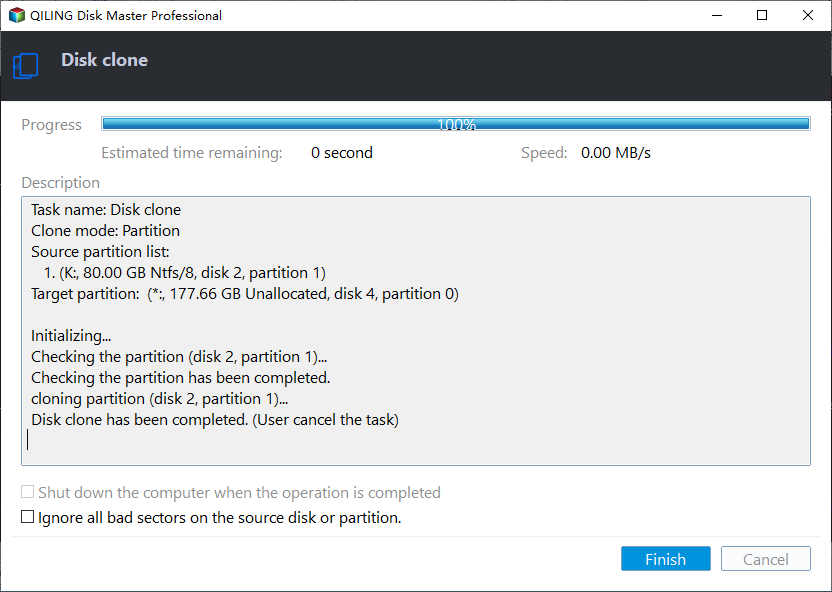
Check the partition mapping, then start the clone. A volume in use is handled at restart, so save your work and allow the reboot.
Step 5. Boot and Re-Enable Protection
Boot from the new SSD, confirm that Windows starts and that the drive shows as encrypted, then turn BitLocker protection back on and back up the new recovery key.
Frequently Asked Questions
Can I clone while BitLocker is still on?
Some tools can, but the result depends on how the volume was opened. Suspending protection removes that uncertainty.
Does the smaller SSD need to be the same sector size?
Not the same, but the destination geometry has to be handled by the tool. Check the layout after cloning if either drive reports 4096-byte sectors.
Will Windows ask for the recovery key after the clone?
It can, because the boot disk changed. Keep the key available and enter it once if prompted; afterwards the TPM protector can be rebuilt.
What happens to the recovery partition?
It is copied and scaled with the other partitions. If it sits at the end of the disk, the layout has to be adjusted to make it fit.
For the general procedure, see cloning Windows 11 to a smaller SSD.
Related Articles
- Clone Windows 11 to a Smaller SSD
- BitLocker Decryption Stuck at 0x803100d6
- BitLocker Auto-Unlock Fails After a BIOS Update
- 4K Alignment When Cloning an SSD
- Recover Files After a Failed Disk Clone
Products
Articles & Tutorials
- Data Recovery
- Data Backup
- File Recovery
- File Backup
- System Backup and Restore
- Disk and Partition Clone
- Technical articles
- Mobile articles
- Disk Master Help
- Windows Data Recovery Tutorials
- Windows Secure Delete Tutorials
- Windows Partition Management Tutorials
- Windows File Backup and Restore Tutorials
- Windows System Backup and Restore Tutorials
- Windows Disk Backup and Restore Tutorials
- Windows Clone Tutorials