BitLocker Auto-Unlock Fails After a BIOS Update
Quick Navigation:
- Why a Firmware Update Breaks It
- Unlock and Confirm Before Changing Anything
- Rebuild Automatic Unlock
- Recover Files If the Volume Will Not Unlock
- Frequently Asked Questions
Automatic unlock depends on a TPM protector sealed to the firmware and boot measurements. A BIOS or firmware update changes those values on purpose, so the protector can no longer open the volume and BitLocker falls back to asking for a password or recovery key. Automatic unlock is then reported as off even though protection is still active.
Why a Firmware Update Breaks It
The TPM releases the volume key only when the measured boot state matches what was recorded when protection was enabled. Firmware updates change the code that runs first, and often reset or reinitialise the TPM as part of the update.
When the match fails, the automatic protector is skipped. Windows may still boot if a second protector exists, such as a password or a recovery key, but data volumes that relied on auto-unlock stay locked.
The settings page then shows automatic unlock as disabled or unavailable, which looks like a configuration problem rather than a protector problem.
Unlock and Confirm Before Changing Anything
Unlock the volume manually with the recovery key or password, and confirm that the files are all present. Do not remove protectors until the volume is open.
Compare the key identifier shown on the unlock prompt with the one stored in the Microsoft account or the saved text file. A mismatch means the key belongs to another volume.
Record which protectors are listed. A volume with only a TPM protector has no fallback, which is the configuration that makes a firmware update painful.
Rebuild Automatic Unlock
Turn automatic unlock on again for the volume and let Windows create a new TPM protector for the current firmware state. Then restart once to confirm that it opens without a prompt.
Back up the new recovery key immediately. The old key still opens the volume, but the new protector is what future boots will use.
Managing protectors from the command line uses the BitLocker tool that ships with Windows. That tool is part of the operating system rather than of this software, and it should not be used until the data has been copied.
Recover Files If the Volume Will Not Unlock
Encryption is the one case where a scan cannot substitute for a key. Qiling Deep Data Recovery reads a volume that Windows has already unlocked, so it can retrieve files lost during the repair, but it cannot open a locked volume.
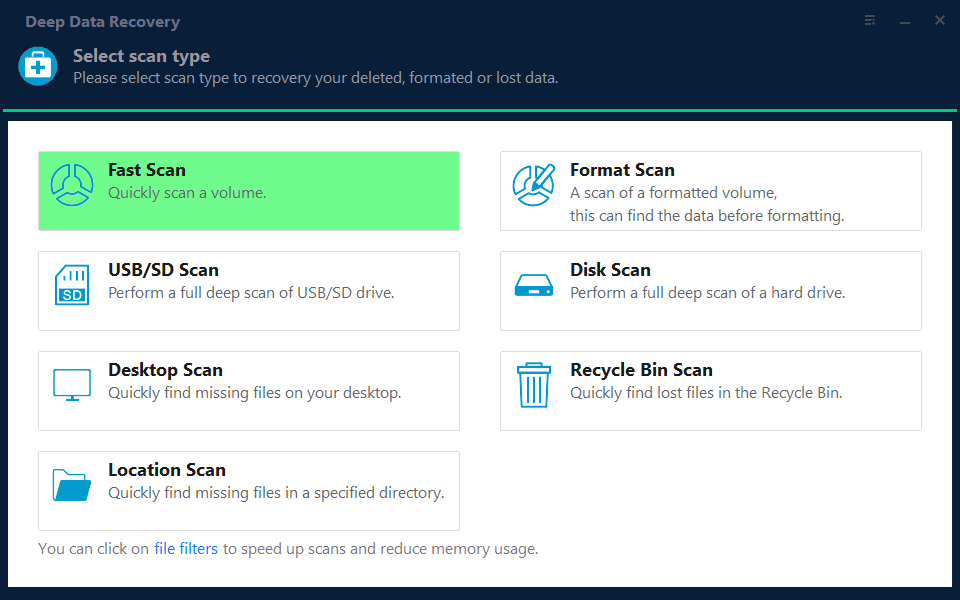
Step 1. Choose the Recovery Mode
With the volume unlocked and mapped to a letter, start with Fast Scan. Use Format Scan if the volume shows as RAW.
Step 2. Select the Volume
Pick the disk that holds the unlocked volume and confirm its capacity. The recovery reads the decrypted view Windows presents.
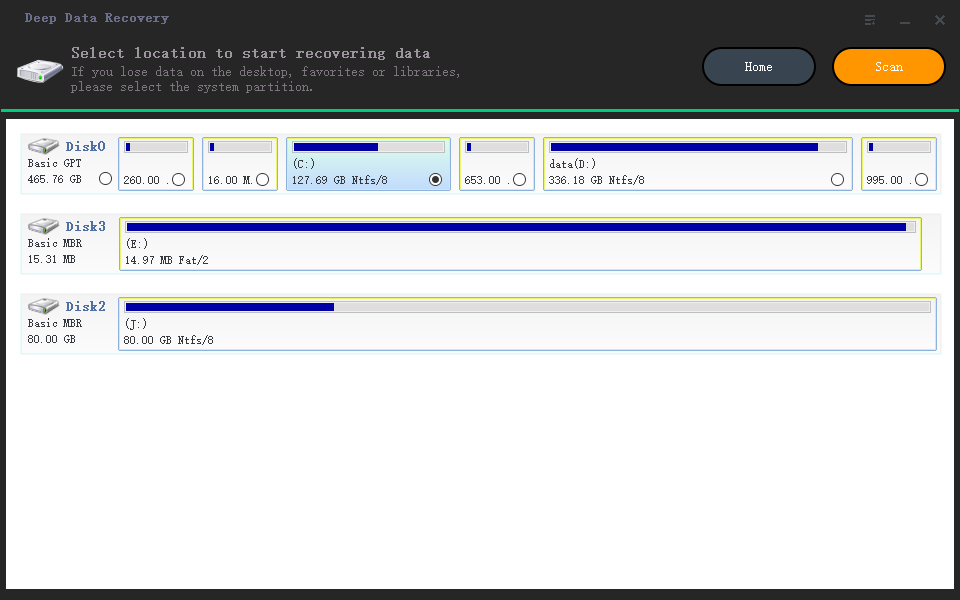
Step 3. Review the Results
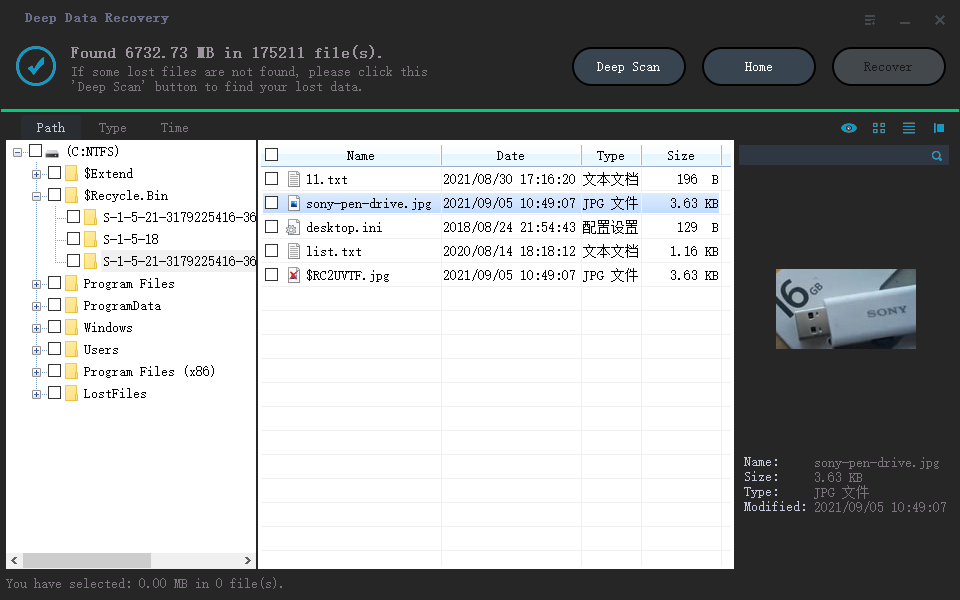
Preview documents and photos before selecting them, and look for the user folders you expected.
Step 4. Save to an Unencrypted Disk
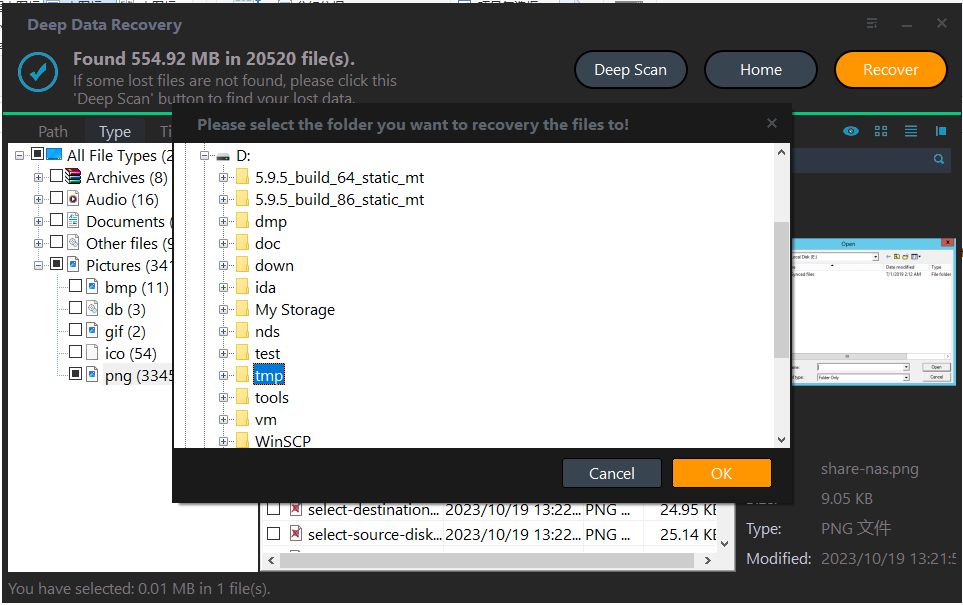
Write the files to a disk that is not protected by the same key, and keep that copy until automatic unlock has been tested with a restart.
Frequently Asked Questions
Does a BIOS update always break BitLocker?
Not always, but it often does, because the firmware code and the TPM state change. Systems with a password protector usually only see a prompt, not a lockout.
Can I stop Windows from asking again?
Yes, by rebuilding the TPM protector for the current firmware and enabling automatic unlock. Test it with a restart before you rely on it.
Is the old recovery key still valid?
Usually yes. Keys are tied to the volume, not to the firmware, so they remain a working fallback.
What if I have no recovery key?
Without the key or a password protector the volume cannot be decrypted by software. Restore from a backup or accept data loss.
For the prompt after a hardware replacement, see BitLocker recovery key after a motherboard swap.
Related Articles
- BitLocker Recovery Key After a Motherboard Swap
- BitLocker Decryption Stuck at 0x803100d6
- BitLocker RAW After a Windows 11 Update
- Recover Files After a Reinstall With BitLocker
- Perform a RAW Drive Recovery
Products
Articles & Tutorials
- Data Recovery
- Data Backup
- File Recovery
- File Backup
- System Backup and Restore
- Disk and Partition Clone
- Technical articles
- Mobile articles
- Disk Master Help
- Windows Data Recovery Tutorials
- Windows Secure Delete Tutorials
- Windows Partition Management Tutorials
- Windows File Backup and Restore Tutorials
- Windows System Backup and Restore Tutorials
- Windows Disk Backup and Restore Tutorials
- Windows Clone Tutorials