BitLocker Recovery Key After a Motherboard Swap
Quick Navigation:
- Why the Swap Triggers Recovery Mode
- Find the Recovery Key
- Unlock, Then Suspend Before the Next Repair
- Recover Files When the Volume Will Not Unlock
- Frequently Asked Questions
BitLocker does not react to hardware in general; it reacts to the measurements the firmware reports at boot. A replacement motherboard brings a different TPM, a different firmware version, and often a different boot mode, so every measured value changes at once. The drive then refuses to unlock automatically and asks for the recovery key, which is the protection working as designed.
Why the Swap Triggers Recovery Mode
A TPM-based protector seals the volume key to a set of measurements: the boot manager, the firmware, the secure boot state, and the early boot components. When those values change, the TPM refuses to release the key and Windows falls back to the recovery password.
A new board changes all of them. Even when the model matches, the TPM is a different chip with a different endorsement key, so a protector sealed to the old chip cannot be opened by the new one.
The prompt appears before Windows starts, which is why the usual advice to boot into safe mode does not help. The unlock has to happen in the pre-boot environment.
Find the Recovery Key
Start with the Microsoft account that was signed in on the machine. The account page lists recovery keys for every device that backed one up, and each key is identified by a key ID whose first digits are shown on the recovery screen.
Check the organisation as well when the machine is domain joined or managed. A work account stores keys in the directory, and the help desk can read them from there.
Look for a printed copy, a text file on a USB stick, or a saved file in a cloud folder. Windows offers all three when BitLocker is first enabled, and many users save one without remembering it.
Unlock, Then Suspend Before the Next Repair
Type the 48-digit key at the recovery prompt. Once Windows starts, open the BitLocker settings page and suspend protection before you do anything else, so a reboot during driver installation does not return you to the same prompt.
Back up the recovery key again. The old key still opens the volume, but a new protector has to be created for the new TPM, and the key that goes with it should be stored somewhere other than the machine.
Removing the old TPM protector and adding a new one is a command line operation that uses the BitLocker management tool shipped with Windows. That tool is part of the operating system and is not a feature of this software, and it should only be run after the data has been backed up.
Recover Files When the Volume Will Not Unlock
Encryption is the one case where no scan can substitute for a key. Qiling Deep Data Recovery reads a volume that Windows has already unlocked, so it can recover files that went missing during the repair, but it cannot decrypt a volume that is still locked.
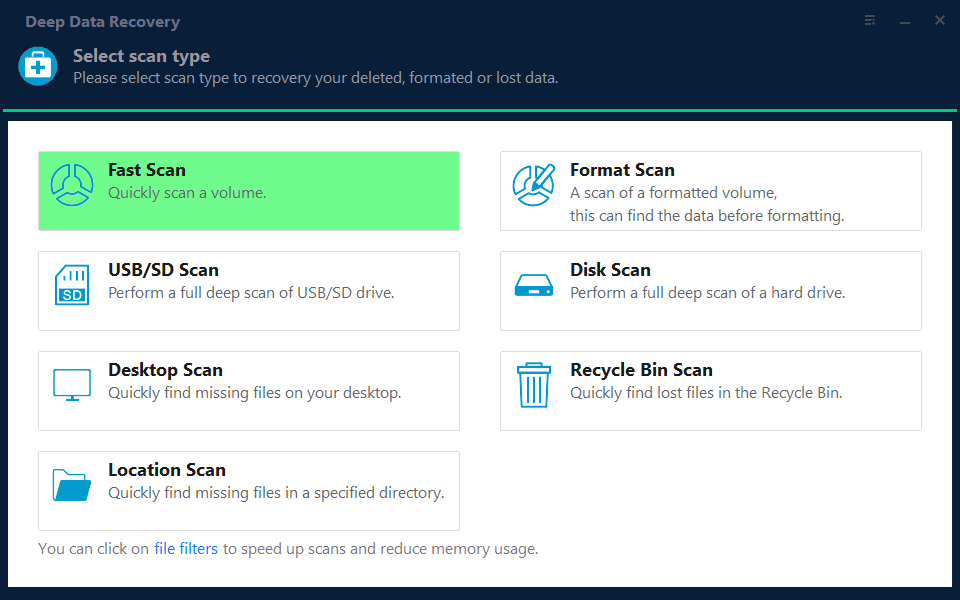
Step 1. Choose the Recovery Mode
With the volume unlocked and mapped to a letter, start with Fast Scan. Choose Format Scan when the repair process reformatted the volume.
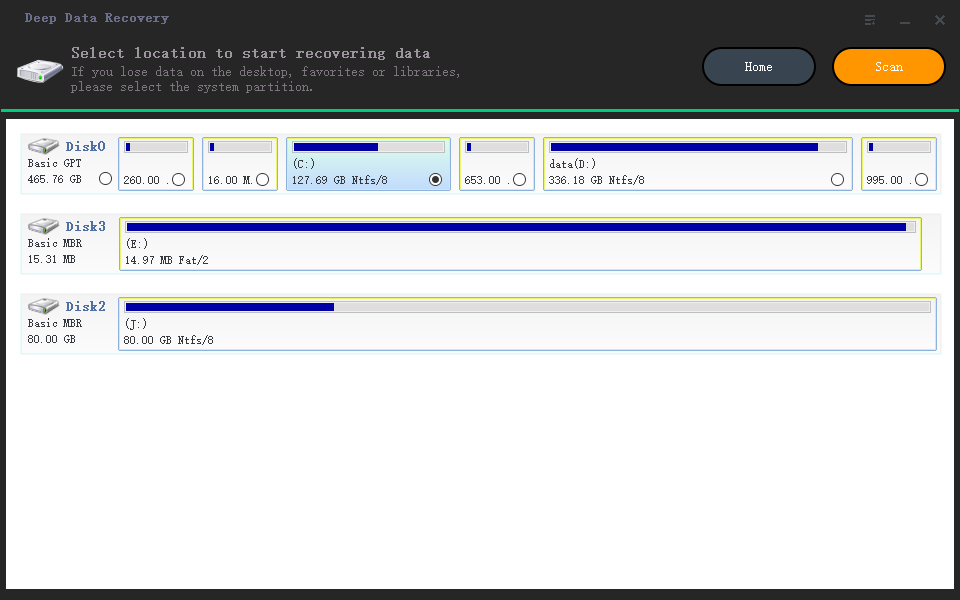
Step 2. Select the Volume
Select the physical disk that holds the unlocked volume and confirm its capacity. The recovery tool reads the decrypted view that Windows presents, not the raw encrypted sectors.
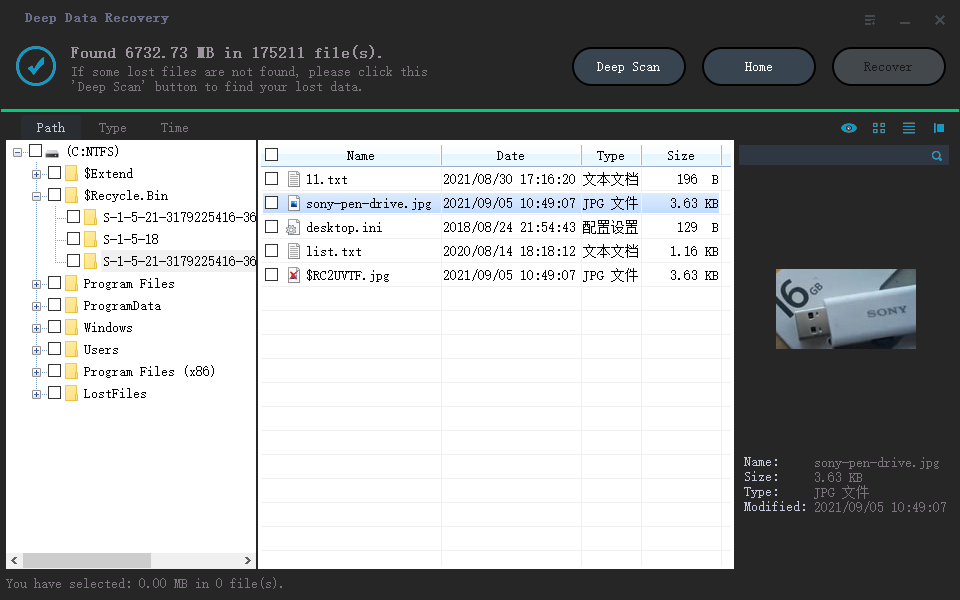
Step 3. Review the Results
Preview documents and photos before selecting them. A file that previews correctly was read from intact data rather than from a stale index.
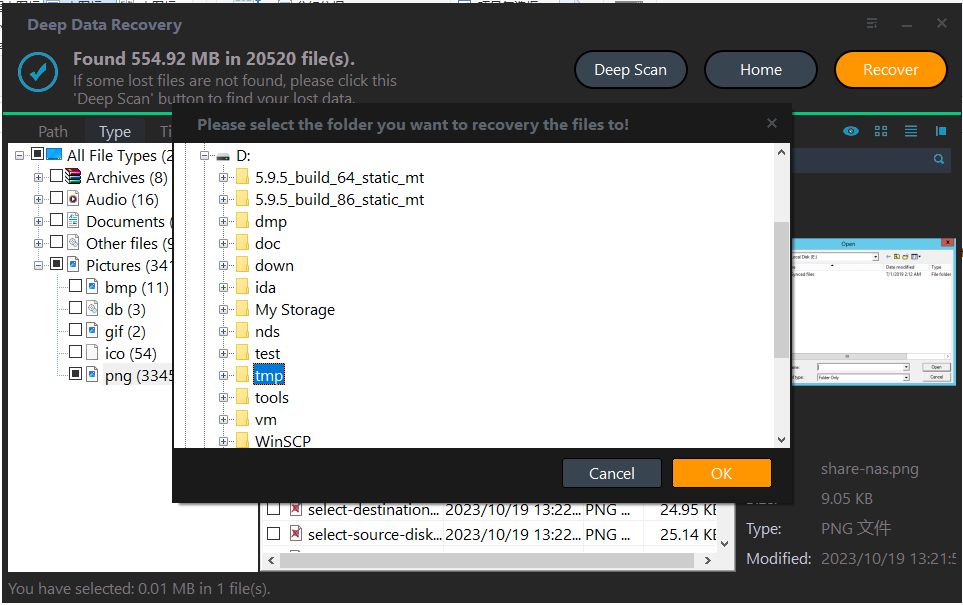
Step 4. Save to an Unencrypted Disk
Write the files to a disk that is not protected by the same key. Keeping the only copy on the volume that just failed to unlock repeats the problem.
Frequently Asked Questions
Does replacing the CPU also trigger recovery mode?
It can, because the TPM may be cleared or reinitialised during the swap. A motherboard replacement is more reliably a trigger, since the TPM chip itself changes.
Can I disable the recovery prompt permanently?
You can remove the TPM protector and use a password protector instead, or disable BitLocker. Both reduce protection, and neither should be done while the drive holds the only copy of important data.
Is the recovery key the same as my Microsoft password?
No. The key is a 48-digit number generated when protection was enabled. The account is only where the key is stored.
What if the key is lost?
Without the key or a backup of the data, the content is not recoverable by software. A clean installation and a fresh backup routine are the realistic options.
For a volume that unlocks but appears as RAW, see BitLocker RAW after a Windows 11 update.
Related Articles
- BitLocker RAW After a Windows 11 Update
- Unlock and Recover BitLocker To Go
- Recover Files After a Reinstall With BitLocker
- Recover Data From a Laptop That Will Not Boot
- Perform a RAW Drive Recovery
Products
Articles & Tutorials
- Data Recovery
- Data Backup
- File Recovery
- File Backup
- System Backup and Restore
- Disk and Partition Clone
- Technical articles
- Mobile articles
- Disk Master Help
- Windows Data Recovery Tutorials
- Windows Secure Delete Tutorials
- Windows Partition Management Tutorials
- Windows File Backup and Restore Tutorials
- Windows System Backup and Restore Tutorials
- Windows Disk Backup and Restore Tutorials
- Windows Clone Tutorials