Clone a Drive with R-Drive Image on Windows or ISO
R-Drive Image is a compact imaging and cloning tool that can copy a disk directly, or write an image that is restored to a new drive later. It runs from Windows or from a bootable ISO built by its own startup media wizard.
Its direct disk-to-disk mode is the fastest route when the source is healthy, while its sector-level copy is the reason people reach for it on failing drives. This guide covers both workflows, the trial restrictions, and the boot checks after the copy.
PAGE CONTENT
- How R-Drive Image Handles a Clone
- Clone from Windows or Bootable Media
- Trial Limits and Restore Options
- Clone with Qiling Disk Master
- Verify the Clone and Handle Boot Problems
- Frequently Asked Questions
- Back Up Before You Clone
How R-Drive Image Handles a Clone
- Two working modes. It can create a compressed image file for later restore, or copy a disk directly to another disk in one operation.
- Sector-level accuracy. The tool reads storage at the sector level, which means it can reproduce partitions that file-based tools would skip.
- Compression and splitting. Images can be compressed and split across volumes, which helps when the backup target is smaller than the source.
- Startup version. A bootable ISO runs the program outside Windows, so the system disk can be copied while it is not in use.
- Small footprint. The installer is light and the interface is plain, which makes it a practical choice on older hardware.
The direct copy mode is not a live migration. It reads the source and writes to a second disk, and it expects the target to be at least as large as the used data. Because the read is sector based, a damaged source may produce errors rather than a clean skip, so watch the log carefully on a drive that has shown warnings.
Clone from Windows or Bootable Media
- Back up first. Save an image of the source to a third disk before any direct copy, because a failed job leaves the target unusable.
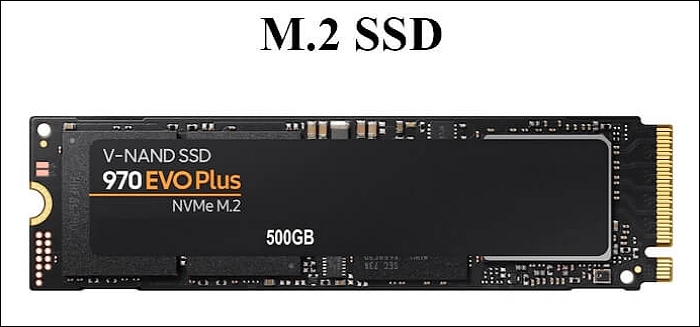
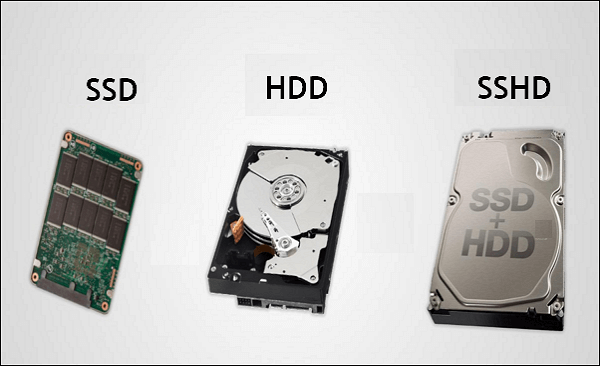
- Attach the target. Connect the new SSD by SATA, M.2, or USB, initialize it, and confirm that both Windows and the tool list it.
- Choose the copy path. Use disk-to-disk for a quick upgrade, or create an image and restore it when the target is not available yet.
- Select every partition. Include the EFI or System Reserved partition along with Windows, or the new disk will not start.
- Boot from the ISO when needed. Build the startup media, boot from it, and run the copy there if Windows cannot stay stable during the job.
The bootable route is the safer choice on a system that already shows signs of trouble. It removes Windows from the equation, avoids locked files, and gives the copy a clean environment. The cost is that you must create the media in advance and test that it starts on your hardware.
Trial Limits and Restore Options
- Trial restrictions. The evaluation build limits some operations or watermark output, so confirm what the trial allows before you start a migration.
- Direct copy plus restore. Both paths are supported, and restoring an image to a larger disk can resize partitions during the write.
- No layout conversion. The tool preserves the existing partition style, so an MBR disk stays MBR and may not boot on a UEFI-only board.
- BAD sector handling. Sector-level copying reads problem areas literally and can stall or abort when the source is badly damaged.
- No boot repair. It copies data faithfully but does not rebuild a broken boot configuration, so a failed start needs a separate repair step.
These limits define when the tool is the right answer and when it is not. It is excellent for a healthy disk and a straight copy, and it is useful for imaging a drive you intend to keep. It is a poor fit when the partition style must change or when the boot chain needs reconstruction.
Clone with Qiling Disk Master
Qiling Disk Master clones a whole disk in a few screens, includes the boot partitions by default, resizes on a larger target, and can convert MBR to GPT during the job. It also reports unreadable sectors instead of stopping silently.
Watch the video tutorial below to clone the drive step by step with Qiling Disk Master.
Step 1. Open Qiling Disk Master, choose Clone, and then select Disk Clone.

Step 2. Select the source disk and click Next.

Step 3. Select the destination SSD and confirm that its data will be replaced.

Step 4. Choose the clone mode and adjust the partition size if the target is larger.

Step 5. Click Proceed, wait for the copy to finish, then shut the machine down before you remove any cable.

Verify the Clone and Handle Boot Problems
- Check the partition layout. Open Disk Management and confirm that the new disk carries the same volumes, sizes, and boot flags as the source.
- Look for a boot failure. A disk that reaches the firmware logo but not Windows usually lost the boot partition or has the wrong disk style.
- Repair the boot files. Use the Windows recovery environment to rebuild the boot configuration if the copy is complete but will not start.
- Test without the source. Disconnect the old drive before the first start so the firmware cannot quietly boot from the original disk.
- Keep the image. Retain the source image until the new drive has survived updates, restarts, and a capacity check.
A file-for-file faithful copy can still fail at boot, because the boot configuration references identifiers that changed. Treat the first boot as a test, not a conclusion, and keep the source and the image until the machine has restarted cleanly more than once.
Frequently Asked Questions
Can R-Drive Image clone a disk directly?
Yes. It supports disk-to-disk copying as well as image creation and restore, so you can choose the method that fits your target and schedule.
Does the trial version allow cloning?
The evaluation build has restrictions on some operations. Check the current trial terms before you rely on it for a full system migration.
Can it copy a failing hard drive?
It reads at the sector level, so it can copy a damaged drive, but serious errors may stop the job. Use its error handling options and work from a healthy source when possible.
Why does the cloned disk not boot?
The boot partition may be missing, the disk style may not match the firmware mode, or the boot configuration needs repair after the identifiers changed.
Can I resize partitions during the copy?
Yes, when restoring an image to a larger disk. A direct disk-to-disk copy keeps the original sizes unless you edit the layout before you start.
Back Up Before You Clone
Even a sector-level tool can stop on a bad patch of a dying drive. Keep a current system image on separate media so the original can be rebuilt if the copy fails or the new disk will not start.
Watch the video tutorial below to back up Windows and restore it if the clone fails.
Step 1. Open Qiling Disk Master and select System Backup to include the boot partitions.

Step 2. Save the image to a drive other than the target disk and start the backup.

Step 3. Click Proceed to start the system backup and wait patiently until it finishes. You can also tick Shut down the computer when the operation is completed to power off automatically.

Step 4. If the clone fails, restore the image and check the source disk before you retry.

Conclusion
R-Drive Image is a dependable sector-level copier for healthy disks and a useful imaging tool for drives you plan to keep. Its trial restrictions, lack of layout conversion, and missing boot repair are the reasons to plan the job carefully or choose a tool that handles those steps directly.
For related guides, see Best Free Disk Cloning Software 2026, Sector by Sector Clone vs Intelligent Clone, Clone a Hard Drive with Bad Sectors, and Cloned Drive Will Not Boot: Fix.
Related Articles
- Best Free Disk Cloning Software 2026
Compare current free cloners on speed, brand support, boot handling, and recovery tools before you commit to one. - Sector by Sector Clone vs Intelligent Clone
Understand when a literal sector copy is necessary and when a used-space clone is faster with the same result. - Clone a Hard Drive with Bad Sectors
Copy data from a drive with reallocated sectors, read errors, or SMART warnings without losing the files you need. - Clone SSD to New SSD
Replace an existing SSD with a new one without reinstalling Windows, and confirm the copy before you remove the original. - Cloned Drive Will Not Boot: Fix
Repair boot records, partition styles, and BIOS settings when a finished clone will not start on the new drive.
Products
Articles & Tutorials
- Data Recovery
- Data Backup
- File Recovery
- File Backup
- System Backup and Restore
- Disk and Partition Clone
- Technical articles
- Mobile articles
- Disk Master Help
- Windows Data Recovery Tutorials
- Windows Secure Delete Tutorials
- Windows Partition Management Tutorials
- Windows File Backup and Restore Tutorials
- Windows System Backup and Restore Tutorials
- Windows Disk Backup and Restore Tutorials
- Windows Clone Tutorials