Clone Fails When Intel RST RAID Mode Is Enabled
Quick Navigation:
- Why the Disk Is Hidden
- The Order That Keeps Boot
- Clone the Array, Not a Member
- Clone and Fix the Boot
- Frequently Asked Questions
The new SSD is installed, the tool starts, and the destination list shows only the old drive or nothing at all. On a machine whose BIOS is set to Intel RST RAID mode, or to VMD on a newer platform, the disk controller is not presenting drives the way a plain AHCI controller does. The clone fails or the copied disk will not start, and both symptoms come from the same setting.
Why the Disk Is Hidden
In RAID mode the firmware hands disks to Windows through a driver rather than directly. Disks that belong to an array appear as one logical volume, and a spare disk that has not been initialized in the option ROM may appear as an unrecognized device or not appear in the tool at all.
VMD goes further. It was introduced to manage PCIe storage and remaps the NVMe drives behind a controller that Windows only sees once its driver is loaded. A new SSD on a VMD platform can therefore be physically present, visible in the BIOS, and completely absent from Disk Management.
The clone tool is not at fault. It can only read disks that Windows exposes, and Windows exposes whatever the storage driver reports. That is why the fix is a controller question first and a software question second.
The copied disk matters too. A clone can finish without error and still fail to boot, because the boot entry the firmware looks for was never written in the form the new mode expects.
The Order That Keeps Boot
Switching the BIOS from RAID to AHCI after Windows was installed in RAID mode is the step that breaks machines. Windows loads the RST driver at boot, and with the controller in AHCI that driver finds no matching device, so the boot ends in an inaccessible boot device error.
The safe order starts with a full image of the current system, taken while the machine still boots. If the switch goes wrong, that image is the way back, and it costs one hour compared with a rebuild.
Next, make Windows ready for AHCI before the BIOS changes. Windows keeps a start setting for the storage driver, and setting the AHCI driver to load at boot, or booting into Safe Mode once after the switch, lets the new driver load without the old one blocking it. Either method works; both must be done before the firmware setting is changed, not after.
Only then change the BIOS setting, and change one thing at a time. Confirm that Windows starts in AHCI before you touch the disk layout, because a machine that boots in the new mode is a machine you can still repair.
Clone the Array, Not a Member
A RAID array is one disk to Windows. Cloning a member disk directly copies a stripe fragment that means nothing on its own, so the destination will not boot and the data will look scrambled.
Clone the array volume instead, with the controller still in RAID mode. The tool reads the logical volume exactly as Windows sees it, and the destination SSD receives a normal partition table that can boot once the controller is set to AHCI.
If the destination is the disk that stays hidden, connect it to a port the controller passes through, or move the whole job to a USB adapter for the copy and connect the SSD to the board afterwards. A bridge is acceptable for the copy as long as it does not drop the link during a long write.
Check the destination capacity on the selection page. A bridge or a RAID metadata reservation can make a 1 TB SSD report less than 1 TB, and a clone planned against the wrong size fails near the end rather than at the start.
Clone and Fix the Boot
With the preparation done, Qiling Disk Master copies the volume to the SSD in one pass and writes a layout the firmware can read in AHCI mode. The steps below assume the image is already stored and the controller setting has been tested.
Keep the old drive connected until the new one has booted at least twice. The first boot confirms the files, the second confirms that the boot entry is stable rather than a one-time success.
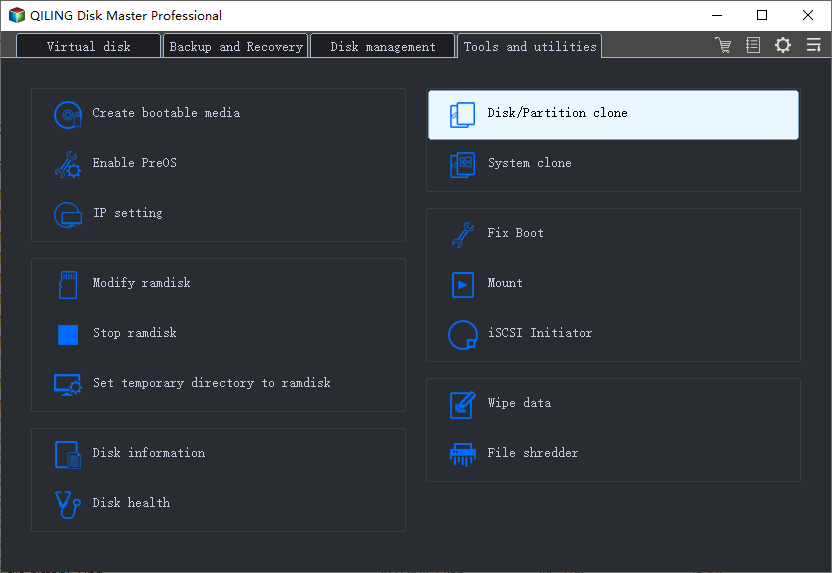
Step 1. Open Disk Clone
On the Tools and utilities tab, open Disk/Partition clone. Use the disk option for a full copy of the array volume; the partition option is for a single volume on a disk you can see in full.
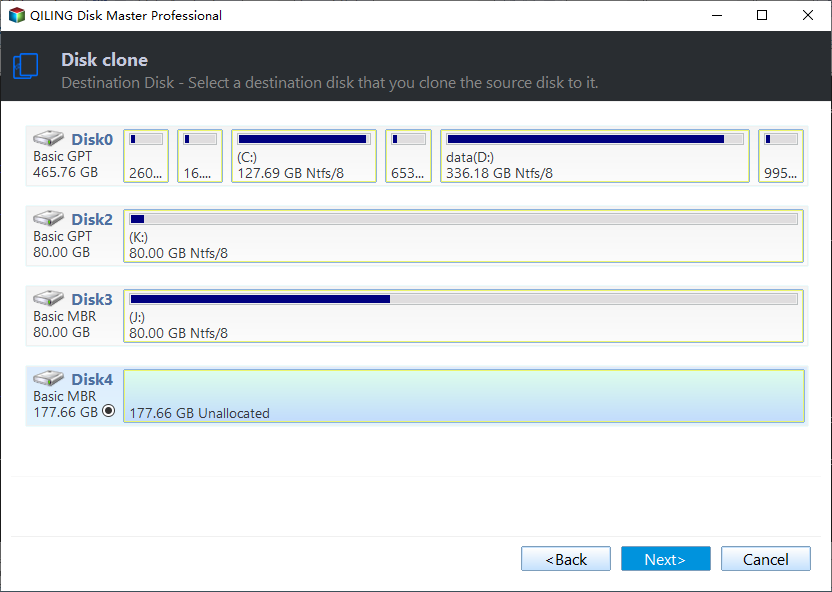
Step 2. Select the Array and the SSD
Select the array volume as the source, then pick the SSD as the destination and confirm that the capacity shown matches the label on the drive. Do not tick sector by sector mode for a healthy array.
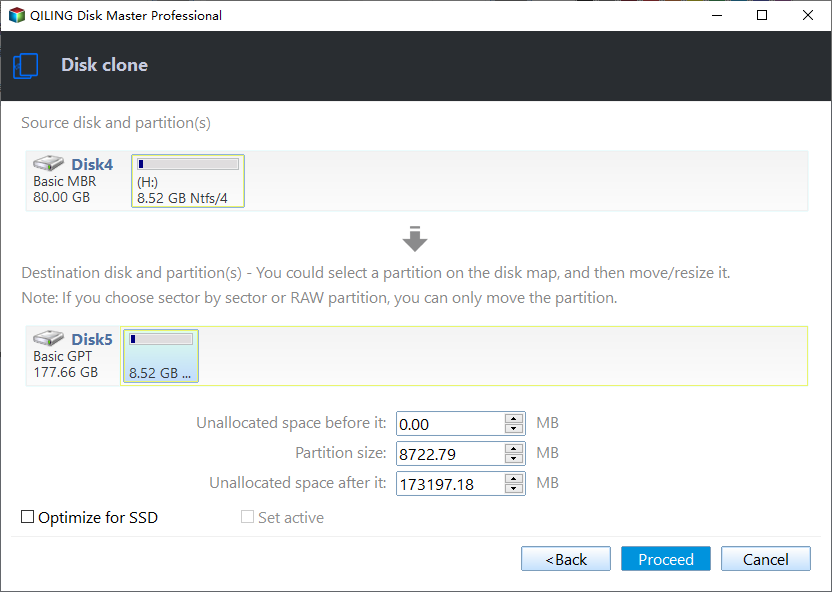
Step 3. Preview and Click Proceed
Preview the pending operation and click Proceed. Enable SSD optimization, confirm that the system and recovery partitions are both on the destination side, then accept the overwrite warning.
If the new disk still does not start, boot from Windows installation media, choose Repair your computer, and run Startup Repair. It rewrites the boot files for the disk that is actually connected, which is usually enough after a controller change.
Frequently Asked Questions
Can I clone while the BIOS is still in RAID mode?
Yes, and it is the safer choice. Change to AHCI only after Windows has been prepared for the new driver.
Why is the SSD missing from Disk Management but present in the BIOS?
The VMD or RST driver is not exposing it. Disable VMD for that slot, or load the driver, before you expect any tool to see the disk.
Will the cloned Windows still activate?
Usually yes, because the hardware identity is unchanged. A new motherboard is the case that needs reactivation.
If the machine boots only after you toggle the controller back, switching from IDE to AHCI after a clone walks through the driver setting in more detail.
Related Articles
- Switch From IDE to AHCI After Cloning
- Cloned Drive Won't Boot: How to Fix It
- How to Clone a RAID Drive to a Single SSD
- No Bootable Device After Cloning
- Clone a Dynamic Disk to a Basic Disk
Products
Articles & Tutorials
- Data Recovery
- Data Backup
- File Recovery
- File Backup
- System Backup and Restore
- Disk and Partition Clone
- Technical articles
- Mobile articles
- Disk Master Help
- Windows Data Recovery Tutorials
- Windows Secure Delete Tutorials
- Windows Partition Management Tutorials
- Windows File Backup and Restore Tutorials
- Windows System Backup and Restore Tutorials
- Windows Disk Backup and Restore Tutorials
- Windows Clone Tutorials