How to Clone a Larger SSD to a Smaller SSD
An SSD can move to a smaller SSD when the space actually in use fits on the new drive. Unlike an HDD, the source has no moving parts to worry about, but it still has partition layout rules that decide whether the smaller drive can boot.
This guide explains how to measure the real footprint, shrink the source volume safely, copy the disk with Qiling Disk Master, and start Windows from the smaller SSD.
PAGE CONTENT
- Why Clone a Bigger SSD to a Smaller One
- Measure the Space That Has to Fit
- Shrink the Source Volume
- Clone the SSD with Qiling Disk Master
- Boot the Smaller SSD and Check It
- FAQs About Cloning to a Smaller SSD
- Back Up Windows Before You Clone
Why Clone a Bigger SSD to a Smaller One
- A spare drive is already on hand. A 256 GB SSD from another build can serve a machine that only needs the system.
- The target device has size limits. Some thin laptops accept only a 2230 module, which comes in modest capacities.
- The old drive is oversized for this role. A 1 TB system disk that uses 180 GB wastes capacity another PC needs.
- You plan to use the big drive elsewhere. Releasing the larger SSD gives a second machine more room.
- A clean layout is easier on a small drive. Shrinking the source before the copy leaves the target with one tidy system volume.
Cloning down works only when the used space, the EFI partition, and the recovery partition all fit inside the smaller drive. Confirm the numbers first, because the task stops once the destination has no space left.
Measure the Space That Has to Fit
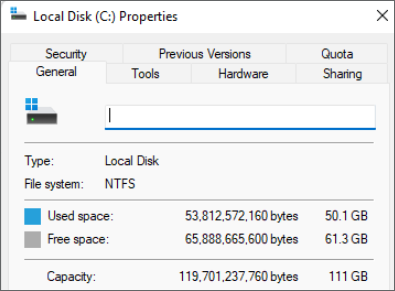
- Read the used space on C:. File Explorer shows it, but the number excludes hidden partitions.
- Add the EFI and recovery volumes. Together they can take several hundred megabytes and both must travel.
- Reserve 15 to 20 percent free. Windows needs room for updates, the pagefile, and temporary files.
- Watch the partition order. A recovery partition sitting right after C: blocks the layout on a smaller drive.
- Check the real capacity. The usable space of a 256 GB SSD is less than the number printed on the label.
Add the used space and the hidden partitions, then add the reserve on top. If the total still fits the new drive, the clone will succeed; if not, free space or shrink the volume first.
Shrink the Source Volume
- Do not defragment a SSD. Defragging an SSD wastes writes and gives no benefit for the shrink.
- Shrink with Disk Management. Right-click the volume, choose Shrink Volume, and enter the amount to release.
- Move immovable files first. Disable hibernation and set the pagefile to a fixed size so the shrink can pass them.
- Move or remove the recovery partition. A volume sitting right after C: stops it from shrinking further.
- Note the partition sizes. Keep a record so the layout can be rebuilt if the copy fails.
Windows can shrink a volume only up to the last immovable file. When the shrink stops early, turn off hibernation and delete old restore points, then try again.
Clone the SSD with Qiling Disk Master
Qiling Disk Master copies the larger SSD to the smaller one and adjusts the partition layout during the same task. The destination must be empty, so move anything you need off it before you start.
Watch the video tutorial below to clone the drive step by step with Qiling Disk Master.
Step 1. Open Qiling Disk Master, choose Clone, and then select Disk Clone.

Step 2. Select the larger SSD as the source disk and click Next.

Step 3. Select the smaller SSD as the destination and confirm that its data will be replaced.

Step 4. Fit the partitions on the smaller drive, keep the EFI and recovery volumes, and tick Optimize for SSD so 4K alignment stays correct.

Step 5. Click Proceed, wait for the copy to finish, then shut the machine down before you remove any cable.

Boot the Smaller SSD and Check It
- Set the boot order. Choose the new SSD in firmware or in the one-time boot menu.
- Confirm the drive letter. The system partition should come up as C: without a manual change.
- Verify the free space. Disk Management should show the smaller capacity available to the system.
- Run TRIM. Run optimize on the new drive once so the SSD knows which blocks are empty.
- Keep the old SSD untouched. Leave it as it is until the new disk has run for a week.
If Windows stops with a boot device error, the boot files may sit on a partition that did not fit. Reconnect the original SSD and review the layout with How to Clone Windows 11 with the System Reserved Partition.
FAQs About Cloning to a Smaller SSD
Can I clone a 1 TB SSD to a 512 GB SSD?
Yes, if the used space plus the hidden partitions and the reserve fit inside 512 GB.
Does the clone fail when the target is too small?
It stops once the destination has no space left. Shrink the source volume and try again.
Do I need to defragment the source SSD first?
No. Do not defragment a SSD; it shortens the drive and does not help the shrink.
Will programs keep working on the smaller drive?
Yes. A disk clone copies the registry and the program files along with Windows.
Can I clone to a smaller NVMe drive?
Yes. The interface does not matter, only the capacity and the connector of the target.
Back Up Windows Before You Clone
Shrinking and copying a system drive carries risk, and a failed clone can leave neither disk bootable. Create a full system backup first, so a mistake costs nothing but time.
Watch the video tutorial below to back up Windows and restore it if the clone fails.
Step 1. Open Qiling Disk Master and select System Backup to include the boot partitions.

Step 2. Save the image to a drive other than the target disk and start the backup.

Step 3. Click Proceed to start the system backup and wait patiently until it finishes. You can also tick Shut down the computer when the operation is completed to power off automatically.

Step 4. If the smaller drive will not start, restore the image to the original drive and try again.

Conclusion
Cloning down is a matter of arithmetic and preparation. Add the used space to the EFI and recovery partitions, leave a fifth of the drive free, and shrink C: until the layout fits. Then clone the whole disk, fit the partitions on the destination, set the new drive first in the boot order, and run optimize once.
For more on shrinking before the copy, see How to Clone Windows 11 to a Smaller SSD, How to Clone a Hard Drive to a Smaller SSD, How to Clone Only the OS Partition to a New SSD, and 4K Alignment When Cloning to an SSD.
Related Articles
- How to Clone Windows 11 to a Smaller SSD
Shrink the partition before copying the system. - How to Clone a Hard Drive to a Smaller SSD
Move an HDD into a smaller solid-state drive. - How to Clone Windows 11 with the System Reserved Partition
The boot volumes must fit before the copy runs. - How to Clone a SATA SSD to an NVMe SSD
Move the same system onto a faster bus. - How to Migrate OS to SSD Without Reinstalling Windows
Compare migration with a full disk clone.
Products
Articles & Tutorials
- Data Recovery
- Data Backup
- File Recovery
- File Backup
- System Backup and Restore
- Disk and Partition Clone
- Technical articles
- Mobile articles
- Disk Master Help
- Windows Data Recovery Tutorials
- Windows Secure Delete Tutorials
- Windows Partition Management Tutorials
- Windows File Backup and Restore Tutorials
- Windows System Backup and Restore Tutorials
- Windows Disk Backup and Restore Tutorials
- Windows Clone Tutorials