Clone to a Larger Drive and Merge the Unallocated Space
Clone a 500 GB system disk to a 1 TB SSD and Disk Management may still report 500 GB. The copy is complete, Windows boots, and yet half the new drive sits idle as unallocated space at the end of the disk.
This guide explains why the clone keeps the original size and how to stretch the system volume into the spare room without risking the files on it.
PAGE CONTENT
- Why the Copy Keeps the Old Size
- Extend the Volume in Disk Management
- Extend When a Partition Sits in Between
- Clone with Qiling Disk Master
- Avoid Data Loss While Resizing
- FAQs About Unallocated Space
- Back Up Before You Resize
Why the Copy Keeps the Old Size
- A copy replicates partitions. Each partition is written at its original size and position, not stretched.
- The table records old lengths. The partition entries carry the original sector counts into the new drive.
- The spare room stays outside. Everything beyond the last partition becomes unallocated space.
- Sector copy cannot grow volumes. A raw copy of an encrypted or unknown file system has no resize stage.
- Only an option changes this. A fit-to-disk setting in the clone wizard resizes during the copy.
Nothing is wrong with the disk in this state. It is a faithful copy of the original layout, and the empty tail is simply space the copy never had a reason to touch.
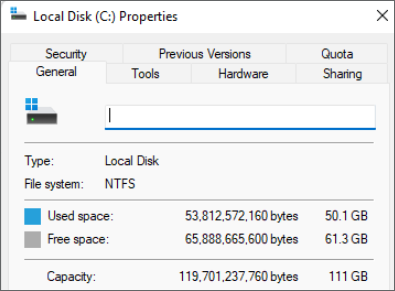
Extend the Volume in Disk Management
- Open Disk Management. Press Win+X and choose the disk tool from the menu.
- Confirm the space is adjacent. Extend Volume works only when unallocated space touches the volume on its right.
- Right-click the volume. Choose Extend Volume and step through the wizard.
- Accept the offered size. The wizard fills the adjacent gap by default.
- Leave the reserved tail alone. The recovery partition often sits at the end and must not be moved.
If Extend Volume is greyed out, the unallocated space is not adjacent to the volume. That is a layout problem rather than a lock, and the next section covers the usual cases.
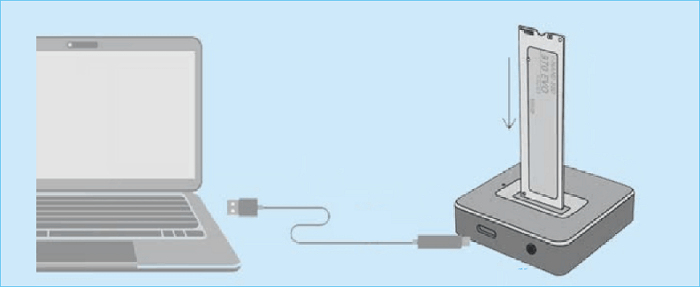
Extend When a Partition Sits in Between
- Move the blocking partition. A rescue or recovery volume between the system drive and the gap must shift right first.
- Use a partition tool. Disk Management cannot move volumes, so a third-party editor is required.
- Merge the gap instead. Some tools merge unallocated space into the adjacent volume in one step.
- Keep the boot flag intact. Moving partitions can break the boot record if the active flag is lost.
- Work from WinPE for the system drive. A running Windows cannot move its own system partition.
The recovery partition at the end of a Windows drive is the common blocker. Deleting it is one option, moving it right is another, and extending the system volume is impossible until one of those happens.
Clone with Qiling Disk Master
The simpler route avoids the resize step entirely. Qiling Disk Master can fit the copied partitions to the larger target during the clone, so the system volume arrives at its new size.
Watch the video tutorial below to clone the drive step by step with Qiling Disk Master.
Step 1. Open Qiling Disk Master, choose Clone, and then select Disk Clone.

Step 2. Select the source disk and click Next.

Step 3. Select the larger destination disk and confirm that its data will be replaced.

Step 4. Choose intelligent clone and drag the system partition to fill the larger capacity.

Step 5. Click Proceed, wait for the copy to finish, then shut the machine down before you remove any cable.

Avoid Data Loss While Resizing
- Image the disk first. Resizing rewrites partition metadata, and a failed move can leave a volume unreadable.
- Close every program. Locked files block a resize on a running system.
- Keep power steady. Use a laptop charger or a UPS so the operation is not interrupted.
- Check the file system. Run chkdsk before resizing so errors do not travel into the new layout.
- Verify after the reboot. Confirm the drive opens and the free space matches the new capacity.
The risky operation is moving a partition, not extending the last one. Extending into adjacent free space is safe, while shifting a partition that sits between them rewrites two metadata sets.
FAQs About Unallocated Space
Why is my cloned SSD smaller than its stated capacity?
The clone kept the original partition sizes. Extend the volume, or re-clone with a fit-to-disk option.
Is unallocated space a problem?
No. It is simply unused capacity. The system works, but you cannot store data there until a volume claims it.
Can I merge unallocated space into C in Disk Management?
Only when the space sits directly after C with no partition between them. Otherwise you need a tool that moves volumes.
Will extending C: delete any files?
No. Extending adds space at the end of a volume and leaves the existing data in place.
Does cloning damage the recovery partition?
It copies it like any other partition. Problems start only when you move or delete it during a resize.
Back Up Before You Resize
A resize that fails partway can leave the system volume unreadable, and the clone is the only other copy. Keep a separate image so the machine can be rebuilt on either disk.
Watch the video tutorial below to back up Windows and restore it if the clone fails.
Step 1. Open Qiling Disk Master and select System Backup to include the boot partitions.

Step 2. Save the image to a drive other than the target disk and start the backup.

Step 3. Click Proceed to start the system backup and wait patiently until it finishes. You can also tick Shut down the computer when the operation is completed to power off automatically.

Step 4. If the resize fails, restore the image to the cloned disk and start again with a clean layout.

Conclusion
A clone copies partitions at their original size, so a larger drive keeps a tail of unallocated space until something claims it. Extend the volume when the gap is adjacent, move the blocker when it is not, or skip the whole step by fitting the partitions during the clone. Either way, image the disk first, because partition metadata is the fragile part.
For more on capacity problems, see Cloned SSD Not Showing Full Capacity, How to Clone an SSD to a Larger SSD, Clone a Larger SSD to a Smaller SSD, and 4K Alignment When Cloning an SSD.
Related Articles
- Cloned SSD Not Showing Full Capacity
Recover the space left behind. - How to Clone an SSD to a Larger SSD
Grow the system onto a bigger drive. - Clone a Larger SSD to a Smaller SSD
Shrink the layout to fit. - 4K Alignment When Cloning an SSD
Keep the new drive aligned. - Clone a Disk Larger Than 2TB
Handle GPT disks above the 2 TB line.
Products
Articles & Tutorials
- Data Recovery
- Data Backup
- File Recovery
- File Backup
- System Backup and Restore
- Disk and Partition Clone
- Technical articles
- Mobile articles
- Disk Master Help
- Windows Data Recovery Tutorials
- Windows Secure Delete Tutorials
- Windows Partition Management Tutorials
- Windows File Backup and Restore Tutorials
- Windows System Backup and Restore Tutorials
- Windows Disk Backup and Restore Tutorials
- Windows Clone Tutorials