How to Clone a Disk Larger Than 2TB (MBR & GPT Limits)
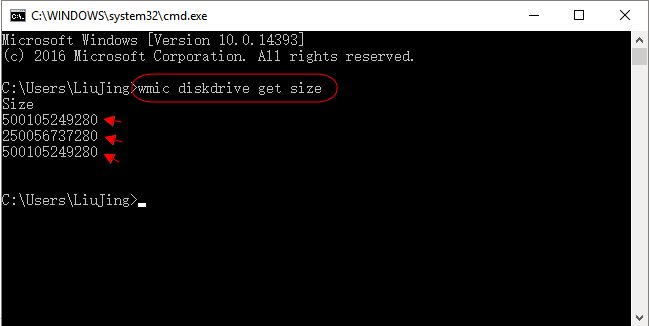
A drive over 2 TB does not behave like a smaller one. The old MBR partition table cannot address more than 2 TB of space, so the extra capacity stays invisible unless the disk uses GPT, which is the modern partition style built for large drives.
This guide explains where the 2 TB limit comes from, when to convert MBR to GPT, and how to clone a large disk without losing the space beyond the limit.
PAGE CONTENT
- Why the 2 TB Limit Appears
- MBR vs GPT for Large Disks
- Convert MBR to GPT Without Data Loss
- Clone the Large Disk with Qiling Disk Master
- Boot and Verify the Full Capacity
- FAQs About Cloning Disks Over 2 TB
- Back Up the Large Disk Before You Clone
Why the 2 TB Limit Appears
- MBR uses 32-bit sector numbers. With 512-byte sectors, the table can address about 2 TB of space.
- Any space beyond 2 TB is ignored. A 4 TB disk on MBR shows only the first 2 TB to Windows.
- Some disks fake 4 KB sectors. Advanced format drives can stretch the limit, but the root cause stays the same.
- GPT does not have this ceiling. Its 64-bit entries support drives measured in zettabytes.
- System disks need UEFI for GPT. A BIOS-based PC cannot boot from a GPT drive.
The limit is real only on MBR disks. Moving to GPT makes the whole drive usable, but a system disk also requires UEFI boot mode, so the firmware matters as much as the partition style.
MBR vs GPT for Large Disks
- MBR supports four primary partitions. Extra volumes need an extended partition, which adds complexity.
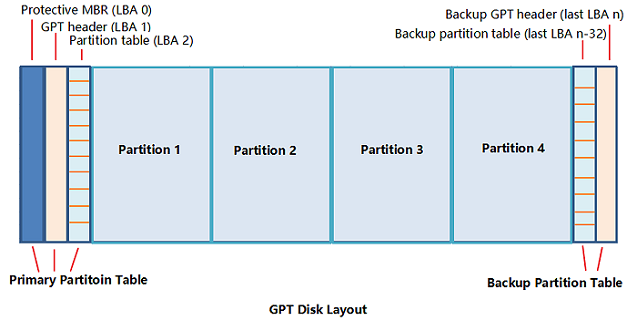
- GPT supports up to 128 partitions. Each volume is a primary entry, no extended structure needed.
- GPT keeps a backup table. A copy at the end of the disk helps recover the layout if the header is damaged.
- MBR has no redundancy. Corrupt the table and the whole disk can become unreadable.
- GPT requires UEFI for boot. A data disk can be GPT on any system, but a system disk needs UEFI firmware.
For a disk over 2 TB, GPT is the correct choice. The only reason to keep MBR is booting on very old BIOS hardware, and that trade-off caps the usable space at 2 TB.
Convert MBR to GPT Without Data Loss
- Use mbr2gpt on Windows 10 or 11. The built-in tool converts the partition style in place.
- Run it from Windows PE for a system disk. A live system cannot convert its own boot disk.
- Confirm the firmware is UEFI. A BIOS-only board will not boot the converted GPT system disk.
- Validate before converting. Run mbr2gpt /validate to check the layout first.
- Back up before conversion. A failed conversion can leave the disk unreadable.
If the disk is not the system disk, you can also back up its data, delete the volumes, and recreate the disk as GPT. That is slower but avoids any conversion risk.
Clone the Large Disk with Qiling Disk Master
Qiling Disk Master copies a GPT disk larger than 2 TB and preserves every partition on the target. The destination should also be GPT, so the full capacity remains addressable after the copy.
Watch the video tutorial below to clone the drive step by step with Qiling Disk Master.
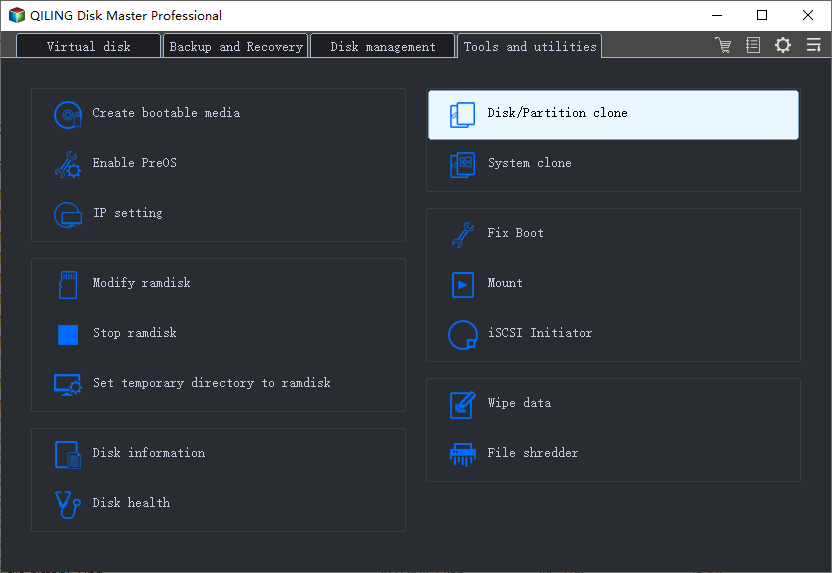
Step 1. Open Qiling Disk Master, choose Clone, and then select Disk Clone.
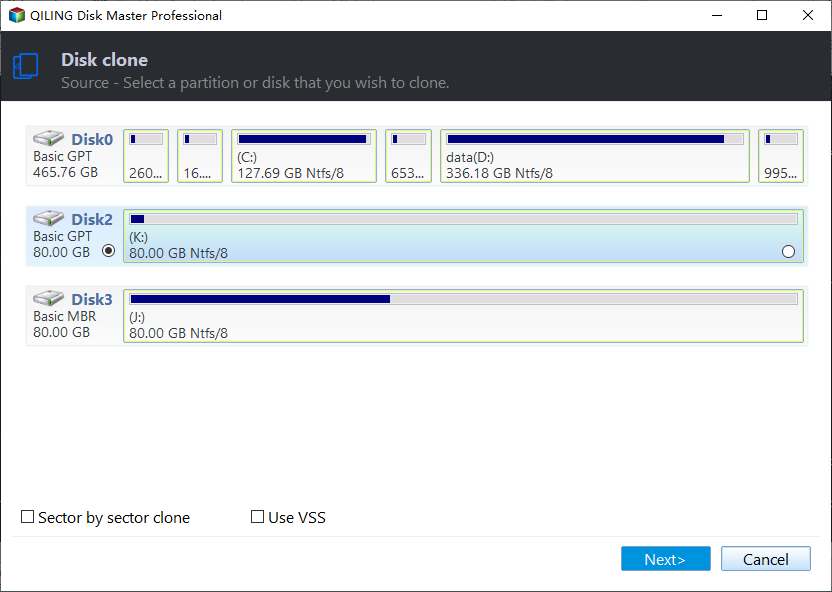
Step 2. Select the large GPT disk as the source and click Next.
Step 3. Select the destination disk and confirm that its data will be replaced. Initialize it as GPT first if it is new.
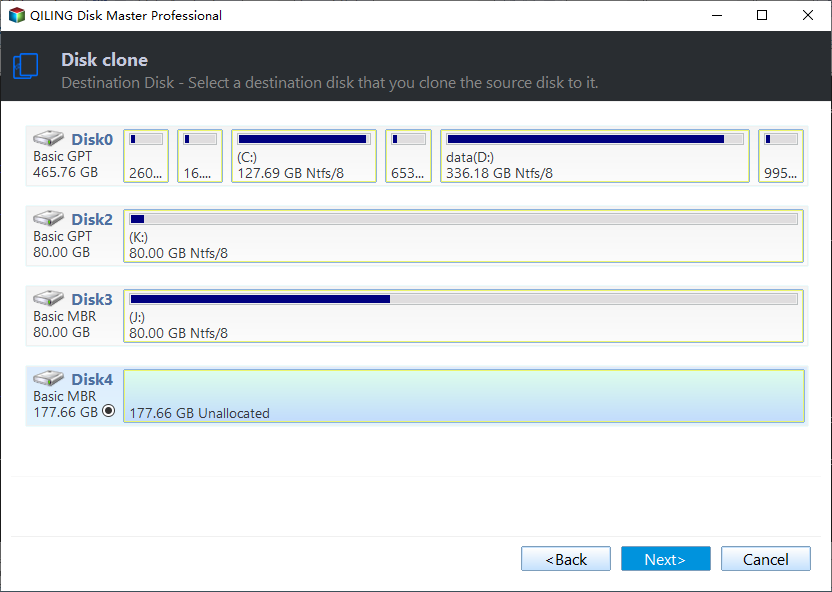
Step 4. Keep every partition and confirm that the layout uses the full capacity of the target.
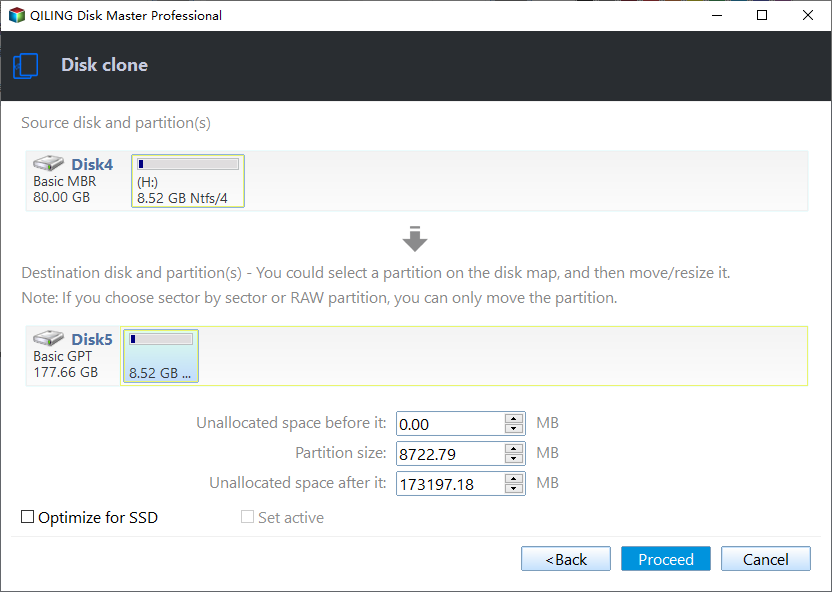
Step 5. Click Proceed, wait for the copy to finish, then shut the machine down before you remove any cable.

Boot and Verify the Full Capacity
- Set the boot order to UEFI. A GPT system disk starts only in UEFI mode.
- Confirm the disk type. Disk Management should list the drive as GPT.
- Check the total capacity. The usable space should match the full size of the disk, not stop at 2 TB.
- Extend any unallocated space. The last partition can be grown to absorb the extra room.
- Keep the old disk untouched. Leave it as it is until the new disk has run for a week.
If Windows reports only 2 TB, the target was left as MBR. Reconnect the original drive, initialize the target as GPT, and clone it again.
FAQs About Cloning Disks Over 2 TB
Why does my 4 TB disk show only 2 TB?
Because it uses the MBR partition style, which cannot address space beyond 2 TB. Convert the disk to GPT.
Can I clone a GPT disk to another GPT disk directly?
Yes. A GPT-to-GPT clone keeps the full capacity and every partition intact.
Does cloning to a larger drive automatically use the extra space?
Not always. Extend the last partition in Disk Management after the clone if space is left unallocated.
Can a BIOS PC boot from a GPT disk?
No. GPT system disks require UEFI firmware; BIOS can read GPT data disks only.
Is mbr2gpt safe to use?
It is safe when the validate step passes, but always back up the disk before converting the partition style.
Back Up the Large Disk Before You Clone
Converting partition styles and cloning large disks carries risk, and a failed task can leave the data unreadable. Create a full backup first, so a mistake costs nothing but time.
Watch the video tutorial below to back up Windows and restore it if the clone fails.
Step 1. Open Qiling Disk Master and select System Backup to include the boot partitions.

Step 2. Save the image to a drive other than the target disk and start the backup.

Step 3. Click Proceed to start the system backup and wait patiently until it finishes. You can also tick Shut down the computer when the operation is completed to power off automatically.

Step 4. If the cloned disk will not start, restore the image to the original drive and try again.

Conclusion
The 2 TB limit belongs to MBR, not to the hardware. Convert large disks to GPT, boot them in UEFI mode, and clone partition by partition so the whole drive stays usable. Then verify the full capacity in Disk Management and extend the last volume to absorb any extra space.
For more on partition styles, see How to Clone an MBR Disk to a GPT SSD, How to Clone a GPT Disk to an MBR Disk, How to Clone a Disk with a Different Sector Size, and How to Clone a Boot Drive with Multiple EFI Partitions.
Related Articles
- How to Clone an MBR Disk to a GPT SSD
Move the system to the modern partition style. - How to Clone a GPT Disk to an MBR Disk
Go back to the older layout when needed. - How to Clone a Disk with a Different Sector Size
Handle drives that report another block size. - How to Clone a Boot Drive with Multiple EFI Partitions
Sort out the boot volumes before the copy. - How to Clone a Dynamic Disk to a Basic Disk
Move data out of a dynamic layout.
Products
Articles & Tutorials
- Data Recovery
- Data Backup
- File Recovery
- File Backup
- System Backup and Restore
- Disk and Partition Clone
- Technical articles
- Mobile articles
- Disk Master Help
- Windows Data Recovery Tutorials
- Windows Secure Delete Tutorials
- Windows Partition Management Tutorials
- Windows File Backup and Restore Tutorials
- Windows System Backup and Restore Tutorials
- Windows Disk Backup and Restore Tutorials
- Windows Clone Tutorials