Clone a Windows Server 2025 System Disk to an SSD
Quick Navigation:
- What Has to Be Cloned
- Prepare the Target SSD
- Clone the System Disk
- Verify Boot and Roles
- Frequently Asked Questions
Moving a server to an SSD is faster and safer than a clean installation, provided that every partition the firmware needs is copied with the system volume. The job is a disk clone, not a file copy, and it deserves the same change window as any other server maintenance.
What Has to Be Cloned
A Windows Server 2025 GPT boot disk usually carries four partitions: the EFI system partition, the Microsoft reserved partition, the Windows volume, and a recovery partition. The firmware reads the EFI partition to find the boot manager, so a clone that copies only the C: volume produces a disk that cannot start.
Cloning at the disk level copies all four in their original order and keeps the offsets the boot process expects. The only adjustment worth making is to grow the Windows volume into the extra capacity of a larger SSD; leave the small partitions at their original size.
Check the disk type before you begin. A Storage Spaces pool, a dynamic disk, or a hardware RAID volume presents a different picture from a plain GPT disk, and some of them cannot be cloned in the same way. Note whether BitLocker is enabled as well, because encryption must be suspended before the copy and re-enabled after the first boot.
Prepare the Target SSD
The new SSD must be at least as large as the data used on the old disk, not necessarily as large as the old disk itself. A 2 TB drive holding 600 GB of data can move to a 1 TB SSD without trouble. Anything already on the target is overwritten, so back it up or accept the loss.
Connect the SSD through a spare SATA or NVMe port, or through a USB adapter for a one-off migration. Before starting, stop the roles and services that write heavily, such as database engines, virtual machines, and file shares, and make sure a current system state backup exists.
If the drive is the only storage in a laptop-style chassis with one slot, the clone has to run from a bootable environment instead. Plan that route in advance rather than discovering it halfway through.
Clone the System Disk
Qiling Disk Master offers a system clone mode that automatically includes the boot partitions of the running Windows installation. Use the disk clone mode instead when you want an exact copy of the whole device, including data volumes on the same disk.
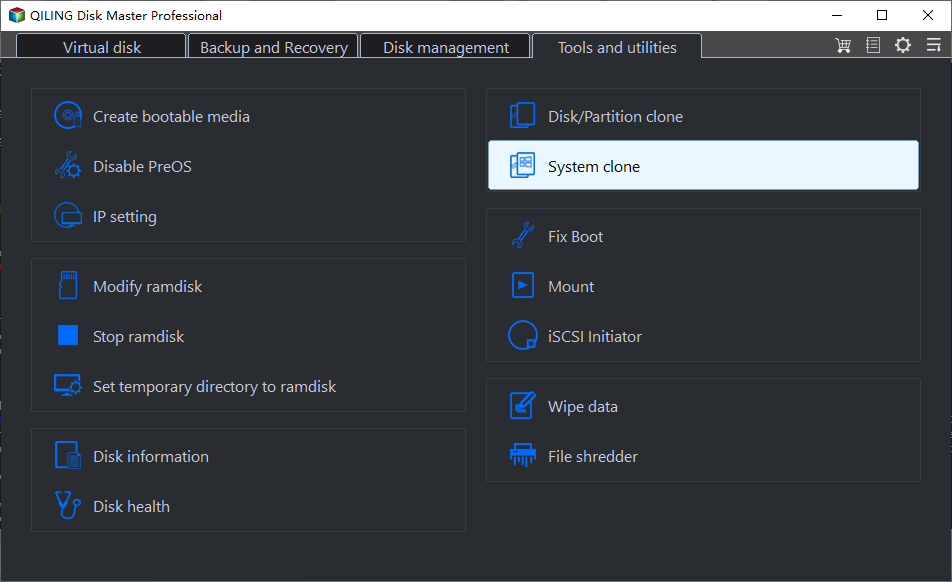
Step 1. Choose System Clone
Open the program on the server and select the system clone option. The wizard preselects the partitions that belong to the running operating system, which is usually what you want for a boot disk upgrade.
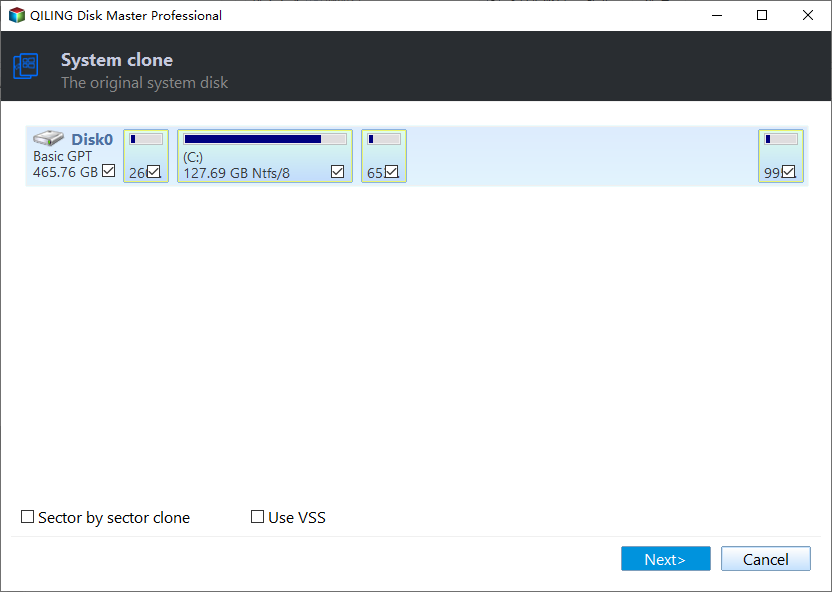
Step 2. Select the Source System Disk
Confirm the source disk by its number and capacity. On a server with several arrays this is the step where mistakes happen, so compare the layout against Server Manager before you continue.
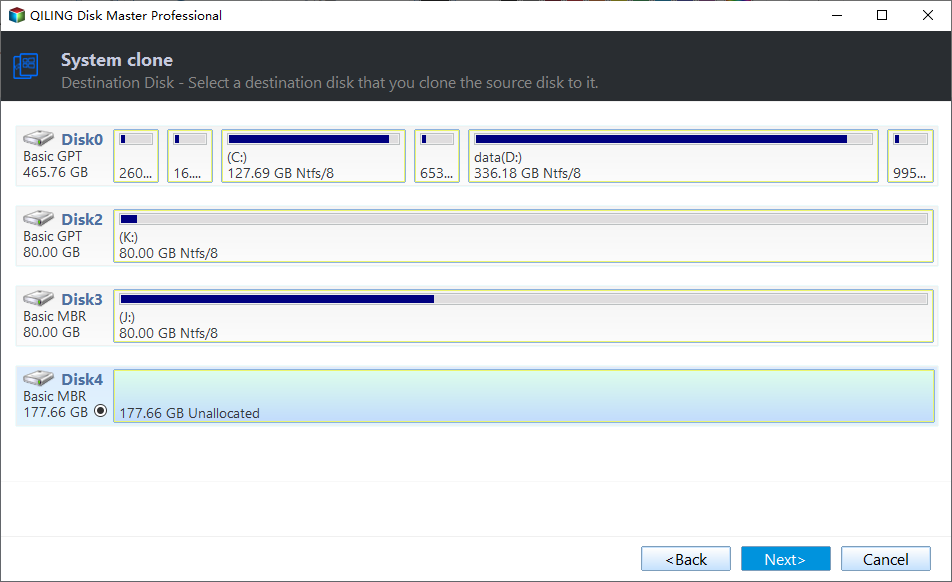
Step 3. Select the Destination SSD
Pick the new SSD and decide whether to use the whole disk for the system partition. On a larger SSD, keep the small boot partitions at their original size and let the Windows volume take the remaining space.
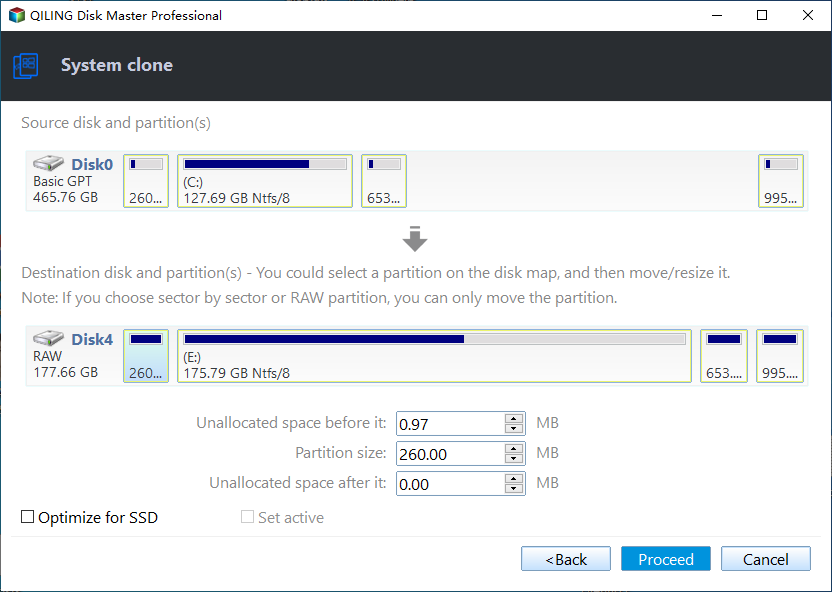
Step 4. Preview and Proceed
Review the pending operations, then click Proceed. If the system volume is locked, the task is scheduled to run before Windows starts; allow the server to restart and let the clone finish without interruption.
Verify Boot and Roles
Shut the server down, disconnect the old disk, and start it with only the SSD attached. Confirm that the firmware lists the new drive in the boot order and that Windows reaches the sign-in screen without a repair prompt. Keeping the old disk connected during the first boot can hide a missing boot partition.
Once the system starts, check the roles that matter: domain services, DNS, DHCP, file shares, and any application that stores its data by volume path. Verify drive letters and mount points, because a changed disk signature can shift them. If BitLocker was suspended, confirm that protection is back on before returning the server to service.
When the clone will not boot, the usual causes are a missing EFI partition, a boot entry that still points at the old disk, or a target disk formatted with the wrong partition style. See what to do when a cloned drive will not boot.
Frequently Asked Questions
Can I clone a server disk while Windows is running?
Yes, with a tool that handles locked volumes. Changes are tracked and the copy completes before the next boot. For busy database servers, a maintenance window is still the safer choice.
Does cloning break Windows activation?
No, as long as the hardware stays the same. The digital licence or product key is tied to the machine, and a disk swap does not change the motherboard or TPM.
Should I clone to a smaller SSD?
Only if the used space fits. Shrinking requires resizing the partition first, and the boot partitions still need their original space, so the margin is smaller than the capacity difference suggests.
What about the recovery partition?
Keep it. Windows uses it for startup repair and reset options, and a system clone that includes it preserves that capability. If it was lost in an earlier migration, it can be recreated separately.
For the generic procedure and caveats, read how to clone a Windows Server system disk.
Related Articles
- Clone a Windows Server System Disk
- Cloned Drive Won't Boot: Fix
- Disk Queue Length and Latency: Is the Drive the Bottleneck?
- Windows Server 2025 Partition Management Guide
Products
Articles & Tutorials
- Data Recovery
- Data Backup
- File Recovery
- File Backup
- System Backup and Restore
- Disk and Partition Clone
- Technical articles
- Mobile articles
- Disk Master Help
- Windows Data Recovery Tutorials
- Windows Secure Delete Tutorials
- Windows Partition Management Tutorials
- Windows File Backup and Restore Tutorials
- Windows System Backup and Restore Tutorials
- Windows Disk Backup and Restore Tutorials
- Windows Clone Tutorials