Cloned Drive Shows 0xc000000e and Will Not Boot
Quick Navigation:
- What 0xc000000e Reports
- Check the Boot Order and Mode
- Rebuild the Boot Entry
- Verify Before Wiping the Source
- Frequently Asked Questions
0xc000000e stops the machine before Windows loads. The firmware starts the boot manager, but the device and the path written in its configuration no longer resolve, so the loader is never opened. After a clone this usually means the entry still points at the old disk, or at a controller path the new disk does not share.
What 0xc000000e Reports
The firmware hands control to the boot manager, which reads its configuration store and then tries to open the volume that holds the loader. The error means that open failed: the volume is missing, offline, or at a different position than the entry records.
On a cloned disk the common causes are an entry that still names the source disk, a disk signature that changed during the copy, and a controller mode that differs between the machine the clone was made for and the machine it now runs in.
The error screen also names the device and the file it tried to open. Read that line first, because it shows whether the entry points at the wrong disk or at a file that is genuinely gone.
Check the Boot Order and Mode
Enter firmware setup and confirm that the cloned disk is first in the boot order and that the entry is Windows Boot Manager rather than a legacy device entry.
Check the controller mode as well. A clone made with AHCI does not boot when the firmware is set to RAID, and the reverse is equally true, because the error appears before any storage driver loads.
Disconnect the source disk while you test. Two disks carrying the same signature make the boot manager choose one at random, and it can send the boot to the wrong entry.
Rebuild the Boot Entry
Start from Windows recovery media and run Startup Repair first. It rewrites the boot configuration for the disk it finds and is the least risky of the options.
When Startup Repair does not help, the entry has to be recreated from a recovery prompt with the Windows boot tools. That step sits outside the product steps in this article and should be done only with the source disk disconnected, so the tools cannot write the old configuration back.
A cleaner route for most clones is to repeat the copy in disk mode, so the destination receives the boot partition and the configuration together. The next section shows that path.
Verify Before Wiping the Source
Qiling Disk Master clones the whole disk, boot partition included, and writes a new signature on the destination, which is the condition a boot entry needs. Keep the source connected and untouched until the clone has booted twice.
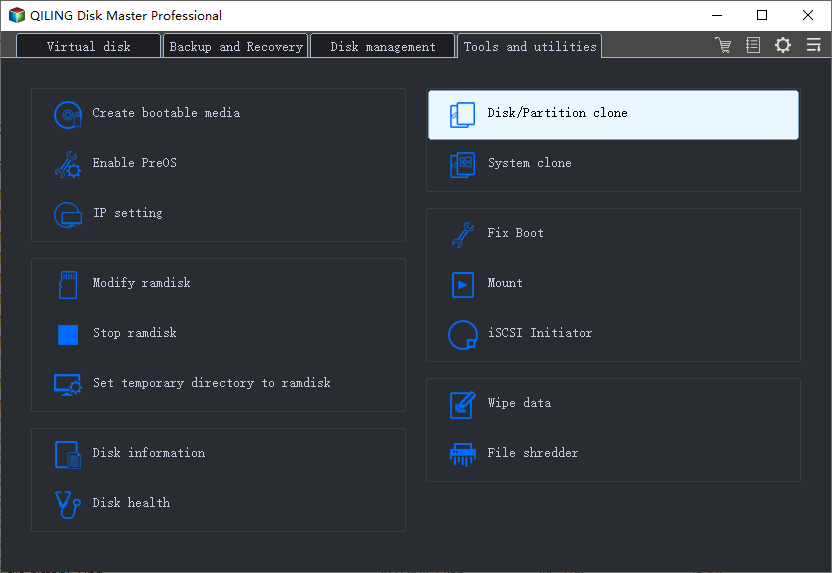
Step 1. Choose the Clone Mode
Open Disk Clone on the home screen and pick Disk Clone rather than Partition Clone, because the boot partition and the configuration store have to travel with the system volume.
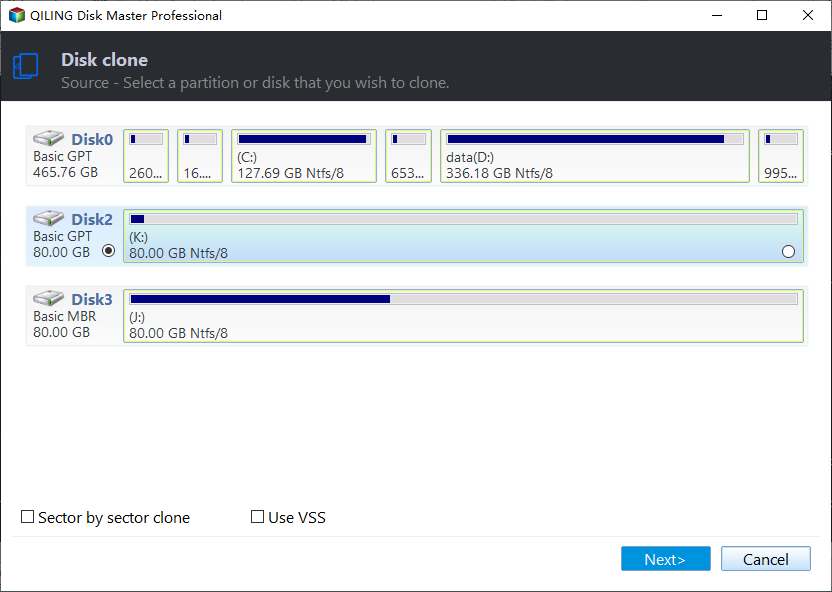
Step 2. Select the Source and Target Disks
Select the source disk, then the target disk. Check the capacity and the partition style of both entries in the list; a target smaller than the source, or on the other style, will not boot even when the copy finishes.
Step 3. Preview and Start the Clone
Read the preview, which shows how each source partition maps to the target. Confirm that the boot partition is in the list, click Proceed, and wait for the finish message before you disconnect anything.
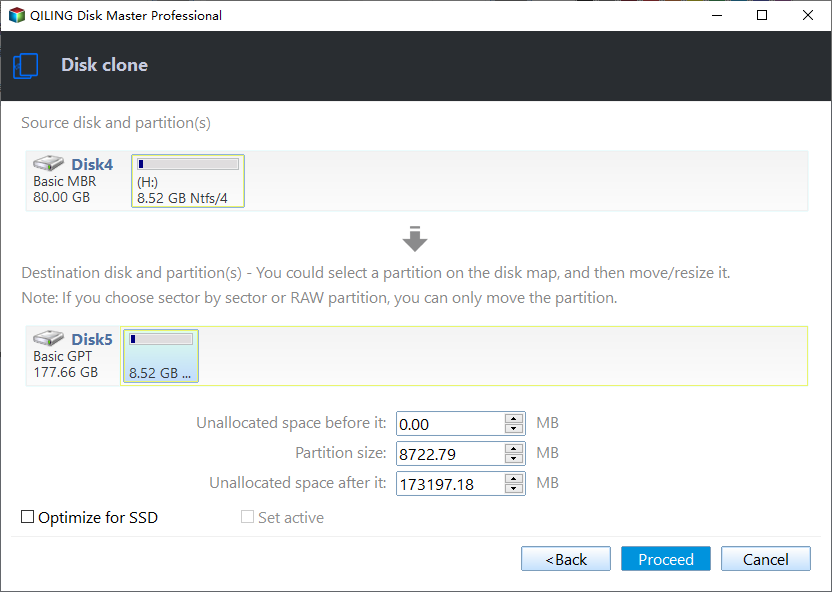
Then shut down, disconnect the source disk, and boot from the clone alone. A desktop that loads with two clean restarts means the copy is sound and the source can be reused.
Frequently Asked Questions
Can 0xc000000e be fixed without reinstalling Windows?
Yes in most cases. The boot files are still on the disk; what needs repair is the entry and the reference it holds to the device.
Why does the clone boot on one machine and not on another?
Firmware mode and controller settings differ between the two. A clone carries the disk and its contents, not the firmware configuration of the machine.
When is it safe to delete the source disk?
Only after the clone has booted twice and the files you depend on have opened. Until then the source is the only known good copy.
Related Articles
- No Bootable Device After Cloning: BIOS and BCD Fixes
- Cloned Drive Shows as RAW: Recover Data
- Clone Windows 11 to a Smaller SSD
- Clone a Drive with an NVMe Enclosure
- System Image Recovery vs. System Restore
Products
Articles & Tutorials
- Data Recovery
- Data Backup
- File Recovery
- File Backup
- System Backup and Restore
- Disk and Partition Clone
- Technical articles
- Mobile articles
- Disk Master Help
- Windows Data Recovery Tutorials
- Windows Secure Delete Tutorials
- Windows Partition Management Tutorials
- Windows File Backup and Restore Tutorials
- Windows System Backup and Restore Tutorials
- Windows Disk Backup and Restore Tutorials
- Windows Clone Tutorials