Cloned SSD Shows Less Capacity Than the Source
Quick Navigation:
- Why the Clone Looks Smaller
- Read the Destination Layout
- Extend the Last Volume
- Verify the Result
- Frequently Asked Questions
A 1 TB SSD that ends up holding the same 400 GB volume as your old 500 GB drive is not a failed clone. Most cloning tools copy the partitions at their original sizes, or stop at the last used sector, so the extra capacity stays on the disk as unallocated space. Explorer reports the size of a volume rather than the size of a disk, which is why the new drive looks no larger than the old one.
Why the Clone Looks Smaller
A disk clone can treat empty space in two ways. One approach copies every sector, including the empty ones; the other copies the file system and stops where the data ends. The second is faster and is the default in most tools, but it writes each source partition at its original size.
When the source is smaller than the destination, the copy therefore fills only the first part of the new disk. The rest is a block of unallocated space behind the last volume, and no file is lost by it: the copy simply never needed those sectors.
A second pattern is a destination that was prepared in advance. If the new disk already had a partition matching the source size, the clone writes into that partition and leaves the remainder untouched. The same result appears when the tool preserves the partition table exactly as it was on the source.
Explorer adds to the confusion because it reports volume size, not disk size. A 500 GB volume copied to a 1 TB disk still shows 500 GB in This PC, and only the disk map reveals the other half.
Read the Destination Layout
Read the disk map before you change anything and compare the two disks. The destination should show its full physical capacity, then its volumes from left to right, then the unallocated block at the end.
Windows Disk Management presents the same information in a different style: one row per disk, volumes in order, and free space marked Unallocated. A volume can only grow into unallocated space that touches its right edge, so the position of the gap decides the next step.
If the gap sits to the right of the last volume, that volume can take all of it in one operation. If the gap sits between two volumes, extending the last one does nothing, because the space is not adjacent to it.
Check the reported disk capacity as well. A 1 TB drive that reports 500 GB at the hardware level has a different problem, usually an enclosure or bridge that truncates capacity, and resizing partitions will not bring the missing half back.
Extend the Last Volume
Extension is a file-system operation on a single volume. It does not move the files, and on NTFS it keeps them where they are; the requirements are unallocated space immediately behind the volume and room for the file-system metadata to grow.
Copy the important folders to another disk first, or take an image of the volume, and note the current size. The operation itself takes seconds, but a power loss during the metadata update can leave the volume unmountable.
Format matters. NTFS can be extended from inside Windows, while FAT32 and exFAT usually cannot, and a volume with a non-Windows file system should be left alone. If the volume reports RAW instead of a file system, stop here and treat it as a data recovery case: a cloned drive that shows as RAW needs a scan, not a resize.
Verify the Result
Qiling Disk Master draws every disk with its volumes and free space on one map and resizes a volume in place, with a preview before anything is written. The steps below extend the clone to the full capacity of the new disk.
Step 1. Compare the Disks on the Map
The map lists each disk with its model, partition style, and capacity, and draws the volumes in order. In the example, the 177.66 GB disk holds a 50.72 GB volume followed by 126.94 GB Unallocated, so the gap touches the right edge of that volume and can be merged into it.

Step 2. Set the New Size
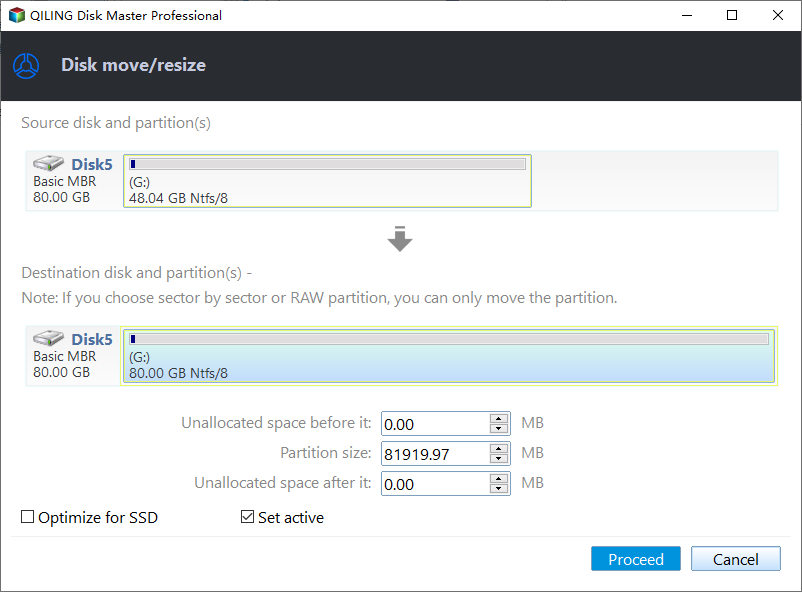
Right-click the volume and choose Move/Resize. The Disk move/resize window opens with the source row above and the editable destination row below. Set Unallocated space before to 0.00 MB, raise Partition size until it covers the whole disk (81919.97 MB in the example), and leave Unallocated space after at 0.00 MB. Tick Optimize for SSD, then click Proceed.
Step 3. Wait for the Operation to Finish
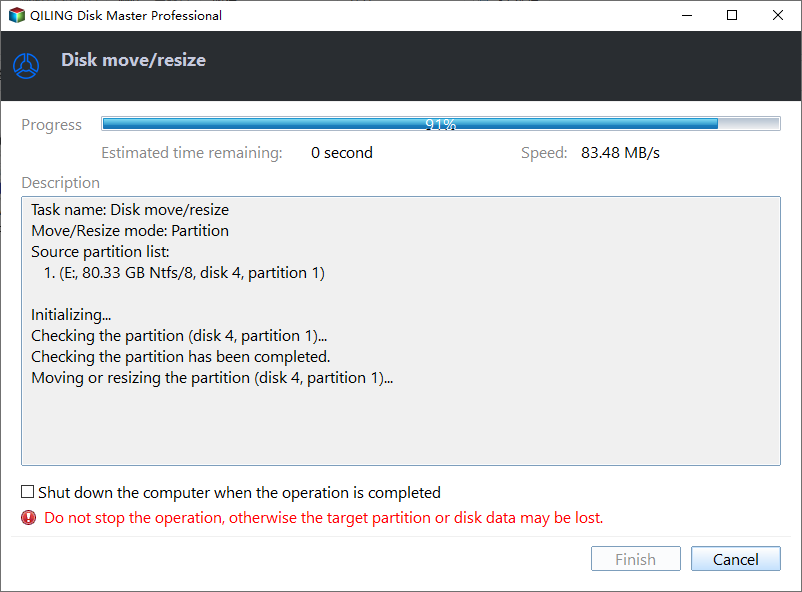
The Disk move/resize progress window names the task and the partition being changed and shows the speed and the time remaining. Finish stays unavailable until the bar reaches 100%, and the window warns that stopping the operation can lose the partition data, so leave the machine alone until it completes.
Reopen Explorer and the map: the volume now reports the full capacity, and no unallocated block remains behind it.
Frequently Asked Questions
Does extending a cloned volume move the files?
No. NTFS grows the volume in place. The file records stay where they are, and only the volume boundaries change.
Why does the clone show two different capacities?
Explorer reports volume size and the disk map reports disk size. A 500 GB volume on a 1 TB disk is normal until the unallocated half is added to it.
Can I extend a FAT32 or exFAT clone?
Not with the built-in tool. Those file systems do not support online extension in Windows, so use a partition manager after copying the files somewhere safe.
Related Articles
- Cloned Drive Shows as RAW: Recover Data and Fix It
- How to Clone Windows 11 to a Smaller SSD
- No Bootable Device After Cloning: BIOS and BCD Fixes
- How to Clone an SSD with Bad Sectors
- Migrate Windows to a New SSD and Keep Recovery
Products
Articles & Tutorials
- Data Recovery
- Data Backup
- File Recovery
- File Backup
- System Backup and Restore
- Disk and Partition Clone
- Technical articles
- Mobile articles
- Disk Master Help
- Windows Data Recovery Tutorials
- Windows Secure Delete Tutorials
- Windows Partition Management Tutorials
- Windows File Backup and Restore Tutorials
- Windows System Backup and Restore Tutorials
- Windows Disk Backup and Restore Tutorials
- Windows Clone Tutorials