How to Clone an SSD with Bad Sectors
An SSD rarely develops bad sectors the way a spinning disk does, yet a worn controller can return unreadable blocks. When SMART counts reallocated or pending sectors, the drive still holds data worth rescuing.
This guide explains how to read the health report, which copy mode gets the readable data out, and what to do when a clone stops part way.
PAGE CONTENT
- Why an SSD Reports Bad Sectors
- Read the SMART Report
- Prepare the Drive for a Clone
- Clone the Readable Data with Qiling Disk Master
- Verify and Retire the Old Drive
- FAQs About Cloning a Failing SSD
- Back Up Before You Clone
Why an SSD Reports Bad Sectors
- NAND blocks wear out. Each erase cycle degrades a cell until it can no longer hold a reliable charge.
- The controller hides failures. Spare blocks replace worn ones until the reserve pool runs dry.
- SMART counts the damage. Reallocated, pending, and uncorrectable attributes expose the wear.
- Firmware can fail too. A failing controller may drop off the bus entirely, not just lose blocks.
- Power loss leaves marks. An unsafe shutdown can corrupt the mapping table and strand data.
An SSD does not grow physical defects the way a hard drive does; it runs out of spare blocks. Once that reserve is exhausted, writes begin to fail and the drive turns read-mostly.

Read the SMART Report
- Check health first. Windows tools, CrystalDiskInfo, and the vendor utility all read the same attributes.
- Watch pending sectors. A non-zero pending count means blocks that failed on the last read attempt.
- Note the reallocated count. A rising value shows the spare pool is shrinking.
- Record the temperature. Overheating accelerates wear and can cause sudden dropouts.
- Run a read scan. A full read pass shows which addresses fail before you copy anything.
A single pending sector is not a verdict. Retry the read, then compare the count after a second pass. Values that keep climbing between scans mean the drive is degrading.
Prepare the Drive for a Clone
- Stop writing to the drive. Every write consumes spare blocks and may overwrite recoverable data.
- Connect it read-only. Use a USB adapter or a write blocker so the copy cannot modify the source.
- Keep the target at hand. The new drive must hold at least the used space, ideally the full capacity.
- Cool the drive. A failing SSD behaves better at a stable temperature during a long read.
- Plan for a partial copy. Accept that unreadable blocks will be skipped, not repaired.
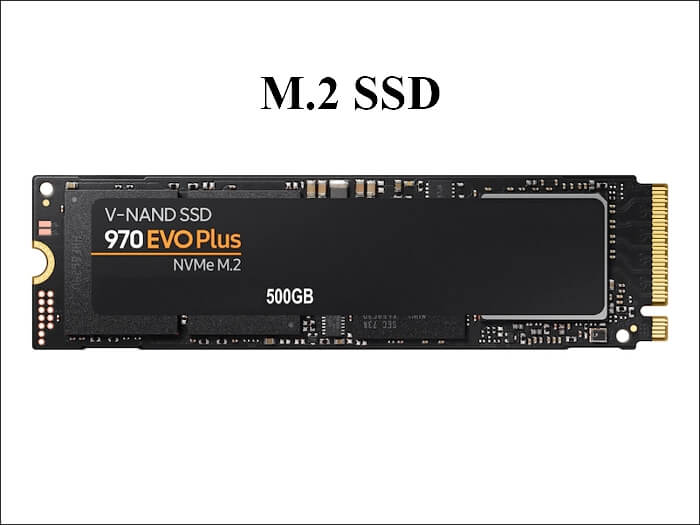
Prepare the target before you start. A second enclosure, a spare SATA port, or an empty M.2 slot keeps the copy local and avoids a second unreliable bridge chip.
Clone the Readable Data with Qiling Disk Master
Qiling Disk Master reads what the controller can still return and lets a clone continue past bad blocks instead of stopping at the first error. Download it on the machine that will host the new drive.
Step 1. Open Qiling Disk Master, choose Clone, and then select Disk Clone.

Step 2. Select the failing SSD as the source disk and click Next.

Step 3. Select the new drive as the destination and confirm that its data will be replaced.

Step 4. Tick Ignore bad sectors so the copy skips unreadable blocks and keeps going to the end.

Step 5. Click Proceed, watch the log for skipped sectors, and stop at once if the drive drops off the bus.

Verify and Retire the Old Drive
- Compare free space. The target should report the same used space as the source scan.
- Run a file check. Open the folders you care about and confirm documents and profiles load.
- Boot the new drive. Check that Windows reaches the desktop before you erase anything.
- Keep the source untouched. Store the old SSD until the copy has been tested for a week.
- Destroy it properly. Wipe or physically destroy the drive only after the data is confirmed.
Skipped sectors usually belong to deleted files. If a system file was skipped, run the repair steps in the linked boot fix guide and restore the missing file from a backup image.
FAQs About Cloning a Failing SSD
Can a bad-sector clone produce a working system?
Sometimes. Files stored in the failed blocks are lost, but the rest of the system usually boots after a repair pass.
Is a bad sector on an SSD repairable?
No. The controller retires the block and swaps in a spare. Only a secure erase resets the mapping table, and that wipes the data.
Should I use sector-by-sector mode?
Not for a failing SSD. That mode forces a read of every block and slows the copy. Use the bad sector skip instead.
How long should the clone take?
A healthy 500 GB SSD copies in well under an hour over SATA. A failing drive can take several times longer.
When should I stop trying?
When the drive drops off the bus, the temperature runs away, or the skipped sector count climbs steeply.
Back Up Before You Clone
Before changing drives, create a full system backup. Qiling Disk Master writes an image you can restore when the copy comes up short.
Step 1. Open Qiling Disk Master and select System Backup to include Windows and the boot partitions.

Step 2. Save the image to a drive other than the target disk and start the backup.

Step 3. Click Proceed to start the system backup and wait patiently until it finishes. You can also tick Shut down the computer when the operation is completed to power off automatically.

Step 4. If the clone will not start, restore the image to a spare drive and boot from it.

Conclusion
A failing SSD is a deadline, not a diagnosis. Read the SMART report, note the pending and reallocated counts, connect the drive so it cannot be written to, and clone only the blocks it can still return. Turn on the bad sector skip, verify the files that matter, and keep the original drive until the new copy has run for a week. Create a system image before the swap so a missing file never turns into a full rebuild.
For more on rescuing failing storage, see How to Clone a Failing SSD Before It Dies, How to Clone a Hard Drive with Bad Sectors, 4K Alignment When Cloning an SSD, and How Long Does a Disk Clone Take.
Related Articles
- Cloned Drive Wont Boot Fix
Repair boot entries, drive letters, and storage drivers after the copy boots on new hardware. - How to Clone an SSD to a Larger SSD
Copy a healthy drive to bigger capacity and expand the partitions afterwards. - How to Clone a Failing HDD Before It Dies
Save data from a clicking disk by limiting reads and choosing the right copy mode. - When Should I Replace My HDD
Warning signs and SMART thresholds that tell you it is time for new storage. - How to Clone an SSD That Shows SMART Warnings
Read the attributes and copy before the drive drops out.
Products
Articles & Tutorials
- Data Recovery
- Data Backup
- File Recovery
- File Backup
- System Backup and Restore
- Disk and Partition Clone
- Technical articles
- Mobile articles
- Disk Master Help
- Windows Data Recovery Tutorials
- Windows Secure Delete Tutorials
- Windows Partition Management Tutorials
- Windows File Backup and Restore Tutorials
- Windows System Backup and Restore Tutorials
- Windows Disk Backup and Restore Tutorials
- Windows Clone Tutorials