MiniTool ShadowMaker Review: Clone and Backup in One Tool
MiniTool ShadowMaker puts disk clone and file backup into a single dashboard, which is unusual at this price point. The program targets Windows users who want one installer for both a one-time migration and ongoing protection.
This review looks at the clone wizard, the backup scheduler, and the limits that appear once the trial clock runs out.
PAGE CONTENT
- Clone and Backup in One Program
- The Clone Wizard Step by Step
- Free Edition and Paid Tiers
- Clone with Qiling Disk Master
- Who Should Use It
- FAQs About MiniTool Cloning
- Back Up Before the Clone
Clone and Backup in One Program
- Two tools share one interface. Clone and backup live in the same window, so a migration and a schedule sit side by side.
- Disk and partition clone are both offered. Choose a whole disk or a single volume as the copy scope.
- Scheduled backups are built in. Daily, weekly, and event-driven jobs cover the same disks the clone wizard reads.
- Boot media can be created. A recovery USB runs both features when Windows cannot start.
- It handles GPT and MBR disks. The wizard reads either partition style and warns about a mismatch.
The combined design saves an install and keeps one licence across two jobs. It also means the clone wizard inherits the backup engine, so progress reporting and error handling feel consistent in both modes.
The Clone Wizard Step by Step
- Pick the source. The wizard lists physical disks and their partitions for you to select.
- Pick the target. A warning appears before any data on the destination is erased.
- Choose the copy mode. Intelligent copy reads used sectors only, while sector-by-sector copies everything.
- Resize on the fly. Partitions can be stretched to fill a larger target during the same pass.
- Start and monitor. A progress bar and a speed readout follow the copy to the end.
The flow is short enough to finish without reading documentation, and the target warning is clear. The only step that trips people up is the copy mode, where sector-by-sector is slower and usually unnecessary.
Free Edition and Paid Tiers
- The free build has a time limit. It works fully during the trial, then drops to a reduced feature set.
- Cloning stays usable. Basic disk clone continues in the free build, with some options locked.
- Restore needs the paid build. Restoring an image from boot media requires an upgraded licence in most cases.
- Cloud and differential options are paid. Incremental schedules and off-site copies belong to the higher tier.
- Licence per machine. The paid edition covers one computer, which matters for a small office.
Read the edition comparison before you commit. A tool that clones well but locks the restore step is not a safe single solution for a production machine.
Clone with Qiling Disk Master
Qiling Disk Master separates the two jobs into dedicated modules, with the clone wizard kept short and the backup module handling schedules. The steps below show the clone side.
Watch the video tutorial below to clone the drive step by step with Qiling Disk Master.
Step 1. Open Qiling Disk Master, choose Clone, and then select Disk Clone.

Step 2. Select the source disk and click Next.

Step 3. Select the destination disk and confirm that its data will be replaced.

Step 4. Choose intelligent clone and fit the partitions to the new capacity.

Step 5. Click Proceed, wait for the copy to finish, then shut the machine down before you remove any cable.

Who Should Use It
- Home users with one machine. A single licence covers a personal upgrade and a monthly backup.
- Anyone who wants one installer. Fewer programs means fewer update cycles to track.
- Users with a spare restore budget. Plan for the paid tier if restore from boot media matters.
- Not for scheduled server jobs. The tool is aimed at desktops and laptops, not server volumes.
- Check the trial clock. Start the clone early in the trial so the full option set is available.
The program fits a home office where one tool has to cover both migration and routine backup. For a fleet of machines, a dedicated imaging system is easier to license and script.
FAQs About MiniTool Cloning
Can MiniTool ShadowMaker clone a disk for free?
Yes, the free build clones a disk, though a few advanced options stay locked until you upgrade.
Does the clone include the boot partitions?
Yes, a disk clone copies the EFI and recovery volumes along with the system partition.
Can I clone to a smaller SSD with ShadowMaker?
Only when the used data fits. Choose intelligent copy so the wizard can shrink the partitions to the target.
Will the cloned drive boot right away?
Normally yes. If it stalls, set the new disk first in the boot order and keep the old disk disconnected.
Does it support NVMe and USB drives?
Both work. An NVMe drive is copied like any block device, and a USB enclosure is accepted as a target.
Back Up Before the Clone
Cloning overwrites the destination, and a mistaken target costs more than the copy itself. Create a system image on a separate disk before you touch the wizard.
Watch the video tutorial below to back up Windows and restore it if the clone fails.
Step 1. Open Qiling Disk Master and select System Backup to include the boot partitions.

Step 2. Save the image to a drive other than the target disk and start the backup.

Step 3. Click Proceed to start the system backup and wait patiently until it finishes. You can also tick Shut down the computer when the operation is completed to power off automatically.

Step 4. If the clone fails, restore the image to the original drive and repeat the copy with the correct mode.

Conclusion
MiniTool ShadowMaker is a tidy package: clone and backup share one window, one licence, and one boot media. The clone wizard is quick, the target warning is honest, and the copy finishes without drama. The free build, however, narrows after the trial, and the restore step is where the paid tier matters most.
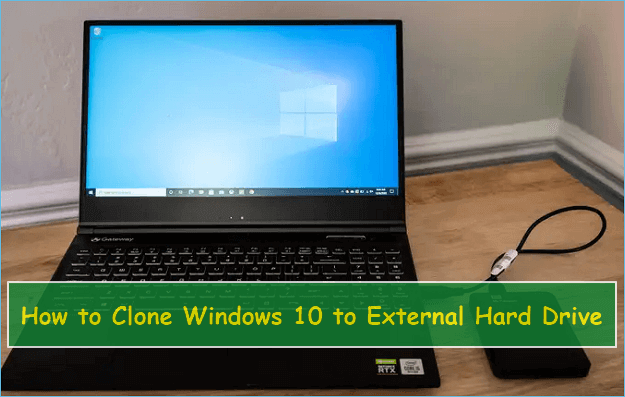
For more tool comparisons, see Hasleo Disk Clone Review, EaseUS Partition Master Clone Review, Best Free Disk Cloning Software in 2026, and Clone Windows 10 to an External Hard Drive.
Related Articles
- MiniTool Partition Wizard Clone Disk
Clone, migrate, and resize from the same wizard. - EaseUS Partition Master Clone Review
Check the clone wizard and its limits. - Clone Windows 10 to an External Hard Drive
Keep a bootable copy on USB. - Macrium Reflect Free vs Clonezilla
Compare two free imaging options. - Best Free Disk Cloning Software in 2026
Pick a free clone tool for the upgrade.
Products
Articles & Tutorials
- Data Recovery
- Data Backup
- File Recovery
- File Backup
- System Backup and Restore
- Disk and Partition Clone
- Technical articles
- Mobile articles
- Disk Master Help
- Windows Data Recovery Tutorials
- Windows Secure Delete Tutorials
- Windows Partition Management Tutorials
- Windows File Backup and Restore Tutorials
- Windows System Backup and Restore Tutorials
- Windows Disk Backup and Restore Tutorials
- Windows Clone Tutorials