Clone Says Not Enough Space Even Though the SSD Is Larger
Quick Navigation:
- Why a Bigger Disk Fails
- Sectors and the Disk Tail
- Partition Clone vs Disk Clone
- Make Room and Clone
- Frequently Asked Questions
The label says 1 TB, the old drive says 931 GB, and the clone still refuses to start because the destination has no room. The message compares two numbers that are not the ones printed on the boxes: the space the partition layout needs, including every reserved and recovery area, against the sectors the SSD actually reports. When those two disagree, the destination looks smaller than it is.
Why a Bigger Disk Fails
Vendors sell capacity in decimal units while Windows reports binary ones. A 1 TB SSD holds about 931 GiB, and the old 1 TB drive holds the same, so the two are often nearly equal rather than clearly larger. A drive sold as 1 TB can even be smaller than another with the same label.
The clone also needs more than the sum of the partition sizes. Each partition is placed on an alignment boundary, the partition table and its backup copy take sectors at both ends of the disk, and a GPT layout keeps a secondary header in the final sectors. On a tight fit, that padding decides whether the job starts.
The destination may not be empty either. A new SSD that was used once, or one that shipped with a small utility partition, already has areas that the tool will not overwrite silently. The space check counts them, so the free area is smaller than the raw capacity.
Finally, check how the SSD is connected. An enclosure that reports a reduced capacity, or an SSD with over-provisioning applied by the vendor tool, presents fewer sectors to Windows than the model number suggests.
Sectors and the Disk Tail
Logical sector size is the other trap. A 512e drive reports 512-byte sectors, while a 4Kn drive reports 4096-byte sectors and cannot place a partition on an offset that is not a multiple of four kilobytes. A source layout built for 512-byte sectors needs conversion, and a converter that keeps the original offsets will report that the destination is too small.
The tail of the source disk is where space quietly disappears. Recovery partitions, an OEM tools partition, and a small unallocated gap after the last volume are all part of the layout, and a disk clone copies all of them.
That last partition is often the blocking one. A recovery partition at the very end of the disk cannot simply be dropped, because Windows uses it for reset and repair, but it can be moved or recreated on the new disk. Moving the recovery partition to a new SSD covers the safe sequence when it sits in the way.
A dynamic disk adds its own metadata at the end. The database occupies the final megabyte of the disk, so a dynamic source needs that megabyte on the destination as well.
Partition Clone vs Disk Clone
A disk clone reproduces the whole layout, including partitions you may not need. A partition clone copies only the volumes you select, which is right when the destination is tight and the source carries a data partition that lives elsewhere.
Choose partition clone when the system and recovery partitions fit comfortably and only a large data volume pushes the total over the limit. The new disk will boot, and the data partition can stay on the old drive or move to an external one.
Choose disk clone when you want an exact replacement, including every hidden area. It is simpler and it preserves the recovery environment, but it needs room for all of it.
Do not convert the source to save space. Shrinking a volume is safe, deleting a system or recovery partition on the source is not, and a clone that starts from a damaged source produces a destination that cannot repair itself.
Make Room and Clone
Work in the order that keeps a way back: image the source first, then adjust, then clone. Qiling Disk Master can shrink a partition before the clone, and its preview page reports the space each layout needs, so the fit is visible before anything is written.
Shrink the last data partition rather than deleting it, and leave the recovery partition alone unless you have confirmed that the new disk will get an equivalent. If the destination already holds partitions, remove them only after you have checked that nothing on them is needed.
Step 1. Select the Source Disk or Partition
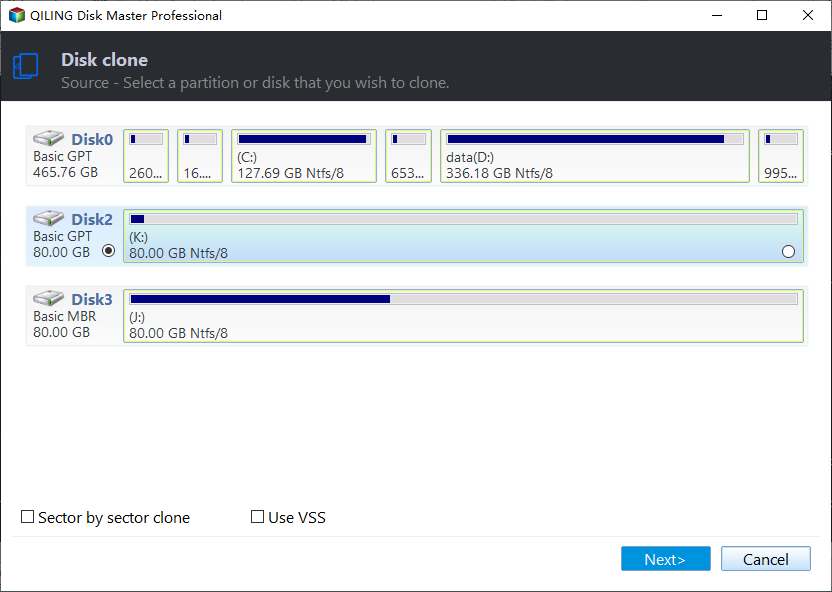
Open Clone and choose the mode first: Disk Clone for the whole layout, Partition Clone when only the system and recovery volumes should go to the SSD. Then select the source disk or partition. Leave Sector by Sector Clone unticked unless the drive is failing or holds a file system the normal copy cannot read, because it copies every sector and therefore needs a destination at least as large as the entire source.
Step 2. Select the Destination Disk or Partition
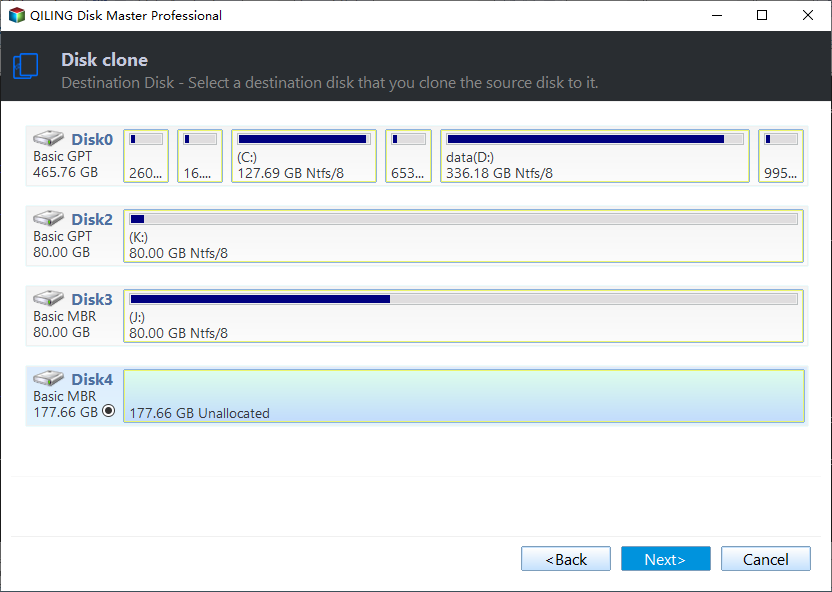
Choose the SSD as the destination and read its capacity in GiB, not the number on the box. If the SSD already carries partitions, the warning means they will be overwritten, so back up anything needed before you confirm. A destination smaller than the source layout cannot start the job: cancel and shrink the last data partition on the source, or return to Step 1 and copy only the system and recovery partitions.
Step 3. Preview the Layout and Set the SSD Options
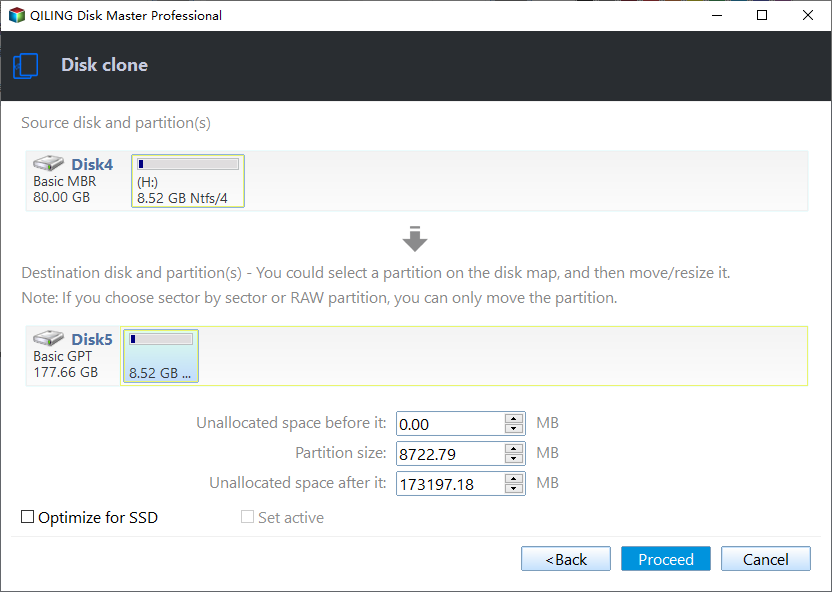
The preview page shows the source and the destination side by side. Tick Optimize for SSD so every partition starts on a 4 KB boundary, drag a partition edge to change its size, and drag the partition itself to move it. Compare each bar with its source size and confirm that no partition is larger than the room left on the SSD.
Step 4. Execute the Clone
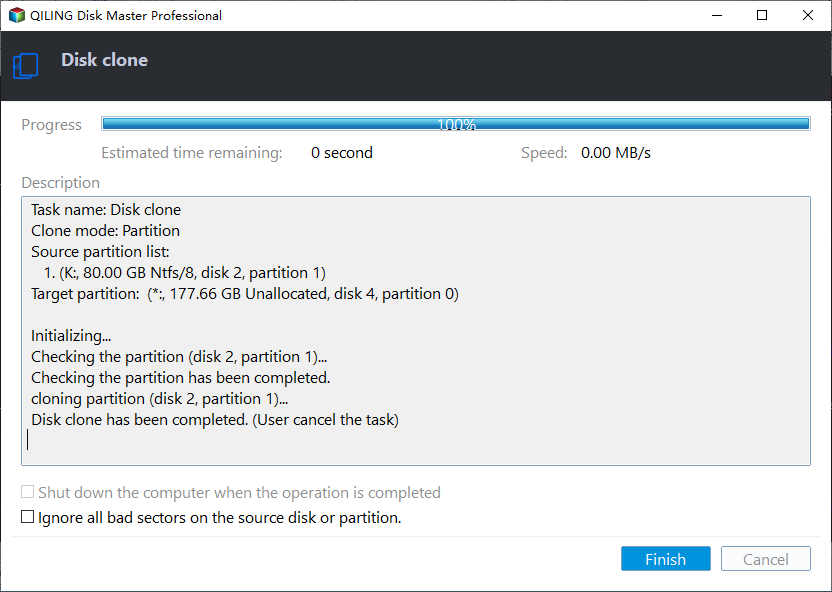
Once the preview looks right, click Proceed to start copying. Read and write run together, so keep the machine powered and leave the SSD connected until the finish dialog appears.
Frequently Asked Questions
Why does Windows show less capacity than the SSD label?
Decimal and binary units differ by about seven percent. A 1 TB drive appears as roughly 931 GB, and that is normal rather than a sign of a faulty disk.
Can I clone only the Windows partition to a small SSD?
Yes, with partition clone. The system and recovery partitions must both be included, or the new disk will not offer reset and repair options.
Does a 4Kn SSD need a different clone mode?
It needs an aligned layout. The tool converts offsets during the clone, but a source with odd-sized partitions can still exceed the destination, so check the preview before proceeding.
If the clone finishes but the new drive reports a smaller size than expected, the missing space is usually unallocated rather than lost, as explained in a cloned SSD that shows less capacity.
Related Articles
- Cloned SSD Shows Less Capacity Than Expected
- Merge Unallocated Space After Cloning to a Larger Drive
- Clone a 4Kn Disk to a 512e Disk
- Clone the Windows Recovery Partition to a New SSD
- How to Clone a Hard Drive to a Smaller SSD
Products
Articles & Tutorials
- Data Recovery
- Data Backup
- File Recovery
- File Backup
- System Backup and Restore
- Disk and Partition Clone
- Technical articles
- Mobile articles
- Disk Master Help
- Windows Data Recovery Tutorials
- Windows Secure Delete Tutorials
- Windows Partition Management Tutorials
- Windows File Backup and Restore Tutorials
- Windows System Backup and Restore Tutorials
- Windows Disk Backup and Restore Tutorials
- Windows Clone Tutorials