CHKDSK Cannot Lock Current Drive: Causes and Fixes
Quick Navigation:
- Why the Volume Cannot Be Locked
- Release the Lock the Supported Way
- What the Message Does Not Tell You
- Check the Partition and Image the Disk
- Frequently Asked Questions
CHKDSK refuses to start, and the message says it cannot lock the current drive, which sounds like a hardware fault. It is not. CHKDSK, the file system checker in Windows, needs exclusive access to a volume before it can read or repair the file system, and Windows will not hand over a volume that any program still has open. On the volume Windows runs from, that access is never available while the system is up. The fix is a matter of timing and order.
Why the Volume Cannot Be Locked
A lock means the checker is the only process allowed to touch the volume. Windows grants it only when every open handle has been closed, and on a running system that never happens for the boot volume: the kernel, the memory manager, the page file, the registry hives, antivirus filter drivers, and the search indexer all hold handles as part of normal operation.
The page file is the cause people miss most often. A volume that hosts a page file can be checked in read-only mode, but the repair pass needs the page file to be somewhere else, so the lock cannot be granted while the file is active. Moving it to another disk and restarting clears the obstacle, and it explains why a data drive with no open windows can still refuse a repair request.
Release the Lock the Supported Way
The simplest answer is the one the prompt offers: agree to check the volume the next time the computer restarts. The scan then runs before Windows loads its drivers, no program is running, and the lock is granted without a fight. Nothing is lost by waiting, and the machine boots normally once the check has finished, which makes this the safest option on a system volume.
On a data volume, close what owns it. Quit the sync client, detach the virtual machine disk, pause the backup job, and close the folder windows that point at the drive. If the volume still will not lock, take it offline in Disk Management, run the check there, and bring it back online afterwards. Signing out and back in also clears handles held by a session you cannot see.
CHKDSK, Disk Management, and the recovery environment are Microsoft tools that ship with Windows and are not part of Qiling Disk Master. They are named here only to explain where the lock comes from and how Windows releases it in this guide, so the sections above describe system behaviour rather than a feature of the software offered further down this page.
What the Message Does Not Tell You
A failed lock says nothing about the health of the drive. It reports that the volume is busy, not that sectors are failing, and a disk can be perfectly sound while the check waits for a restart. Treat the message as a scheduling problem until the scan actually runs and produces a result, and resist the urge to replace hardware on the strength of a prompt about access.
Do not force a repair onto a volume that holds data you have not copied. A repair pass can move files, rewrite the file table, and truncate entries it cannot reconcile, and on a damaged volume those changes are not reversible. Copy the files, or image the whole disk, before the scan is allowed to write, and keep it until the machine boots normally once.
Check the Partition and Image the Disk
Qiling Disk Master can check a partition's file system and image the whole disk from the same window. The check can be queued for the restart environment when the volume is in use, which is the same approach Windows takes, and the image covers the files that a repair might move. Run the backup first when the data matters, then let the check write to a disk that already has a copy.
Step 1. Open Check File System on the Volume
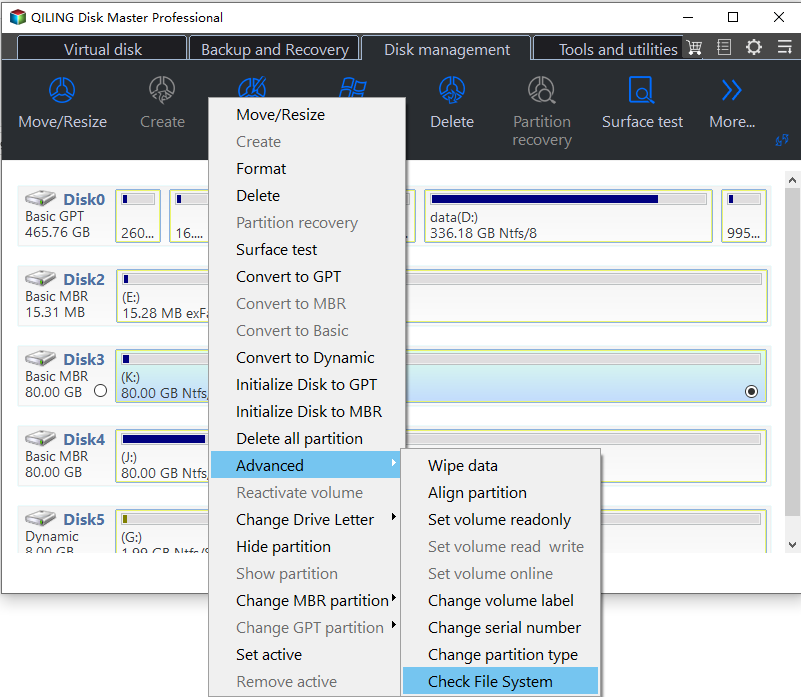
In the disk map, click the disk that holds the volume, right-click the partition, and open Advanced, then Check File System. Confirm that the highlighted bar matches the drive letter named in the error before you continue, because the check reads whichever partition is selected at that moment. A wrong selection costs time rather than data, but it wastes the restart you waited for.
Step 2. Start the Check and Read the Report
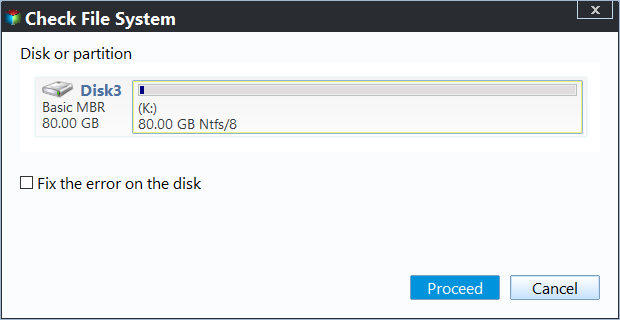
Leave Fix the error on the disk cleared for a first pass if the volume holds data you have not copied; the report alone shows whether the file system is consistent. When the volume is the one Windows is running from, the task is queued for the restart environment, where no program holds the lock. Read the log to the end and note the stage that reported errors before you decide to repair.
Step 3. Image the Disk Before Any Repair
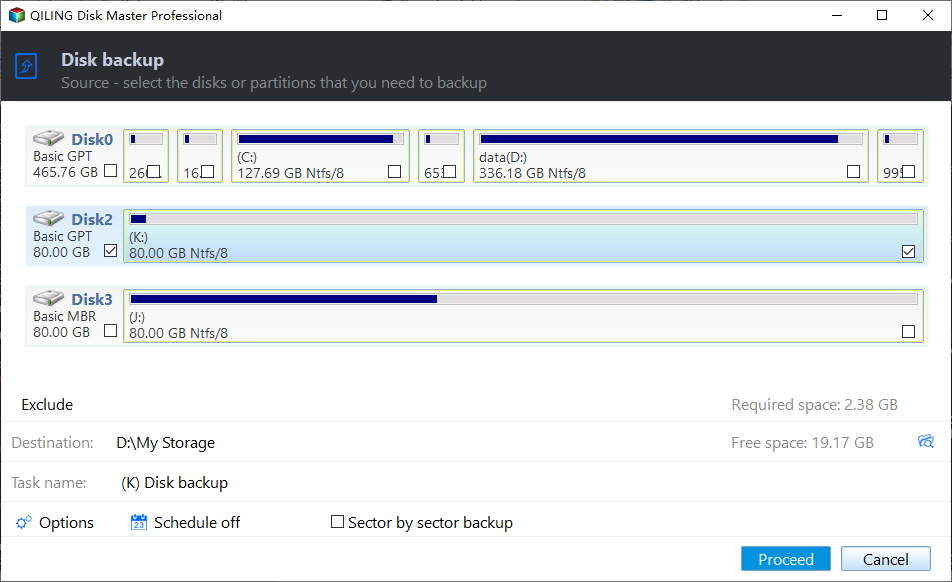
Open the Backup and Recovery tab, choose Disk/Partition backup, and tick the disk that carries the volume. Point the destination at a folder on another physical disk, check the required space, then preview the task and click Proceed. Keep the image until the check has finished and the important files have been read back from it, because a repair can move the files you need most.
Frequently Asked Questions
Will the restart scan run on every boot?
No. It is a single entry. Once the check completes, Windows removes it and later startups are normal. If the machine restarts in the middle of the scan, the entry stays and the check runs again from the beginning, so let it finish before you shut the machine down or start another repair. The prompt does not return unless the volume is flagged again.
Can I lock a volume that has no drive letter?
A volume mounted in an empty folder can still be locked, but the console may not list it clearly. Check the disk number and size in Disk Management before you pick the partition, and confirm that the capacity matches the volume you meant to check rather than its neighbour on the same disk. The check always reads the selected bar, and never the drive letter you typed.
Does a successful check mean the disk is healthy?
No. The check validates the file system, not the surface of the drive. A disk with failing sectors can pass a file system check and still lose data, which is why SMART values and a surface read matter as well. Use the check to confirm consistency, and a verified backup to survive everything that the check cannot see at all.
Related Articles
- CHKDSK Insufficient Space for the USN Journal
- How to Resolve the Disk Is Write Protected Error
- Disk Shows Online (Errors) in Disk Management
- Windows 10 Drive Converted to RAW Format
- Quick Format or Full Format With a CHKDSK Pass
Products
Articles & Tutorials
- Data Recovery
- Data Backup
- File Recovery
- File Backup
- System Backup and Restore
- Disk and Partition Clone
- Technical articles
- Mobile articles
- Disk Master Help
- Windows Data Recovery Tutorials
- Windows Secure Delete Tutorials
- Windows Partition Management Tutorials
- Windows File Backup and Restore Tutorials
- Windows System Backup and Restore Tutorials
- Windows Disk Backup and Restore Tutorials
- Windows Clone Tutorials