Disk Shows Online (Errors) in Disk Management
Quick Navigation:
- What Online (Errors) Means
- Confirm Where the IO Fails
- Copy First, Replace Later
- Check and Image the Disk
- Frequently Asked Questions
Online (Errors) is the label Disk Management adds when a disk or a volume is still available but the storage stack has recorded input and output that did not complete. The disk has not dropped off the bus, so files still open and the volume still has a letter, which is exactly why the warning is easy to ignore. In practice it is the last comfortable moment before the drive either disappears or is taken offline by the system. This guide explains what the label reports, how to confirm whether the fault sits in the disk, the cable, or the file system, and why the copy has to happen before any repair is attempted.
What the Online (Errors) Label Reports
The word Online says the device answers commands: the controller sees it, the capacity is readable, and the partition table can be parsed. The word Errors says at least one read or write failed and was retried by the driver. The label is a summary of recent behaviour, not a permanent verdict, which is why a rescan can clear it on a healthy disk.
The label appears in two places and they mean different things. A disk marked Online (Errors) has a device-level problem, usually sectors that could not be read or a link that reset. A volume marked Online (Errors) has a file system problem, often a dirty bit after a failed write. The second case is software, the first is usually hardware, and a disk-level label is the one to take seriously.
Nothing is repaired by the label itself. Disk Management does not rewrite bad sectors or remap them, and it does not keep a count you can compare over time. It only tells you that the failure happened, which makes the event log and a surface read the only sources that describe where.
Confirm Which Layer Is Failing
Read the System event log around the time the label appeared. A bad block entry, a retried IO, or a controller reset gives the disk number and sometimes the block address. A single event usually means one damaged area; a repeating pattern on the same disk during light use means the drive is on its way out.
Then separate the cable and the enclosure from the drive. Move the disk to another port, another cable, or another enclosure, rescan in Disk Management, and watch whether the label returns. A label that follows the drive is the drive; one that stays with the port belongs to the controller, the backplane, or the power delivery, and replacing the disk would not help.
If the volume alone carries the label and the disk is clean, check the file system rather than the hardware. This is the state where a check of the volume can clear the dirty bit, and where a copy of the data is still simple because the disk is readable. The related Disk Management window that keeps refreshing describes what a failing controller looks like from the same console.
Disk Management, the event log, and the Windows error-checking dialog are Microsoft tools and are not part of Qiling Disk Master. They identify the fault; the copy below protects the files.
Copy First and Replace Later
Stop writing to the disk as soon as the label appears. Indexing, backups, and a running virtual machine keep touching the same area, and each retry adds heat and time to a drive that is already failing. Close what you can and pause what you cannot close.
Copy before you repair. A volume check writes to the file system, and on a disk that is returning errors those writes are the ones most likely to fail; a failed check can leave the volume in a worse state than the label it started with. Image the whole disk instead, because an image also captures the files that no longer open.
Do not initialize, format, or convert the disk to solve the warning. All three discard the very structures that make the data recoverable, and none of them removes a bad sector. Replace the drive only after the copy has been read back and verified on another disk, and keep the failing drive untouched until then.
Check the Volume and Image the Disk
Qiling Disk Master can check the file system of a volume and then capture the whole disk as an image on another drive. Do the check first when only the volume carries the label, then image the disk while it still reports Online.
Step 1. Check the File System of the Volume
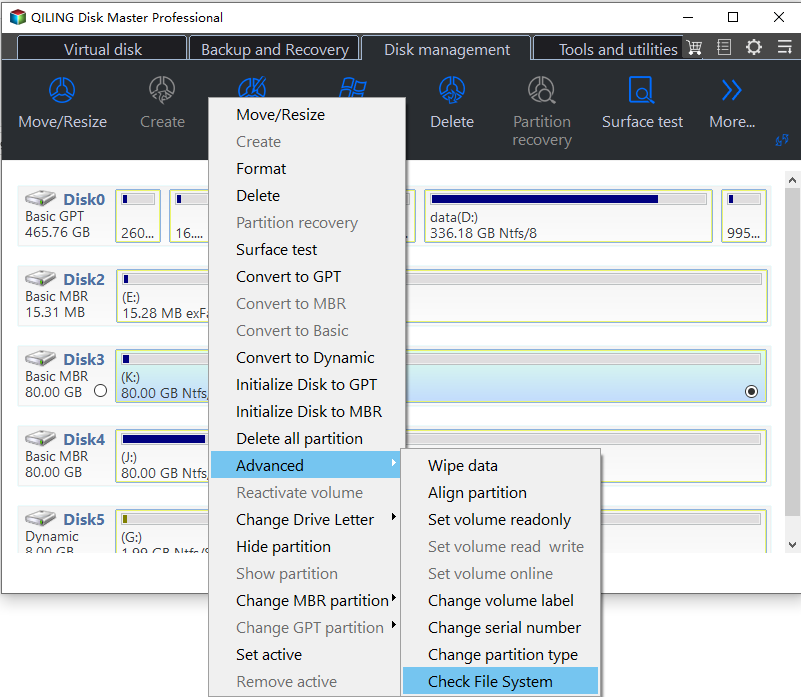
In the disk map, right-click the volume that carries the warning and choose Advanced, then Check File System. The check reads the file system and reports whether the volume itself is consistent before any copy is made.
Step 2. Select the Suspect Disk in Disk Backup
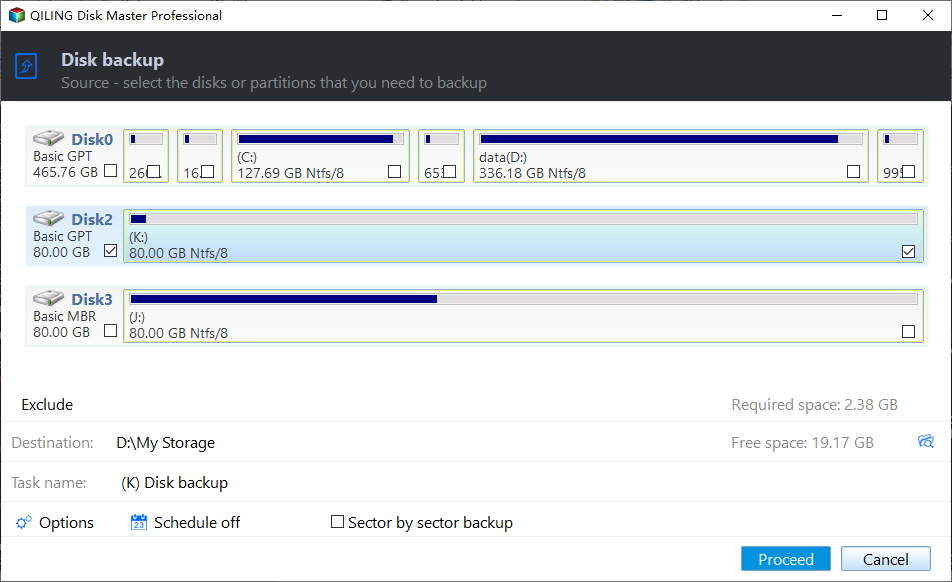
Open the Backup and Recovery tab, choose Disk Backup, and tick the disk whose number appears in the error events. Compare its capacity with the value Disk Management reports so the right disk is captured.
Step 3. Set the Destination and Proceed
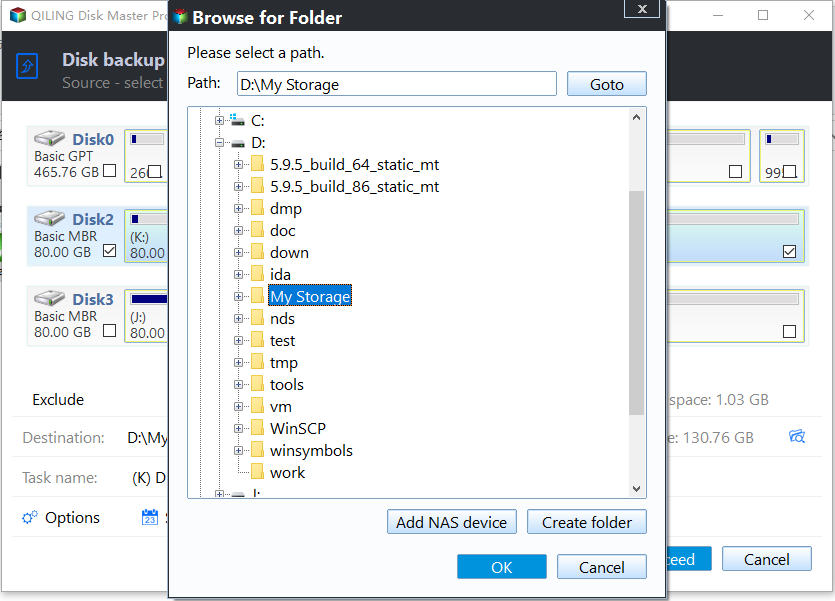
Choose a folder on a different physical disk, confirm the required space, then preview the pending operation and click Proceed. If the task stalls, note the percentage: the same stop twice marks the area at fault.
Frequently Asked Questions
Is a disk marked Online (Errors) still safe to use?
Not for anything that matters. The label means IO has already failed, so use the disk only long enough to copy the data. Any write in the meantime can trigger more failures.
Can the label be cleared without replacing the disk?
Sometimes. A loose cable, a bad port, or a dirty volume can produce it, and it disappears once the cause is removed. A label that returns after a reseat points at the drive.
Does a full format remove the bad blocks?
No. A format hides the areas the drive has already remapped and leaves the rest of the surface as it was. The sectors are not repaired, and the count of remapped sectors does not fall.
Related Articles
- Disk Offline After a Windows Update
- Disk Management Keeps Refreshing and Shows No Disks
- Windows 10 Drive Converted to RAW Format
- SMART Attribute 0E: Media and Data Integrity Errors
- External Hard Drive Disconnects During Large File Copies
Products
Articles & Tutorials
- Data Recovery
- Data Backup
- File Recovery
- File Backup
- System Backup and Restore
- Disk and Partition Clone
- Technical articles
- Mobile articles
- Disk Master Help
- Windows Data Recovery Tutorials
- Windows Secure Delete Tutorials
- Windows Partition Management Tutorials
- Windows File Backup and Restore Tutorials
- Windows System Backup and Restore Tutorials
- Windows Disk Backup and Restore Tutorials
- Windows Clone Tutorials