SMART Attribute 0E: Media and Data Integrity Errors
Quick Navigation:
- What Attribute 0E Counts
- How 0E Differs From 05, C5, and C6
- NVMe Media Errors and Percentage Used
- Read the Surface and Image the Disk
- Frequently Asked Questions
Attribute 0E is the counter a drive increments when it hands back data it could not verify. The name varies by vendor, but the meaning does not: a read or a write passed through the media, the integrity check failed, and the drive could not correct the result before returning it. A raw value above zero is therefore a record of real events, not a prediction of future ones.
What Attribute 0E Counts
The attribute is reported as Media and Data Integrity Errors in most SMART readers. Each increment means one uncorrected event either reached the host or was caught inside the drive after the error correction code had already failed.
The normalized value usually starts at 100 and falls as events accumulate, while the raw value keeps the running total. The threshold is often zero, which means the drive itself expects this counter to stay at zero for its whole service life.
Because the counter is cumulative, a single event at first power on can stay in the record for years. What matters is the direction: a value that climbs between two readings taken a week apart describes a drive in decline, while a value that never moves describes a past incident.
How 0E Differs From 05, C5, and C6
Attribute 05 counts sectors that have already been remapped to the spare area. The drive handled the problem by moving the data, and the count records the repair rather than the symptom.
C5 counts sectors that are waiting to be remapped because a read failed but a later write might still succeed. C6 counts sectors that failed a read during a background scan. Both describe unstable media the drive has not yet retired.
0E is broader. It records integrity failures the drive could not correct, including events that never became a pending or reallocated sector. On many drives it is the first counter to move, which makes it the earliest warning that the media no longer returns exactly what was written.
Read the four together. Rising 0E with rising 05 means the media is degrading and the spare area is being consumed. Rising 0E with 05, C5, and C6 flat points away from the platters and toward the cable, the power delivery, the controller, or the firmware.
NVMe Media Errors and Percentage Used
NVMe drives report the same idea under Media and Data Integrity Errors in the SMART health log. That log also carries Error Information Log Entries, Unsafe Shutdowns, and Percentage Used, and the last value is the most misunderstood.
Percentage Used measures endurance consumed against the warranty rating, not the chance of failure. A drive at 100 percent has written its rated volume and may still run for years, while a drive at 5 percent with a rising media error count is the one to watch. The relationship between wear and health is covered in what a high SSD wear level really means.
Any nonzero media error count deserves a second reading after a short interval. If it stays flat, record it and keep monitoring. If it climbs, plan a replacement and copy the data before the drive decides the timing for you. The other counters worth reading are listed in checking an NVMe SSD for health.
Host side causes are worth ruling out first: reseat the drive in its slot, check the temperature, and move it to another port if the platform allows. Windows utilities that display these counters are Microsoft tools and are not part of Qiling Disk Master.
Read the Surface and Image the Disk
Before you replace anything, find out how much of the drive still answers. Qiling Disk Master reads every sector without writing, then captures the disk as an image, so the copy does not depend on individual files opening in Explorer.
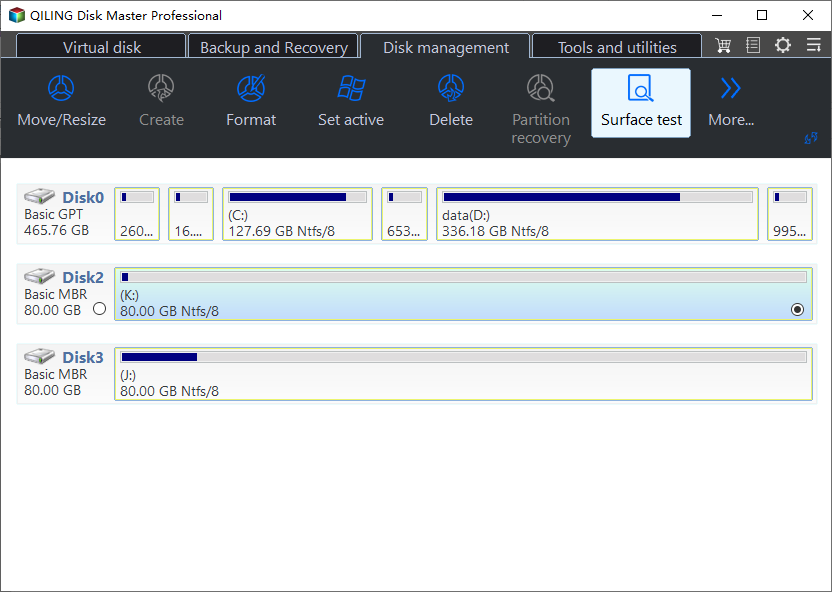
Step 1. Read the Surface of the Disk
Open the Tools and utilities tab and choose Disk Surface Test. It reads the whole disk without writing, and the unreadable blocks it reports show where the media errors sit.
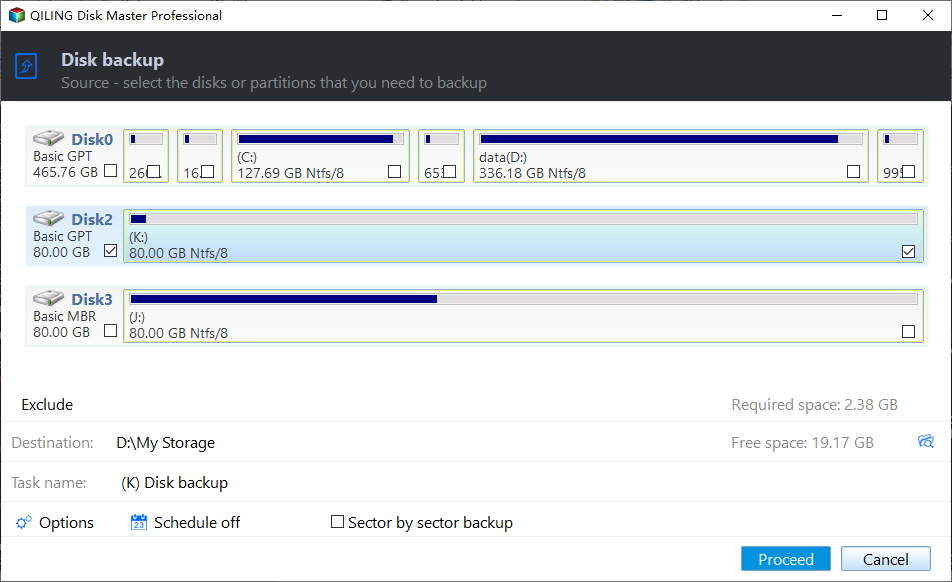
Step 2. Open Disk Backup and Tick the Disk
Switch to the Backup and Recovery tab, choose Disk Backup, and tick the disk with the rising error count in the source list. Check the capacity against the label before you continue.
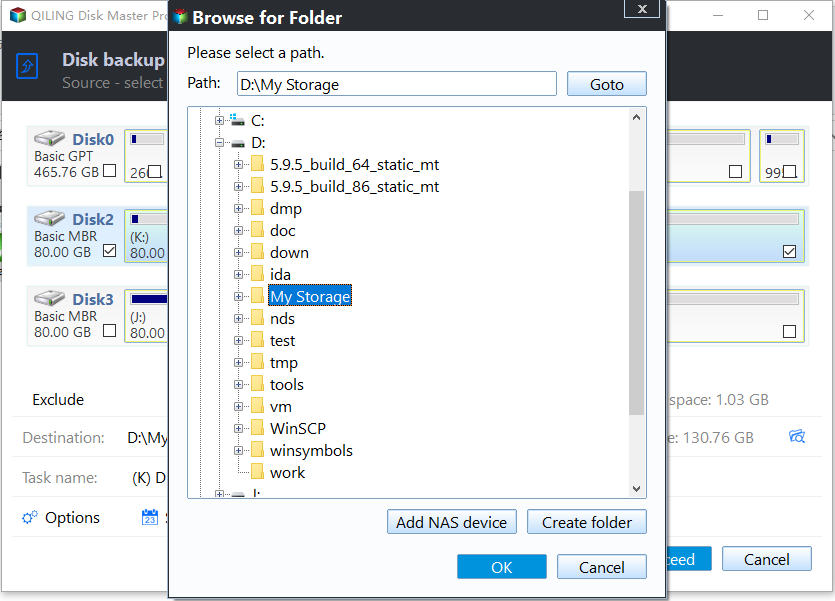
Step 3. Set the Destination and Proceed
Point the image at a healthy disk with room for the used data, preview the pending operation, and click Proceed. Keep the image until the replacement drive has been verified.
Frequently Asked Questions
Is a nonzero 0E always a failing drive?
No. A single historical event can stay in the log for the life of the drive. A value that grows between two readings is the signal to act on.
Can the counter be reset?
Some utilities offer a reset that hides the history without fixing anything. The drive keeps counting underneath, so a reset only removes your evidence.
Should I replace the drive at the first error?
Copy the data first, then decide. Replace when the count rises, when reads slow down, or when the surface test reports unreadable blocks.
If the same drive also logs retried reads in the event log, see Event ID 153 and retried logical block addresses.
Related Articles
- Samsung 990 Pro SSD Lost Health
- NVMe SSD Disappears Under Sustained Write Load
- M.2 SSD Overheating and Throttling in a Laptop
- External SSD Throttles During a Large Copy
- Does an SSD Slow Down Over Time
Products
Articles & Tutorials
- Data Recovery
- Data Backup
- File Recovery
- File Backup
- System Backup and Restore
- Disk and Partition Clone
- Technical articles
- Mobile articles
- Disk Master Help
- Windows Data Recovery Tutorials
- Windows Secure Delete Tutorials
- Windows Partition Management Tutorials
- Windows File Backup and Restore Tutorials
- Windows System Backup and Restore Tutorials
- Windows Disk Backup and Restore Tutorials
- Windows Clone Tutorials