Chkdsk Insufficient Disk Space to Repair USN Journal
Quick Navigation:
- Why the Journal Needs Free Space
- Measure What Is Missing
- Make Room in the Right Order
- Extend the Volume Safely
- Frequently Asked Questions
The message that chkdsk cannot repair the USN journal because of insufficient disk space does not mean the journal is too large to fix. It means the volume has no free clusters for the operation that rebuilds it. NTFS keeps the change journal as a file stream, and repairing that stream requires new space before the old content can be released. On a volume that is 99 percent full, the repair is refused rather than run half way. This guide explains what the journal needs, how to measure the shortfall, and how to extend the volume so the repair can run once and finish.
Why Repairing the USN Journal Needs Free Space
The USN journal records every change made to the volume, so that backup and indexing software can ask what changed since a point in time. NTFS stores it as an alternate data stream inside a hidden system file, and that stream is sparse and grows as activity continues. When the stream is damaged, the repair rebuilds it, which means allocating clusters for the new content before the damaged range is trimmed.
A volume with no free clusters has nowhere to place that allocation. The repair tool therefore stops with the space message and leaves the journal in its damaged state, so the next check hits the same wall. The same limit applies to other repairs that stage their work: the file system needs room to write before it can delete.
The consequence is not only a failed repair. While the journal is inconsistent, backup software that depends on it may fall back to a full scan or fail to run, and the volume stays marked as needing attention. The warning returns at every boot until the repair completes, which is why freeing space matters more than repeating the command.
Measure How Much Space Is Missing
Start with the free space of the volume, not of the disk. A volume can sit on a disk with terabytes unallocated while the volume itself is full, and only the volume's free clusters matter to the repair. Read the value from the drive properties in Explorer and compare it with the size of the journal stream, which is reported in the same check log.
Then confirm what kind of volume it is. A thin-provisioned or virtual volume can report free space inside the guest while the pool behind it has no capacity left, and in that case deleting files inside the volume may free nothing until the pool is extended. A volume on a nearly full SSD has the same trap from over-provisioning: the space Windows sees is not the space the drive can still write.
Finally, decide whether the space can be released or has to be added. A volume with 50 MB free and a large number of deleted files can often be recovered by cleanup alone. A volume where every cluster is carrying data needs more capacity, and the only way to add it is unallocated space on the same disk.
The check itself and the space report come from tools that Microsoft ships with Windows; they are not part of Qiling Disk Master. They diagnose the volume, while the steps below change its size.
Make Room Before Running the Check Again
Copy first if the volume holds anything irreplaceable. Shrinking or extending a volume rewrites its metadata, and a volume that already fails a consistency check is the last place to start an operation without a copy. An image of the volume on another disk takes minutes and removes the risk from everything that follows.
Free space in this order: delete temporary files and stale update caches, move archives and media to another volume, and remove old restore points if the volume has them. Recheck the free figure after each step. Once the volume holds more free space than the journal needs, run the check again and let it finish without interruption.
When cleanup cannot produce enough room, add capacity. Extend the volume into unallocated space that sits directly after it; if the gap is on the other side of a neighbouring volume, move that volume first so the unallocated block becomes adjacent. Both operations are layout changes, so they belong after the copy, never before it.
Extend the Volume With Qiling Disk Master
Qiling Disk Master shows the free space of every volume and can move a neighbouring volume so the unallocated block lands behind the one that needs room. The work happens before Windows starts, so files that are open in the full volume do not block the resize.
Step 1. Read the Free Space of the Full Volume
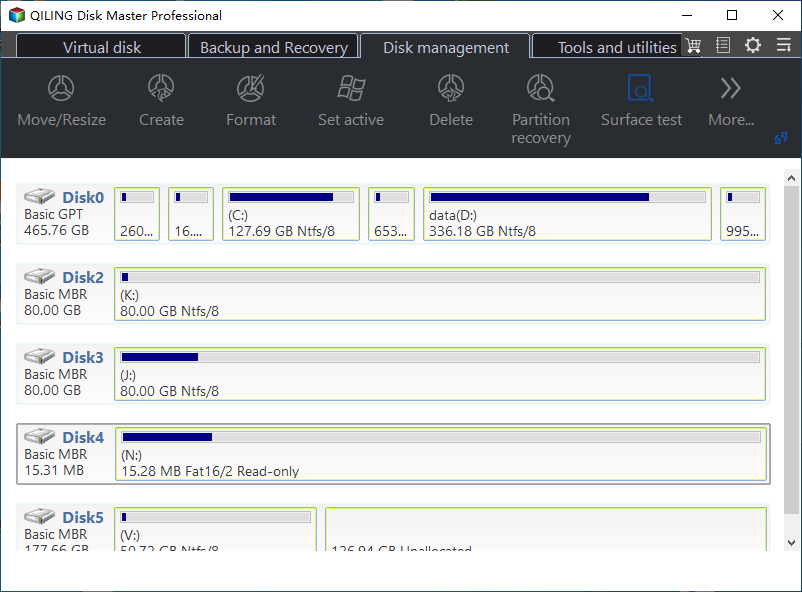
Open the disk map and find the volume that the check cannot repair. The bar shows how much of it is in use, and the unallocated block on the same disk shows where the extra space would have to come from.
Step 2. Extend the Volume Into Unallocated Space
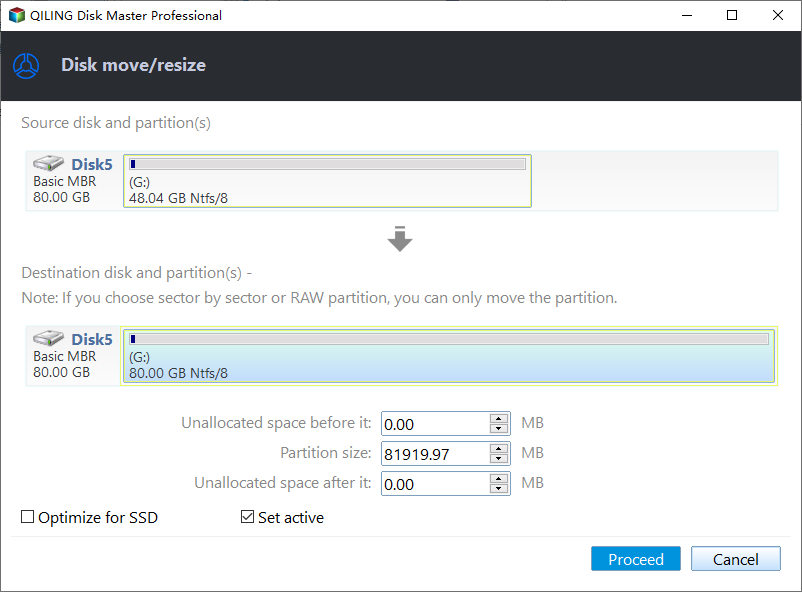
Right-click the full volume and choose Resize/Move, then drag its right edge into the unallocated block. If another volume sits in between, move that volume to the right first so the gap becomes adjacent, and keep the starting offset of the full volume unchanged.
Step 3. Preview the Layout and Proceed
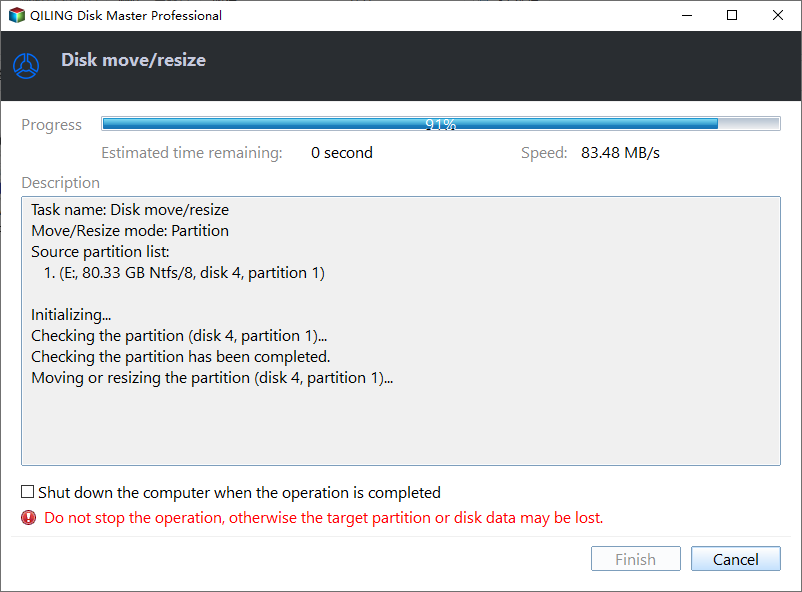
Check that only the intended volumes appear in the task list with their new sizes, then preview the pending operation and click Proceed. When Windows restarts, run the check again on the enlarged volume and let it rebuild the journal.
Frequently Asked Questions
Does chkdsk delete files when it runs out of space?
No. It refuses the journal repair and stops, leaving the volume as it was. Files are only affected if a repair is interrupted after it has started writing, which is why the space has to exist beforehand.
How much free space does the repair need?
Enough for the rebuilt journal stream plus working room, which on most volumes means several hundred megabytes rather than a few. Aim for a few gigabytes free so the next journal repair does not fail the same way.
Can I just delete the USN journal instead?
Deleting the stream removes the change history that backup software relies on, and it does not fix a volume that fails its consistency check for other reasons. Freeing or adding space is the safer first step.
Related Articles
- Thin-Provisioned Volume Runs Out of Space
- VHDX File Does Not Shrink After Deleting Data
- Storage Space Says Not Enough Capacity
- Dynamic VHDX Stops Growing at Its Maximum Size
- Windows 10 Drive Converted to RAW Format
Products
Articles & Tutorials
- Data Recovery
- Data Backup
- File Recovery
- File Backup
- System Backup and Restore
- Disk and Partition Clone
- Technical articles
- Mobile articles
- Disk Master Help
- Windows Data Recovery Tutorials
- Windows Secure Delete Tutorials
- Windows Partition Management Tutorials
- Windows File Backup and Restore Tutorials
- Windows System Backup and Restore Tutorials
- Windows Disk Backup and Restore Tutorials
- Windows Clone Tutorials