Dynamic VHDX Stops Growing at Its Maximum Size
Quick Navigation:
- Dynamic, Fixed, and the Ceiling
- Confirm Where the Space Went
- Raise the Size on the Host
- Extend the Volume in the Guest
- Frequently Asked Questions
A dynamic VHDX starts small and grows as blocks are written, but it never grows past the maximum size that was set when the file was created. Once that ceiling is reached, the guest reports a full disk while the host still has plenty of free space. The fix is a two-stage job: expand the virtual disk outside the guest, then extend the volume inside it.
Dynamic, Fixed, and the Ceiling
A dynamic VHDX allocates host space on demand, so a 2 TB disk may occupy 90 GB on day one. A fixed VHDX allocates the full size immediately and writes faster because the blocks are already laid out.
In both formats the guest always sees the full virtual size. The dynamic part describes the file on the host, not the disk in the guest, which is why a dynamic disk cannot be smaller than the volume it contains.
Growth stops for two reasons: the file reached its maximum size, or the host volume that stores the file is out of free space. Both look identical inside the virtual machine.
Confirm Where the Space Went
In the guest, open Disk Management and look at the disk row. A volume that fills the whole virtual disk has no unallocated space after it, which means the limit is the virtual disk rather than the partition.
On the host, compare the size of the VHDX file with the maximum size shown in the disk settings of the virtual machine. A file that matches the maximum has hit the ceiling; a much smaller file points at a full host volume.
Check the host volume as well. A dynamic disk stops growing at the point where the host runs out of space, and the guest then reports a write error that looks like a full drive.
Raise the Size on the Host
Shut down the virtual machine before editing the disk. A dynamic VHDX must be offline for a size change, and a running VM keeps a lock on the file that blocks the operation.
Windows built-in Hyper-V Manager can expand the disk through its Edit Disk wizard, and the Hyper-V module's Resize-VHD command does the same job. Both are Microsoft tools, not features of Qiling Disk Master, and both change only the virtual disk, never the partition table inside the guest.
Start the virtual machine again and open Disk Management in the guest. The disk should now show unallocated space at its end, which is the room you are about to use.
Extend the Volume in the Guest
Qiling Disk Master extends the volume into that unallocated space and previews the result before it applies anything. The steps below run inside the guest system.
Step 1. Open the Disk Layout
Launch the program and check that the disk list shows the same capacity that Disk Management reports. A different value means the guest is still seeing the old virtual disk size.

Step 2. Extend the Volume
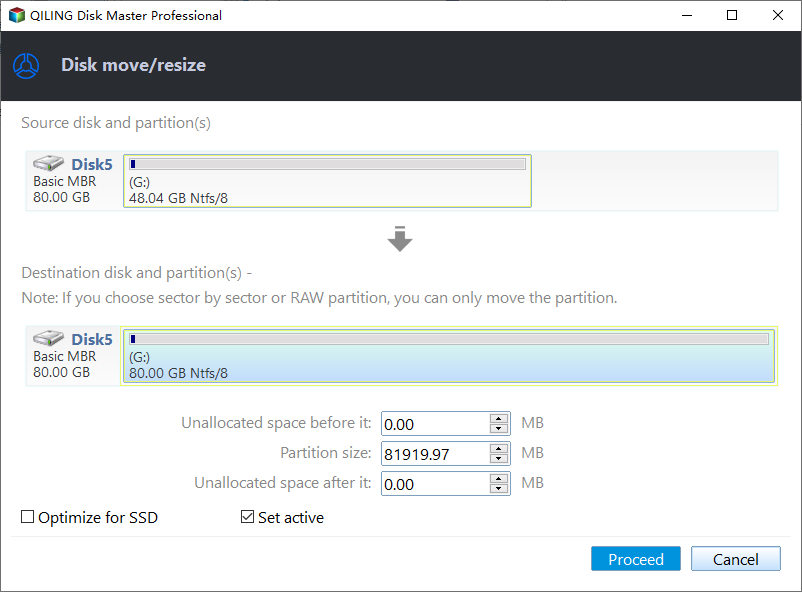
Right-click the volume that needs more space and choose Resize Partition, then drag the right handle into the unallocated area. Leave the file system listed in the dialog unchanged so the volume keeps its format.
Step 3. Proceed and Let the Task Finish
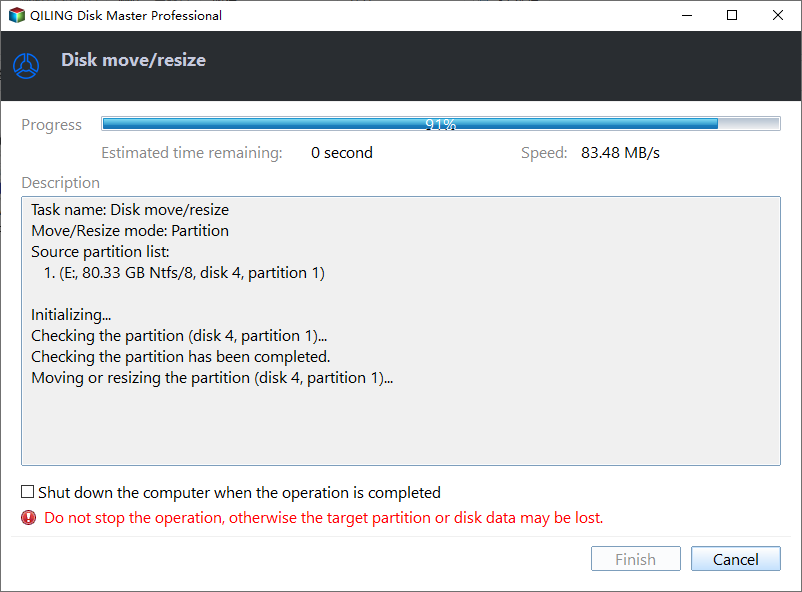
Confirm in the wizard that the new end point sits inside the virtual disk, then click Proceed. The operation then runs in a progress window; wait for it to reach 100% before you close the window or start the virtual machine.
Frequently Asked Questions
Can a dynamic VHDX be expanded while the VM is running?
No. The file is locked while the machine runs, so the size change requires a shutdown. Plan the work for a maintenance window.
Does expanding the VHDX move existing data?
No. The new space is appended after the existing blocks, and the data already on the disk stays where it is.
Why is the VHDX file still small after the expansion?
Because it is dynamic. The file grows only as the guest writes into the new space, so a small file right after the change is normal.
If the file refuses to shrink after you delete data, see VHDX file does not shrink.
Related Articles
- VHDX File Does Not Shrink After Deleting Data
- Why I Cannot Extend C Drive with Unallocated Space?
- Thin-Provisioned Volume Runs Out of Space
- Storage Space Says Not Enough Capacity
- How to Clone a Virtual Machine Disk to a Physical Drive
Products
Articles & Tutorials
- Data Recovery
- Data Backup
- File Recovery
- File Backup
- System Backup and Restore
- Disk and Partition Clone
- Technical articles
- Mobile articles
- Disk Master Help
- Windows Data Recovery Tutorials
- Windows Secure Delete Tutorials
- Windows Partition Management Tutorials
- Windows File Backup and Restore Tutorials
- Windows System Backup and Restore Tutorials
- Windows Disk Backup and Restore Tutorials
- Windows Clone Tutorials