How to Clone a Virtual Machine Disk to a Physical Drive
A virtual machine is easy to test in and hard to keep paying for. Turning its disk into a physical boot drive gives one service dedicated hardware without a fresh installation.
This guide explains the disk conversion, the driver and boot-mode checks that decide whether the copy starts, and how to verify the first boot.
PAGE CONTENT
- When a VM Disk Should Become Physical
- Check Boot Mode and Drivers
- Convert the Virtual Disk First
- Clone the VM Disk with Qiling Disk Master
- First Boot on Real Hardware
- FAQs About VM to Physical Moves
- Back Up Windows Before You Clone
When a VM Disk Should Become Physical
- A workload outgrows the host. CPU, memory, or storage on the hypervisor is shared with other guests.
- Hardware must be passed through. Some USB, GPU, or serial devices work only on real hardware.
- The licence is tied to metal. Vendors sometimes require named physical hardware for support.
- The service moves to production. A VM proven in testing can become a dedicated appliance.
- Recovery needs a bare-metal path. A physical copy boots even when the hypervisor will not start.
A virtual to physical move is possible, but it is not a straight copy. Storage drivers and boot mode must match the board, or Windows stops with an inaccessible boot device error.

Check Boot Mode and Drivers
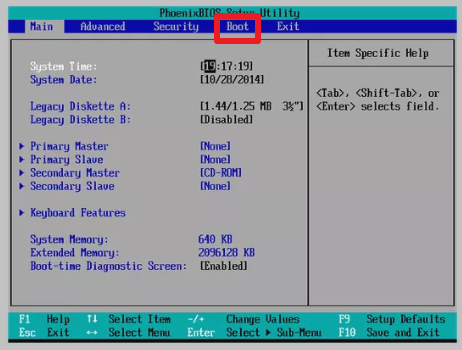
- Confirm the boot mode. A VM set to UEFI must land on a UEFI board, and a BIOS VM needs legacy boot.
- List the storage controller. IDE, SATA, SCSI, and NVMe drivers differ and one may be missing on the target.
- Add the target drivers. Inject the chipset and storage drivers before the disk leaves the VM.
- Remove guest tools. Hypervisor guest additions and paravirtual network drivers do not belong on metal.
- Check activation. A new board usually triggers a new hardware ID and a reactivation prompt.
The safe order is to prepare drivers inside the VM while it still boots there, then copy the disk. Editing drivers after a failed boot is much harder.
Convert the Virtual Disk First
- Identify the disk format. Hypervisors use VMDK, VHDX, QCOW2, or raw images, and each has its own converter.
- Convert to a raw or VHD file. A flat format can be read by Windows-based clone tools.
- Keep the original file. Work on a copy so the VM can still start if the move fails.
- Check the virtual size. The physical drive must be larger than the provisioned size, not just the used space.
- Mount the image read-only. Windows can attach a VHD directly without writing to it.
A thin-provisioned disk may report a small file but hold a much larger virtual size. Size the target drive for the virtual size to avoid a mid-clone failure.
Clone the VM Disk with Qiling Disk Master
Qiling Disk Master clones a disk that Windows can see, including a mounted VHD or a drive connected through USB. Download it on the physical machine before you attach the image.
Step 1. Open Qiling Disk Master, choose Clone, and then select Disk Clone.

Step 2. Select the mounted VM disk as the source and click Next.

Step 3. Select the physical drive as the destination and confirm that its data will be replaced.

Step 4. Review the partition layout, keep the EFI and recovery volumes, and tick Optimize for SSD if the target is solid state.

Step 5. Click Proceed, wait for the copy to finish, then shut the machine down before you remove any adapter.

First Boot on Real Hardware
- Set the boot mode first. Switch the board to UEFI or legacy to match the source disk.
- Expect one repair cycle. Windows may detect new hardware and restart once.
- Install the chipset drivers. Storage, network, and USB drivers settle after the first desktop.
- Reactivate Windows. Use the original licence or the digital entitlement tied to the account.
- Check the time and network. A VM clock and a cloned MAC address both need correcting on metal.
If the copy stops with an inaccessible boot device message, the storage driver is missing. Follow the recovery steps in Cloned Drive Wont Boot Fix to inject the driver from recovery media.
FAQs About VM to Physical Moves
Can every VM disk be moved to hardware?
Most Windows guests can, provided the boot mode and storage driver match. Linux guests need similar kernel module work.
Do I need to convert VMDK to raw?
Yes, or to VHD. Qiling Disk Master reads disks Windows can see, and Windows cannot attach a VMDK directly.
Will the VM still work after the copy?
Yes if you keep the original files. Never boot the VM and the physical copy at the same time on the same network.
How long does the move take?
Conversion plus the clone. Both depend on the virtual disk size and the speed of the target drive.
Is sysprep required?
Only when the copy will run beside the original. For a single replacement, prepare drivers and reactivate instead.
Back Up Windows Before You Clone
Before changing drives or partitions, create a full system backup. Qiling Disk Master creates an image you can restore from.
Step 1. Open Qiling Disk Master and select System Backup to include Windows and the boot partitions.

Step 2. Save the image to a drive other than the target disk and start the backup.

Step 3. Click Proceed to start the system backup and wait patiently until it finishes. You can also tick Shut down the computer when the operation is completed to power off automatically.

Step 4. If the physical copy will not start, restore the image to a spare drive and boot from it.

Conclusion
A virtual disk can become physical hardware without a rebuild, but only when the preparation is done inside the VM. Confirm the boot mode, add the storage and chipset drivers, remove guest tools, and keep the original disk file intact. Convert the disk to raw or VHD, size the target for the virtual capacity, and clone it with Qiling Disk Master. Then set the same boot mode on the board, allow one repair cycle, install drivers, and reactivate Windows before the service goes live.
For more on moving a working system, see Cloned Drive Wont Boot Fix, How to Clone an MBR Disk to a GPT SSD, Migrate Windows 10 from One PC to Another, and How to Clone a Hard Drive to a Larger Hard Drive.
Related Articles
- Migrate Windows 10 to NVMe or M.2
Move a Windows install onto faster storage without a reinstall. - Replace a Hard Drive with an SSD Without Reinstalling Windows
Keep applications and settings in place by cloning rather than rebuilding. - How to Clone a Windows Server System Disk
Server roles survive a disk swap when the copy is planned around downtime. - How to Clone a Dual-Boot Windows and Linux Drive
Two operating systems need their boot entries preserved in the copy. - How to Clone Windows 10 from a System Image to an SSD
Restore an image onto a new SSD and boot the same Windows install.
Products
Articles & Tutorials
- Data Recovery
- Data Backup
- File Recovery
- File Backup
- System Backup and Restore
- Disk and Partition Clone
- Technical articles
- Mobile articles
- Disk Master Help
- Windows Data Recovery Tutorials
- Windows Secure Delete Tutorials
- Windows Partition Management Tutorials
- Windows File Backup and Restore Tutorials
- Windows System Backup and Restore Tutorials
- Windows Disk Backup and Restore Tutorials
- Windows Clone Tutorials