VHDX File Does Not Shrink After Deleting Data
Quick Navigation:
- Why the File Stays Large
- Prepare the Volume Inside the VHDX
- Compact the File
- Check the Result
- Frequently Asked Questions
You delete a few hundred gigabytes inside a virtual machine, yet the VHDX file on the host keeps its size. The file measures the blocks that were ever written, not the files that remain, so the space stays held until those blocks are released and the file is compacted.
Why the File Stays Large
A dynamically expanding VHDX grows as blocks are written and does not shrink when files are deleted inside the guest. The guest file system marks the blocks as free, but the host still sees them as allocated.
TRIM or UNMAP is the signal that tells the host which blocks are free. If the virtual disk uses a controller or a disk type that does not pass the hint, the host never learns about the deletion and keeps the blocks in the file.
Compaction removes only blocks that are unused and zero at the file level. Fragmented free space, checkpoints, and a differencing chain each keep blocks alive, so the file can stay large even after the cleanup.
Prepare the Volume Inside the VHDX
Inside the guest, delete what you no longer need and empty the Recycle Bin. Then run the drive optimization from the drive's properties in the guest, which sends the free-space hints down to the virtual disk.
Shut the guest down completely instead of saving its state. A saved state or a checkpoint holds a differencing file that keeps the parent VHDX from shrinking.
If the VHDX is part of a chain, merge or delete the checkpoints first. Compacting a parent with an active child reclaims nothing, because the child still depends on those blocks.
Compact the File
In Hyper-V Manager, open the Edit Disk wizard, select the VHDX, and choose the compact action. The wizard inspects the disk first and reports how much space can be reclaimed before it writes anything.
Keep the virtual machine off and the file detached during compaction. A backup or replication job that reads the same file can slow the operation and, in the worst case, leave it incomplete.
Compaction rewrites the file, so keep a copy of the VHDX or a backup of the guest on another disk. A power loss during the rewrite can leave the file unusable.
Check the Result
Attach the compacted VHDX so Windows assigns letters to its volumes, then open Disk Master and compare the capacity and partition layout with the size reported in Explorer. The map is the quickest way to see whether the shrink reached the file and whether the volume still fills the space it should.
Step 1. Read the Volume Layout in the Disk Map
Find the virtual disk in the disk map. Its row shows the disk type, total capacity, and each partition with its letter, size, and file system. Compare that capacity with the number Explorer reports for the VHDX, and confirm that every volume still carries its letter after the rewrite.

Step 2. Extend the Volume Into the Space Inside the VHDX
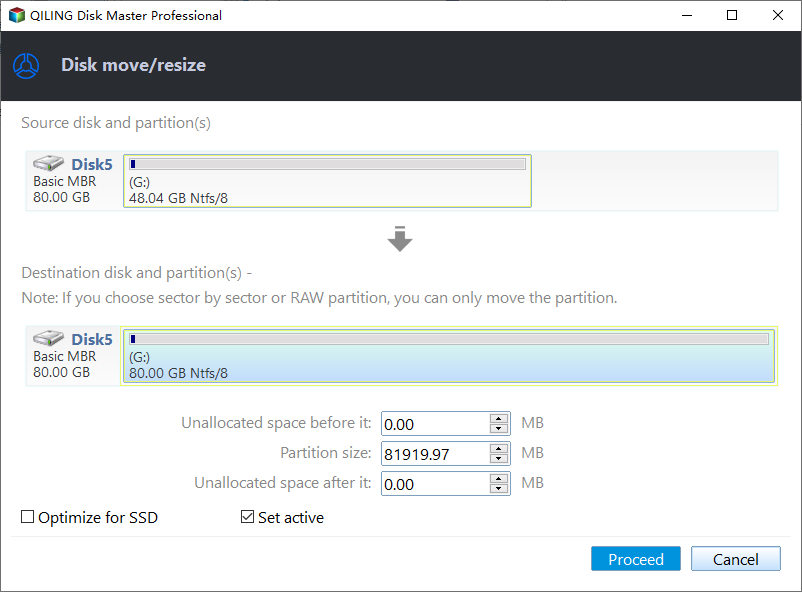
If compaction left a block of unallocated space after the last partition, right-click the volume and choose Move/Resize. In the Disk move/resize window, raise Partition size and watch Unallocated space after fall to the value you want. Tick Optimize for SSD when the VHDX sits on an SSD, then click Proceed.
Step 3. Let the Progress Window Finish
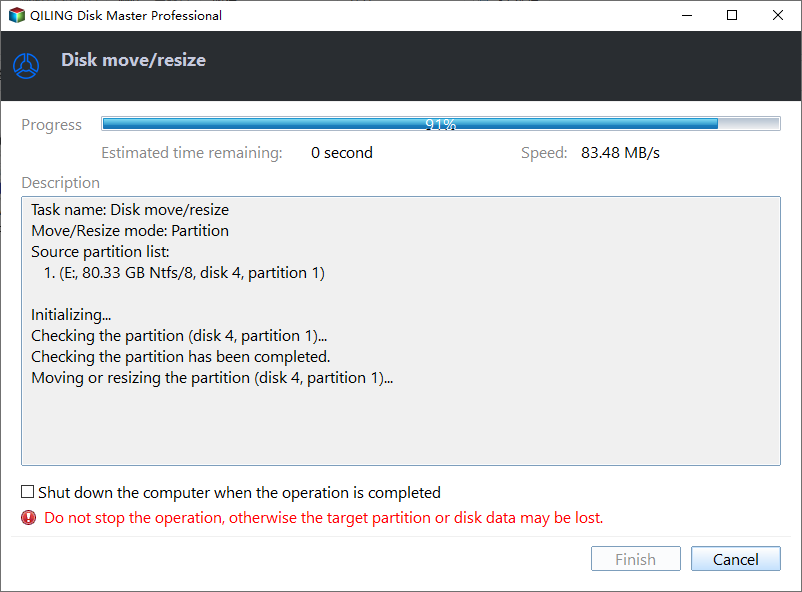
The progress window shows the percentage, the estimated time remaining, and the speed, with the source partition list underneath. Do not close the window or power off the host while it runs. When it reports completion, click Finish and recheck the file size in Explorer.
Frequently Asked Questions
Does deleting files inside the guest shrink the VHDX?
No. The blocks stay allocated in the file until the guest passes the free-space hints and the file is compacted.
Can I compact a VHDX that is still in use?
No. Detach it from every running machine, or the wizard refuses the operation and the file stays locked.
Why is the file still large after compaction?
Checkpoints, a differencing chain, or free space the guest never marked as unused will keep blocks alive.
For a virtual volume that reports free space but cannot grow, see thin-provisioned volume runs out of space.
Related Articles
- Thin-Provisioned Volume Runs Out of Space
- Storage Spaces Direct Pool Cannot Extend: Stuck Storage Job
- Recover Deleted Files From a Storage Spaces Volume
- Back Up Windows Server 2025 Storage Spaces
- Storage Spaces Disk Missing and Cannot Be Removed
Products
Articles & Tutorials
- Data Recovery
- Data Backup
- File Recovery
- File Backup
- System Backup and Restore
- Disk and Partition Clone
- Technical articles
- Mobile articles
- Disk Master Help
- Windows Data Recovery Tutorials
- Windows Secure Delete Tutorials
- Windows Partition Management Tutorials
- Windows File Backup and Restore Tutorials
- Windows System Backup and Restore Tutorials
- Windows Disk Backup and Restore Tutorials
- Windows Clone Tutorials