Back Up Windows Server 2025 Storage Spaces
Quick Navigation:
- What a Pool Backup Has to Capture
- Choose a Destination Outside the Pool
- Schedule Around the Pool Workload
- Image the Server With Qiling Disk Master
- Frequently Asked Questions
Storage Spaces on Windows Server 2025 spreads one volume across several physical disks, which changes how a backup has to be taken. Copying member disks individually produces fragments, while a whole-server image captures the pool as the operating system sees it. The difference matters most when a restore has to happen on new hardware.
What a Pool Backup Has to Capture
The volume, not the members, is the unit worth saving. Windows presents the pool volume as a normal disk, and an image of that volume includes the file system and the data in a restorable form.
For a system volume hosted in a pool, the image also has to include the boot partitions and the storage drivers that the recovery environment needs.
Pool configuration is separate from data. Record the pool name, the resiliency setting, and the member layout so the pool can be rebuilt if the data has to be restored elsewhere.
Choose a Destination Outside the Pool
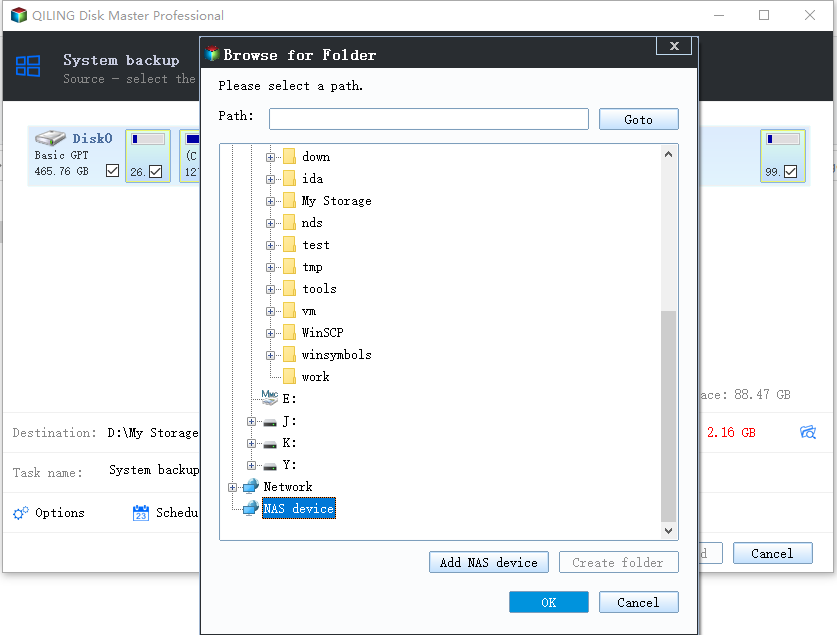
Write the image to a disk that is not a pool member. A backup stored on the pool fails with the pool, which is the exact scenario it exists to protect against.
Size the destination for more than one image. Server volumes are large, and a retention of two or three versions is normal.
Keep the recovery media separate from the image, and test that the media can see the backup target.
Schedule Around the Pool Workload
Run the image in a window when the pool is quiet. A snapshot taken during a rebalance or a rebuild is larger and slower, and it may capture a partially completed operation.
Schedule volume-level file backups separately from the system image. Combining both into one job makes the window short and the failure modes harder to diagnose.
Check the job result rather than assuming success; a job that skipped files has not protected the volume.
Image the Server With Qiling Disk Master
Qiling Disk Master writes a block-level image of the selected volumes and provides bootable media for restoring to bare disks, which is what a pool volume on replacement hardware requires.
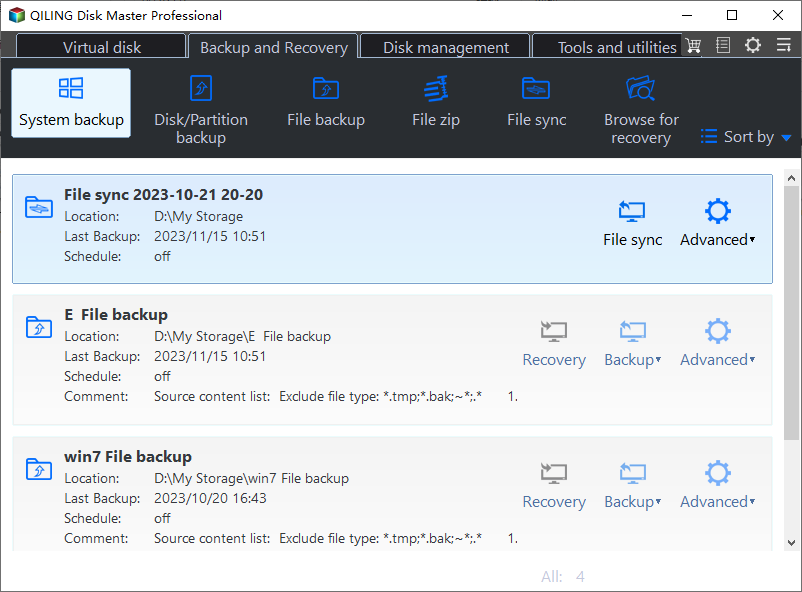
Step 1. Choose System Backup
Open the program and select System Backup when the pool hosts the operating system, or File Backup for a data volume.
Step 2. Select the Pool Volume
Choose the volume by drive letter and compare its capacity with the pool report. Assign a letter first if the volume has none.
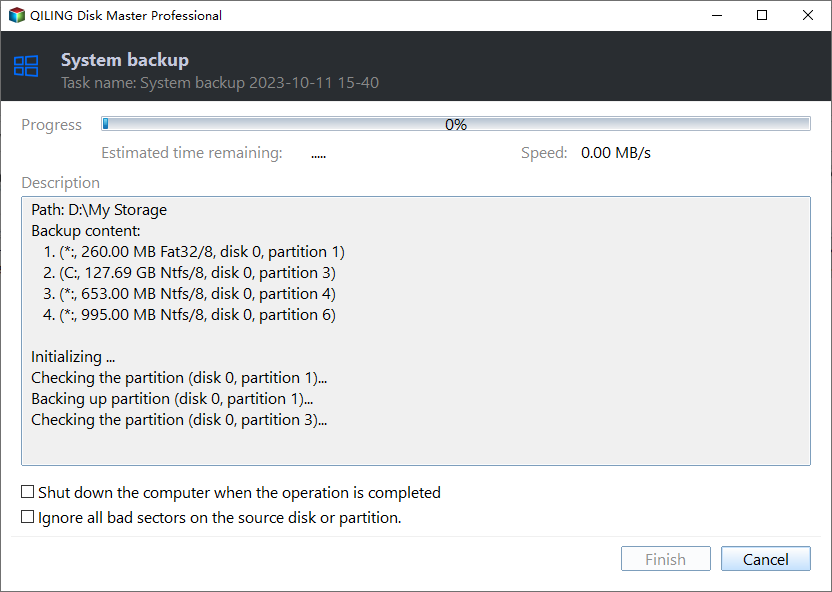
Step 3. Preview and Proceed
Review the task summary and start the job in the maintenance window you planned.
Step 4. Test the Recovery Media
Boot a test machine from the recovery media and confirm that the image is visible. That test is the only proof that the plan works.
Frequently Asked Questions
Can I back up the pool members individually?
No. A member holds slabs, not a file system. Back up the volume that the pool presents.
Will the image restore to a different server?
The data volumes will. A system volume restored to different hardware may need the storage driver injected before the first boot.
What happens if the pool loses a disk during the backup?
The job may fail or produce an image with inconsistent data. Check pool health before you start the job.
Is a file backup of the volume enough?
For data, yes. For the operating system and its boot chain, a system image is required.
For the pool layout behind this job, see Windows Server 2025 partition management.
Related Articles
- Windows Server 2025 Bare Metal Backup
- Storage Spaces Reduce Resiliency Warning
- Storage Spaces Disk Missing and Cannot Be Removed
- Windows Server 2025 Partition Management Guide
- How to Back Up a Hard Drive
Products
Articles & Tutorials
- Data Recovery
- Data Backup
- File Recovery
- File Backup
- System Backup and Restore
- Disk and Partition Clone
- Technical articles
- Mobile articles
- Disk Master Help
- Windows Data Recovery Tutorials
- Windows Secure Delete Tutorials
- Windows Partition Management Tutorials
- Windows File Backup and Restore Tutorials
- Windows System Backup and Restore Tutorials
- Windows Disk Backup and Restore Tutorials
- Windows Clone Tutorials