Storage Spaces Reduce Resiliency Warning
Quick Navigation:
- What the Warning Measurers
- Record the State Before You Change It
- Restore Redundancy Safely
- Back Up the Volume Before Repairing
- Frequently Asked Questions
Storage Spaces protects data by keeping more than one copy of each slab, or by keeping parity. When a member disk fails or the pool runs short of capacity, the pool can no longer place those copies and reports reduced resiliency. The volume still reads, which is exactly why the warning is easy to ignore until it becomes unrecoverable.
What the Warning Measurers
Each virtual disk is split into slabs, and the resiliency setting decides how many copies exist. A two-way mirror keeps two copies; parity keeps data and parity blocks across the members.
Reduced resiliency means at least one slab lost a copy. The volume keeps working because the remaining copy is readable, but a second failure in the wrong place takes the volume offline.
The common triggers are a member disk that dropped out, a pool with too little free capacity to rebuild, and a replacement disk smaller than the one it replaced.
Record the State Before You Change It
Open the Storage Spaces page in Settings and note the pool name, the resiliency setting, the number of members, and which disk shows a warning.
Check the physical drives list for a disk marked as lost communication or missing. A single failed member is the usual cause, and it stays listed until it is retired.
Do not remove the failed disk yet. Removal requires the pool to evacuate its data first, and an already degraded pool may not have room to do that.
Restore Redundancy Safely
Add a healthy disk that is at least as large as the failed one and let the pool rebuild. A smaller disk cannot hold the largest slabs and is rejected or partially used.
If the pool is full but no disk has failed, the fix is capacity rather than repair. Thin provisioning can report free space inside the volume while the pool itself has nothing left to allocate.
Once the pool reports healthy, read a sample of older files. A pool can report healthy while returning errors on slabs written long ago.
Back Up the Volume Before Repairing
Qiling Disk Master can copy the mounted virtual volume to a disk outside the pool. That copy is what lets you repair the pool without risking the only readable data.
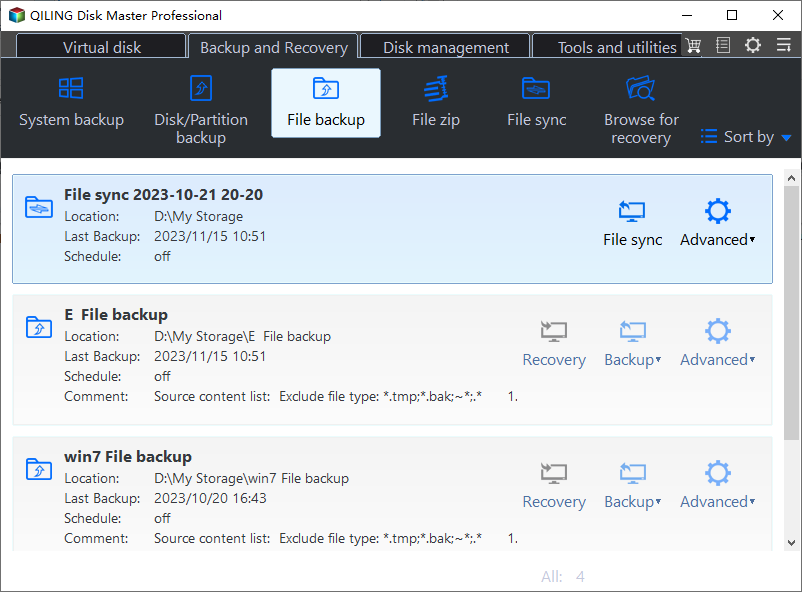
Step 1. Choose File Backup
Open the Backup and Recovery tab and choose File Backup. Use File Backup for the pool volume, and switch to System Backup only when the pool holds the operating system.
Step 2. Select the Volume in the Source Tree
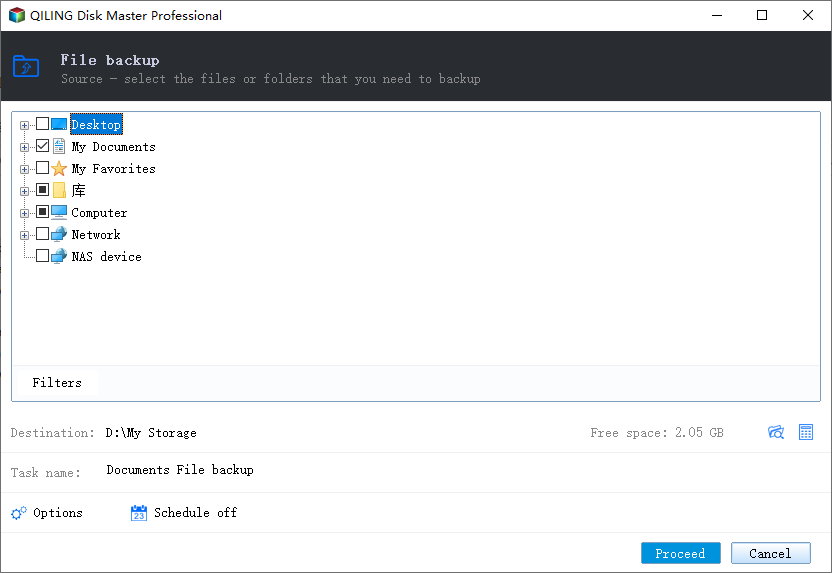
Expand Computer in the source tree and tick the drive letter that belongs to the pool volume. Match the capacity shown there with the pool report, so you tick the Storage Spaces volume and not another disk.
Step 3. Set a Destination Outside the Pool
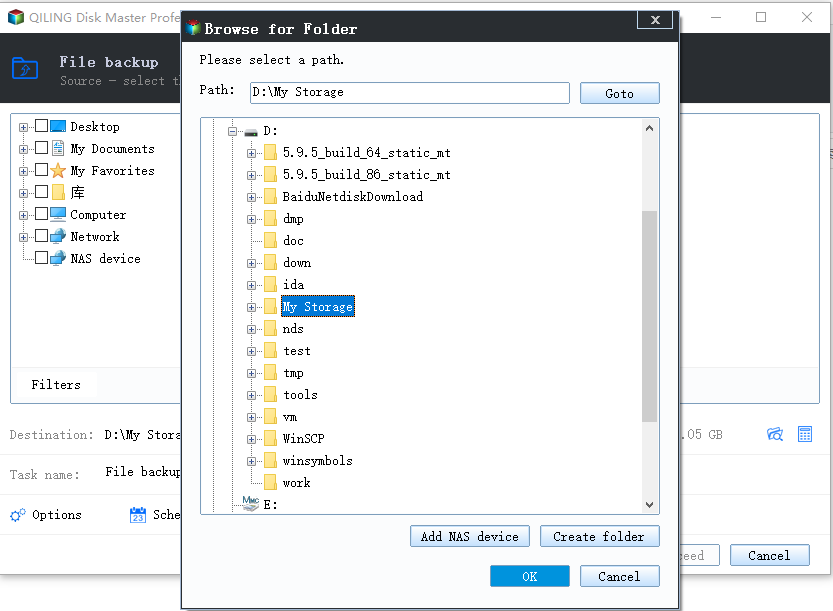
Click the destination path at the bottom of the window and choose a folder on an external disk or on a disk from another pool. Check that the free space is larger than the used space of the volume, click OK, and never point the task at a folder inside the same pool.
Step 4. Run and Verify the Task
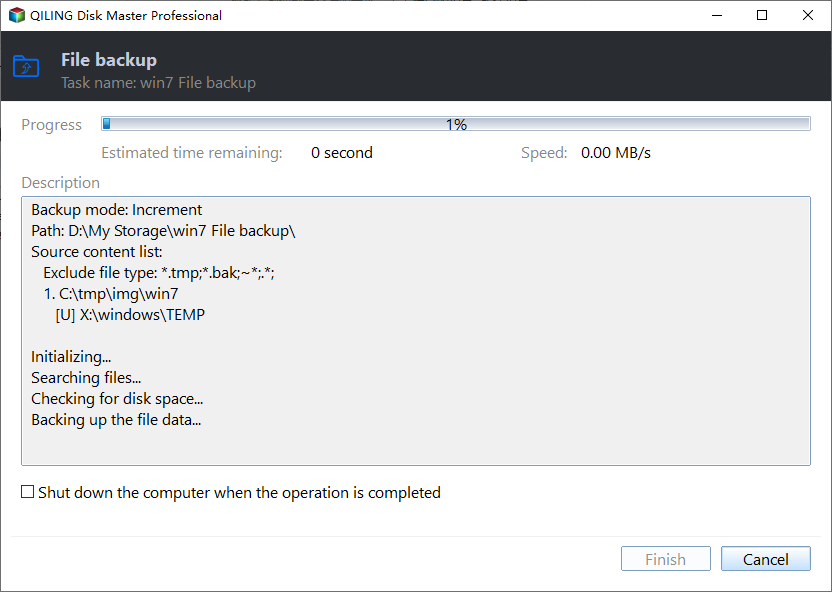
Name the task, click Proceed, and let the job finish. Open the backup point afterwards and restore a sample file to a temporary folder, which proves the copy is readable before you touch the pool.
Frequently Asked Questions
Is my data still safe with reduced resiliency?
It is readable but no longer protected. One more failure on the wrong member can take the volume offline, so copy the data now.
Can I repair a pool with a single remaining disk?
No. Redundancy requires capacity on healthy members. With one disk the pool cannot recreate the missing copies.
Does adding a larger disk fix a full pool?
Yes, once it is added and the pool rebalances. A smaller disk does not restore all slabs.
Should I delete and recreate the pool?
Only after the data is copied. Rebuilding the pool destroys the volume layout, not just the redundancy.
For a pool that refuses to release a failed disk, see Storage Spaces disk missing and cannot be removed.
Related Articles
- Storage Spaces Disk Missing and Cannot Be Removed
- Recover Deleted Files From a Storage Spaces Volume
- How to Back Up a Hard Drive
- Back Up Windows Server 2025 Storage Spaces
- How to Check an NVMe SSD for Health
Products
Articles & Tutorials
- Data Recovery
- Data Backup
- File Recovery
- File Backup
- System Backup and Restore
- Disk and Partition Clone
- Technical articles
- Mobile articles
- Disk Master Help
- Windows Data Recovery Tutorials
- Windows Secure Delete Tutorials
- Windows Partition Management Tutorials
- Windows File Backup and Restore Tutorials
- Windows System Backup and Restore Tutorials
- Windows Disk Backup and Restore Tutorials
- Windows Clone Tutorials