Windows Server 2025 Bare Metal Backup and Restore
Quick Navigation:
- What a Bare Metal Backup Must Contain
- Plan the Destination and the Schedule
- Create the Backup on Server 2025
- Image the Server with Qiling Disk Master
- Frequently Asked Questions
A file backup of the data volumes will not bring a server back after a disk failure. Recovery needs the operating system, its boot partitions, the recovery environment, and the storage drivers in a form that can be written back to bare disks. That is what a bare metal backup provides, and it has to be planned before the failure rather than after.
What a Bare Metal Backup Must Contain
A bare metal image covers the whole system disk: the EFI system partition, the Microsoft reserved partition, the Windows volume, and the recovery partition. It also captures the boot configuration and the drivers loaded at boot, because a server that cannot find its storage controller never reaches the recovery console.
Data volumes are the easy part. The difficult part is the boot chain, and it is the reason a folder copy is not a substitute. A bare metal image restores the machine to the state it had when the image was taken, including installed roles and registry settings.
Separate decisions apply to applications with their own databases. An image restores the files of a database engine but not a consistent snapshot of a live database, so those workloads still need a native backup job running alongside.
Plan the Destination and the Schedule
Store the image on a volume that is not part of the backup set. A second physical disk, a network share, or a removable disk all work, and keeping two copies in different places is the minimum for a server that matters.
Size the destination for more than one full image. Block-level images compress, but a server with a 2 TB system volume still produces a large file, and a retention of two or three versions is normal.
Schedule the image for a quiet period, then schedule a separate job for the data volumes. Mixing both into one nightly job makes the image large and the window short, and a failed job then leaves you without either copy.
Create the Backup on Server 2025
Two routes are practical. The built-in server backup feature can write a bare metal recovery image, and it is adequate when the system volume is small and the backup runs to a local disk. The alternative is a block-level image taken with the software described below, which also allows the image to be restored to different hardware.
Whichever route you take, verify the result. Mount or browse the image after the first run and confirm that the system volume and the boot partitions are both present; an image that contains only the Windows volume will not boot.
Keep the recovery media separate from the image. A bootable USB stick that can start the restore is useless if it lives inside the backup that has to be restored.
Image the Server with Qiling Disk Master
Qiling Disk Master creates a block-level system image on a running server and offers a bootable recovery environment for restoring it. On a machine with a small recovery partition or an unusual storage controller, that environment is often the difference between a working restore and an unbootable system.
Step 1. Choose System Backup
Open the program and select System Backup. It picks the system and boot partitions automatically, including the small partitions that a manual selection would miss.
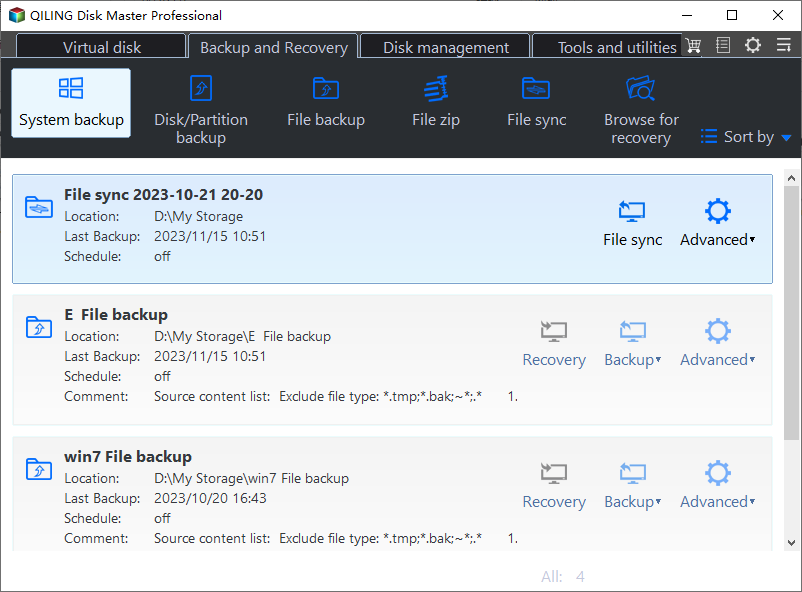
Step 2. Select the Destination
Choose a disk or share that is outside the backup set. Confirm free space against the used space of the system volume, and remember that an image of a nearly full volume needs more room than a compressed estimate suggests.
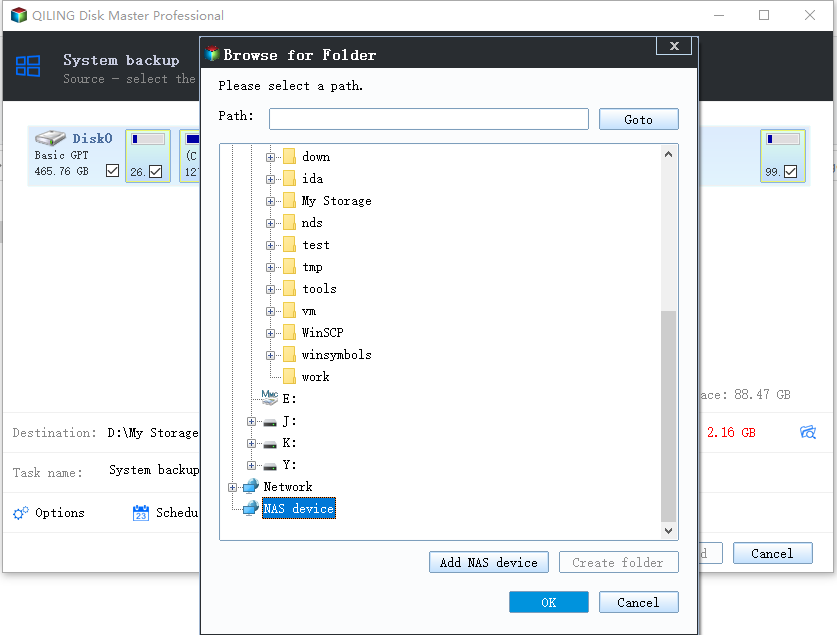
Step 3. Preview and Proceed
Check the pending operation list and start the job. On a server, run it outside business hours so that the volume snapshot does not compete with production I/O.
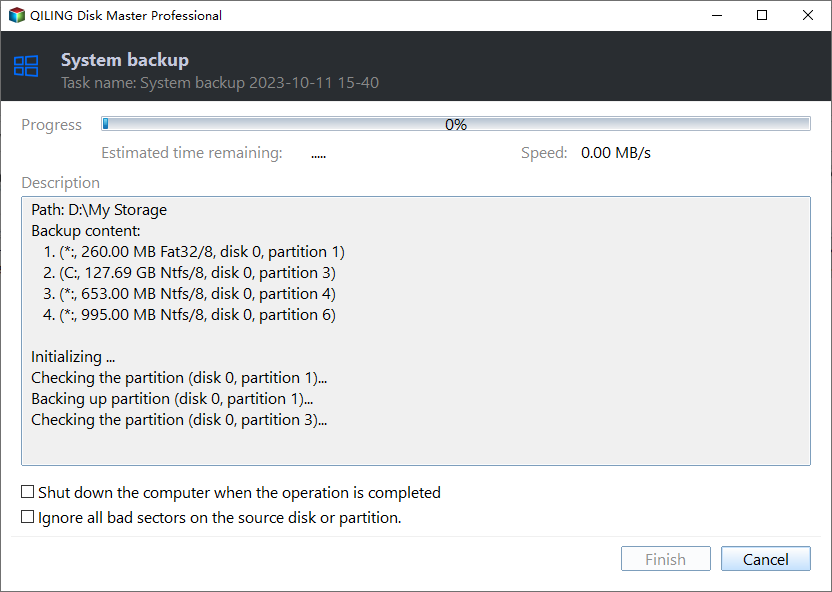
Step 4. Test the Restore Media
Create the bootable recovery media once and start a test machine from it. Boot the media, reach the restore screen, and confirm that the image is visible; that five-minute test is the only proof that the plan works.
Frequently Asked Questions
Is a system image the same as a bare metal backup?
In practice, yes, provided the image includes every boot partition and the restore media can load the storage drivers. An image of the Windows volume alone is not bare metal.
Can the image be restored to different hardware?
Usually yes. The image carries the old drivers, so the restored system may need to be started in a recovery mode that injects the new storage driver before the first normal boot.
How often should a server image be taken?
After every significant change: role installation, driver update, or patch cycle. Nightly images are fine if the window allows, but they should not replace data-volume backups.
Does the built-in server backup still exist in 2025?
Yes. It remains available as a feature to install, and it can produce a bare metal recovery image, although its destination and scheduling options are limited.
For the partition layout that a server image has to cover, see Windows Server 2025 partition management.
Related Articles
- Windows Server 2025 Partition Management Guide
- How to Back Up a Hard Drive
- Back Up Programs Before Reinstalling Windows
- Acronis Universal Restore Explained
- 7 Ways to Clean Up the C Drive in Windows Server
Products
Articles & Tutorials
- Data Recovery
- Data Backup
- File Recovery
- File Backup
- System Backup and Restore
- Disk and Partition Clone
- Technical articles
- Mobile articles
- Disk Master Help
- Windows Data Recovery Tutorials
- Windows Secure Delete Tutorials
- Windows Partition Management Tutorials
- Windows File Backup and Restore Tutorials
- Windows System Backup and Restore Tutorials
- Windows Disk Backup and Restore Tutorials
- Windows Clone Tutorials