Storage Space Says Not Enough Capacity
Quick Navigation:
- Why Free Space Is Not Usable
- Compare Slabs With the Remaining Space
- Free Capacity Without Adding Disks
- Create the Virtual Disk
- Frequently Asked Questions
The Storage Spaces wizard stops with a message that the pool does not have enough capacity, while the pool page still shows free space. Both statements can be true at once: the pool counts free space in slabs, and the wizard needs a slab it can place in one piece. Once you compare the two numbers, the refusal usually makes sense.
Why Free Space Is Not Usable
A pool divides its members into slabs of a fixed size and hands those slabs to virtual disks. Free space is the sum of slabs that no virtual disk owns, which is why the number looks generous on the pool page.
The wizard needs a block that matches the resiliency setting. A two-way mirror needs two slabs on two different disks for every stripe, and parity needs more. If the free slabs are scattered, the total stays large while no single allocation fits.
Thin provisioning adds a second layer. A thin virtual disk reserves capacity in advance without writing to it, so the pool can report free space that is already promised. Creating another disk then fails even though nothing has been stored yet.
Compare Slabs With the Remaining Space
Open the virtual disk settings and note the resiliency type, the number of columns, and whether the disk is fixed or thin. Those three values decide how much room one stripe consumes.
Compare the size you requested with the free space on each member rather than with the pool total. Four 1 TB disks do not offer one 4 TB block; they offer many smaller blocks spread across the members.
Check the physical drives list for a member that is full, missing, or retired. One unavailable member reduces the number of places where a copy can land, and the wizard refuses the layout instead of creating a disk that cannot be repaired.
Free Capacity Without Adding Disks
Delete virtual disks that are no longer used, but copy their contents first. Removing a virtual disk returns its slabs to the pool, and those slabs can then serve the new disk.
Shrink a volume that has more space than it needs, or move its data to another disk and delete the volume. Emptying the Recycle Bin inside a volume does not return slabs to the pool; only deleting or shrinking the volume does.
Reduce the size you ask for if it sits just above the free total. A virtual disk of 3.8 TB may be accepted where 4 TB is refused, and the volume can grow later. Run Optimize drive usage from the Storage Spaces page to rebalance the slabs that already exist.
Create the Virtual Disk
Disk Master shows where the free space actually sits before you change the pool, and it can move a partition boundary so the released block is large enough for the new disk. Back up the volume that will shrink, release the space, and then run the Storage Spaces wizard again with the new total in view.
Step 1. Check the Disk Map for Real Free Space
Open Qiling Disk Master and read the disk map. Every disk shows its type, total capacity, and each partition with its letter, size, and file system, while unallocated areas appear as separate blocks without a letter. Identify the disk behind the pool and see how much unallocated space sits next to the volume you plan to shrink.

Step 2. Back Up the Volume Before It Shrinks
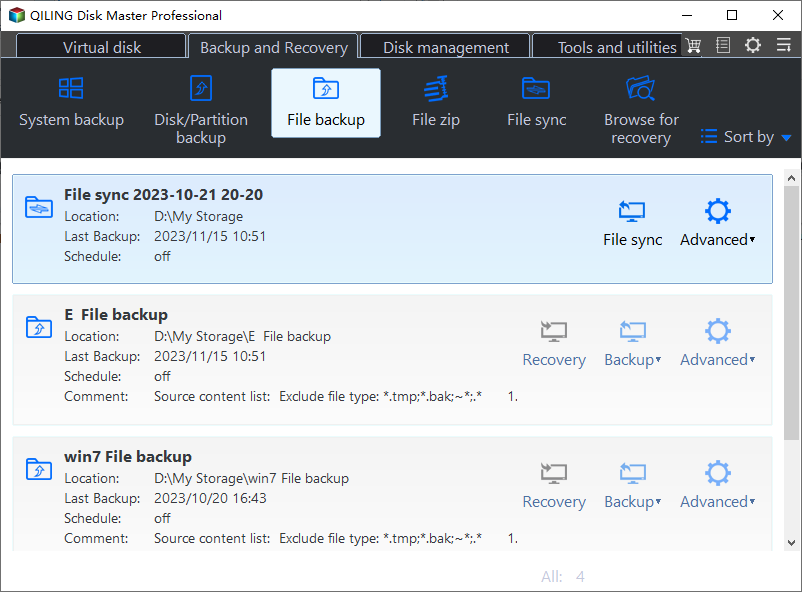
Open the Backup and Recovery tab and click File Backup. The task list reports the location and last backup of every task, so you can pick one that writes to a disk outside the pool or create a new task for this volume. A resize can fail on a full or failing disk, and the backup is what keeps the data readable.
Step 3. Shrink the Volume in the Move/Resize Wizard
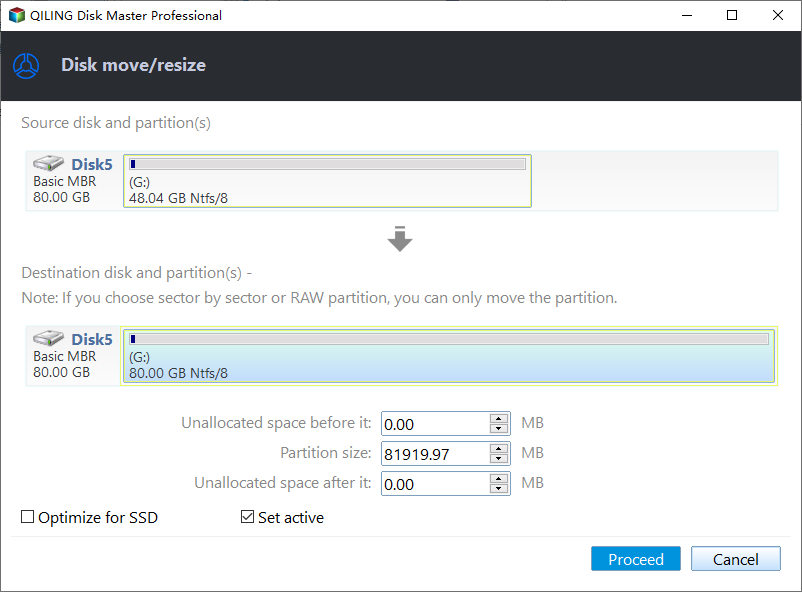
Right-click the volume and choose Move/Resize. In the Disk move/resize window, lower Partition size and watch Unallocated space after grow, so the space is released at the end of the partition. Tick Optimize for SSD when the target is an SSD, then click Proceed and leave the progress window alone until it reports that the task is complete.
Frequently Asked Questions
Why does the pool show free space I cannot use?
That space is split into slabs smaller than the layout needs, or it is already promised to thin virtual disks.
Does adding a USB disk solve the shortage?
Not usually. Storage Spaces expects fixed internal disks, and a removable USB member is refused or treated as unreliable.
Can I create a smaller disk and grow it later?
Yes, with thin provisioning. Create what fits now, then extend the virtual disk when the pool gains real capacity.
For a volume whose promised space runs out, see thin-provisioned volume runs out of space.
Related Articles
- Storage Spaces Reduce Resiliency Warning
- Thin-Provisioned Volume Runs Out of Space
- Storage Spaces Direct Pool Cannot Extend: Stuck Storage Job
- Recover Deleted Files From a Storage Spaces Volume
- Back Up Windows Server 2025 Storage Spaces
Products
Articles & Tutorials
- Data Recovery
- Data Backup
- File Recovery
- File Backup
- System Backup and Restore
- Disk and Partition Clone
- Technical articles
- Mobile articles
- Disk Master Help
- Windows Data Recovery Tutorials
- Windows Secure Delete Tutorials
- Windows Partition Management Tutorials
- Windows File Backup and Restore Tutorials
- Windows System Backup and Restore Tutorials
- Windows Disk Backup and Restore Tutorials
- Windows Clone Tutorials