NVMe Namespaces: What They Are and How to Manage Them
An NVMe namespace is a logical range of storage attached to an NVMe controller. Most consumer SSDs expose exactly one, which is why the term rarely comes up. Enterprise drives can expose several, and each one appears to the operating system as a separate physical disk.
Namespaces sit below the partition table. They are not partitions, and you cannot create them with Disk Management. Understanding the difference prevents confusion when a single drive shows up as two disks.
What a Namespace Is
The NVMe controller is the device that talks to the host. Behind it, the drive can divide its NAND into namespaces, each with its own logical block size and capacity. A namespace is identified by a number, and the controller reports its size and block format.
A drive with two 500 GB namespaces looks like two 500 GB disks to Windows, even though both live on the same physical device. The controller handles the mapping and the wear leveling across the whole drive.
Namespace vs Partition
| Level | Created by | What it controls |
|---|---|---|
| Namespace | NVMe controller firmware or a management tool | The block range the controller exposes to the host |
| Partition | Windows, Linux or a partition manager | How the exposed blocks are divided into volumes |
| Volume | File system format | Files, folders and metadata inside one partition |
You can format a namespace, create partitions inside it and delete those partitions without affecting the namespace itself. Deleting a namespace removes the whole block range from the host's view, which is closer to unplugging a disk.
How Windows Sees Them
Each namespace appears in Disk Management as a separate disk with its own number, capacity and partition style. Two namespaces on one drive therefore show as two disks, and the total capacity matches the drive's rated size.
If a drive shows less capacity than expected, check whether the vendor tool reports additional namespaces that are not attached, or whether the drive is formatted with a block size the host does not support. A namespace that is not attached does not appear at all.
Managing Namespaces
Namespace creation and deletion require controller support and a management tool. On Windows, vendor utilities are the usual route. On Linux, nvme-cli provides the commands:
nvme listlists controllers and namespaces.nvme id-ctrl /dev/nvme0reports controller capabilities, including whether namespace management is supported.nvme list-ns /dev/nvme0lists the namespaces on a controller.nvme create-ns,nvme attach-nsandnvme detach-nscreate, attach and detach a namespace.nvme delete-nsremoves one, which destroys its data.
These commands are destructive when misused. Work from a backup and confirm the controller and namespace numbers before you type.
When Multiple Namespaces Help
- Isolation. A namespace can be assigned to a different host or virtual machine without exposing the whole drive.
- Over-provisioning. Leaving part of the drive outside any namespace gives the controller more spare area, which helps endurance and sustained writes.
- Mixed block sizes. Some drives allow a namespace with 4K blocks and another with 512-byte blocks for compatibility.
- Multi-tenant storage. Enterprise arrays use namespaces to carve a large drive into isolated slices.
For a desktop user, the practical takeaway is simple: if Disk Management shows more disks than you expect, check the NVMe namespace layout before you assume a partition table problem.
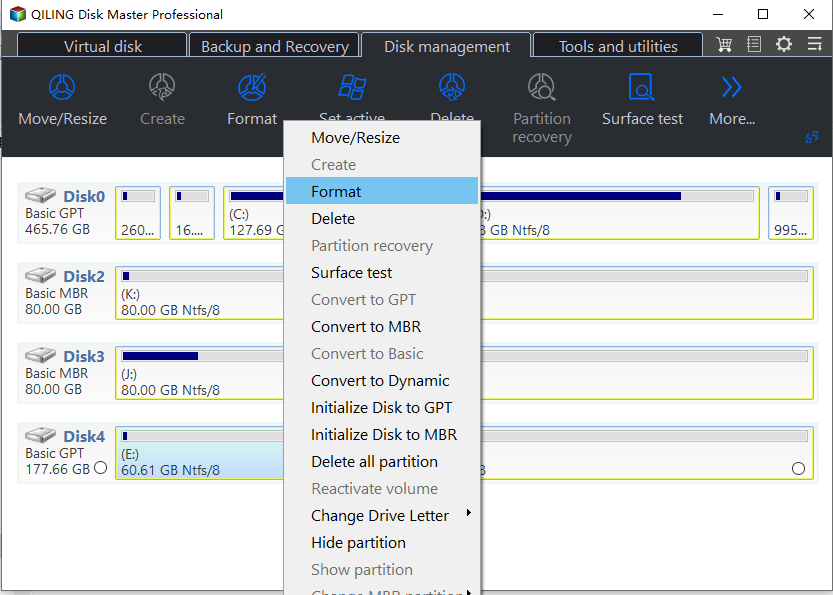
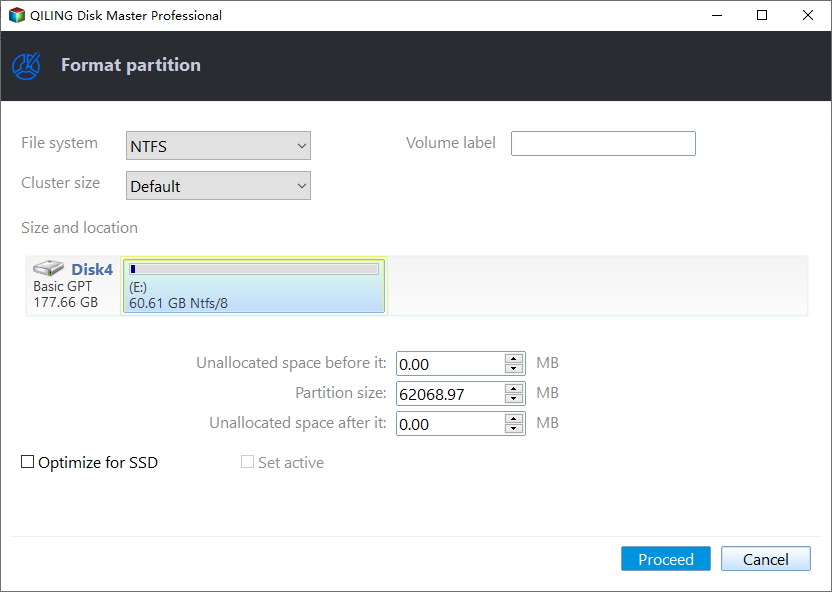
Formatting a namespace is the same operation as formatting any disk. Qiling Disk Master exposes the file system and cluster size, and the namespace is treated as one physical disk.
Step 1. Right-click the namespace disk or its partition and choose Format.
Step 2. Select the file system and cluster size.
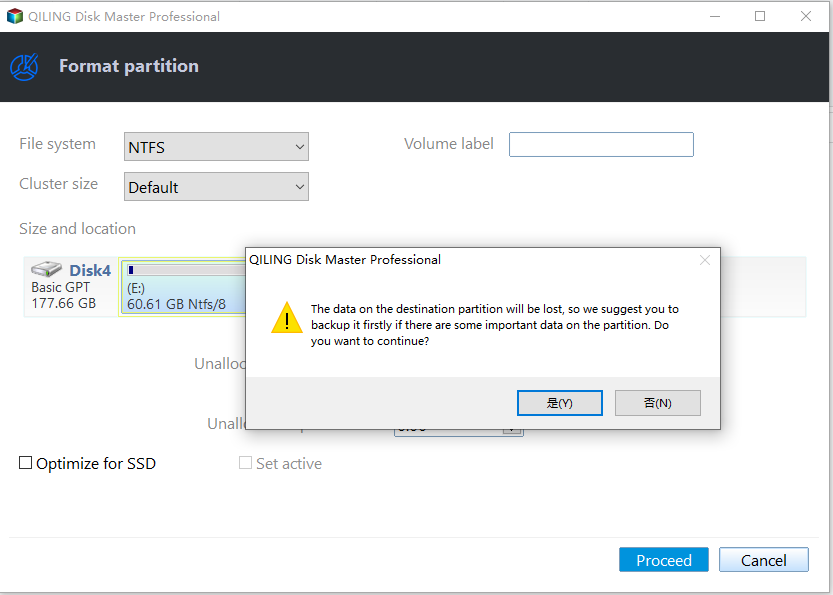
Step 3. Click Proceed and confirm the warning.
Can I create a namespace on any NVMe drive?
No. The controller must support namespace management, and many consumer drives do not expose the feature. Check the vendor tool or the controller's reported capabilities first.
Does deleting a namespace erase data?
Yes. The namespace and everything inside it disappears. Detach it first if you only want to hide it from one host.
Why does my 2 TB drive show two 1 TB disks?
The drive is probably configured with two namespaces. Check the vendor tool before you create partitions; formatting one namespace does not affect the other.
Related Articles
- Host Memory Buffer (HMB) in SSDs
How the controller caches its mapping table when the drive has no DRAM. - How to Format an NVMe SSD
Partition style and file system choices for a new NVMe disk. - Write Amplification on SSDs
Why spare area outside a namespace can improve sustained performance.
Products
Articles & Tutorials
- Data Recovery
- Data Backup
- File Recovery
- File Backup
- System Backup and Restore
- Disk and Partition Clone
- Technical articles
- Mobile articles
- Disk Master Help
- Windows Data Recovery Tutorials
- Windows Secure Delete Tutorials
- Windows Partition Management Tutorials
- Windows File Backup and Restore Tutorials
- Windows System Backup and Restore Tutorials
- Windows Disk Backup and Restore Tutorials
- Windows Clone Tutorials