How to Fix PDF Blank Pages Problem [PDF Repair]
This is the quick navigation of the PDF blank pages problem solutions. Check them and try to rescue your PDF files.
| Workable Solutions | Step-by-step Troubleshooting |
|---|---|
| 1. Repair with Qiling Fixo | Looking to the Adobe PDF repair tool - Qiling Fixo Document Repair, for assistance...Full steps |
| 2. Restore from Previous Version | You can restore corrupted PDF files to their previous version and then get them fixed...Full steps |
| 3. Updating Adobe Acrobat | One typical reason documents don't work as intended is outdated or incompatible software...Full steps |
| 4. Open with Alternative PDF Reader | If Adobe Reader is unable to open or read PDF files for you and you find the PDF...Full steps |
| 5. Restore the Unsaved PDF | Most PDF editors allow you to save temporary files. The program will make a temporary...Full steps |
PDF files can be secured with various measures, but sometimes opening them results in a black screen or PDF blank pages, which can be frustrating.
Here are the main causes for PDF blank page problems:
- ❌This error may occur if Adobe Acrobat Reader plug-ins are missing.
- 🌐The issue is caused by an outdated web server being used to access the website, which is resulting in incorrect handling of the PDF file.
- 📃The problem of PDFs not opening or displaying incorrectly is often caused by a defective or damaged PDF file, which can be frustrating for users.
- ❓Another possibility is that the PDF file is missing from the virtual directory.
The best solution to the problem of Adobe Acrobat being closed without saving changes or a computer program crashing while editing a PDF is to use a PDF recovery tool. This can help you fix PDF blank pages and prevent them from being lost forever.
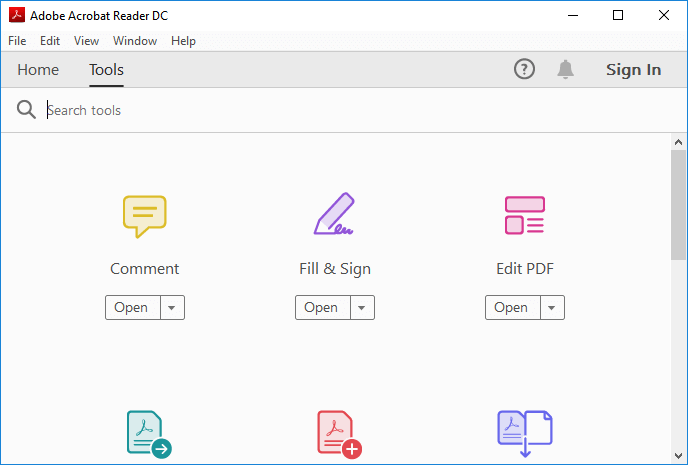
Free PDF Recovery: Recover Deleted, Unsaved, and Corrupted PDF File
PDF files can be recovered from the recycle bin using the free Qiling PDF file recovery software, and corrupted PDF files can be fixed and unsaved PDF files can be restored from temporary files.
Method 1. Repair the PDF Blank Pages Problem with the Software
To fix PDF blank pages, it's often recommended to use the Adobe PDF repair tool, specifically Qiling Fixo Document Repair. This powerful software can effectively repair corrupted or unopenable PDF files, making it a reliable solution for fixing blank pages in PDFs.
- 🔨It can repair corrupted files, including DOCX, images like PNG and JPEG/JPG, PPT, and Excel documents, from any storage device.
- 🗂️This software supports the FAT32, NTFS, and EXT2/EXT3 file systems for comprehensive file recovery.
- 💻Qiling Fixo supports all current Windows OS versions from Windows XP to Windows 11, providing reliable PDF repair for a wide range of users.
Method 2. Restore the Blank PDF Page from Previous Version
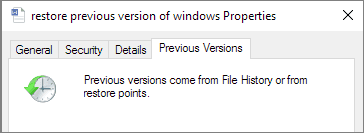
You can restore corrupted PDF files to their previous version and fix PDF blank pages, especially if you have a backup of your PDF files, which makes the process more straightforward.
Step 1. In Windows Explorer, select the PDF and click on "Properties" and then "Previous Versions" to view previous versions of the PDF.
Step 2. The list of all previous versions of PDF files will appear.
Step 3. Choose whether to copy them by clicking "Open".
Step 4. Verify that the version is the one you require.
Step 5. Once you've found the correct version, select "Restore" to revive the PDF files on your PC.
Method 3. Repair Blank PDFs by Updating Adobe Acrobat
Upgrading Acrobat Reader to the latest version can resolve the issue of PDF showing blank pages, as outdated software often causes compatibility problems.
The official Adobe solutions include a range of tools and resources that can be used to troubleshoot and resolve issues step by step.
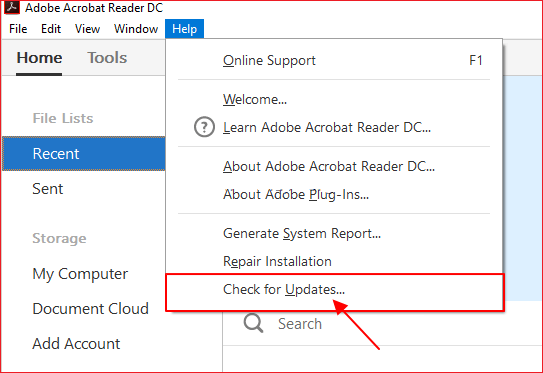
Step 1. Open Adobe Reader or Acrobat, select "Help" and then click on "Check for Updates".
Step 2. To install the most recent updates, follow the instructions in the Updater box.
Step 3. To resolve the issue, open the PDF file in a PDF viewer, such as Adobe Acrobat, and check if the text is legible. If the text is still blurry or distorted, try adjusting the zoom level or rotating the PDF to see if it improves.
Method 4. Open PDF File with an Alternative PDF Reader
If Adobe Reader can't open or read PDFs with blank pages, try using a different PDF reader to see if the issue is with Reader or the file itself.
To fix a corrupted PDF file, you can try using a PDF repair tool if other PDF readers can't open it, but if they can, you don't need to repair it. You can use Method 1 to repair PDF files if other PDF readers are unable to recognize or read your PDF files.
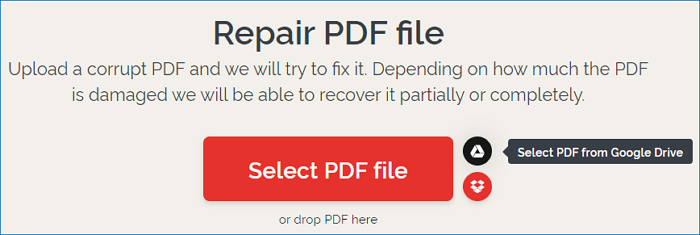
If your network is working properly, you can fix Adobe PDF files online. I compared several free PDF fixing programs and found that iLovePDF stands out for its fast repair times, high success rates, and easy-to-follow procedures, making it a reliable solution for fixing PDF files.
Method 5. Restore the Blank PDF due to Unsaving
Most PDF editors allow you to save temporary files, creating a backup of the unsaved file on your computer. This temporary file is made by the program when you edit a PDF file.
If the PDF program closes unexpectedly, you may still have a chance to recover your work if it was cut off due to a hardware failure, power outage, or unexpected program problem, resulting in blank pages.
To recover an unsaved PDF in Adobe Reader, try opening the temporary file, usually found in the same directory as the original file, with the same name but a ".tmp" extension. The temporary file may contain the unsaved content.
Step 1. Locate the temporary PDF files' file location:
| C:\Users\Tracy\AppData\Local\Adobe\Acrobat\DC |
| C:\Users\Tracy\AppData\Roaming\Adobe\Acrobat\DC |
| C:\Users\Tracy\AppData\Local\Temp |
Step 2. Look for temporary PDF files that have not been saved.
Step 3. Change the temporary files' file extensions to ".pdf" and copy them to another secure location.
Step 4. Launch Adobe Reader and open the PDF file.
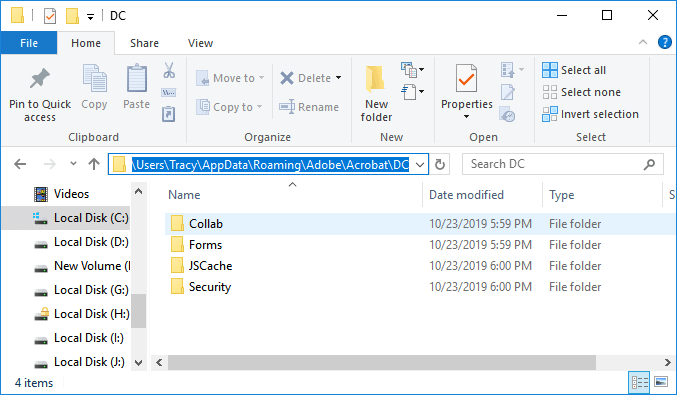
After the PDF file is saved, you can open it to view and edit it again. If you're unable to find the saved file, you can try alternative methods to recover unsaved PDF files.
If the methods in this guide do not resolve your PDF blank pages issue, consider using a professional PDF repair tool like Qiling Fixo for a more thorough fix.
Take Actions to Protect PDF Files
The PDF blank pages problem can be fixed with practical solutions, such as updating Adobe Acrobat, checking for corrupted files, using PDF editing software, converting the file to a different format, or using a PDF repair tool.
Primary causes include corrupted files, incorrect settings, and outdated software. If the issue persists, try opening the file with a newer version of Adobe Acrobat.
When dealing with corrupted PDFs, consider using a reliable PDF repair tool for assistance. If that doesn't work, trying converting the file to a different format may also be helpful.
To protect your PDF files, use access controls like passwords or encryption to limit who can view or edit them. You can also use digital rights management (DRM) tools to prevent unauthorized copying or printing.
Consider using a secure cloud storage service to store your PDFs, and make sure to back them up regularly to prevent data loss.
- 🛍️Back up your PDF files frequently.
- ⏫Regularly update your PDF reader or editor.
- 🔍Verify that the PDF transfer and downloading process is finished.
- 🛡️Regularly use antivirus programs or software.
Final Words
PDF files are generally considered secure and reliable, but issues can arise that cause them to become damaged or inaccessible, resulting in PDF blank pages. This can be due to outdated software or tools, or other parameters that need to be adjusted.
If the short fixes don't work, you'll need professional assistance to resolve the issue, and a professional application like Qiling Fixo Document Repair can help, which is compatible with Windows operating systems, easy to use, and full-featured.
PDF Blank Pages Problem FAQs
Here are 4 additional questions about the PDF blank pages problem. Check here for the answers.
1. Why is my PDF showing blank pages?
This error occurs when a PDF document's object is missing a necessary component or is incomplete, often due to the Web server not downloading enough of the object to make it usable.
2. Why is my PDF showing blank pages in Chrome?
If PDFs aren't downloading entirely in Chrome, it might be due to a recent Chrome upgrade that prevents viewing PDFs within the browser. To resolve this, you can change Chrome's settings to have Acrobat Reader download and open the PDF file instead.
3. How do I fix blank pages?
- In Windows Explorer, select the PDF file, click on its Properties, then click on the "Previous Versions" tab.
- Once you've opened the PDF file, you can click on the "File" menu and select "Properties" to view the metadata. This will display a window that shows the file's name, size, and creation date.
- Choose whether to copy them by clicking "Open".
- Verify that the version is the one you require.
- When you've found the correct version, select "Restore" to revive the files on your machine.
4. Why can't I delete a blank page from a PDF?
Blank pages in a PDF may be caused by rendering issues or corrupted page objects within the file. Try repairing the PDF with a dedicated tool like Qiling Fixo, or re-save the document from the original source application to eliminate the blank pages.
Related Articles
- Best Data Recovery Services in Denver, Colorado | Top 6
You've come to the right place to find the best data recovery services in Denver. You can easily restore lost data with the recommended top six data recovery labs. Keep reading to explore detailed information. - Ace Data Recovery Services Near Me in Houston, TX | Top 10
How to find the best data recovery services near me in Houston? You can learn ten ace data recovery services in Houston, TX, in this guide. You'll get detailed information after reading the guide. - The Top 9 Data Recovery Services in Washington, DC (2024)
Do you need assistance finding data recovery services and recovering photographs, documents, and emails from computers or laptops in Washington, DC? Your problems will be resolved once you read this post. - Top 9 Data Recovery Services Near Me in Los Angeles, CA
This guide will guide you to find the top 9 best data recovery services near you in Los Angeles, CA. We will offer detailed information about each store. Keep reading to find out! - 6 Best Free Disk Drill Alternatives for Mac Data Recovery in 2022
If you're looking for alternatives to Disk Drill, there are six free options available to help you recover deleted, formatted, or lost files from various storage devices, including hard drives, memory cards, USB drives, and digital cameras, on your Mac. - Qiling Free Trial Code: Free Get Deep Data Recovery License Code & Serial Key
Free get Deep Data Recovery with license code, serial number, keygen, torrent to restore deleted, formatted, virus attacked data under all Windows OS. Genuine license code with Deep Data Recovery is available here to help you restore unlimited lost data with ease.
Products
Articles & Tutorials
- Data Recovery
- Data Backup
- File Recovery
- File Backup
- System Backup and Restore
- Disk and Partition Clone
- Technical articles
- Mobile articles
- Disk Master Help
- Windows Data Recovery Tutorials
- Windows Secure Delete Tutorials
- Windows Partition Management Tutorials
- Windows File Backup and Restore Tutorials
- Windows System Backup and Restore Tutorials
- Windows Disk Backup and Restore Tutorials
- Windows Clone Tutorials