Free PDF Recovery: Recover Deleted, Unsaved, and Corrupted PDF File
PDF (Portable Document Format) was developed by Adobe to display documents consistently, including text formatting and images, across different applications and platforms. It preserves all the fonts, formatting, graphics, and color of any source document, ensuring that the original content is accurately displayed.
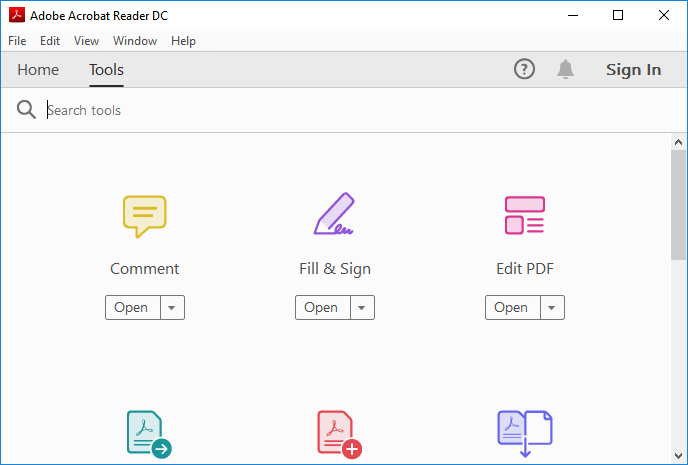
Many businesses, organizations, and individuals rely on PDF files, but when they're accidentally deleted or closed without saving, it can be a problem. Fortunately, recovering PDF files is possible, and many users are unaware of the steps to take to restore them.
If you've accidentally deleted, unsaved, or corrupted a PDF file, don't worry, there are ways to recover it. First, check if the file has been moved to the recycle bin or trash, and restore it from there.
PAGE CONTENT:
Note: If you have a backup of the lost PDF, you're in luck - you can simply restore it from the backup. However, if you don't have a backup, don't worry, as there are solutions to recover the lost file.
Part 1: Recover Deleted or Lost PDF Files
You can use this software to restore lost PDF files that were deleted, formatted, or lost due to a RAW drive or other reasons.
The rise of PDF files has led to a growing concern about data loss, despite best efforts to prevent it. When a PDF file is lost, recovery becomes a pressing need.
Here are two reliable methods to recover a lost PDF:
Undelete PDF from Recycle Bin
If you've accidentally deleted a PDF or moved it to the recycle bin, you can usually recover it by checking the recycle bin and undeleting it if it's still there.
Step 1. To check if the deleted PDF file is in the Recycle Bin, go to the Recycle Bin, right-click on it, and select "Restore" to put it back in its original location, or right-click on it and select "Delete Permanently" to permanently delete it. If you want to recover the file, you can also use a third-party data recovery software.
If you're searching for a specific file, try looking for file types with a .pdf extension, which is a common format for documents.
Step 2. Right-click on the PDF file, select "Restore" from the context menu to recover it.
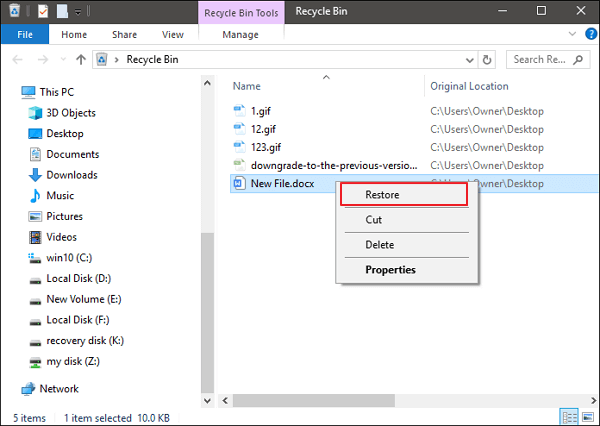
If you can't find a deleted PDF file in the recycle bin, Qiling free file recovery software can help recover the lost file.
Restore Lost PDF with Free File Recovery Software
When the recycle bin recovery doesn't work, a powerful file recovery program is often the best choice.
Deep Data Recovery Free Edition is a magic recovery program that can easily recover deleted, formatted PDF files and more, even if your hard disk drive partition was lost on PC.
The software has many powerful features beyond PDF recovery:
- The software supports all types of file recovery, including Word recovery, Excel recovery, and more.
- Supports basic and dynamic disk, RAID drives.
- Supports FAT32, NTFS, EXT2/EXT3 file system.
- This system supports all versions of Windows, from Windows XP to Windows 10, providing a wide range of compatibility and functionality.
The software offers a simple and efficient way to recover lost data, requiring only three easy steps to get started.
Step 1. Select file types
Launch Deep Data Recovery. Select file types and click "Fast Scan" to start the recovery process.

Note: You can choose different search modes based on where and why the data was lost.
Step 2. Choose the location
To recover lost PDF/PPT/Word/Excel files, select the drive where the files were lost and click "Scan" to start the recovery process.

Step 3. Scan for lost documents
When the scanning process is complete, click on "Documents" in the left panel to view the scanned files. You can browse through the files by type or search for specific documents by name. Once you find the desired document, click on "Preview" to verify its contents.

Step 4. Recover lost documents
Select the desired files and click the "Recover" button to save them to a safe location.
Part 2: Restore Unsaved PDF Files
Applies to: Restore lost or closed PDF files without saving.
- Notice:
- AutoSave The "Save As" feature in Adobe PDF editor allows you to save the edited PDF file, giving you a new copy with the changes you made. This way, the original PDF remains unchanged, and you can keep the edited version for future reference or sharing.
- The AutoSave folder in Acrobat is deleted automatically once the application is closed.
- The AutoSave feature in Microsoft Office programs like Word and Excel is designed to automatically save your work at regular intervals. However, if you haven't saved a file for a while and the program crashes or you lose power, the AutoSave feature won't be able to recover your unsaved work.
Most PDF applications have the feature to create temporary files, which serve as a backup for unsaved work, allowing users to recover their edits if they need to close the application without saving the changes.
When a PDF file is closed unexpectedly, such as due to a sudden hardware failure, power outage, or an application error, it's possible to recover the file.
If you're unable to save a PDF in Adobe Reader, you can try to restore it from a temporary file. To do this, follow these steps:
Step 1. Find the file location of PDF temporary files
Here is the path of Adobe PDF temporary files:
- C:\Users\Tracy\AppData\Local\Adobe\Acrobat\DC
- C:\Users\Tracy\AppData\Roaming\Adobe\Acrobat\DC
- C:\Users\Tracy\AppData\Local\Temp
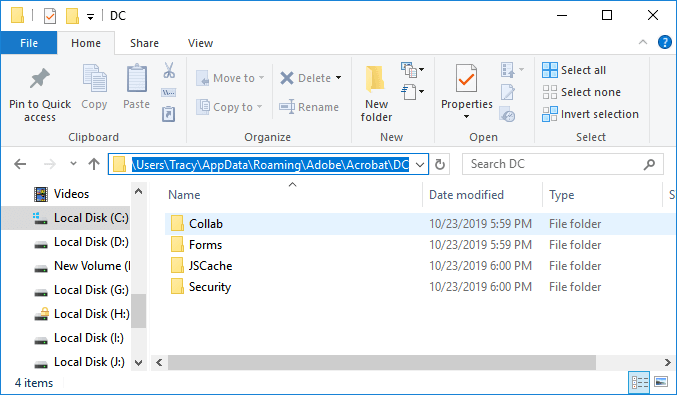
Step 2. Locate and find temporary files of unsaved PDF.
Note: Temporary PDF files may have different file extensions than the original PDF files, as they may be saved with other extensions.
Step 3. Copy the temporary files to another secure location and change the file extensions to .pdf.
Step 4. Open the PDF file in Adobe Reader.
To access and edit a PDF file, you can open it with a PDF editor or viewer, such as Adobe Acrobat or a free alternative like Foxit Reader. Once opened, you can make changes to the text, images, and other elements within the file.
If the method in this part doesn't work or Adobe Reader or other PDF editing applications keep corrupting, go to the next part.
You'll learn how to fix corrupted PDF files and applications independently.
Part 3: Repair Corrupted PDF
This software is designed to fix corrupted PDF files and resolve errors caused by PDF application corruption. It can repair and restore damaged PDF files, making them usable again, and also troubleshoot and resolve issues with PDF applications, such as error messages and crashes.
If your PDF files are corrupted, you may encounter error messages such as:
- PDF File not readable with your software
- The root object is invalid or missing
- The file is damaged or corrupt
- It contains info not understood by the viewer
- Format error- Not a PDF File or Corrupted
Typically, errors like these are caused by software malfunctions, including issues with browsers, mail programs, operating systems, antivirus software, or firewalls. To resolve the issue and repair corrupted PDFs and their applications, follow these solutions.
Repair Corrupted PDF Files
Here are two ways to repair corrupted PDF files:
1. Restore corrupted PDF from temporary files (as mentioned in Part 2).
2. Use PDF repair tool for help
Although Qiling software currently doesn't have PDF repair tools, there are some recommended tools available online that can help with PDF repair.
Hope these tools can repair your PDF:
- Kernel for PDF Repair
- Stellar Repair for PDF
- SysTools PDF Recovery
Note: If you're experiencing issues with opening or viewing PDFs, it's suggested to try using Adobe Acrobat Reader or other recommended tools. If these tools don't resolve the issue, you may want to reach out to Adobe or the producers of the PDF application for further assistance.
Repair Corrupted PDF Application
Corrupted PDF files are often not due to damage to the PDF document itself, but rather issues with the PDF application or viewer being used.
When a PDF application is corrupted or displays error messages, you can try the following solutions to fix the corrupted PDF: Try reinstalling the PDF viewer, check for software updates, and run a virus scan to ensure the system is free from malware. If the issue persists, try using a different PDF viewer or a PDF repair tool to recover the corrupted file.
- Download and reinstall the PDF application again
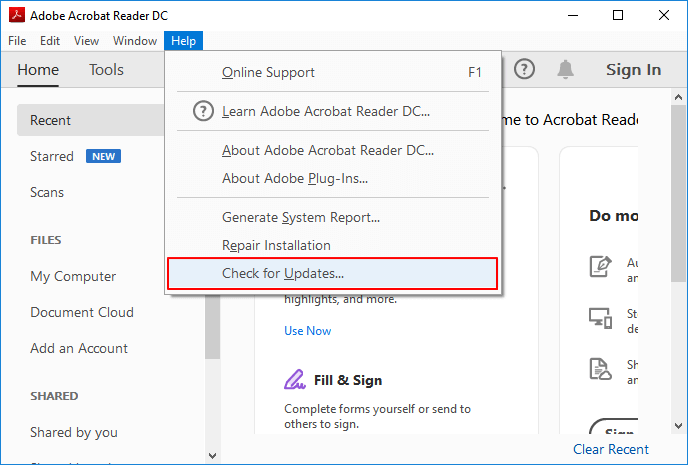
- To ensure you have the most up-to-date features and security patches, check for updates and install the latest version of Adobe Acrobat or Adobe Reader. This can be done by opening the application, navigating to the "Help" menu, and selecting "Check for Updates.
Open Adobe Acrobat > Help > Check for Updates...
- Use third-party services to repair the PDF Application
To repair corrupted Adobe Acrobat DC or Adobe Reader PDF:
If you're experiencing issues with an Adobe PDF file, you can attempt to repair it using Adobe Reader. To do this, follow these steps: Open Adobe Reader, go to File > Open, select the corrupted PDF file, and then click on the 'Repair' button in the error message that appears.
Step 1. Open the Adobe Acrobat Reader DC.
Step 2. To repair Adobe Reader, click on the "Help" option located at the top menu, and then select "Repair Adobe Reader Installation" from the dropdown menu.
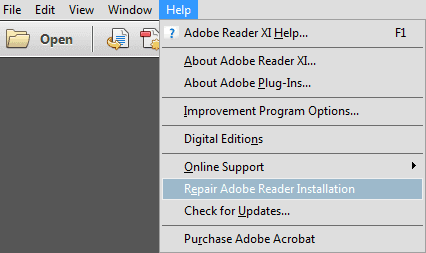
If the provided advice doesn't help, it's best to reach out to Adobe Corporation, the PDF producer, or Adobe's support center for further assistance.
Bonus Tips to Protect PDF Files
Besides knowing the ways of restoring and repairing PDF files, it's also necessary to learn some skills of protecting them from deleting, formatting or even virus infection issues.
Here are some bonus tips to protect your computer, device, and valuable files, including PDF files:
1. Turn on the firewall, run anti-virus software, and regularly clear viruses and malware to protect your device from cyber threats.
The best way to prevent viruses and malware from infecting your programs and deleting or encrypting your valuable files is to take preventive measures such as installing anti-virus software, keeping your operating system and software up-to-date, using strong passwords, and being cautious when opening emails or attachments from unknown sources. This can help protect your files and programs from potential threats.
2. Create a regular backup of PDF files
To prevent PDF loss, you can manually copy saved PDF files or use file backup software to create an automatic backup on another device.
Qiling Backup offers a simple 3-step process to effectively back up desired files. Follow these steps: First, identify the files you want to back up, such as important documents, photos, or videos. Next, choose a backup method, like an external hard drive, cloud storage, or a USB drive.
Step 1. Click the "File backup" button on the "Backup and recovery" page to start a backup.

Step 2. Local and network files will be displayed on the left side, allowing you to extend the directory and choose specific files to back up.

Step 3. The backup will be stored in the location you specified, and you can access it from there.

Step 4. To encrypt the backup with a password, click on "Options" in the "Backup Options" section. This will allow you to customize the backup process further, with various other options available.

To set up a backup schedule, go to "Backup Scheme" and choose the event at which you want to initiate a backup, such as when the computer is idle or when a certain amount of time has passed. This will ensure that your data is regularly backed up and protected.

Step 5. You can save a backup to a local disk, Qiling's online service, or a NAS.

Step 6. To start a backup, click "Proceed" and once it's finished, the backup job will be displayed on the left side of the panel. You can then manage the backup job by right-clicking on it.

3. Install compatible versions of PDF editor on your PC
Although we suggested installing the latest version of PDF on your computer, we also want to remind you that system and software compatibility is also a crucial factor to consider.
- Tip
- If you're using an old Windows system like Windows XP or 7, it's best not to update the PDF application too frequently.
- If you're using the latest Windows 10, make sure to update and install the latest version.
Related Articles
- How to Recover Formatted BitLocker Encrypted Hard Drive
- Download Qiling Data Recovery Crack 2.6 with Serial Keygen
- Recover Shift Deleted Files in Windows 10/8/7
- How to Convert Raw to NTFS in Windows 10 Without Data Loss
- How to Recover Deleted/Lost Audio Files from SD Card
If you've deleted or lost audio files from an SD card, you can recover them by following these 4 steps: stop using the SD card, download a reliable data recovery software, scan the SD card to locate the deleted files, and recover the files to a safe location. - How to Recover BKF Files in Windows 7/10/11
This article guides you on how to recover BKF files in Windows 7/8/10/11, making it easy to restore from BKF files after they've been deleted, or a drive has been formatted.
Products
Articles & Tutorials
- Data Recovery
- Data Backup
- File Recovery
- File Backup
- System Backup and Restore
- Disk and Partition Clone
- Technical articles
- Mobile articles
- Disk Master Help
- Windows Data Recovery Tutorials
- Windows Secure Delete Tutorials
- Windows Partition Management Tutorials
- Windows File Backup and Restore Tutorials
- Windows System Backup and Restore Tutorials
- Windows Disk Backup and Restore Tutorials
- Windows Clone Tutorials