Recover Shift Deleted Files in Windows 10/8/7
PAGE CONTENT:
- What Is Shift-Delete and Where Do Shift-Deleted Files Go?
- Tip 1. How to Recover Shift-Deleted Files with Data Recovery Software
- Tip 2. How to Recover Shift-Deleted Files from File History
- Tip 3. Recover Shift-Deleted Files with Data Recovery Service
- Simple Delete and Shift-Delete (Bonus Tip)
- Conclusion
What Is Shift+Delete and Where Do Shift Deleted Files Go
When deleting a file in Windows Explorer, holding down the Shift key while deleting (Shift-Delete) bypasses the Recycle Bin, permanently deleting the file.

If you've accidentally Shift-Deleted a file, don't panic - the data is still recoverable, even if it's not visible in Windows. The file still exists on your hard drive, but Windows has marked the space as available for other data. As long as that space isn't used, you can still recover the file with the right tool.
When you discover that you've deleted a file you want to restore, it's essential to stop saving data to the drive as much as possible to avoid overwriting recoverable files. To recover files that were Shift-Deleted, you can use Deep Data Recovery, a data recovery software suite for Windows that allows you to recover up to 2GB of data for free in just a few clicks.
Tip 1. How to Recover Shift Deleted Files with Data Recovery Software
Deep Data Recovery is a highly recommended data recovery software that uses advanced scanning and detection algorithms to locate and restore deleted files, including those that have been Shift-Deleted or emptied from the Recycle Bin. With its powerful features, the software can search your hard disk to find and recover all your lost files, making it a great tool for users who need to recover their deleted data.
Deep Data Recovery
- Data recovery software can be used to recover deleted, formatted, and inaccessible data in various data loss situations, such as accidental deletion, virus attacks, hardware failure, and physical damage. These software tools can scan the device's storage media, identify recoverable data, and restore it to its original location or a new location.
- Repair corrupted Excel, Word, PowerPoint, photos, and videos simultaneously
- Supports recovery from multiple disk drive types, including IDE, EIDE, and SCSI devices, and can recover data from FAT, NTFS, EXT2, and EXT3 file systems.
Download this data recovery software using the links above, and then follow the guide below to undelete Shift-Deleted data.
Text Guides on How to Restore Shift Deleted Files Step by Step
Step 1: Select file types that you want to recover

Note: You can choose different search modes based on where and why the data was lost.
Step 2. Select the location to scan
After permanently deleting files using Shift delete or emptying the recycle bin, identify the specific device and drive where the files were deleted. Next, click the "Scan" button to initiate a search for the lost files.

Step 3. Check the results
The software automatically scans the selected drive. Once the scan is complete, select the "Deleted Files" and "Other Lost Files" folders in the left panel. Then, use the "Filter" feature or search for files or folders to quickly find deleted files.

Step 4. Recover deleted files
Select the deleted files, click "Preview", and then click "Recover" to save them to another secure location or device.
Deep Data Recovery is a highly effective and simple-to-use tool that allows you to recover Shift-Deleted files in just a few minutes.
Tip 2. How to Recover Shift Deleted Files from File History
Windows 10 has a built-in feature called File History that can help recover Shift-Deleted files if enabled.
To enable File History, follow these steps:
Step 1. Click the Start button and type File History.
Step 2.Under Settings in search results, click "Restore your files with File History".
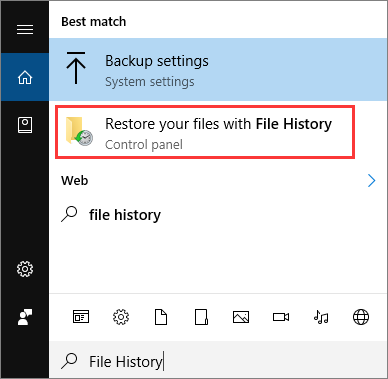
Step 3. If you're told that the feature is not enabled, click "Configure File History settings".

Step 4.To enable the feature, select the drive for which you'd like to enable it and click "Turn on".
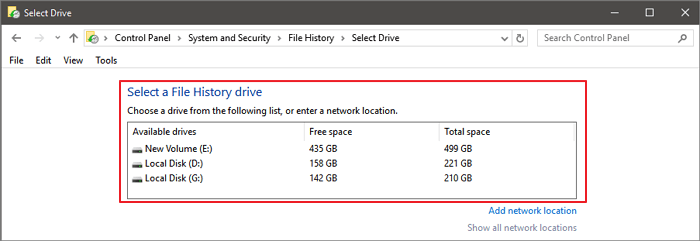
Windows has a built-in feature that periodically backs up data in a specific key folder, allowing users to recover deleted data if needed.
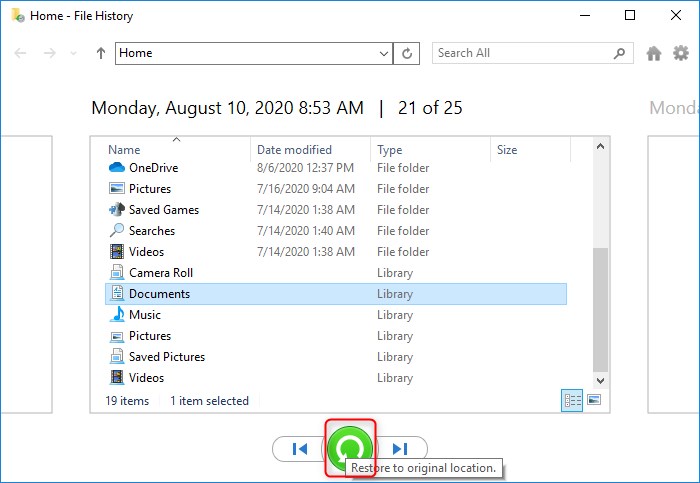
To restore Shift deleted files from File History in Windows 10, you can follow these steps: Windows 10 automatically backs up your User folder every hour, so you can restore files from the copies. Once you've enabled this feature, you can recover deleted files by going to the File History section in the Control Panel, selecting the folder you want to restore, and clicking on the "Restore" button. This will restore the files to their original location. Note that this feature only backs up folders in your User folder.
Step 1. Click the Start button and type File History.
Step 2.Under "Settings" in search results, click "Restore your files with File History" to recover your files.
Step 3.To restore deleted files, browse through the available folders and select the files you want to recover. Then, click the green arrow to initiate the restoration process.
If you're unable to recover your files using the "Restore previous versions" method, it's because Windows doesn't have a backup of your files to restore from. This means you won't be able to retrieve your files through this method.
Tip 3. Recover Shift Deleted Files with Data Recovery Service
If you can't recover deleted files using software, you may need to use a data recovery service, which can be expensive, so it's best to try the software first.
Consult with Qiling Data Recovery Experts for one-on-one manual recovery service, which includes the following services after a FREE diagnosis:
- Repair a corrupted RAID structure, unbootable Windows OS, and corrupted virtual disk file
- Recover/repair lost partition and re-partitioned drive.
- Unformat hard drive and repair raw drive(Bitlocker encrypted drive)
- Fix disks that become GPT protected partitions
Compared to a specialist data recovery service, Deep Data Recovery has several advantages.
- High data recovery rates are achieved by most data recovery services, with many guaranteeing successful recovery. This suggests that the process is well-established and effective, with a high likelihood of recovering lost data.
- Ensure data security with advanced encryption and fraud protection
- Instant and full support
- Simple and cost-effective
Qiling experts can assist in recovering hundreds of file formats, utilizing powerful data recovery algorithms that can locate files other tools may miss.
Simple Delete and Shift-Delete (Bonus Tip)
When any file is deleted from a computer, it can be deleted in two ways as follows:
1. To delete a file normally, press the Delete key or right-click the file and choose Delete, which will move it to the Recycle Bin. If you want to recover deleted files and folders, open the Recycle Bin and restore them from there.
2. To permanently delete files, press the Shift + Delete keys simultaneously, which will bypass the Recycle Bin and delete the files without the option to recover them. However, files deleted using this method can still be recovered using the methods outlined above.

Conclusion
Qiling is the best choice for recovering shift-deleted files in Windows, offering a simple and user-friendly process that can be completed in just three steps.
Related Articles
- Video Recovery: How to Recover Formatted Video Files
- Recycle Bin Emptying Not Working Synology/QNAP [Resolved]
- How to Convert RAW to NTFS Without Formatting (3 Ways)
- Top 10 Free Photo Recovery Software - Recover Lost Photos Easily
- How to Recover Shift Deleted Files in Windows 7/8/10/11 in 4 Ways [2023]
To recover shift deleted files in Windows 11/10/8/7, you have four options: using File History, restoring from a previous version, recovering from a Windows backup, or employing specialized software. Choose the most suitable method to retrieve deleted files after a shift delete operation. - How to Recover Deleted Files by Date
This article is a step-by-step guide on how to recover deleted files from a specific data, helping you recover files efficiently.
Products
Articles & Tutorials
- Data Recovery
- Data Backup
- File Recovery
- File Backup
- System Backup and Restore
- Disk and Partition Clone
- Technical articles
- Mobile articles
- Disk Master Help
- Windows Data Recovery Tutorials
- Windows Secure Delete Tutorials
- Windows Partition Management Tutorials
- Windows File Backup and Restore Tutorials
- Windows System Backup and Restore Tutorials
- Windows Disk Backup and Restore Tutorials
- Windows Clone Tutorials