How to Download YouTube Videos to iPhone/iPad in 4 Ways
Quick Navigation:
- Why Do You Want to Download YouTube Videos to iPhone/iPad
- Can You Save YouTube Videos to iPhone/iPad
- How to Download YouTube Videos to iPhone/iPad in 4 Ways
- Method 1. Download YouTube Videos to iPhone or iPad
- Method 2. Save YouTube Videos to iPhone or iPad via YouTube Premium
- Method 3. Download YouTube Videos on iPhone with an iOS App
- Method 4. Download YouTube Videos to iPhone via Online Video Downloader
- The Bottom Line
If you want to download YouTube videos to your iPhone or iPad, you can use the following methods: use the YouTube app, download from YouTube website, or use a third-party app. This article shares four ways to download YouTube videos to your iPhone or iPad.
Why Do You Want to Download YouTube Videos to iPhone/iPad
Watching videos online is convenient on video sites like YouTube, Vimeo, and social networks like Facebook and Twitter. However, sometimes you may want to download videos from YouTube or other sites to your computer or mobile devices like iPhone and iPad, allowing you to access them offline and enjoy them on the go.
- Enjoy videos offline when there is no Internet connection
- Watch videos smoothly without buffering
- Edit the video to make your own story
...
Tips: Qiling MobiMover can also serve as a Twitch clip downloader, allowing users to easily download clips from Twitch.
Can You Save YouTube Videos to iPhone/iPad
To save YouTube videos to your iPhone, you'll need to find alternative methods since YouTube doesn't allow direct downloads. This guide provides detailed ways to download videos, whether you want to save them to your iPhone, iPad, or directly to your phone, catering to various purposes and needs.
How to Download YouTube Videos to iPhone/iPad in 4 Ways
To download YouTube videos on an iPhone or iPad, you can use reliable YouTube video download software, YouTube Premium, or online YouTube video downloader, or take advantage of the iOS app. The most suitable method for you depends on your specific needs, and reading on will provide detailed solutions.
Method 1. Download YouTube Videos to iPhone or iPad
No Ads, No Plugins
Want to download YouTube videos to your iPhone or iPad? Qiling MobiMover, a reliable tool for iOS data transfer and video downloader, can help. It can download videos from YouTube, Vimeo, Metacafe, Facebook, Twitter, and more to your computer or iOS devices using the URL.
To download YouTube videos to iPhone/iPad:
Step 1. Connect your iPhone to your computer, run Qiling MobiMover, go to "Video Downloader", and choose your iPhone as the target device to save downloaded YouTube videos.
Step 2. Copy the YouTube video URL, paste it into the download bar, and then tap the "Download" button.
Step 3. After clicking the "Download" button, MobiMover quickly analyzes the URL and downloads the YouTube video to your iPhone. Once the download is complete, you can open the TV app to watch the video offline.
This tool will assist with iOS data transfer, including transferring files between two iOS devices or between an iOS device and a computer, making it a helpful companion for managing data across devices.
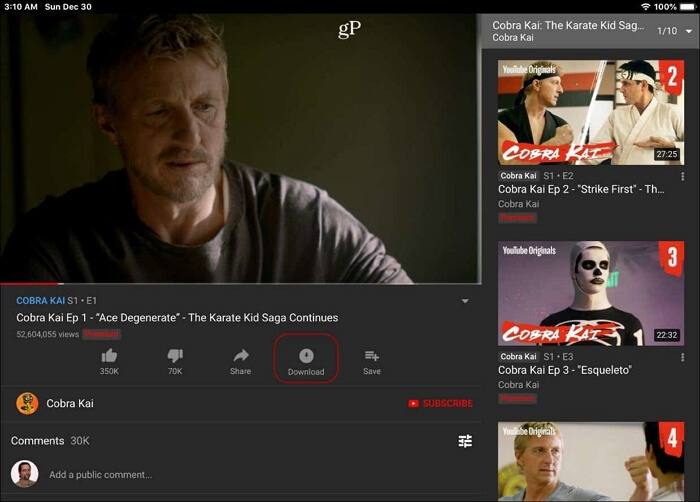
Method 2. Save YouTube Videos to iPhone or iPad via YouTube Premium
YouTube Premium is a paid streaming service that offers ad-free videos, background play, and the ability to download videos directly to your mobile device. It costs $11.99 per month, with a 1-month free trial available. This subscription is a convenient option if you want to download YouTube videos to your iPhone or iPad.
To save a video from YouTube to iPhone/iPad using the YouTube app, tap the "Share" icon on the video you want to save, then select "Copy Link" from the menu. Next, open the "Files" app on your iPhone/iPad and create a new note or document.
Step 1. Launch the YouTube app on your iOS device and play the video you want to download.
Step 2. To save a YouTube video to your iPhone or iPad, click the "Download" button on the YouTube video page. This will allow you to save the video to your device for offline viewing.
Step 3. After the video has been downloaded, go to the "Library" > "Downloads" section to verify that the video has been successfully downloaded.
Method 3. Download YouTube Videos on iPhone with an iOS App
To save YouTube videos directly to your iPhone, use an iOS app like Shortcuts or Documents, which can be downloaded from the App Store. However, if Documents is not available in your region, you can use Shortcuts to download YouTube videos on your iPhone, provided it's running iOS 12 or above. To do this, follow the steps below to save a video from YouTube to your iPhone's Camera Roll.
Step 1. Visit https://www.icloud.com/shortcuts/fca16b7e36824fae8df26df05bbb5325 on your mobile device and download Shortcuts.
Step 2. To enable the Shortcuts app on your iDevice, go to the Share menu, select "More", and toggle on "Shortcuts".
Step 3. To download a YouTube video, open the YouTube app, go to the video you want to download, click "Share", and select "Shortcuts" > "Download YouTube". This will start the download process.
Step 4. When it has done, select "Save to photo album".
Step 5. Now you can see the video existing in the Camera Roll of the Photos app on your iDevice.

Method 4. Download YouTube Videos to iPhone via Online Video Downloader
If you don't want to use any app, you can download a YouTube video to your computer first and then transfer it to your iPhone. To do this, you can follow the steps to download YouTube videos to your computer and then transfer the downloaded videos from your computer to your iPhone or iPad.
The Bottom Line
If you're wondering how to download YouTube videos to your iPhone, you're in luck because the answer is simpler than you think. With the right approach, downloading YouTube videos is a breeze.
The video you recorded may not be saved if it's private or contains copyrighted music, which could lead to copyright issues.
This guide will help you save videos you like to your iPhone or iPad successfully.
Related Articles
- The Ultimate Guide to Back Up WhatsApp on iPhone & Android
- Free HEIC Converter for Windows 10 (Desktop & Online)
- How to Delete Photos from iPhone but Not iCloud
- How to Download iCloud Photos to PC
Products
Articles & Tutorials
- Data Recovery
- Data Backup
- File Recovery
- File Backup
- System Backup and Restore
- Disk and Partition Clone
- Technical articles
- Mobile articles
- Disk Master Help
- Windows Data Recovery Tutorials
- Windows Secure Delete Tutorials
- Windows Partition Management Tutorials
- Windows File Backup and Restore Tutorials
- Windows System Backup and Restore Tutorials
- Windows Disk Backup and Restore Tutorials
- Windows Clone Tutorials