How to Download Contacts from iCloud to PC
To export iCloud contacts to a computer, log in to icloud.com, ensure your contacts are synced, and export them as a vCard file to your PC for backup purposes.
| Workable Solutions | Step-by-step Troubleshooting |
|---|---|
| Part 1. Get iCloud Contacts to PC | Go to visit iCloud.com via a browser > Sign in to iCloud with your Apple ID and password...Full steps |
| Part 2. Back-Up Contacts Without iCloud | Connect the iPhone to a computer > Select "Phone to PC" to transfer iPhone data to the computer...Full steps |
Part 1: How to download contacts from iCloud to PC
To export your iCloud contacts, first ensure that iCloud Contacts is enabled on your account. Then, go to iCloud.com on your computer, sign in with your Apple ID, and navigate to the Contacts section. From there, click on the gear icon and select "Export VCF File." This will allow you to download a VCF file containing your contacts, which you can then import into other services or devices.
Steps to Turn on Contacts in iCloud
Step 1: Go to the "Settings" App on your iPhone.
Step 2: To access your iCloud account, tap on your name at the top of the screen, then select "iCloud".
Step 3: Check whether the "Contacts" option is enabled.
To ensure your contacts are properly synced, make sure the "Contacts" option is enabled in your iCloud settings. This allows your contacts to be available for download from iCloud.com.
Steps to Download Contacts from iCloud to the Computer
Step 1: Launch a browser on your PC.
Step 2: Visit iCloud.com.
Step 3: To sign in to iCloud, enter your Apple ID and password in the required fields.
Step 4: Choose "Contacts" from the options.
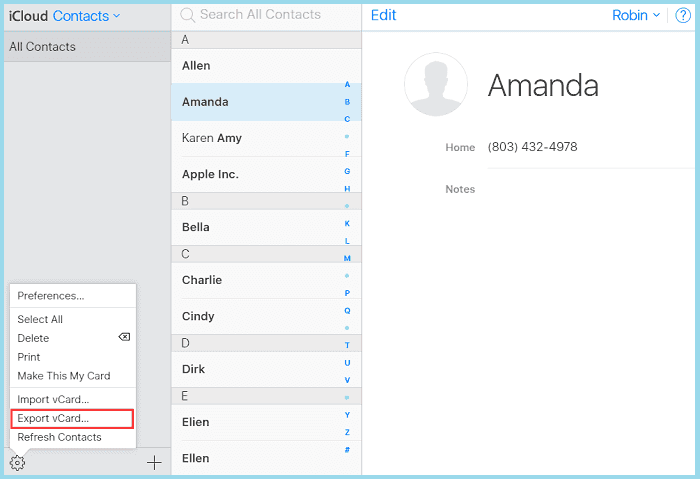
Step 5: To export all or some of your iCloud contacts to your PC, tap the gear icon in the lower-left corner, select all or specific contacts using the Shift or Ctrl key, and then click "Export vCard" to download them to your PC.
- Tip
- To download contacts from iCloud to an Android phone, plug your Android phone into the computer, copy the VCF file to the local storage, and then import the contacts using the Contacts or People app.
Part 2: How to back up iPhone contacts to PC without iCloud
If you want to back up your iPhone contacts on your PC, you can use Qiling MobiMover, a specialized tool for iOS data management, which is more convenient than downloading your iCloud contacts. With MobiMover installed on your computer, you can easily transfer and manage your iOS data, including contacts.
- You can transfer contacts directly from your PC to your iPhone, or vice versa, allowing you to easily move your contact list between devices.
- You can share files between an iPhone/iPad and a PC, or between two iOS devices, using various methods. For example, you can use AirDrop to share files between iOS devices, or use iCloud Drive to share files between an iOS device and a PC. Additionally, you can use third-party apps like Google Drive, Dropbox, or Microsoft OneDrive to share files between an iOS device and a PC, or between two iOS devices.
- The feature allows you to transfer various types of data, including photos, videos, music, contacts, notes, and more, depending on the specific feature you choose to use.
- Unlock iPhone/iPad without a passcode.
- Download videos from 1000+ video-sharing websites.
For more information about MobiMover, you can read the complete guide on the website. To get started, simply click the button below to download the software, then follow the steps to make a backup of your iPhone contacts on your PC.
Step 1. Connect your iPhone to your PC with a USB cable, unlock your iPhone, click "Trust" on the prompt, and launch Qiling MobiMover. Next, select "Phone to PC" and click "Next" to start backing up your iPhone.
Step 2. Select "Contacts" and click the default path to set a custom storage path if needed. Then, click "Transfer".
Step 3. When the transfer process is complete, you can view the backed-up contacts on your computer and transfer them back to your iDevice as needed.
- Notice:
- The contacts transferred to the computer will be saved as an HTML file, which can be viewed with any browser or transferred to an iPhone/iPad as a .html file. Other file formats like photos and music remain unchanged whether transferred from iPhone to PC or from computer to iPad.
The Bottom Line
To export or download contacts from iCloud, you can either use the iCloud website or the Contacts app on your iPhone. If you need to recover lost contacts during the process, you can use a professional iOS data recovery tool like MibiSaver, which can recover over 20 types of data. This guide is intended to be helpful, and if you have any further questions, feel free to ask.
Related Articles
- Two Methods to Transfer Music from iPhone to iPhone 8
- How to Transfer Line to a New Phone [iPhone & Android]
- 5 Best iTunes Alternatives for iPhone Data Management
- How to Transfer Photos from PC to iPhone 11/12/13 in 5 Ways
Products
Articles & Tutorials
- Data Recovery
- Data Backup
- File Recovery
- File Backup
- System Backup and Restore
- Disk and Partition Clone
- Technical articles
- Mobile articles
- Disk Master Help
- Windows Data Recovery Tutorials
- Windows Secure Delete Tutorials
- Windows Partition Management Tutorials
- Windows File Backup and Restore Tutorials
- Windows System Backup and Restore Tutorials
- Windows Disk Backup and Restore Tutorials
- Windows Clone Tutorials