How to Scan QR Code on iPhone 8/8 Plus/iPhone X in iOS 11
The new iOS 11 has a built-in QR code scanning feature, eliminating the need for third-party software. However, some iPhone users, including those with iPhone 8, iPhone 8 Plus, and iPhone X, may be unaware of this feature. This article aims to provide a step-by-step guide on how to scan QR codes on iPhone using the Camera app, which can also be applied to iPads. The guide will provide the necessary details for users to scan QR codes on their devices.
How to scan QR code on iPhone 8/8 Plus/X in iOS 11
Step 1: To access the Camera App on your iPhone in iOS 11, you can either open it directly from your home screen or from the Control Center. Alternatively, you can also access the Control Center to record your iPhone screen.
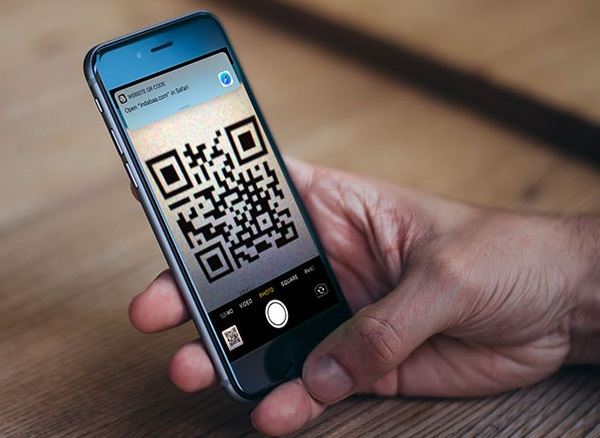
Step 2: To scan a QR code, place your iPhone's screen directly above the code and align it with the viewfinder. Hold your iPhone steady until a notification appears on the top of the screen, indicating the website the QR code is linked to.
Step 3: Click the notification to go to the link and do whatever you need.
While it's easy to scan QR codes with your iPhone camera, be cautious as some codes are designed to deceive. Before scanning, consider whether it's safe to do so, as it may link to fraudulent websites that can compromise your privacy. Additionally, turning off location services on your iPhone can also help protect your privacy. By being mindful of these precautions, you can enjoy using your iPhone to its fullest potential.
Note:
Looking for a free iOS data transfer and file management tool? MobiMover Free is a great option that allows you to export files from your computer to your iPhone or iPad (iOS 8 or later), back up iPhone or iPad contents to your computer, transfer data from one iPhone or iPad to another, and manage your iPhone or iPad data from your computer. With MobiMover installed on your PC running Windows 7 or later, you can transfer various types of files, such as photos, videos, music, contacts, and messages, to or out of your iPhone or iPad, making it easier to enrich your device's contents.
Step 1. Connect your iPhone/iPad to your computer and tap "Trust" on your device. Then, start Qiling MobiMover and navigate to the "PC to Phone" section, followed by selecting the files you want to transfer.
Step 2. Choose the files you want to transfer, then click "Open".
Step 3. After clicking "Transfer", the files will be transferred from the PC to the iPhone or iPad. Once the transfer is complete, you can access the transferred items by opening the corresponding app on your iOS or iPadOS device.
Related Articles
- iPhone Stuck on Verifying Update in iOS 11/11.1/11.2? Solutions Here!
- How to Add Reminders on iPhone/iPad
- How to Add A Device to Find My iPhone
- Change Apple ID Password Safely
Products
Articles & Tutorials
- Data Recovery
- Data Backup
- File Recovery
- File Backup
- System Backup and Restore
- Disk and Partition Clone
- Technical articles
- Mobile articles
- Disk Master Help
- Windows Data Recovery Tutorials
- Windows Secure Delete Tutorials
- Windows Partition Management Tutorials
- Windows File Backup and Restore Tutorials
- Windows System Backup and Restore Tutorials
- Windows Disk Backup and Restore Tutorials
- Windows Clone Tutorials