Screenshot Not Working on iPhone 8/8 Plus/X in iOS 11? Fixes Here!
Quick Navigation:
- Fixes to iOS 11 "screenshot not working" on iPhone 8/iPhone 8 Plus/iPhone X
- Solution 1: Use AssistiveTouch to screenshot iPhone
- Solution 2: Use 3D Touch on the AssistiveTouch icon to screenshot iPhone
- Solution 3: Force restart iPhone 8/iPhone 8 Plus/X
If you're having trouble taking a screenshot on your iPhone 8, 8 Plus, or X, it can be frustrating. Capturing your iPhone screen is a common need, but sometimes things don't go smoothly. The issue may be with your iPhone or due to incorrect operation. If you're experiencing the problem of screenshots not working in iOS 11, follow the solutions below to fix it quickly.
- Notice
- If you need to back up your iPhone data before troubleshooting, consider using Qiling MobiMover to transfer your photos and important files to your computer safely.
Fixes to iOS 11 "screenshot not working" on iPhone 8/iPhone 8 Plus/iPhone X
Solution 1: Use AssistiveTouch to screenshot iPhone
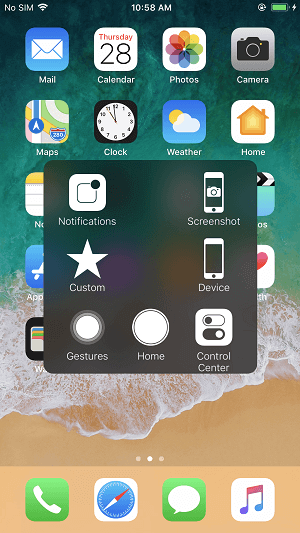
If your iPhone's screenshot function isn't working when you press the Sleep/Wake button and Home button together, you can use AssistiveTouch to take a screenshot in iOS 11. To turn on AssistiveTouch, go to Settings > General > Accessibility > Touch > AssistiveTouch, and toggle the switch to the "on" position. Once enabled, a small AssistiveTouch button will appear on the screen, and you can use it to take a screenshot by tapping the button and then selecting "Take Screenshot" from the menu. This provides an alternative way to capture your iPhone's screen when the standard method isn't working.
Step 1: Go to Settings > General > Accessibility on your iPhone 8/8 Plus/X.
Step 2: Scroll down to chooseAssistiveTouch and toggle it on.
Step 3: To add a new icon to the top level menu, go to the "Customize Top Level Menu" section and tap on the "+" sign to add a new icon.
Step 4: Tap on the newly added icon, choose Screenshot and click Done. This will add Screenshot option to the AssistiveTouch Menu.
Step 5: To take a screenshot on your iPhone 8/8 Plus/X, simply click the AssistiveTouch button on your screen and select "Screenshot" from the menu. This method is generally easier and more reliable than the traditional button combination, which can sometimes activate Siri or lock the screen if not done correctly.
Solution 2: Use 3D Touch on the AssistiveTouch icon to screenshot iPhone
If your iPhone X or iPhone 8's screenshot function is not working by pressing the Home button and Sleep/Wake button, you can use the 3D Touch on the AssistiveTouch icon to take a screenshot instead.
Step 1:Go toSettings>General>Accessibilityon your iPhone 8/8 Plus/X.
Step 2: Scroll down to chooseAssistiveTouchand toggle it on.
Step 3: Go to Customize Top Level Menu...and click 3D Touch Action.
Step 4: 3D Touch the AssistiveTouch icon and select Screenshot from the list of actions. This will take a screenshot of your current iPhone screen.
Step 5: To take a screenshot on your iPhone 8/8 Plus/X, go to the screen you want to capture and press the AssistiveTouch icon strongly until you feel the vibration of your iPhone. This will successfully capture a screenshot.

Solution 3: Force restart iPhone 8/iPhone 8 Plus/X
Force restarting an iPhone 8, iPhone 8 Plus, or iPhone X in iOS 11 can sometimes solve the issue of a non-working screenshot feature. To force restart these devices, press and hold the Sleep/Wake button and the Volume Down button simultaneously for at least 10 seconds until the Apple logo appears. This process is different from force restarting earlier iPhones.
Step 1: Quickly press and release Volume Up button.
Step 2: Quickly press and release Volume Down button.
Step 3: Press and hold the Side button until the Apple logo appears.
Notes:
If you're looking for a completely free iOS data transfer tool, MobiMover Free is a perfect choice. As the world's first free software for iOS data transfer, MobiMover allows you to sync files from computer to iPhone/iPad, back up iPhone/iPad contents to the computer, transfer data from iOS to iOS, and manage iOS files by deleting/adding/editing items from a computer. With MobiMover installed on your PC (running Windows 7 or later), you can transfer photos, videos, audios, contacts, messages, notes, and more between your iOS devices and computer.
Step 1.Connect your iPhone to your PC, trust the computer, and open Qiling MobiMover. Go to the "Backup Manager" and select "Back up".
Step 2.Since all the supported files are selected by default, click "One-Click Backup" directly to start backing up your iPhone to computer.
Step 3. Wait patiently until the backup process completes. To restore the backup, go to "Backup Manager" > "Restore" and follow the on-screen instructions.
Related Articles
- Erase an iPhone with iTunes Alternative Quickly and Free
- Portrait Mode Not Working on iPhone X/ iPhone 8 Plus/iPhone 7 Plus? Fixes Here!
- How to Fix iPhone 8/8 Plus X Stuck in Headphones Mode
- How to Add Reminders on iPhone/iPad
Products
Articles & Tutorials
- Data Recovery
- Data Backup
- File Recovery
- File Backup
- System Backup and Restore
- Disk and Partition Clone
- Technical articles
- Mobile articles
- Disk Master Help
- Windows Data Recovery Tutorials
- Windows Secure Delete Tutorials
- Windows Partition Management Tutorials
- Windows File Backup and Restore Tutorials
- Windows System Backup and Restore Tutorials
- Windows Disk Backup and Restore Tutorials
- Windows Clone Tutorials