Free | How to Transfer Music from iPod to Computer
If you're an Apple fan with an iPod, it may still be your go-to music player due to its excellent music experience. However, if your iPod's storage is limited to 256GB, it can quickly become full with a large music library, making it necessary to transfer music to your computer to free up space. Fortunately, you have two options to do this: you can transfer music from your iPod to your computer with or without using iTunes.
How to Transfer Music from iPod to Computer Without iTunes
Transferring music from an iPod to a computer is a more complex process compared to transferring music to an iPod. While iTunes can be used, it's not the simplest solution. However, with a light tool like Qiling MobiMover, you can easily copy music from your iPod to your PC in just a few minutes.
How to Transfer Music from iPod to PC with Qiling MobiMover
Qiling MobiMover is a reliable iOS data transfer tool that allows you to easily transfer music from an iPod, iPad, or iPhone to a computer running Windows 10, 8, or 7 without using iTunes. The tool also supports transferring music and other data from a PC to an iPhone, making it a convenient option for those looking to transfer files between devices.
Step 1.Connect your iPod to your computer running Windows 10/8/7, then run Qiling MobiMover and select the "Audio" > "Music" option.
Step 2. To customize the path where exported music is saved on your computer, click on "Settings" in the upper left corner. If no change is made, exported files will be saved on the desktop.
Step 3.Select the music you want to transfer, click the "Transfer to PC" button, and the process will begin instantly. Once the transfer is complete, verify the files at the destination.
How to Transfer Music from iPod to Computer with iTunes
Option 1. Transfer Purchased Songs from iPod to a Computer with iTunes [Wired Transfer]
You can connect your iPod to your PC, transfer music to your PC using iTunes, but only purchased songs on your iPod will be transferred.
Prevent your iPod from Syncing Automatically
If you have enabled auto-syncing your iPod from iTunes, be aware that it may erase all data on your iPod, so it's best to disable the automatic syncing option in iTunes settings to prevent this from happening.
After setting iTunes as the music management system, you can transfer purchased music from your iPod to your PC using the following steps. To do this, you will need to sync your iPod with your PC using iTunes, which will allow you to access and transfer the music from your iPod to your PC.
Step 1. Connect your iPod to your PC with a USB cable and trust the PC. Then, launch iTunes on your PC.
Step 2. To sync purchased music from your iPod to iTunes, click on "File" in iTunes, then select "Devices" and choose "Transfer Purchases from [your iPod name]".
Step 3. Now you can transfer your music from iPod to PC.
Option 2. Sync Your Music on iPod to Computer with iTunes [Wireless Sync]
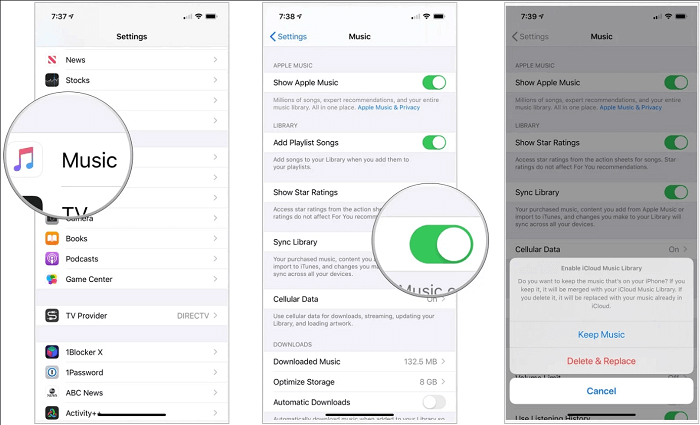
Apple Music subscribers can sync their music library and downloaded music between their iPod and computer by turning on "Sync Library" in their settings.
Step 1.To sync your iPod Touch with your Windows 10 PC, you should download the latest version of iTunes and ensure your iPod Touch is running the latest version of iOS.
Step 2.To ensure seamless syncing between your iPod Touch and your computer (iTunes), make sure you have signed in to both devices with the same Apple ID. This will allow your iPod Touch to recognize your computer and vice versa, enabling smooth data transfer and syncing.
Step 3.On your iPod Touch or other iDevices, go to the "Settings" app, then select "Music" and toggle the switch next to "Sync Music" to the "on" position.
Step 4.To enable iCloud Music Library on Windows 10, open iTunes, go to "Edit" > "Preferences" from the menu bar, click the "General" tab, and turn on "iCloud Music Library".
Step 5.Wait for iCloud to upload and sync your music library between your iPod and computer, then you can access the songs from your iPod on your Windows 10 PC.
The Bottom Line
The three methods allow you to copy music from your iPod to your computer, but each has its limitations. If you just want to keep a copy of your music on your iPod, Qiling MobiMover is a recommended option, as it doesn't affect your purchased music and allows you to transfer other items like photos between your iPod and computer.
Related Articles
- Safe & Fast iPhone Data Transfer to PC Software
- How to Transfer Photos from iPhone to PC Without iTunes
- How to Transfer Data from iPhone 6/6s to iPhone X in 3 Ways
- How to Transfer Photos from iPhone to PC in Windows 7
Products
Articles & Tutorials
- Data Recovery
- Data Backup
- File Recovery
- File Backup
- System Backup and Restore
- Disk and Partition Clone
- Technical articles
- Mobile articles
- Disk Master Help
- Windows Data Recovery Tutorials
- Windows Secure Delete Tutorials
- Windows Partition Management Tutorials
- Windows File Backup and Restore Tutorials
- Windows System Backup and Restore Tutorials
- Windows Disk Backup and Restore Tutorials
- Windows Clone Tutorials