Should I Select Disk Cleanup Compress Your OS Drive? Your Answer Is Here [2024 Full Guide]
Introduction
Selecting Disk Cleanup to compress your OS drive can help free up space, but it might also cause issues with certain programs or apps that require a lot of disk space to function properly.
Compressing your drive will free up a few GB of space and eliminate the disk space warning.
The constant decompression and compression process can put a strain on your computer's CPU and RAM, potentially slowing down your system and consuming more resources.
Compressing your OS drive, typically the C drive, involves reducing the size of the files and folders stored on it. This process, also known as disk compression, achieves this by replacing the original files with compressed versions, which take up less space.
What Does "Compress Your OS Drive" Mean?
The "Compress your OS drive" feature was introduced in the 2019 February Windows update, making it available for the first time.
You can free up your C drive by selecting this option.
To add space to your C drive, you can follow these steps: 1) Check if your computer has any free space on other drives, 2) Purchase an external hard drive or a solid-state drive (SSD), 3) Connect the new drive to your computer, 4) Format the new drive to match the existing drive's file system, 5) Move files and programs to the new drive, and 6) Extend the C drive's partition to use the free space on the new drive. Alternatively, you can also use the built-in Disk Management tool in Windows to extend the C drive's partition without needing to move files.

To increase C drive space in Windows 11/10/8/7, you can try the following methods. Firstly, delete unnecessary files and free up space by using the Disk Cleanup tool or manually deleting files you no longer need.
Are you running low on space on your C drive? If so, you're not alone. Fortunately, there are ways to increase C drive space and optimize your computer's performance. This guide will walk you through the steps to easily free up space on your C drive in Windows 11/10/8/7, helping you breathe new life into your computer.
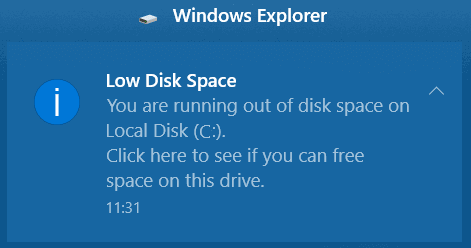
1. What Is "Compress Your OS Drive" Under Disk Cleanup?
The "Compress your OS Drive" option under Disk Cleanup allows you to compress drive files, reducing their size and freeing up space on your drive.
The "Compress your OS drive" option is located under the "Files to delete" section in Disk Cleanup.
When you compress your OS drive, all data is rewritten using a compression algorithm, freeing up space by condensing the data.
2. What Happens If You Compress Your OS Drive?
Compressing a file or drive can save disk space, but it also increases CPU usage, as the computer works harder to decompress the data when needed.
Decompressing a compressed file or drive requires significant CPU and RAM resources, as the computer must first expand the compressed data before it can be accessed. This process, which is reversed when the file or drive is closed, can be very taxing on the system.
Over time, repeated compression and decompression of data on your PC can lead to a slow and sluggish performance.
3. When and Should You Use Compact OS to Free Up Disk Space?
Compact OS is a new feature in Windows 10 that shrinks the size of the operating system, allowing it to be run from compressed files.
Both UEFI and BIOS-Devices that support the Compact OS feature have a significantly lower OS footprint, allowing for more room to install new programs.
To free up disk space using the Compact OS, follow these steps:
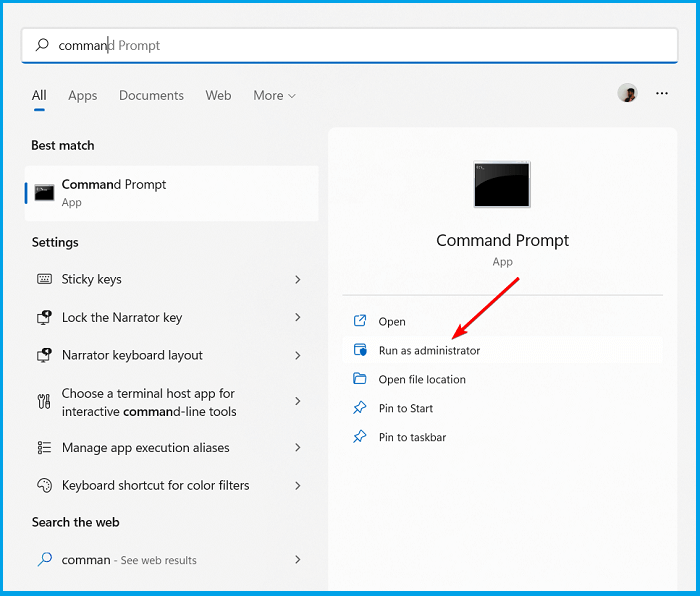
Step 1. Click on the "Start" button, and search for "Command Prompt".
Step 2. To open the command prompt as an administrator, select "Run as an administrator" from the context menu. This will open a new command prompt window with elevated privileges, allowing you to execute commands that require administrative access.
Step 3. In the command prompt window, type `compact/compact OS:always` and press Enter.
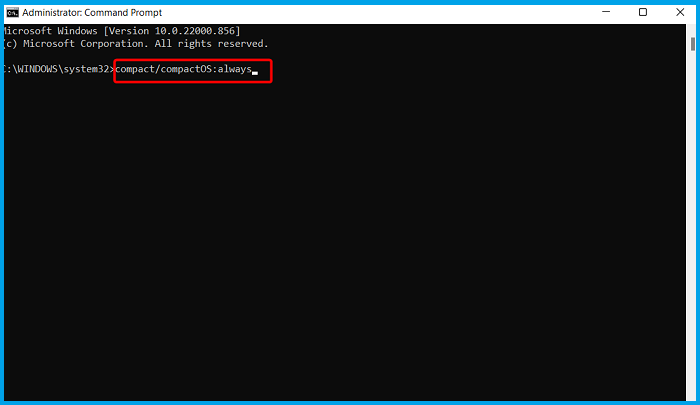
Step 4. Wait for a few minutes for the process to complete. Do not turn off your computer during the process.
You should not use Compact OS to free up disk space, as it can negatively impact your PC's performance, although not as severely as compressing the OS drive.
Using Compact OS can lead to disk fragmentation, a con that outweighs its benefits.
More Ways to Free Up More Space Under Disk Cleanup
Instead of using the "Compress your OS drive" feature, you can explore other options to free up disk space, such as using a third-party tool to create space or manually deleting unnecessary files.
When your OS drive is running low on space, Disk Cleanup isn't the only solution. You can try other alternatives to free up space, such as using other methods to create disk space.
Method 1. Run Disk Cleanup Alternative to Cleanup and Compress OS Drive
Compressing files can free up space on your PC, but it can cause irreversible damage and excessive use of RAM and CPU power when decompressed. Additionally, antivirus programs may fail to scan compressed files for viruses and malware.
Qiling Disk Master helps you free up space on your disk by deleting unnecessary system files and disk space hogs, and also helps you to manage disk space by deleting temporary files, system logs, and other disk space hogs, and also helps you to manage disk space by deleting temporary files, system logs, and other unnecessary files. It also helps you to clean up disk space by deleting duplicate files, and also helps you to clean up disk space by deleting duplicate files, and also helps you to clean up disk space by deleting duplicate files.
With the Qiling Disk Master, you can create or delete partitions on your drive, which can help free up space on your OS drive if you delete a non-essential partition. This allows you to reclaim space on your OS drive by removing unused partitions.
You can use this program to resize a partition without losing data, or extend a partition to fully utilize any available or unallocated space by using the "Extend" feature.
Qiling Disk Master is a free-This software is a free download that offers a wide range of features to help you manage your disk space effectively.
This software will help you free up your disk space, and you can follow these steps to do so.
Option 1. Extend System C drive with unallocated space
- 1. Right-click on the System C: drive and select "Resize/Move".
- 2. To resize the system partition, drag the end of the system partition into the unallocated space, effectively merging it with the C: drive. This will increase the size of the C: drive.
- 3. Click "Proceed" to execute the operations and extend the C drive.
Option 2. Extend System C drive without unallocated space
- 1. Right-click a big partition with enough free space on the system disk, select "Allocate Space" to make it into a bootable partition.
- 2. Select the system drive at the "Allocate Space From" section, and drag the end of the System C drive into the unallocated space.
- 3. Click "Proceed" to save the changes and extend the C drive.
0:00-To extend the system drive, you can either use unallocated space or extend the drive without unallocated space. If there is unallocated space, you can extend the system drive into it, which is a straightforward process.
Method 2. Manually Removing Files So to Free Up and Compress OS Drive
Another option to free up disk space is by manually deleting unnecessary files.
1. Delete temporary files
Here's how to do that:
Step 1. Right-click on the "C" drive and select "Properties".
Step 2. Select "Disk Cleanup" from the General tab of "Properties".
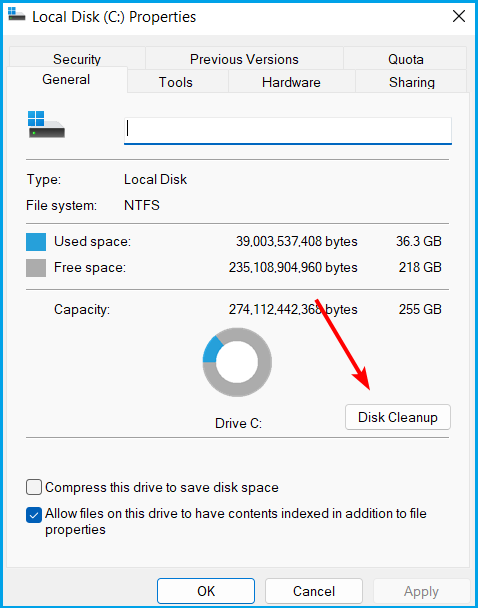
Step 3. Select the files you want to delete from the list.

2. Delete large files from the OS drive
Here's how to find and delete larger files from your OS drive:
Step 1. Press "Win+R" and type control.exe in the Run dialog box.
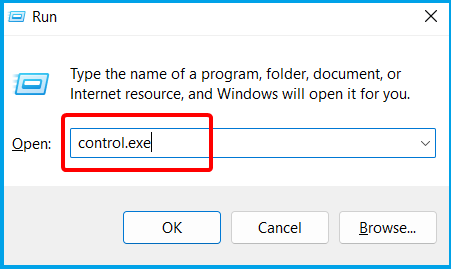
Step 2. To access the View tab in File Explorer options, start by typing "file" in the Control Panel's search box, then select "File Explorer options" from the search results. Once you're in the File Explorer options window, click on the "View" tab.
Step 3. Select the "Show hidden files, folders, and drivers" option in the File Explorer options, and unselect the "Hide-protected operating system files (Recommended)" option.
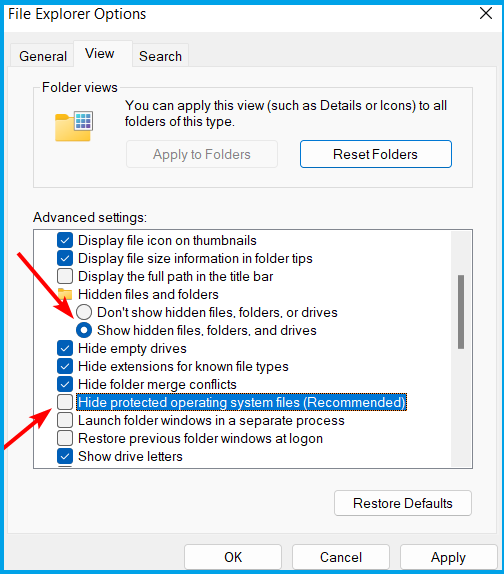
Step 4. Click on "Apply," then "OK".
Step 5. The file "hiberfil.sys" is a system file that contains the memory dump of the computer when it is hibernated. It is created by the operating system when the computer is put into hibernation mode and is deleted when the computer is powered back on.
Step 6. Delete the "hiberfil.sys file".
If hibernate mode is enabled, it can take up a lot of space on your OS drive, but you can free up space by deleting the hibernation files directly.
Manually deleting files can be risky, as it's easy to delete an important file and potentially corrupt your operating system. A safer approach is to use a third-party tool to delete files, as these tools are programmed to identify and preserve vital files, deleting only unnecessary ones.
FAQs about Disk Cleanup Compress OS
Here are few more things about Disk cleanup you should know.
1. What Does Disk Cleanup Do?
Disk Cleanup searches for files on your disk that you can delete to create space. It looks for temporary files, system files, and other items you may not need.
2. Should I Compress My C Drive SSD?
There's no need to compress your C drive unless you're running low on disk space, as decompressing files can be a CPU-intensive task that may reduce overall computer performance.
3. Why Is My OS C Drive So Full?
It could be due to:
- Installing applications
- OS-related files and settings
- You're suggesting that saving files on the desktop or in library folders like photos, videos, and documents uses up space on the C drive.
Conclusion
Compressing your hard drive is not recommended, but you can free up space by moving your files to another disk or drive instead.
You can also use the Qiling Disk Master, which is a free-to-download software to create space for your OS drive.
Related Articles
- How to Repair Corrupted SSD with SSD Repair Tool
- How to Format SanDisk iXpand Flash Drive in Windows 10/8/7
- Does Formatting a Drive to exFAT Wipe It?
If you need to format your internal drive or external device to exFAT for some reason, you might wonder, 'Does formatting a drive to exFAT wipe it.' Here in this post, We provide you the answer you are looking for. - Factory Reset vs. Format, Can You Tell Me the Difference?
Formatting C drive and factory resetting Windows are different. If you don't know the differences, we will introduce the differences between factory reset vs. format. - Do I need EFI System Partition? Can I Delete the EFI Partition?
If you've used the Disk partition tool and seen the EFI System partition, you're likely familiar with it. But have you ever wondered if you actually need it, and can you safely delete it without affecting your Windows PC setup. - Does formatting a Hard Drive Remove OS? Check Your Full Guide
Formatting a hard drive does not remove the operating system (OS) itself, but it will erase all data on the drive. To format a hard drive without reinstalling Windows, you can use the built-in Disk Management tool in Windows.
Products
Articles & Tutorials
- Data Recovery
- Data Backup
- File Recovery
- File Backup
- System Backup and Restore
- Disk and Partition Clone
- Technical articles
- Mobile articles
- Disk Master Help
- Windows Data Recovery Tutorials
- Windows Secure Delete Tutorials
- Windows Partition Management Tutorials
- Windows File Backup and Restore Tutorials
- Windows System Backup and Restore Tutorials
- Windows Disk Backup and Restore Tutorials
- Windows Clone Tutorials