How to Fix Windows 10 Slow After Clone - Effective Ways⭐
To fix Windows 10 or SSD slow after cloning, you can try updating the drivers, running the System File Checker (SFC) and DISM tools, checking for malware, and disabling unnecessary startup programs. Additionally, you can try resetting the Windows Update components, running a System Restore point, and checking for any issues with the SSD itself, such as a faulty controller or firmware.
| Workable Solutions | Step-by-step Troubleshooting |
|---|---|
| Fix 1. SSD 4K Alignment | Go to "Toolkit" and choose "4K Alignment"...Full steps |
| Fix 2. Enable AHCI and Update Drivers | First, open the "Search" box of Windows and type "cmd"...Full steps |
| Fix 3. Free Up Space on C Drive | Click "Adjust with 1-Click" to extend C drive...Full steps |
| Fix 4. Enable TRIM for SSD | Start by accessing the "Command Prompt" app by searching it...Full steps |
| More fixes |
Disable Disk Indexing...Full steps |
Cloning Windows involves creating an exact copy of a computer and transferring it to another, often with just a click. However, despite this convenience, users often experience sluggishness after upgrading their hard disk drive (HDD) to a solid-state drive (SSD) or cloning their HDD to an SSD. This issue can be attributed to various factors, including the presence of unnecessary files, outdated drivers, and residual clutter from the original HDD. As a result, the cloned SSD may not perform optimally, leading to slow system speeds.
Several factors can contribute to a slow Windows 10 system after cloning, such as outdated drivers or low storage on Windows drives. However, by following a few troubleshooting steps and the right approach, you can swiftly restore your system's performance and speed.
How to Fix Windows 10 Slow After Clone
Cloning Windows 10 to a different PC can result in a slow system due to various factors, including differences in hardware, software, and driver configurations. To address this issue, several methods can be employed, which will be covered in this guide. These methods aim to help optimize the cloned system and improve its performance by addressing the underlying causes of slowness.
Method 1. SSD 4K Alignment
SSDs often use 4K sectors (4096 bytes), whereas HDDs use 512-byte sectors. If SSD partitions are not aligned to the 4K boundaries, it can cause extra work when reading and writing data, leading to slow performance after cloning. This misalignment can happen when cloning a Windows 10 system from a source drive with different alignment or using improper cloning methods.
To fix the "SSD slow after clone" issue, Qiling Disk Master Professional offers a solution with its powerful features, including 4K alignment, which optimizes and speeds up SSD performance with just a few clicks.
Step 1. Go to "Toolkit" and choose "4K Alignment".
Step 2. Select the disk you want to align and click the "Start" button.
This tool allows you to change the SSD allocation unit size and cluster size to improve the speed, in addition to other features.
Method 2. Enable AHCI and Update Drivers
AHCI is a communication standard that enables the operating system to communicate well with SSDs, allowing them to utilize advanced features and performance enhancements when enabled.
Upgrading to the latest storage controller drivers is a simple solution to resolve the issue of Windows 10 being slow after cloning. Older drivers may not be optimized for specific hardware configurations of modern SSDs, leading to performance issues. By updating the drivers, you can potentially improve the speed of your Windows 10 system, making it run more smoothly and efficiently. To do this, follow the detailed guide provided, which will walk you through the process of updating the storage controller drivers and resolving the slow performance issue.
Step 1. To open the Command Prompt as an administrator, type "cmd" in the Windows search bar, right-click on the "Command Prompt" result, and then click "Yes" in the User Account Control (UAC) window that appears. This will open the Command Prompt with administrator privileges.
Step 2. The command "/bcdedit /set {current} safeboot minimal" is used to configure the Windows Boot Manager to start the operating system in safe mode. It is executed in the Command Prompt window and the Enter key is pressed to execute the command. This command is typically used to troubleshoot and resolve issues with the operating system.
Step 3. The system should be rebooted and the F2 key pressed while starting up to access BIOS and enable AHCI.
Step 4. After that, press F10 to save your changes and exit.
Step 5. After restarting Windows, open the Command Prompt and type "bcdedit /deletevalue {current} safeboot", then press Enter and restart the computer to install AHCI drivers automatically.
Step 6. Once enabled, access the Device Manager from the WinX menu, expand the Disk Drives section.
Step 7. Then, right-click the SSD driver and choose "Update Driver."

Step 8. To update the driver, select the "Update Driver" option, then choose "Search automatically for updated driver software" and let the system search for and install the latest driver version. Alternatively, you can select "Browse my computer for driver software" and manually locate the driver file on your computer, but this option is usually only necessary if the automatic search doesn't find the correct driver.
Method 3. Free Up Space on C Drive
Cloning Windows 10 onto a new system can result in a crowded C: drive due to unnecessary files and system backups, potentially leading to disk space shortages, especially on SSDs where available space is crucial for optimal performance.
However, you can easily solve the C drive out of space issue by eliminating unnecessary files and programs. You can also extend the C drive and improve its performance by using a tool like Qiling Disk Master, which can help free up space on the C drive.
Qiling Disk Master offers a comprehensive solution to address disk space insufficiency, providing a complete set of tools to manage and optimize disk usage, ensuring sufficient storage capacity is available for critical applications and data.
- App Mover: Migrate software to a partition
- Resize Partition: Resize a partition by shrinking or extending it
- Delete Partition: Delete all contents of the target partition with one click.
- Clone Disk is a tool that allows users to upgrade to a larger hard drive without losing any data. It creates an exact replica of the original drive, including all files, programs, and settings, and transfers it to the new drive, ensuring a seamless transition and preserving all data.
Don't hesitate to download this tool and enjoy the benefits it brings to you.
Method 4. Enable TRIM for SSD
If your SSD is taking too long to boot, and you've tried other solutions, enabling TRIM might be the solution. TRIM is a command that tells the SSD to delete unwanted data blocks, making it faster. It's supported by modern SSDs and operating systems.
To enable TRIM on a Windows 10 system after cloning to a new SSD, follow these steps:
Step 1. To start, open the Command Prompt app. You can do this by searching for it in the Start menu and selecting the "Run as administrator" option.
Step 2. Then, type the command: "fsutil behavior set DisableDeleteNotify 0."
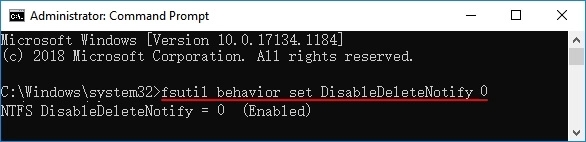
Step 3. Once you've completed the steps, press the "Enter" key and then reboot your computer to enable TRIM successfully.
Method 5. Disable Disk Indexing
Disk indexing is a Windows feature that creates and updates an index of files and their contents on the disk, boosting search performance. However, this feature requires continuous disk activity and consumes system resources to maintain the index, which can be a drawback.
Disabling disk indexing can be a solution to fix a laptop still slow after an SSD upgrade. Increased disk activity and resource usage may lead to slower system performance, especially on low-end PCs. To fix this, you can follow the given guide to disable disk indexing, which can help improve system performance and make the most of your SSD upgrade.
Step 1. To access the "This PC" view, press the "Win + E" key to open "File Explorer" and then navigate to "This PC."
Step 2. To access the properties of the Windows drive, right-click on it and select the "Properties" option from the context menu.
Step 3. Uncheck the box saying, "Allow files on this drive to have contents indexed in addition to file properties" in the "General" tab.
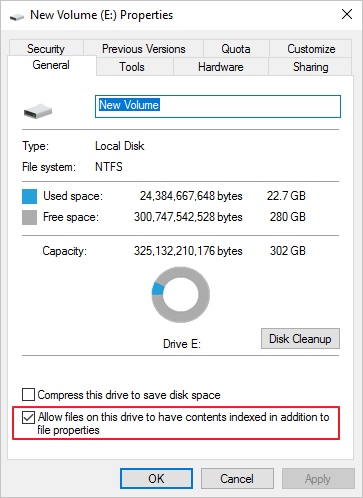
Step 4. To turn off disk indexing, click on the "Turn Windows Features on or off" option, then select the "Windows Search" feature and click the "Turn Windows Features on or off" button. In the resulting window, click the "OK" button to confirm the change.
If the cloned hard drive running slow issue got resolved, you can use the cloned hard drive as a replacement for the original one. If not, you may need to investigate further to identify the cause of the slowness and take necessary steps to resolve it, which could include troubleshooting disk usage, running a disk cleanup, or updating disk drivers, or seeking professional help if the issue persists.
Method 6. Disable SSD Defragmentation
Traditional hard disk drives benefit from defragmentation, but SSDs operate differently and don't need it. In fact, defragmenting can even result in unnecessary write operations and performance reduction in SSDs over time. To avoid this, you can disable defragmentation on Windows 10, which is also helpful for fixing the "Windows 10 slow after clone" problem.
Step 1. Open the "Properties" of your SSD drive from "File Explorer" and go to the "Tools" tab.
Step 2. Click the "Optimize" button in the "Optimize and defragment drive" section.
Step 3. In the next window, hit the "Change Settings" button.
Step 4. To finalize your changes, uncheck the "Run on a schedule" option and click "OK".
Method 7. Disable System Restore
System restore is a feature that helps recover from system issues and errors by periodically generating restore points for Windows, but it also consumes disk space and requires ongoing disk activity to maintain those points.
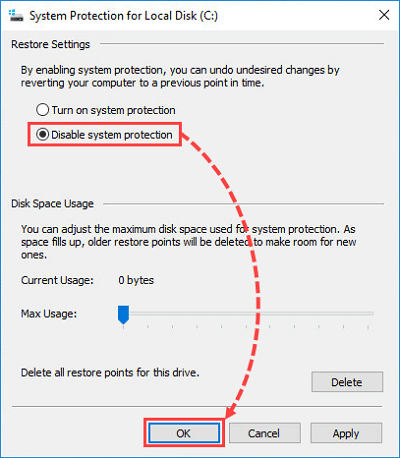
Disabling System Restore on Windows 10 can help reduce performance issues related to disk activity and storage. To do this, go to Control Panel, click on System and Security, and then click on System. In the left-hand menu, click on System Protection.
Step 1. To create a restore point in Windows, open the Start Menu and type "System Restore," then click "Create a restore point" from the search results.
Step 2. From the new appearing window, select your Windows drive and click on "Configure."
Step 3. Check the "Disable system protection" option and click "OK" to confirm it.
Even after cloning your HDD to an SSD, your Windows OS may still run slow. To fix this, follow the tutorials and optimize your SSD after cloning. If you found this guide helpful, please click the social buttons and share it with others who may need it.
Final Words
Windows cloning offers several benefits, including time-saving when setting up multiple PCs, but it can also result in performance drawbacks due to various factors. However, these issues can be easily addressed by applying effective solving methods, such as those listed for the "Windows 10 slow after clone" problem.
Qiling Disk Master is a powerful disk manager tool that can optimize your disk's performance. With its capabilities, you can create, move, extend, merge, or format the entire partition of your disk most efficiently, making it a one-stop solution for managing your storage disk. By using this tool, you can avoid the hassle of using multiple tools and methods to take care of your disk, and instead, enjoy a streamlined and efficient experience. Best of all, it's available for free.
FAQs About Windows 10 Slow After Clone
Although we have explained enough of this topic, some additional questions may still arise in users' minds. So, you can find answers to those common questions in this section for further understanding.
1. Does cloning Windows reduce performance?
Cloning Windows itself doesn't reduce performance, but issues like misaligned partitions, outdated drivers, or unnecessary background processes after cloning can impact performance.
2. Why is my laptop still slow after installing the SSD?
This issue could be caused by outdated drivers, insufficient RAM, software bloat, or an improperly optimized SSD.
3. What should you do after cloning Windows 10?
After cloning Windows 10, it's essential to set it up and optimize it properly. This involves fixing any issues that may have arisen during the cloning process, such as updating drivers, configuring settings, and ensuring the system is running smoothly and efficiently.
- Updating drivers
- Enabling AHCI mode (if applicable)
- Disabling unnecessary startup programs
- Optimizing SSD settings like TRIM and defragmentation
Related Articles
- How to Format Corrupted SD Card [Hard Format SD Card]
- Guide on Seagate External Hard Drive Transfer Speed
- How to Recover Accidentally Deleted Operating System in Windows 11/10
- How to Remove Write Protection From SD Card Windows 7 [Fixed]
This article shows you how to remove write protection from sd card Windows 7 by providing solutions with detailed steps attached. - How to Fix External Hard Disk Slow to Respond in Windows 11/10/8/7
If your Seagate, SanDisk, Samsung USB drive or external hard drive becomes slow to respond in Windows. This page offers five methods to fix external hard disk slow and unresponsive issues on Windows 11, 10, 8, and 7, without losing any data. - 3 Ways| How to Fix Disk Management Format Option Greyed Out in Windows 11/10/8/7
If the format volume option is greyed out in Disk Management on Windows 11/10, 8.1, 8, 7. You can try running the built-in Check Disk utility, checking the disk for errors, and then try to format the disk.
Products
Articles & Tutorials
- Data Recovery
- Data Backup
- File Recovery
- File Backup
- System Backup and Restore
- Disk and Partition Clone
- Technical articles
- Mobile articles
- Disk Master Help
- Windows Data Recovery Tutorials
- Windows Secure Delete Tutorials
- Windows Partition Management Tutorials
- Windows File Backup and Restore Tutorials
- Windows System Backup and Restore Tutorials
- Windows Disk Backup and Restore Tutorials
- Windows Clone Tutorials