Best Bootable Partition Managers for Windows 11: 3 Options
When Windows will not start, an ordinary partition editor cannot open. A bootable partition manager runs from its own recovery environment, so you can inspect the disk before deciding whether a repair is appropriate. This comparison focuses on a Windows PC with a readable disk, not a drive that has failed mechanically.
How we compared the tools
We compared how each tool starts outside Windows, who can access its bootable edition, and whether its workflow fits a Windows user. These are feature and usability criteria, not a measured speed ranking. Check the current edition before downloading because a desktop application's free edition may not include bootable media.
Three bootable options
| Tool | Best fit | Important limit |
|---|---|---|
| Qiling Disk Master | A Windows-style recovery environment alongside backup and disk tools. | Check your edition's boot-media availability and test that the environment sees your storage controller. |
| GParted Live | A free, open-source partition editor that boots independently of Windows. | Its Linux-based environment may require extra care with BitLocker, RAID, and unfamiliar device names. |
| MiniTool Partition Wizard Bootable | Users already working with MiniTool's partition interface. | MiniTool lists the bootable edition with paid editions; verify the current license. |
1. Qiling Disk Master: a Windows-oriented recovery workflow
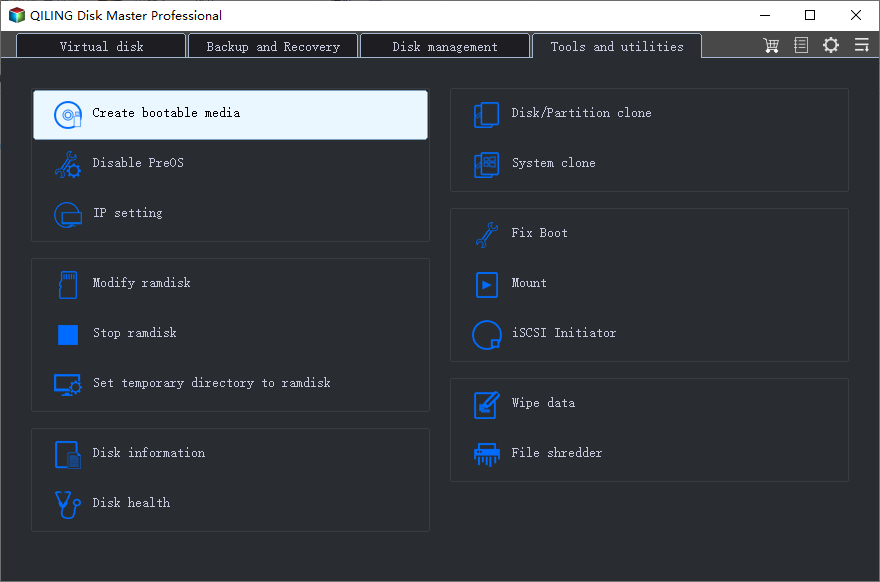
Qiling's Tools and utilities page includes Create bootable media. Its recovery environment is useful when you need to inspect a Windows disk and may also need a backup or boot-related tool. It is not a guarantee that an unreadable or failing drive can be repaired in software.
2. GParted Live: open-source partition editing
GParted Live is a bootable Linux distribution for partition work. Its free license and broad partition features make it suitable for users comfortable identifying disks by device and capacity. Back up the disk before moving or resizing a partition. An encrypted Windows volume needs the appropriate key and compatible workflow; do not delete it because it appears unfamiliar.
3. MiniTool Partition Wizard Bootable: edition-dependent option
MiniTool provides a boot-media builder for its paid Partition Wizard editions. This can be convenient if you already know its desktop layout. Check the current edition chart before assuming a free desktop download can create a bootable environment.
Prepare a Qiling recovery ISO without changing a disk
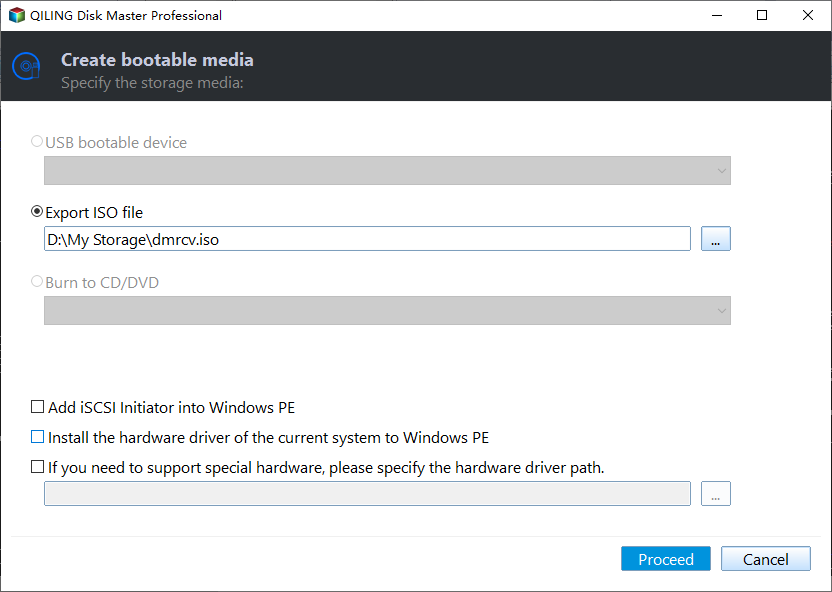
The steps below export an ISO file. They do not write to a USB drive or alter any partition. Save the ISO to a location with sufficient space, then make a verified backup before attempting a disk change.
Step 1. Install and open Qiling Disk Master on a working Windows PC. Open Tools and utilities and select Create bootable media.
Step 2. Select Export ISO file rather than USB bootable device. Choose a new ISO filename in a folder you can find again. If the target PC needs a special storage driver, locate the manufacturer's driver first and use the driver option shown in the dialog.
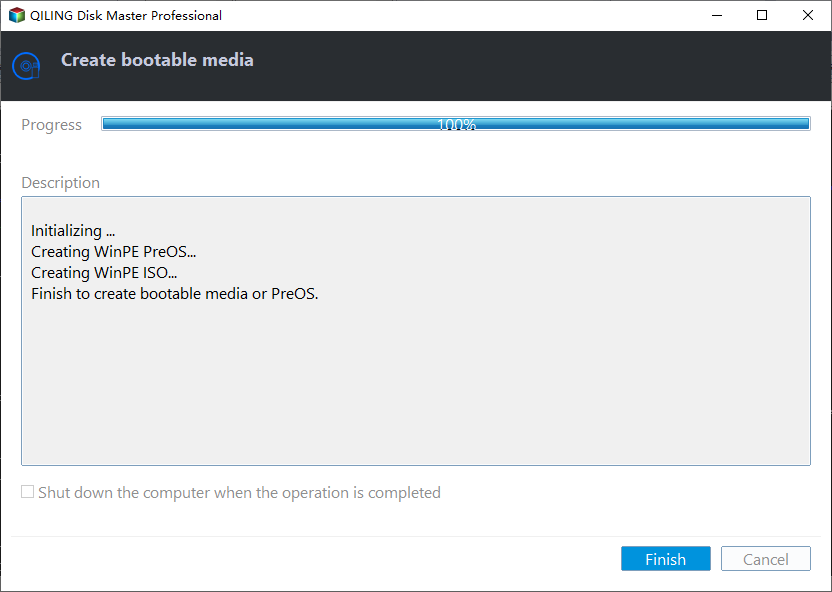
Step 3. Recheck the ISO path, click Proceed, and wait for the export to finish. Confirm that the ISO file exists before you plan a boot-media test.
Before changing a Windows partition
Record the disk model and capacity, save the BitLocker recovery key if encryption is enabled, and make an image on another physical drive. Check whether the partition is EFI, Recovery, or ordinary data. Do not resize, format, or delete a partition merely because Windows will not boot: boot files, firmware settings, or hardware may be the actual problem. See the Qiling bootable media guide for additional background.
Which one fits?
Choose GParted Live when an open-source, independent editor matters most and you are comfortable with a Linux interface. Consider MiniTool if you already hold an edition with bootable media. Consider Qiling if you want the recovery environment and Windows backup tools together. Whichever you choose, first prove that the environment can see the correct disk and your backup.
For a read-only rescue-media test before any partition change, see the Windows 11 bootable partition-manager checklist.
Related Articles
- Best Free Partition Managers for Windows
Compare desktop partition tools before choosing a recovery workflow. - Create Qiling Bootable Partition Media
Learn how the Qiling recovery environment is prepared and started.
Products
Articles & Tutorials
- Data Recovery
- Data Backup
- File Recovery
- File Backup
- System Backup and Restore
- Disk and Partition Clone
- Technical articles
- Mobile articles
- Disk Master Help
- Windows Data Recovery Tutorials
- Windows Secure Delete Tutorials
- Windows Partition Management Tutorials
- Windows File Backup and Restore Tutorials
- Windows System Backup and Restore Tutorials
- Windows Disk Backup and Restore Tutorials
- Windows Clone Tutorials