No Drive Letter After Resizing or Cloning a Partition? Fix It
Quick Navigation:
- Why the Letter Goes Missing
- Confirm the Data Before You Change Anything
- Read the Volume State With Built-in Tools
- Restore the Letter With Qiling Disk Master
- Frequently Asked Questions
You finish a resize or a clone, open File Explorer, and the drive is gone. Disk Management still lists the volume with its files, its size, and a healthy status, but there is no letter beside it. Nothing was deleted: a drive letter is a mounting setting that Windows stores outside the volume, and a change to the disk can leave that setting pointing at an identity that no longer exists. This guide explains why the letter disappears, how to confirm the files are still there, and how to assign the letter again with Qiling Disk Master.
Why the Letter Goes Missing
Windows does not store the letter inside the partition. It keeps a mount table that maps a volume identity, built from the disk signature and the partition offset, to a letter. Anything that changes those values makes the old entry stop matching. A clone writes the same data to a different disk with a new signature. A restore onto a new drive does the same. A resize or a move rewrites the partition entry and can change the offset the entry referred to. The volume is intact in every case, but the mapping is not.
A few other conditions look identical from File Explorer. The letter may collide with a network drive or a card reader that claimed it while the disk was offline. A BitLocker-protected volume is unlocked but stays without a letter until it is mounted. A volume marked hidden does not appear even though it has a letter. A volume whose file system is unreadable shows as RAW and gets no letter at all, which is a different problem from a missing mapping.
The distinction decides what you should do. A volume with a healthy file system and no letter needs one setting changed. A volume that shows RAW needs a file-system check before anything is assigned, because a letter on an unreadable volume produces an error the first time you open it. Check the status column before you click anything.
Confirm the Data Before You Change Anything
Open Disk Management and look at the volume, not at File Explorer. If it reports a healthy status, a file system such as NTFS, and roughly the used space you expect, the data is there and only the letter is missing. If it reports RAW, unformatted, or a size of zero, stop and treat it as a recovery case: do not format it, and do not accept any prompt that offers to make it usable.
Take a backup of the volume before you change its mounting, especially when the change follows a clone or a restore. Assignment itself is harmless, but the reason the letter vanished may also mean the clone is incomplete or the restored volume is not the one you think. A copy taken now costs little and settles whether the content is what it should be.
Also note the letter the volume used to have. Some applications store absolute paths, and a scheduled task or a database service may fail silently until the original letter is back. Recording the old letter lets you restore the previous arrangement instead of picking the next free one, which saves a second round of fixes later.
Read the Volume State With Built-in Tools
Disk Management and DiskPart are Microsoft's built-in tools that ship with Windows. They are not part of Qiling Disk Master, and this section uses them only to read the state of the volume. Disk Management shows whether the volume is healthy, whether it carries a letter, and whether it is marked hidden, while DiskPart reports the same facts in text form and shows whether the volume is read-only or offline.
Use them to answer three questions before you act. Does the volume still exist with its correct size? Does it carry a file system rather than RAW? Is the missing piece a letter, a mount point, or a hidden flag? Only the first answer decides whether you are fixing a mounting problem or recovering data, and only the third tells you which command in the next section is the right one.
Remember that these tools can also write. Format, delete, and clean all change the disk, and assigning a letter from Disk Management is a write to the mount table. Reading first is cheap, and a screenshot of the disk map before the change makes it easy to see exactly what moved if the result is not what you expected.
Restore the Letter With Qiling Disk Master
Qiling Disk Master handles the three states this problem produces: a healthy volume with no letter, a volume whose file system needs repair before a letter will stick, and a volume that exists but is hidden from Windows. The operations run in that order. The letter comes first because it is reversible, the file-system check comes next because it writes, and the hidden flag comes last because it only applies when the first two found nothing wrong.
Operation 1: Assign the Missing Letter
This operation applies when the volume is listed with a file system and the correct size but carries no letter. It changes only the mount entry, not the files.
Step 1. Right-click the volume and choose Change Drive Letter. The entry sits in the volume menu, so confirm that you right-clicked the volume and not the disk strip above it. Choosing the disk instead offers options that rewrite the partition table, which is not what this case needs.
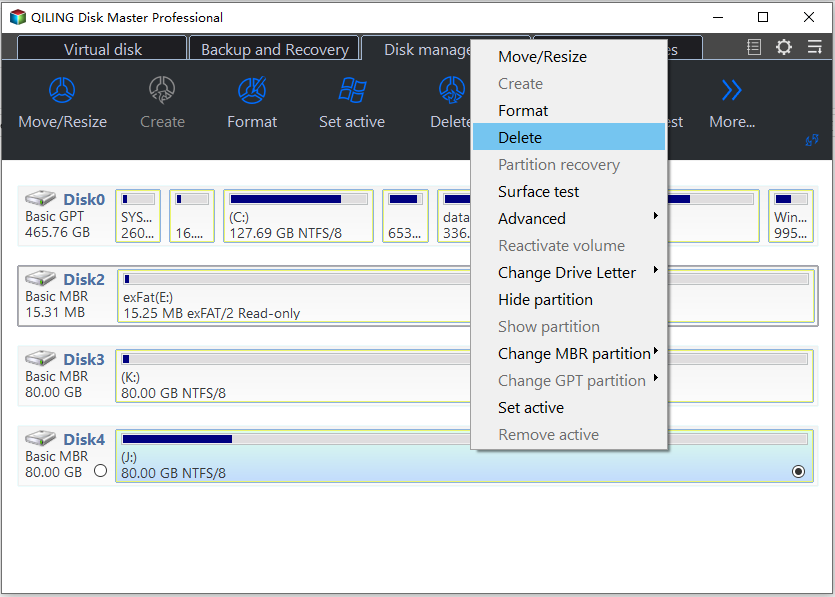
Step 2. Pick a free letter and keep the volume mounted. Choose the letter the volume used before if nothing else has taken it, because applications and shortcuts expect that path. If it is taken, pick one above the range your network drives use, so the next connection does not collide with it.
Step 3. Preview the change and click Proceed. Check that the preview names the volume you selected and the new letter, then run the task. Windows may warn that a program relying on the old path could stop working; that warning is expected when you change a letter, and it does not mean files are at risk.
Operation 2: Check the File System When the Letter Will Not Stay
This operation applies when the volume shows RAW, opens with errors, or loses the letter again after a restart. It can repair, so finish Operation 1 and the backup first.
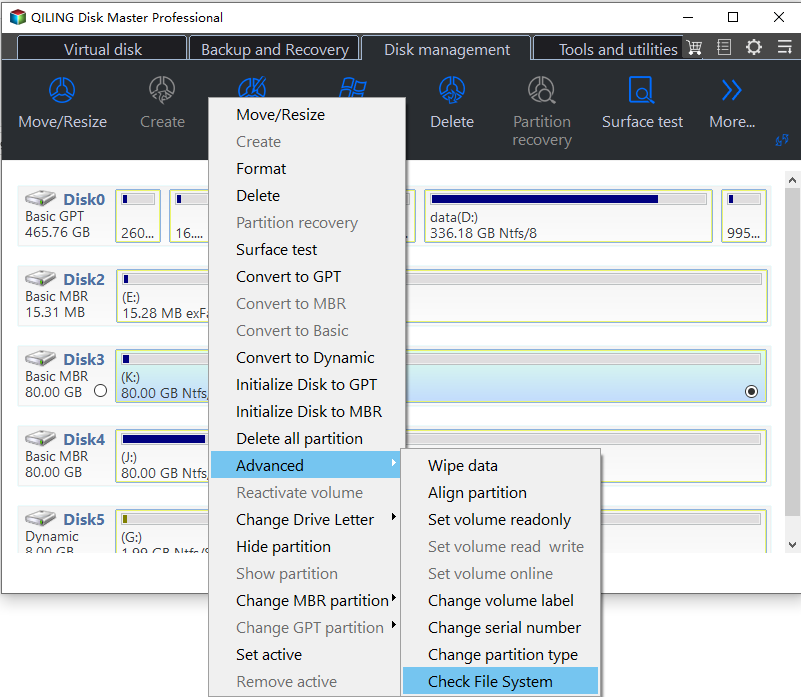
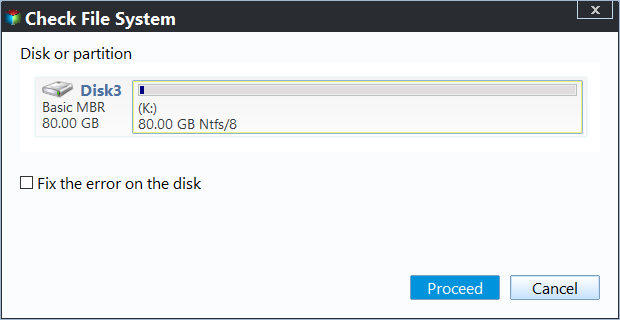
Step 1. Right-click the volume, open Advanced, and choose Check File System. The check reads the file system before it changes anything, and the dialog names the disk and the file system so you can confirm you are on the right volume. Nothing is written until you tick the repair box.
Step 2. Tick Fix the error on the disk and click Proceed. A volume that lost its letter after a clone often carries a file-system error that the clone copied faithfully, and the letter disappears again because the volume cannot be mounted cleanly. Let the repair finish, then assign the letter again with Operation 1.
Operation 3: Show a Volume That Windows Hides
This operation applies when the volume has a letter in the tool but still does not appear in File Explorer. Run it only after the first two operations found nothing to fix.
Step 1. Right-click the volume and choose Show partition. A hidden flag keeps a volume out of File Explorer without removing its letter, which is why the drive can look missing while every tool reports it as present. The command toggles that flag and leaves the data untouched.
Step 2. Preview the change and click Proceed. Confirm that the task names the hidden volume, then click Proceed and reopen File Explorer. If the volume still does not appear, check whether a policy or a third-party tool hides fixed drives, because that setting lives outside the partition and no disk tool can override it.
Frequently Asked Questions
Did resizing the partition delete my data?
No. A resize rewrites the partition entry and can break the mount mapping, but the files stay in place. If the volume shows a healthy status and the expected used space, only the letter is missing and assigning it brings the drive back.
Why did the cloned drive get a new letter?
A clone carries the data but the target disk has its own signature, so Windows treats it as a different volume and does not reuse the old mapping. That is also why both disks should not stay connected with the same letter, because the conflict hides one of them.
Can two volumes share one letter?
No. Windows allows one letter per volume, and the second volume either receives another letter or stays without one. Check for a card reader or a network drive holding the letter before you assume the volume is damaged.
Related Articles
- How to Assign a Drive Letter in Windows
- Change Drive Letter and Paths Greyed Out
- BitLocker Drive Unlocked but No Drive Letter
- D Drive Not Showing Up in Windows
- Cloned Drive Not Showing Full Capacity
Products
Articles & Tutorials
- Data Recovery
- Data Backup
- File Recovery
- File Backup
- System Backup and Restore
- Disk and Partition Clone
- Technical articles
- Mobile articles
- Disk Master Help
- Windows Data Recovery Tutorials
- Windows Secure Delete Tutorials
- Windows Partition Management Tutorials
- Windows File Backup and Restore Tutorials
- Windows System Backup and Restore Tutorials
- Windows Disk Backup and Restore Tutorials
- Windows Clone Tutorials