Dynamic Disk Shows Invalid After a Clone
Quick Navigation:
- Why the Clone Loses the Disk
- Protect the Working Source First
- Choose Import, Reactivate, or Convert
- Convert the Cloned Disk With Qiling Disk Master
- Frequently Asked Questions
Dynamic disks store their layout in a private database near the end of the disk rather than in a standard partition table. When such a disk is cloned by a tool that copies partitions but not that database, Windows sees the volumes but cannot attach them, and Disk Management labels the disk as invalid or foreign.
Why the Clone Loses the Disk
A basic disk describes itself with a partition table that every tool understands. A dynamic disk adds a LDM database that records the disk group, the volume members, and the extents of each volume.
A clone that copies only the partitions leaves that database behind, so the destination has volumes with no owner. Windows reports the disk as invalid because it cannot match the volumes to a disk group.
A second cause is a disk group identifier conflict. If the clone keeps the original identifier and both disks are connected, Windows keeps one of them offline to avoid corrupting the group.
Protect the Working Source First
Disconnect the cloned disk and confirm that the original still reads normally. Do not convert, reactivate, or import anything while the source is attached.
If the source is the only copy and it is also dynamic and unreadable, stop here and image the disk before any repair. Importing a foreign disk writes to the dynamic database.
Record the disk number, the volume list, and the disk group name. Those details decide whether the correct action is import, reactivate, or conversion.
Choose Import, Reactivate, or Convert
If the disk is marked foreign, right-click it and choose Import Foreign Disks, then select the disk group. This is the correct action when the volumes are intact and only ownership is missing.
If the disk is marked invalid, the database is damaged. Reactivating works only when another member of the same group holds a valid copy; a single cloned disk does not.
If the volumes are simple rather than spanned or striped, conversion to a basic disk is the clean answer. Confirm the volume types first; a spanned or striped volume cannot become basic without data loss.
Convert the Cloned Disk With Qiling Disk Master
Qiling Disk Master shows the disk type and the volume layout for both disks at once, which makes it easy to see whether the cloned disk holds simple volumes that can be converted safely.
Step 1. Select the Cloned Disk
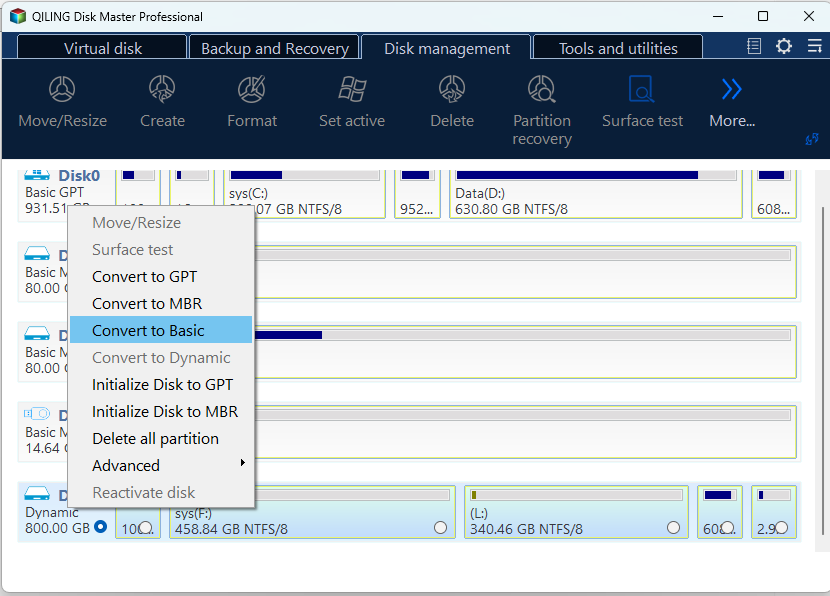
Open the program with the original disconnected. The disk map shows the type and the volume layout of every disk, so identify the clone by disk number and capacity, and check that each volume on it is a simple volume.

Step 2. Convert to Basic
Right-click the cloned disk and choose Convert to Basic. The notice window lists any volume type that would be lost, so read it and click OK. The conversion starts immediately, with no pending-operation list and no separate Proceed step.
Reopen Disk Management and confirm that the disk now reports as basic and every volume keeps its letter.
Frequently Asked Questions
Can I convert a spanned or striped volume to basic?
Not without losing the volume. Only simple volumes can be carried across a dynamic-to-basic conversion.
Why is the cloned disk shown as offline?
A duplicate disk group identifier makes Windows keep one disk offline. Disconnect the original or import the clone under a new group.
Will importing a foreign disk damage the volumes?
Importing rewrites ownership metadata only. It is safe when the volumes are intact, but it is not a repair for a damaged database.
Should I clone a dynamic disk again?
Only with a tool that carries the dynamic database, or after converting the source to basic. Repeating the same clone reproduces the same fault.
For the general conversion procedure, see converting a dynamic disk to basic.
Related Articles
- Convert a Dynamic Disk to Basic
- Recover Files After a Failed Disk Clone
- Clone Windows 11 to a Smaller SSD
- All Options Grayed Out in Disk Management
- Cannot Initialize Disk
Products
Articles & Tutorials
- Data Recovery
- Data Backup
- File Recovery
- File Backup
- System Backup and Restore
- Disk and Partition Clone
- Technical articles
- Mobile articles
- Disk Master Help
- Windows Data Recovery Tutorials
- Windows Secure Delete Tutorials
- Windows Partition Management Tutorials
- Windows File Backup and Restore Tutorials
- Windows System Backup and Restore Tutorials
- Windows Disk Backup and Restore Tutorials
- Windows Clone Tutorials