Fixed: Hard Drive Missing After Windows 11/10 Update (Without Data Loss)
Issue: Hard Drive Missing After Windows 11/10 Update
Your friend should first try restarting his computer to see if the hard drive reappears. If not, he should check the Device Manager to see if the hard drive is listed. If it's not listed, he can try running the built-in Check Disk utility to scan the drive for errors. Additionally, he can try opening the Disk Management tool to see if the hard drive is listed there. If the hard drive still doesn't show up, he can try booting in Safe Mode to see if the drive appears then. If none of these steps resolve the issue, he may need to seek further assistance from a professional.
| Workable Solutions | Step-by-step Troubleshooting |
|---|---|
| 1. Check the Hard Drive Connection | Try every USB port available; Determine you\'re using USB 2.0 or 3.0...Full steps |
| 2. Update or Reinstall Disk Driver | Step 1. Right-To access the Device Manager, click on "This PC" and then click "Manage". From there, click on "Device Manager" on the left side.Full steps |
| 3. Re-assign the Drive Letter | Step 1. Right-click This PC, choose "Manage", then select "Disk Management"...Full steps |
| 4. Run Hardware and Device Troubleshooter | Step 1. Open Control Panel and find "Troubleshooting"...Full steps |
| 5. Format the Hard Drive | Step 1. Select and scan the RAW partition...Full steps |
Why Hard Drive Disappeared Windows 11/10
Upgrading to a new version of Windows 11/10 can sometimes lead to a frustrating issue: a missing hard drive in File Explorer or This PC. This problem often arises unexpectedly, particularly after a Windows update, leaving users wondering where their hard drive has gone.
In addition to Windows upgrades, many users may encounter a missing hard drive issue in their normal use of Windows 11/10, manifesting as a hard drive not showing up, being inaccessible, or not recognized by the operating system. This can be caused by various factors such as corrupted system files, faulty drivers, or hardware issues.
- Hard drive keeps disappearing in Windows 11/10
- C drive missing or D drive missing
- Only c drive is showing in Windows 11/10
Reasons for hard drive missing after Windows 11/10 update
Windows 11/10 hard drive missing can be caused by several factors, including disk errors, corrupted system files, or a faulty hard drive itself. It's also possible that the hard drive is not properly connected or recognized by the operating system, or that the disk is full or nearly full, leading to space issues.
- There is a problem with the USB interface for the hard drive.
- To resolve the issue, you can try updating the disk driver to the latest version or uninstalling and reinstalling it. If the problem persists, it may be necessary to replace the disk driver or seek further assistance from a technical expert.
- The drive letter of a partition may get lost during Windows updating due to changes in the way the operating system assigns drive letters to partitions. This can cause issues with accessing files and programs stored on that partition.
- The file system gets corrupted, and the partition turns RAW.
The most common factors for missing drive issues include a faulty drive, incorrect drive letter assignment, corrupted system files, and incorrect drive configuration. Specific solutions for each of these factors will be provided in the following sections, which can be tried one by one to help resolve the issue.
Effective Fixes for Hard Drive Missing After Windows 11/10 Update Without Data Loss
Use the following methods to find the missing drive in Windows 11/10.
Fix 1. Check the Hard Drive Connection
The hard drive or USB drive may disappear from the computer when connecting it during a Windows update, possibly due to the connection or the update process itself.
If you're having trouble accessing a file on a disconnected hard drive or USB drive, try reconnecting it to the original computer using a different cable or USB port. This might resolve the issue.
If you're experiencing issues with a USB flash drive not showing up in Windows 11/10/8/7, there are several solutions you can try. For more detailed help and additional solutions, you can refer to the post for assistance.
Fix 2. Update or Reinstall Disk Driver
Upgrading to Windows 11/10 can sometimes lead to hardware compatibility issues, including a hard drive missing problem. This is often caused by outdated or incompatible device drivers. To resolve the issue, you can try updating your disk driver to the latest version or reinstalling it through the Device Manager.
Update Disk Driver
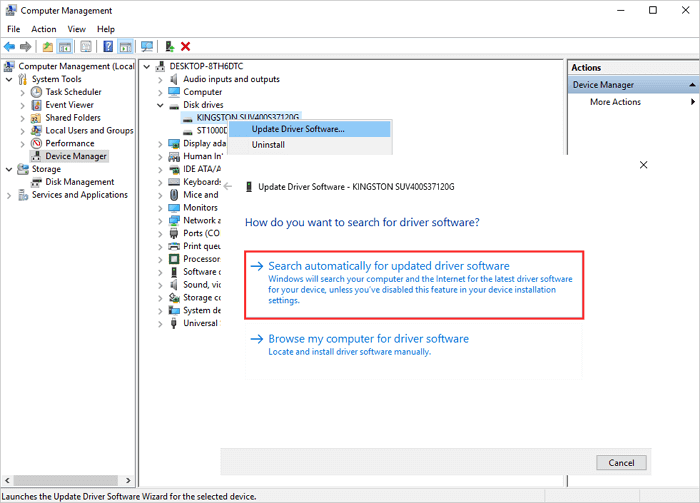
Step 1. To access the Device Manager, right-click "This PC" and select "Manage", then click on "Device Manager" on the left side.
Step 2. To update the disk driver, double-click on Disk driver in the Device Manager, right-click on your disk driver, and select "Update Driver Software" from the context menu.
Step 3.To update the driver software, go to the Device Manager, find the device you want to update, right-click on it, and select "Update driver". Then, choose "Search automatically for updated driver software" from the pop-up window. The computer will search and install the latest driver software, and you'll be done.
Re-install Disk Driver
If updating the driver doesn't work, you can try reinstalling the driver to see if it resolves the missing drive issue.
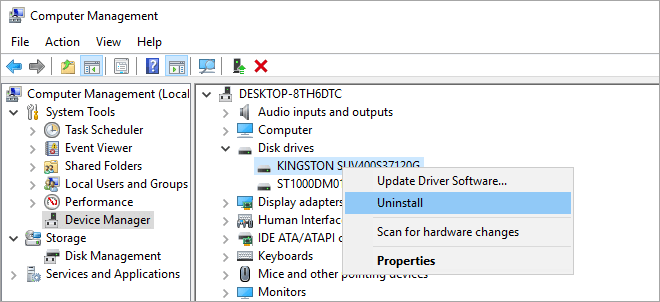
Step 1. Right-click the disk driver, click "Uninstall", then click "OK". Restart your PC and Windows will attempt to reinstall the driver.
Step 2. You can also check the company's website for the latest updates to download and install on your computer.
Fix 3. Re-assign the Drive Letter
If your hard drive is missing in File Explorer but visible in Disk Management as unallocated space and hidden, it's likely because the disk drive letter is missing. To resolve this, you can reset the drive letter.
Step 1. Right-click This PC, choose "Manage", then select "Disk Management".
Step 2. To troubleshoot a hard drive not being detected by the system, first, check the list of connected hard drives on your PC/laptop. Look for the one that is not being detected, which should be indicated as an unallocated partition.
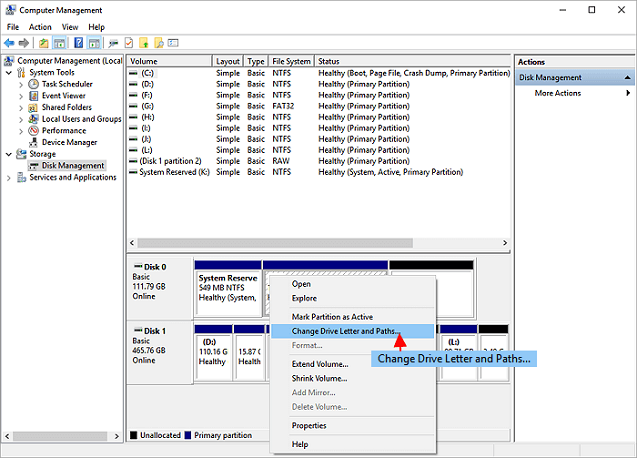
Step 3. Right-click on it and select "Change drive letter and paths".
Step 4. To resolve the issue of a missing hard drive, click on "Add" to open the "Add Drive Letter or Path" window. Select "Assign the following drive letter" and choose a drive letter to assign to the missing hard drive. After making this selection, reboot your computer and then check if the hard drive is visible in "This PC".
Fix 4. Run Hardware and Device Troubleshooter
To fix a missing hard drive in Windows 11/10, you can use the built-in hardware and device troubleshooter, which can help identify and resolve the issue without requiring manual intervention.
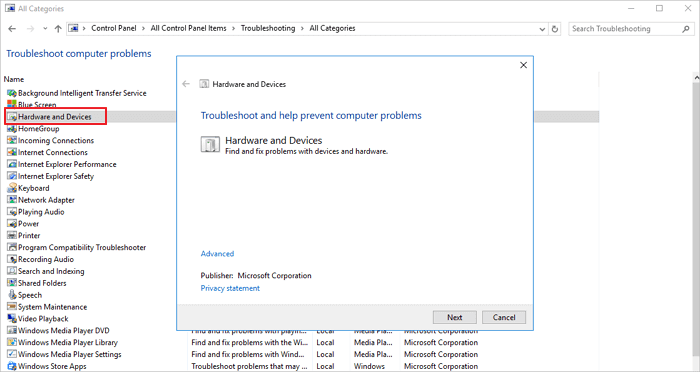
Step 1. Open Control Panel. Find "Troubleshooting".
Step 2. To resolve a hardware issue, start by clicking on the "View all" option on the left pane. Then, navigate to the "Hardware and Devices" section and run the troubleshooter. Follow the on-screen instructions provided by the troubleshooter to troubleshoot and potentially fix the problem.
Fix 5. Format the Hard Drive
If the above methods don't work, you can try formatting the hard drive for reuse, but be aware that this will erase all data on the device, so make sure to back up your data before proceeding.
If your hard drive is not showing up in File Explorer, you can recover your data using Deep Data Recovery. This competent data recovery utility is capable of recovering deleted files, formatted data, RAW data, and more, making it a reliable solution for various recovery needs.
1. Recover Data from Missing Hard Drive Windows 11/10
Qiling data recovery software allows you to recover data after a hard drive format, but it's recommended to recover data before formatting to ensure complete recovery. To recover data from a RAW partition, follow the steps below.
Step 1. Select file types
Launch Deep Data Recovery, select the file types you want to recover, and click "Fast Scan" to begin the recovery process.

Note: You can choose different search modes based on where and why the data was lost.
Step 2. Select and scan the RAW partition
If the RAW partition has a label, you can select it from the list and click "Scan" to search for lost files. If the partition has lost its label, it will be listed as "Lost Partition", and you can select it and click "Scan" to initiate a full scan on the RAW drive.

Step 3. Preview found data from the scan result
After the scan is completed, all available files in the RAW hard drive will be displayed, allowing you to view and find the files you want to recover. You can sort the scanned data by file format or search directly in the "Search files or folders" box.

Step 4. Recover data from RAW partition
Select all files and click "Recover" to get all the data back. Select another internal or external hard drive to save the recovered data and click "OK" to start RAW drive recovery.
2. Format Missing Hard Drive Effortlessly
Now that you have restored all the data from the missing hard drive, you can safely format the drive to resolve the hard drive missing problem after the Windows 10 update.
Format hard drive with a free partition management software
Qiling Partition Master Free is a smart partition management tool that helps you create, resize, clone, move, merge, and format partitions in an intuitive way. It provides all-in-one solutions to organize your disk or partitions, improving computer performance. With this tool, you can perform various disk/partition conversions, such as converting a logical partition to primary or primary to logical, FAT32 to NTFS, or MBR to GPT, and vice versa.
Step 1. Click the hard drive partition and choose the "Format" option.
Step 2. In a new window, configure the partition settings by setting the Partition label, File system, and Cluster size, then click Proceed.
Step 3. You can see a warning window, click "OK" to start formatting the hard drive partition. This will erase all data on the partition, so make sure you have backed up any important files before proceeding.
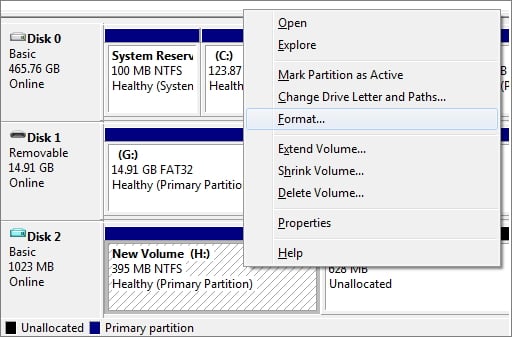
Format hard drive with Disk Management
Step 1. To access Disk Management, right-click on "This PC" and select "Manage". From the left-hand menu, click on "Disk Management".
Step 2. To format a target drive or partition, right-click on it and select the "Format" option.
Step 3. Select the file system and set the cluster size.
Step 4. Click "OK" to format the drive.
To Sum Up
Hard drive missing after a Windows update or hard drive disappearance in Windows 11/10, 8, or 7 can be frustrating. Fortunately, there are practical solutions to find missing D or C drives without losing any data. To resolve this issue, you can try checking the Disk Management console, using the DiskPart command, checking for disk errors, running a System File Checker, or using a third-party disk recovery tool. These solutions can help you recover your missing hard drive and access your files without any data loss.
If you're planning to format your hard drive, consider using a professional data recovery program to recover data first. Once you've done that, you can use a free partition manager software like Qiling to format the drive. This ensures that you don't lose any important files.
FAQs About Missing Drive Windows 11/10
If you're experiencing issues with your hard drive missing after a Windows 11/10 update, you can find solutions to these problems here.
How do I find a missing drive on my computer?
- If your external hard drive is not being recognized, try plugging it into a different USB port or using a different USB cable. This can help determine if the issue is with the drive itself or with the connection. If the drive still doesn't work, you may need to troubleshoot further.
- Fix 2. Update or reinstall disk driver
- Fix 3. Re-assign the drive letter
- Fix 4. Run hardware and devices troubleshooter
- Fix 5. Format the hard drive
How do I find my lost hard drive in Windows 11/10?
To find the lost hard drive in Windows 11/10, you can reset the drive letter in Disk Management, which can help you recover the missing drive.
Step 1. Right-click on "This PC" and select "Manage". Then, click on the left side to open "Disk Management".
Step 2. Right-click the missing drive and choose Change Drive Letter and Paths from the menu.
Step 3. Click the "Add" button in the pop-up window, select "Assign the following drive letter" and choose a letter from the drop-down menu, then click "OK".
How do I see all drives in Windows 11/10?
For Windows 11, 10, 8, and 7 users, you can view all available drives in File Explorer. Simply press Win+E to open File Explorer, select "This PC" in the left pane, and all drives will be shown on the right.
Why did my hard drive disappear?
There are some possible reasons for Windows 11/10 hard drive missing. They can be:
- The USB cable or USB port can stop working.
- The disk driver needs to be upgraded.
- The drive letter of the partition is missing.
- The File system of the hard drive is corrupted.
- The disk partition became RAW
Related Articles
- Format SanDisk SD Card|How to Format SanDisk SD Card on Windows 10 and Mac
- 8 Solutions to Fix NTLDR Is Missing in Windows 10/8/7
- How to Partition 1TB Hard Disk in Windows 11/10/8/7
- [SD Card Unavailable] Fix SD Card Wont Mount on Android & PC
- How to Format the Write Protected Flash Drive
This page provides a detailed guide to solving the flash drive is write protected error. Read this article and follow the instructions to get your problem fixed. - How to Format Write-Protected USB with Virus, Help
How to format a hard drive write-protected by virus? This short article provides a detailed guide on this issue. Dive into it and find the answer you want.
Products
Articles & Tutorials
- Data Recovery
- Data Backup
- File Recovery
- File Backup
- System Backup and Restore
- Disk and Partition Clone
- Technical articles
- Mobile articles
- Disk Master Help
- Windows Data Recovery Tutorials
- Windows Secure Delete Tutorials
- Windows Partition Management Tutorials
- Windows File Backup and Restore Tutorials
- Windows System Backup and Restore Tutorials
- Windows Disk Backup and Restore Tutorials
- Windows Clone Tutorials