ISO Mounted but No Drive Letter in Windows 11 26H2
Quick Navigation:
- What the Mount Leaves Behind
- Identify the Orphan Volume
- Assign a Letter and Read It
- Clear the Ghost Device
- Frequently Asked Questions
Windows 11 26H2 (build 26300.9818) changed the way the built-in ISO mounter attaches an image, and on some machines it now creates the virtual drive and the volume but never completes the letter assignment. Explorer shows nothing, double-clicking the ISO does nothing the second time, and Disk Management gains a volume with no letter that cannot be opened. The stale device node stays in Device Manager as a Virtual DVD-ROM with no media until it is removed.
What the Mount Leaves Behind
Mounting an ISO normally creates two objects: a virtual optical drive in the device tree and a volume on that drive, which is then given a free letter. In the faulty build the second step is skipped when the image uses UDF and the letter pool is under pressure, so the volume exists with a valid file system and no mount point.
The device side fails separately. The virtual DVD-ROM is registered with the driver but never receives a ready notification, so it stays in the device list with a warning flag and no media. Each new mount reuses that instance, which is why the problem repeats instead of clearing when the image is unmounted.
Nothing on the disk is damaged by this. The ISO file is read only, no real partition is touched, and the data inside the image is intact. The work is to reach the volume, copy what is needed, then remove the leftover objects so the next mount starts clean.
Identify the Orphan Volume
Open the disk map and look for a volume without a letter that sits on a device with an optical bus type rather than on a physical disk. Its size matches the ISO rounded up to 2048-byte sectors, its file system reads as UDF or CDFS, and its used space equals its full capacity because an image is fixed in size.
That last detail separates the orphan from a real hard disk volume that lost its letter. A data partition without a letter shows NTFS or exFAT, has used space below its capacity, and usually appears on a disk that also holds other partitions. The orphan appears on a virtual device that exists only while the image is attached.
A missing physical DVD drive is a different failure. If the machine has an optical drive that no longer appears at all, the cause is the SATA connection, the drive itself, or a filter driver, and the fix starts in the firmware setup rather than in the mount service. The orphan volume, by contrast, disappears when the image is detached and returns with the next mount.
Note the device number before you change anything. Two mounted images produce two orphan volumes with identical sizes, and removing the wrong one ejects an image that another program is still reading.
Assign a Letter and Read It
Windows Disk Management can attach a letter to the orphan volume: right-click the volume, choose Change Drive Letter and Paths, click Add, and pick a free letter. Disk Management is a built-in Windows tool and is not part of Qiling Disk Master, so treat it as a diagnostic step rather than as the repair.
The command sometimes stays greyed out on a virtual optical volume, and that greyed-out menu is the point where a partition tool is faster. Assigning a drive letter from a disk map works on the same volume without waiting for the mount service to cooperate.
Once the letter appears, open the volume in Explorer and copy the files you need to a real disk before anything else. Then remove the temporary letter, or leave it only if the image stays mounted for the session; a letter attached to a virtual volume can collide with a USB drive that is plugged in later.
The Windows Device Manager is the other built-in tool that matters here. It lists the ghost Virtual DVD-ROM under DVD/CD-ROM drives, and it does not remove the volume itself, which is why the volume and the device have to be cleared in that order. If the entry is hidden, enable Show hidden devices before you look for it.
Clear the Ghost Device
Qiling Disk Master shows the virtual volume on the same map as the physical disks, so the orphan can be found by size and bus type and removed without touching a real partition. Copy the image contents out first, since deleting the volume detaches the image.
Step 1. Find the Volume With No Letter
Open the disk map and compare the volume sizes with the ISO you mounted. Select the volume without a letter that sits on the virtual optical device, and confirm the capacity matches before you act on it.

Step 2. Delete the Leftover Volume After Copying
Once the files are on a real disk, right-click the orphan volume and choose Delete. Read the confirmation, which names the volume and its size, and continue only when both match the virtual image. The real disks in the list are not part of this operation.
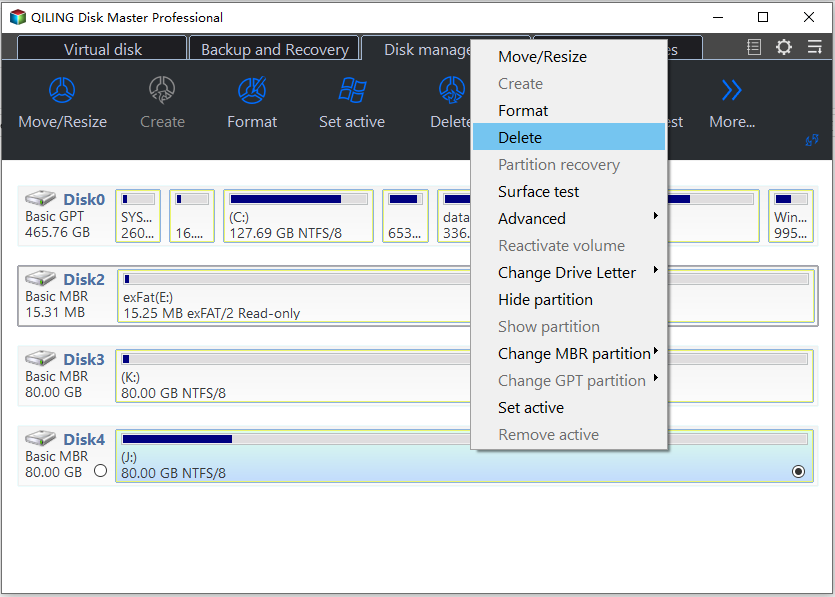
With the volume gone, open Device Manager, enable Show hidden devices, right-click the greyed Virtual DVD-ROM entry, and uninstall it. Then mount the ISO again; a fresh device instance should now receive a letter, which confirms that the stale entry was the cause.
Frequently Asked Questions
Can deleting the orphan volume damage a real disk?
No, provided the volume you select belongs to the virtual optical device. Check the bus type and the exact capacity against the ISO first, because a data partition of the same size can look similar in a list.
Why does the ISO mount without a letter every time?
The old device instance is reused and it never completed the ready step. Clear the ghost entry in Device Manager, then mount again so Windows creates a new instance with a free letter.
Is the ISO file itself damaged by this bug?
No. The image is opened read only, and a failed mount leaves the file byte for byte unchanged. A hash check against the vendor value will confirm it.
Related Articles
- Burn an ISO to USB in Windows 11
- ISO Is Corrupted: How to Fix the Image
- Unable to Download the Windows 11 ISO
- Change Drive Letter and Paths Greyed Out
- Three Ways to Assign a Drive Letter
Products
Articles & Tutorials
- Data Recovery
- Data Backup
- File Recovery
- File Backup
- System Backup and Restore
- Disk and Partition Clone
- Technical articles
- Mobile articles
- Disk Master Help
- Windows Data Recovery Tutorials
- Windows Secure Delete Tutorials
- Windows Partition Management Tutorials
- Windows File Backup and Restore Tutorials
- Windows System Backup and Restore Tutorials
- Windows Disk Backup and Restore Tutorials
- Windows Clone Tutorials